Are you looking for an easy and effective way to optimize your social media strategy?
Social media is a big and noisy place. As a result, it’s easy for your marketing message to get lost in the noise.
The best way to prevent that is with a solid social media strategy in place. This will help guide your actions on social media to help attract your ideal audience, engage them and help you reach your marketing objectives.
That said, creating a social media strategy is only the first step; then, you have to actually run your social media campaigns, track your results religiously, update your strategy accordingly and rinse and repeat with multiple campaigns.
In this blog post, discover the step-by-step process to achieving a successful social media strategy.
But first, what are the vital elements of an effective social media strategy? Let’s check them out.
- Social media management: do you have to spend all day on social media? With effective social media management, you only need to spend a few hours weekly using a social media tool and creating all the content you want to share for the week. You can schedule posts, engage with your audience, and coordinate all of your tasks in one place.
- Social media listening: following your brand mentions can help you attend to customer complaints, find lead acquisition opportunities, and improve customer service. But more than that, you can find your competitors’ and industry mentions to follow the latest trends and exploit them in your marketing.
- Social media analytics: without analytics, it’s difficult to track your social media campaign’s performance. Based on your goals, you should track metrics that show the failure or success of your campaigns, as well as to help you understand what you’re doing right and what you’re doing wrong so that you can keep improving your strategy.
- Competitor analysis: when you follow up with your competitors, you have two major targets: to see the edge they have over you and the weaknesses you can capitalize on. By doing this, you can improve your strategy for better results.
How to optimize your social media strategy with Metricool
As I mentioned earlier, one of the essential tools you need when you use social media marketing in any way, is powerful analytics. You need to be able to understand what works, what doesn’t, what your competitors are up to and what kinds of results they’re getting, how your ads your performing and, ultimately, whether you’re reaching your marketing objectives or not.
This is very valuable information not just because it helps you understand what you’re doing and what results you’re getting, but also because it can help you improve your results by showing you what to change in your strategy and/or campaigns.
And this is where Metricool comes in; I just tried out this powerful social media analytics tool and provides pretty much all the tools you need to shape and update your social media strategy. Most notably, you can use it to:
- Schedule and share your social media updates
- Analyze your competitors
- Track performance with vital metrics
- Track your ads performance
- Create reports
First of all, visit the Metricool website and click the “Login” button. If you don’t have an account, you can sign up for free! Let’s take a closer look at all the major features present:
[click_to_tweet tweet="The easy and effective way to optimize your social media strategy with @metricool #socialmedia #socialmediatools" quote="The easy and effective way to optimize your social media strategy with @metricool #socialmedia #socialmediatools"]
Social media analysis tools
Improving your performance on social media goes beyond sharing updates and hoping. You need to track vital metrics that indicate actual social media performance.
To do this, you can connect your social media accounts for:
- Google My Business
Furthermore, you can add your website/blog, Facebook Ads, and Google Ads. On my Twitter account, here’s an overview:
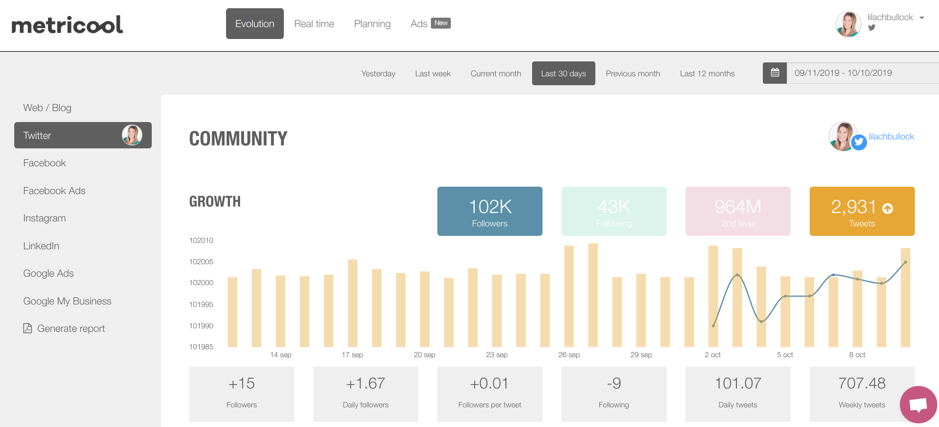
There are general metrics like followers, following, and tweets in the last 30 days. But below that, you can see the number of added followers, lost followers, followers per tweet and daily followers.
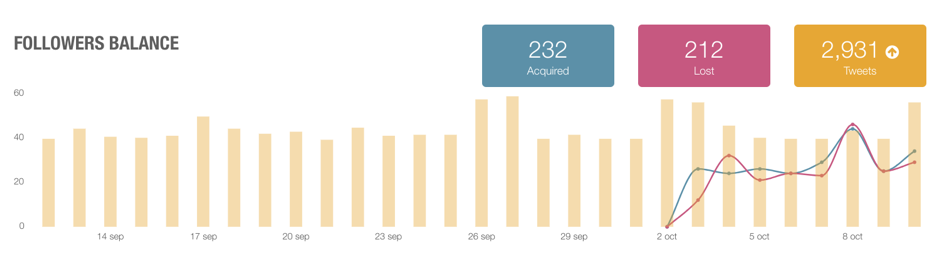
When you scroll down, you’ll see a breakdown of your followers.
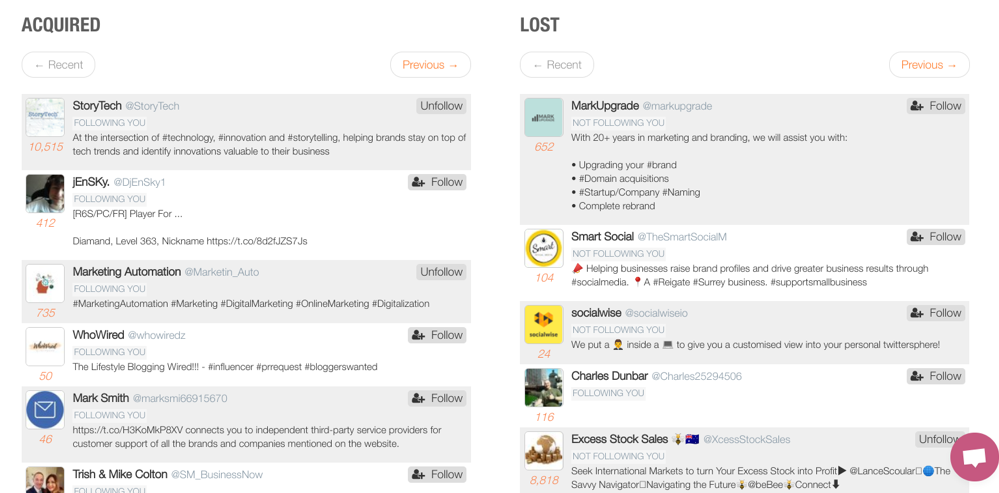
And even beyond that, you can see the accounts that followed you and those that unfollowed you.
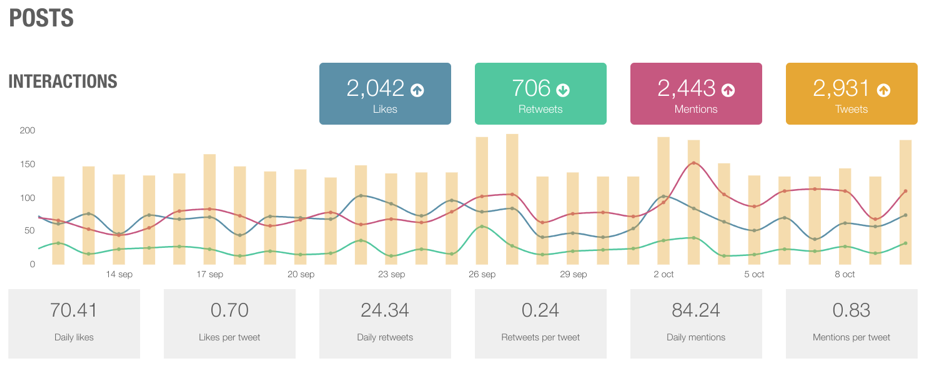
When you scroll down the page, you’ll see more details about your tweets. Here, you’ll find the total number of likes, retweet, mentions, likes per tweet, retweet per tweet, mentions per tweet and others.
Now, what are your highest-performing tweets during this period? These are presented with their metrics. To have a permanent copy, you can download the table in CSV format.

To access analytics about your Facebook page and group, you’ll have to connect them to your Metricool account.
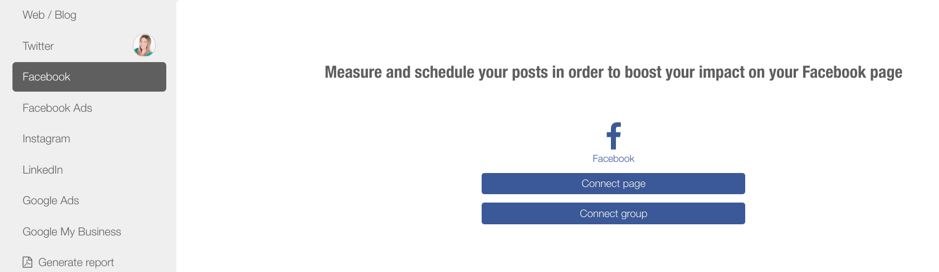
After doing this, you can see the number of likes, impressions, and page views of your page.
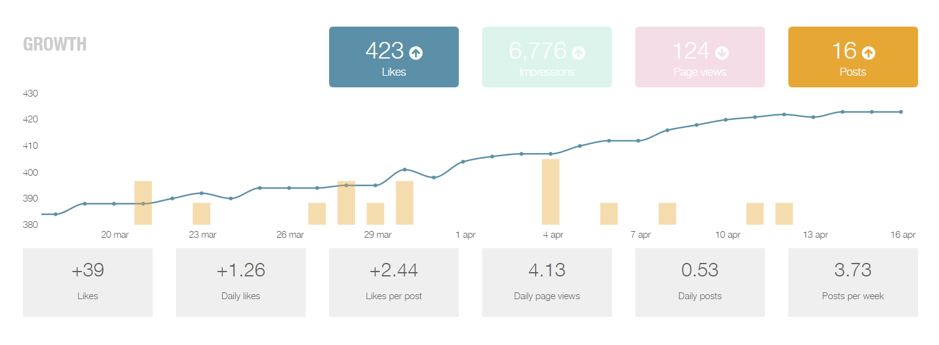
Below these, you can see the number of likes acquired and lost. A metric you’ll likely find very useful is a breakdown of your page followers. This shows their gender and age as well as their location.
This helps you to understand your audience better and send relevant messages to them.
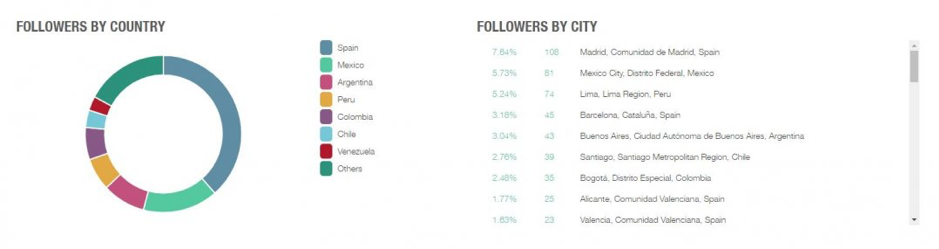
On Metricool, it’s easy to add your other social media accounts and find important metrics about your followers and updates.
Social media management
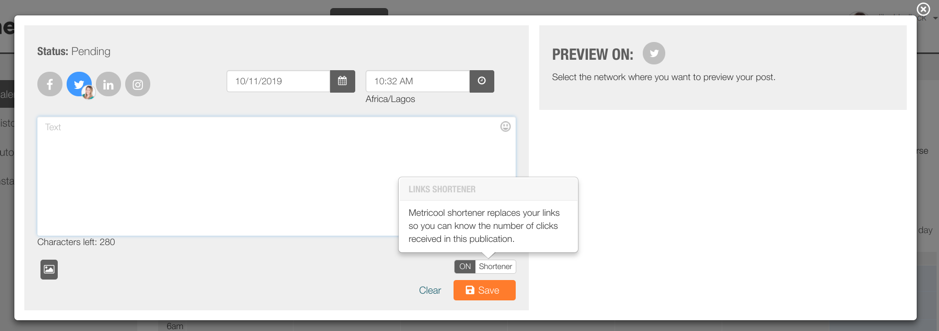
To satisfy your followers, you can share as many updates as you want from your Metricool dashboard. Click “Planning” in the navigation bar.
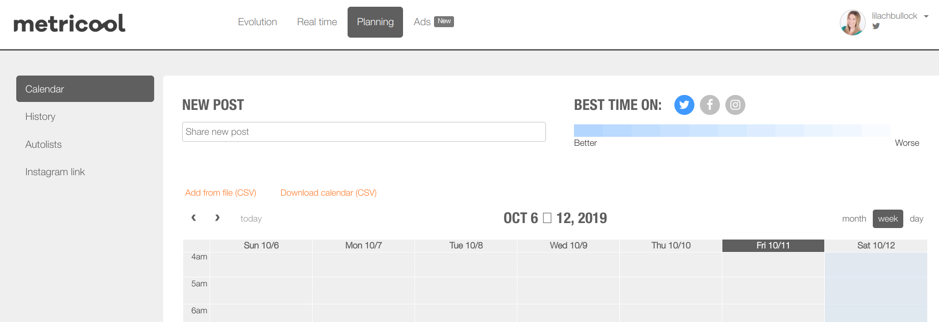
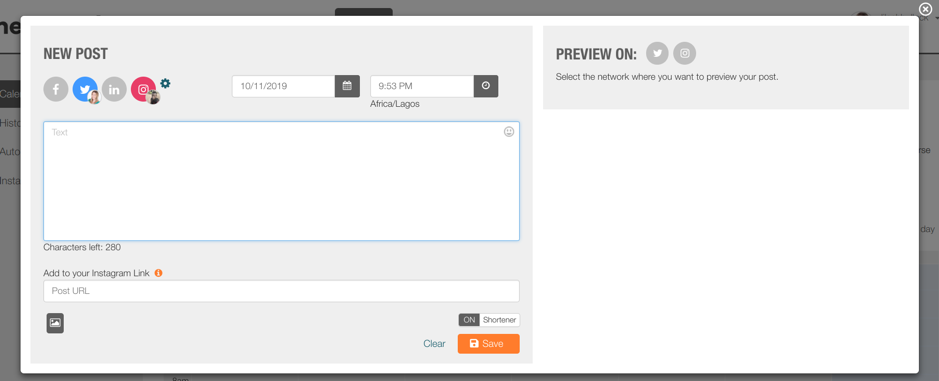
To share an update, click on the box below “New Post.” Once you do that, a popup will appear.
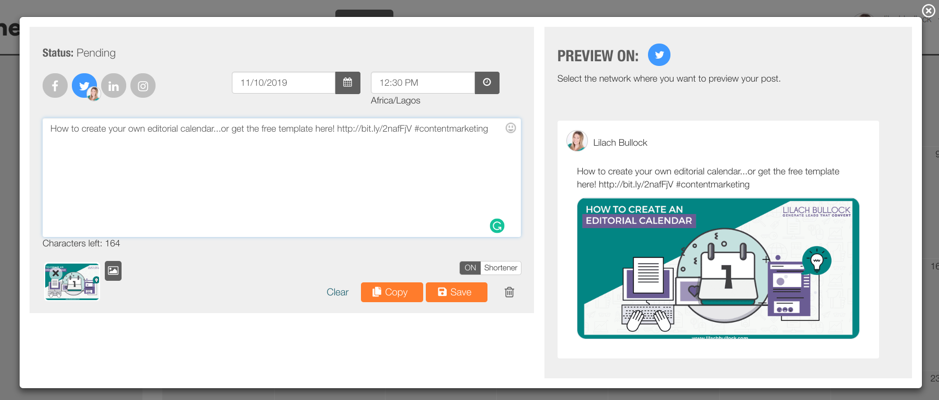
You’ll see the social media networks you can post to, the date you want to publish the post, and the time. You can also add images to your updates, use the URL shortener to track clicks, and see a preview on the right side.
I’ve scheduled a post to be published in November and you can see the preview which includes the image I uploaded.
After doing this, you’ll see the update on your social media calendar.
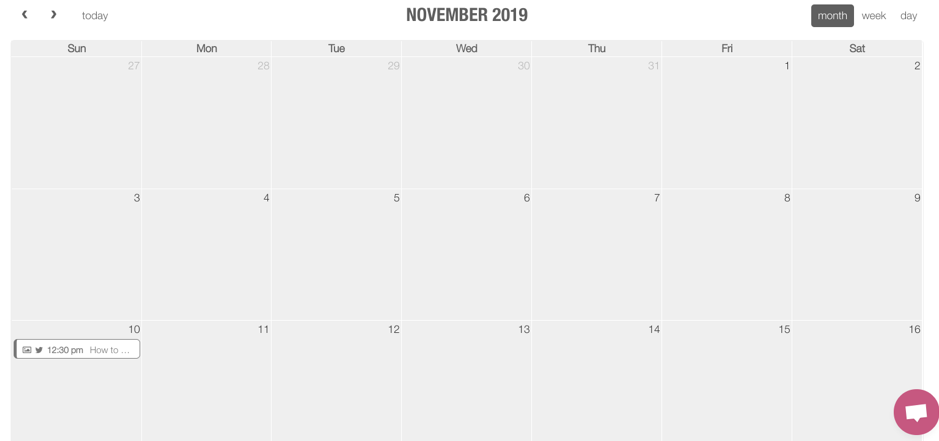
Having said that, how exactly can you use the calendar to plan your social media activities?
[click_to_tweet tweet="The easy and effective way to optimize your social media strategy with @metricool #socialmedia #socialmediatools" quote="The easy and effective way to optimize your social media strategy with @metricool #socialmedia #socialmediatools"]
Metricool provides the calendar view using the day, week, and month periods. You can see the time of the days during a week to schedule your posts. And even more, this tool shows the best and worst times to share an update during the day.
Here’s the scale:
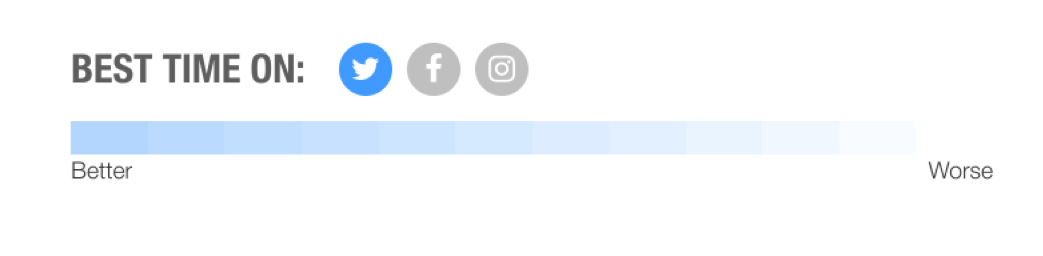
And the colour is evident when you look through your calendar so that you can tell when you should post more updates and when you probably don’t need to:
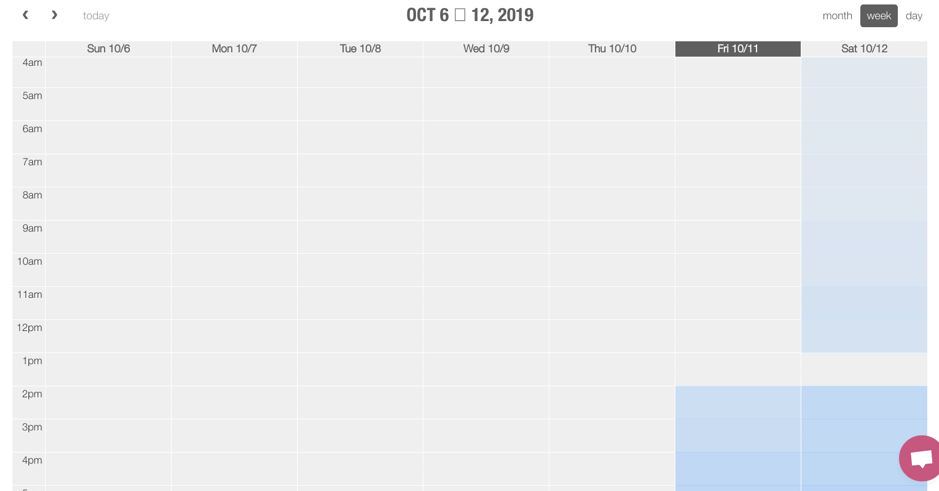
With this, it’s easy to schedule your posts to appear at the times when your audience is likely to see and engage with them.
Competitor analysis
As good as your social media strategy may be, you can learn one or two things from your competitors. Apart from that, you learn new trends in your industry and see your competitors’ shortcomings.
To add a competitor, scroll down your analytics for a social media channel. You’ll see the “Competitors” tab.
Click the “Add competitor” link to add your competitors. Since I’m adding a competitor under my Twitter account, all I have to enter here is their Twitter handle.
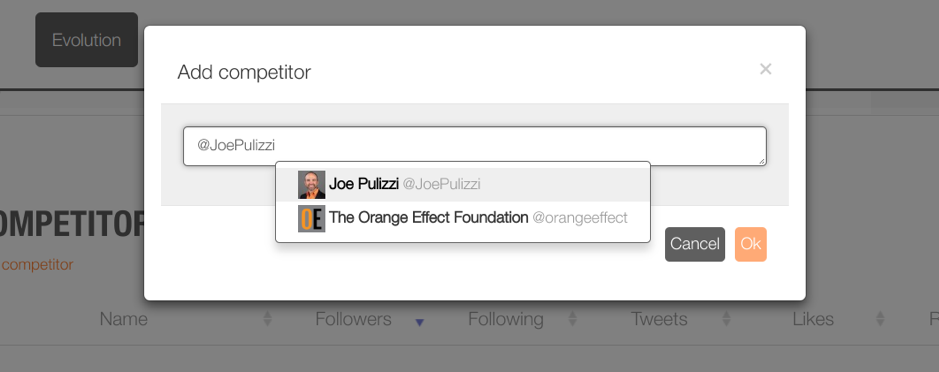
After adding 4 competitors, the “Competitors” section looks like this:
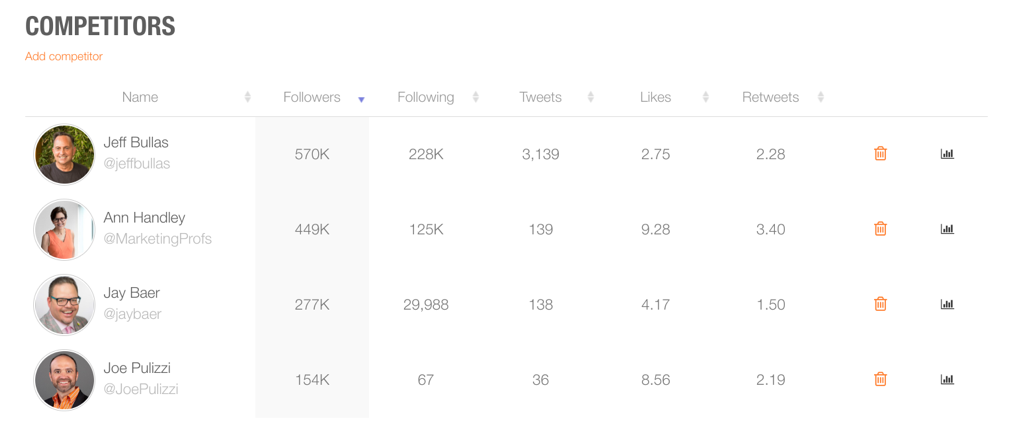
To get more details on each competitor, click on the chart icon at the end of the line of metrics.
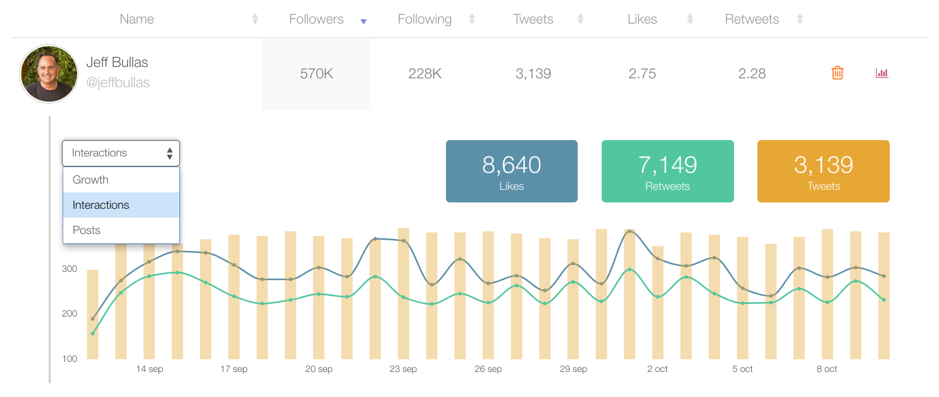
Apart from viewing your competitors’ metrics here, you can also have direct benchmarking with a specific competitor. To do this, click “Real time” at the navigation bar and “Twitter” at the left bar.

You’ll notice here that I’m yet to add a competitor. To do that, click “Add competitor.”

Once you add the competitor, their metrics will appear comparatively to yours.
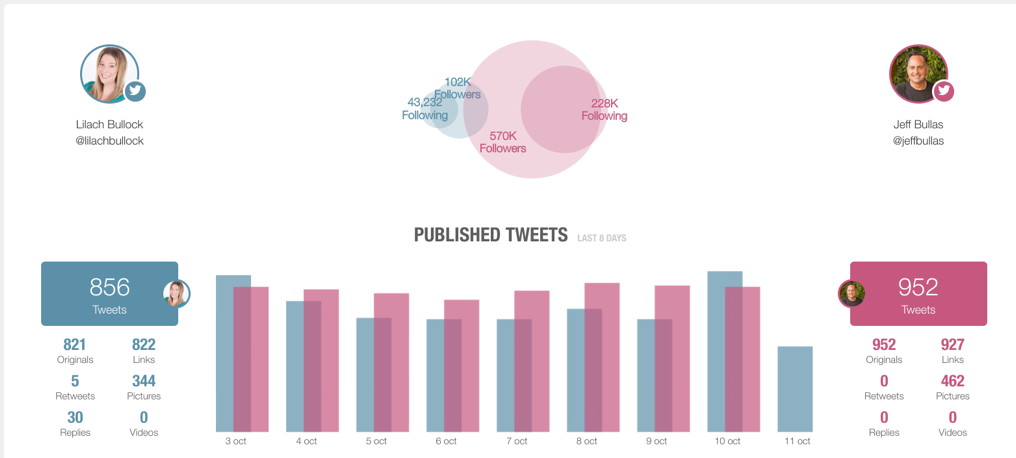
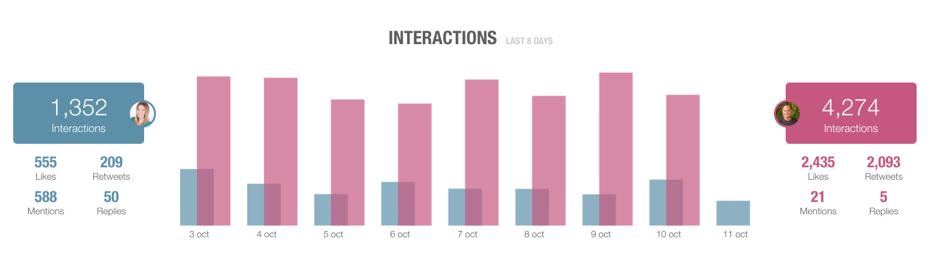
Scrolling further down the page, you’ll see the interactions breakdown.
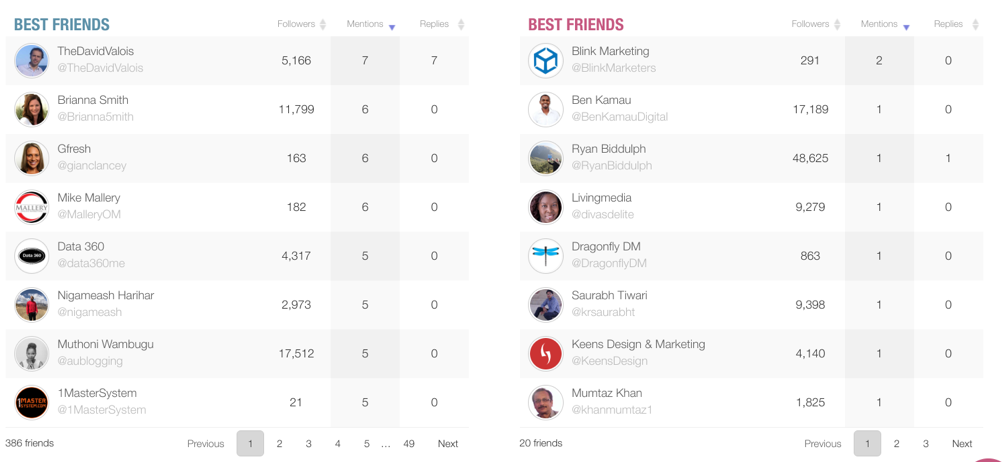
Below that, there are best friends of each account based on their interactions with your updates – i.e. the accounts each one interacts with the most.
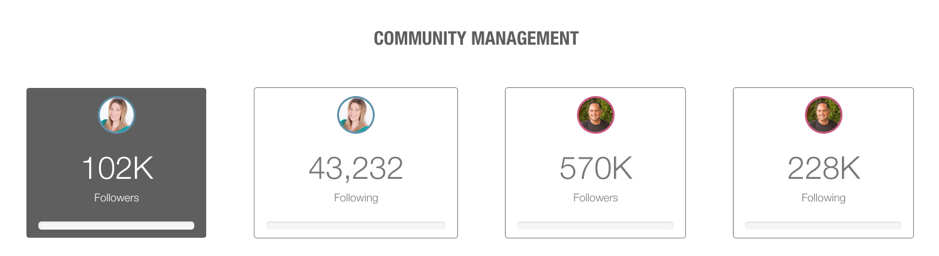
After that, community management shows followers and the people your competitor is following. This can give you an idea of some new and interesting people to follow.
You can follow these steps to set up these metrics for other social media channels as well – but since Twitter has always been my favourite, I chose it for the example 🙂
Hashtag tracker
The hashtag tracker allows you to track important hashtags in your industry, which can be extremely useful when tracking a social media campaign – whether you use your own branded hashtag or not.
By tracking hashtags, you can get metrics that show the hashtag’s performance. Apart from that, you can also track your competitor’s hashtags.
Want AI doing the heavy lifting in your marketing?
I build the systems that handle the boring 80 percent, so you get your week back. Done properly, with the human kept in.
[click_to_tweet tweet="The easy and effective way to optimize your social media strategy with @metricool #socialmedia #socialmediatools" quote="The easy and effective way to optimize your social media strategy with @metricool #socialmedia #socialmediatools"]
The beauty of the hashtag tracker is that it can also track any other words. This makes it a great tool for listening. Easily, you can track your business, competitors, and industry mentions.
Here are examples of hashtags that have been tracked over time:
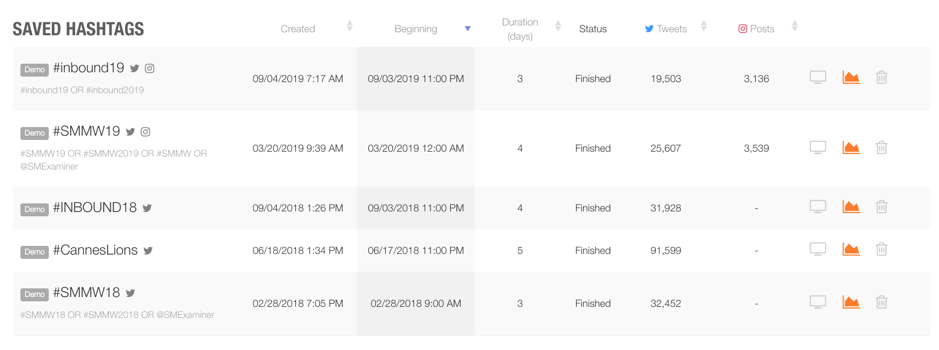
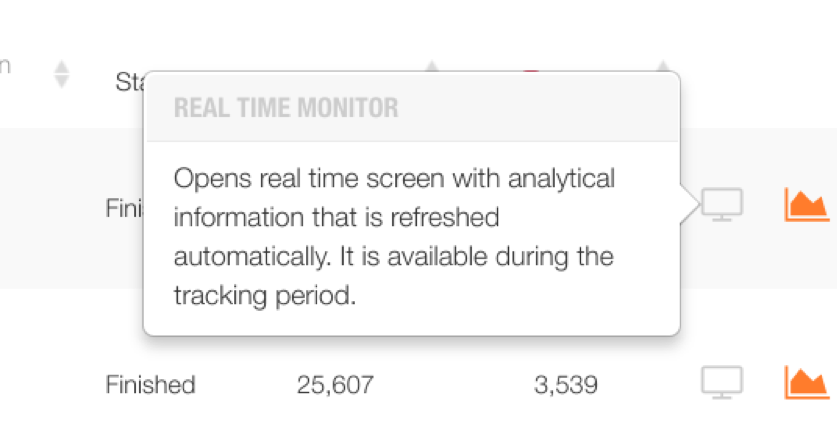
The real-time monitor shows information about your hashtag/s during the tracking period.
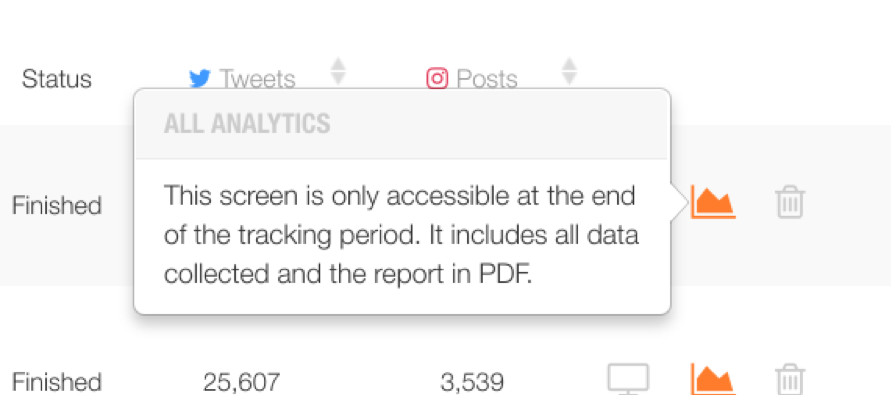
You can see data about your hashtag/s after the tracking period by clicking on the graph.
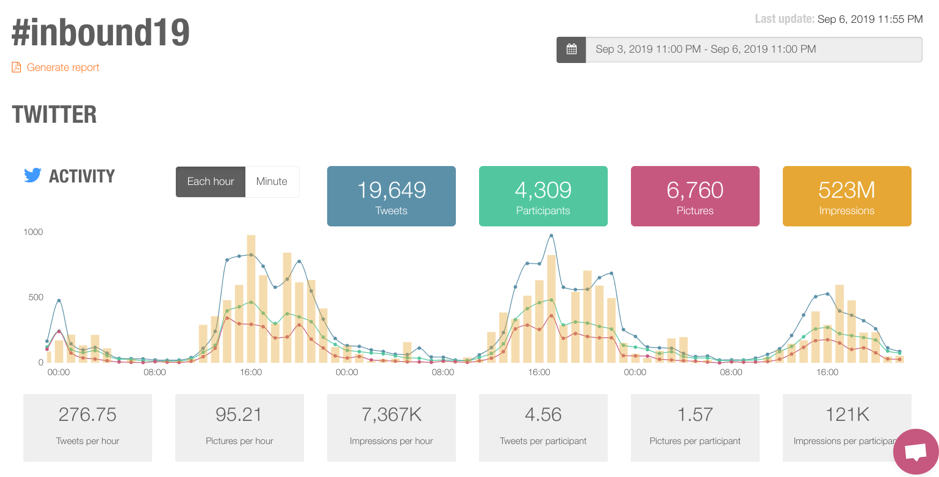
When I click on the graph for #inbound19, it opens a new tab with a huge amount of information about the hashtag. First of all, the period of tracking is evident at the top. Then, there are details like the number of tweets, participants, and impressions.
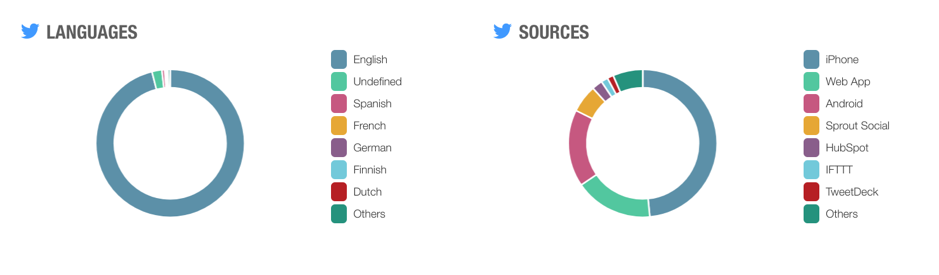
Below that, you can see the languages and sources.
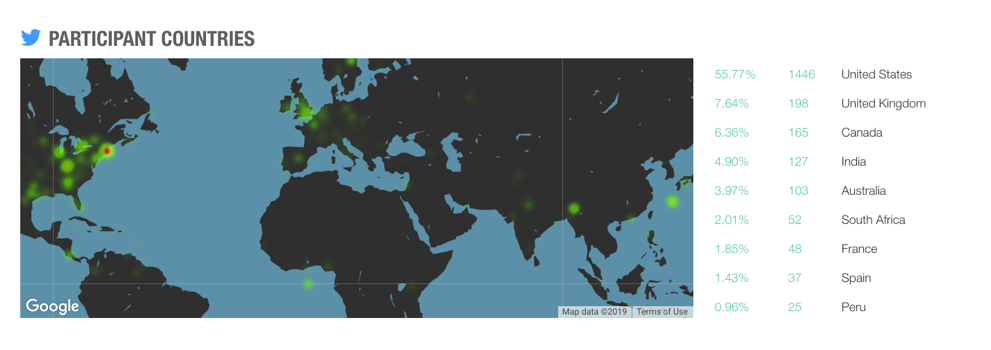
When you scroll down, you’ll see the participant countries based on the number of tweets.
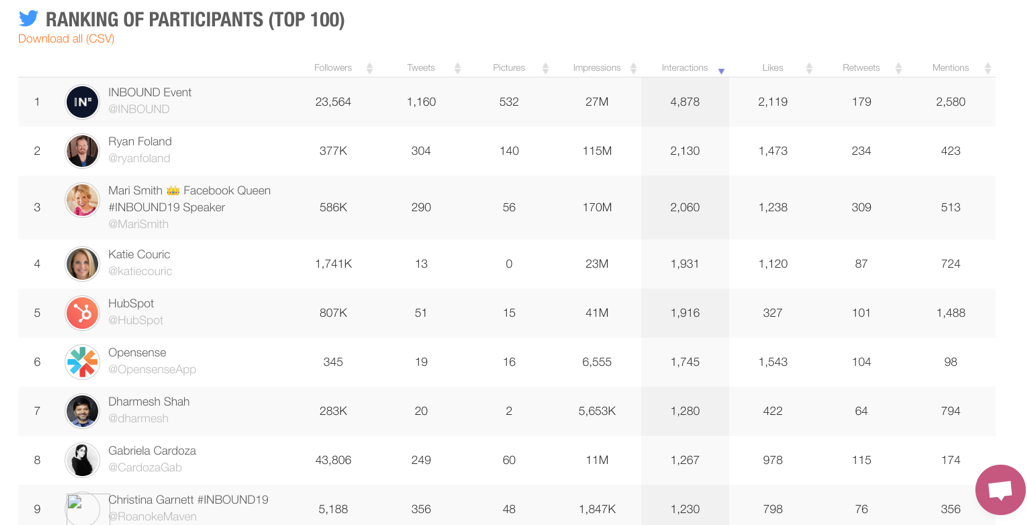
A vital metric you’ll find is the top participants for that hashtag.
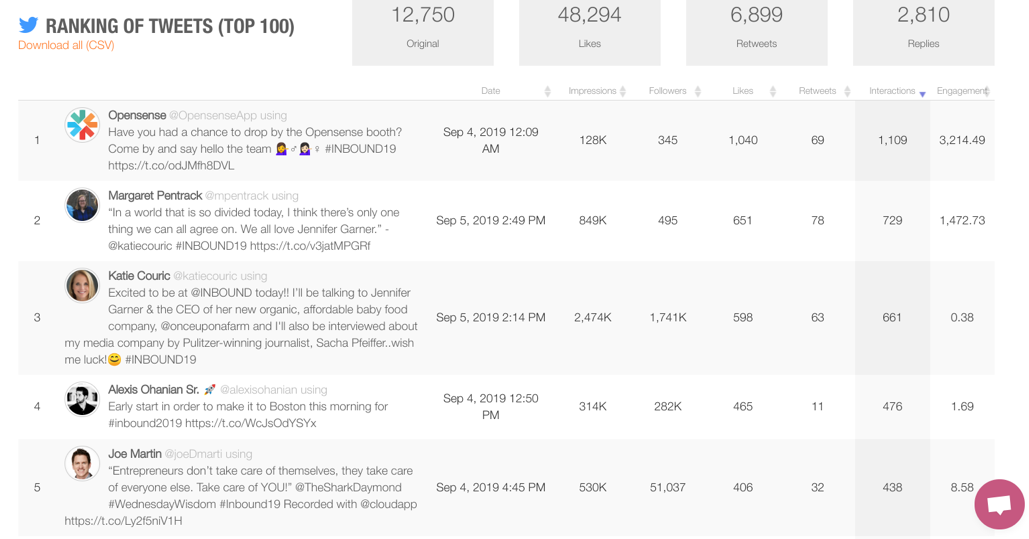
Another vital metric available are the top tweets.
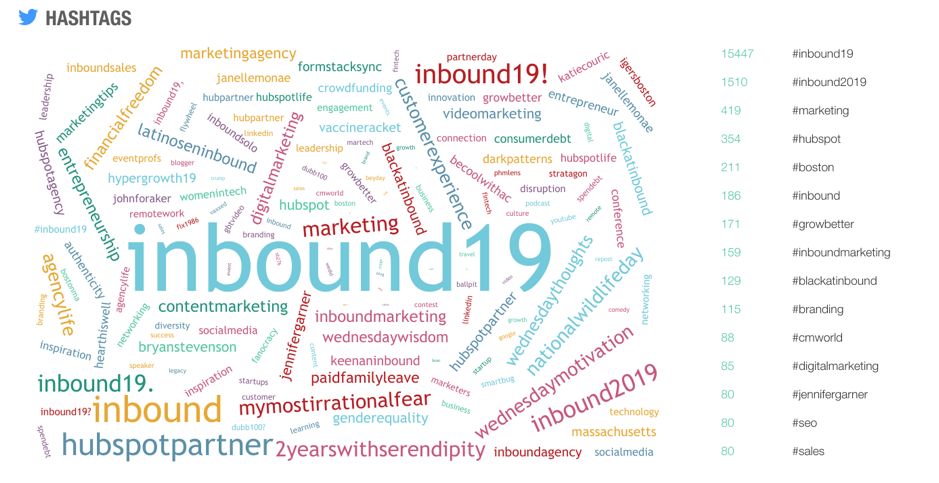
When you scroll further down, there are hashtags similar to the tracked hashtag and their usage frequency, to help you find better hashtags for your campaigns:
And there are even top images featured along with the hashtag.

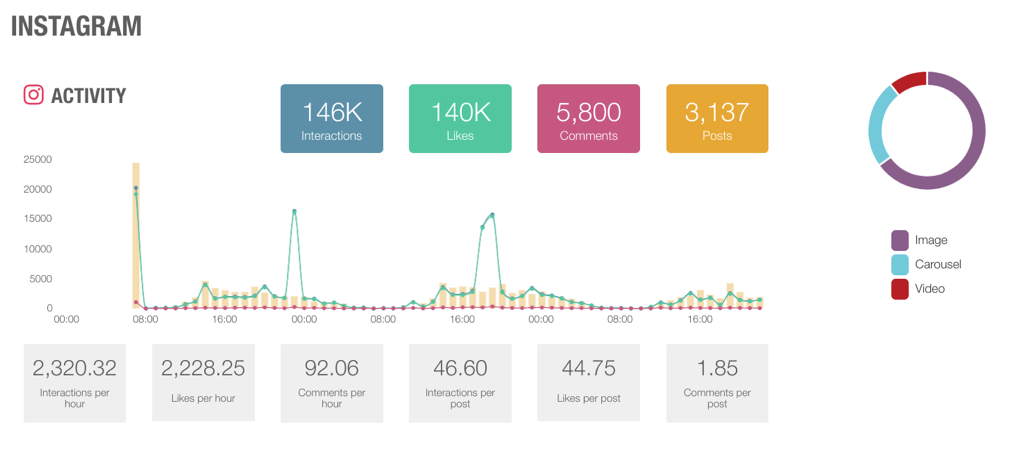
Apart from tracking the hashtag on Twitter, you can also do so on Instagram. Here are the activities summary and the type of posts shared.
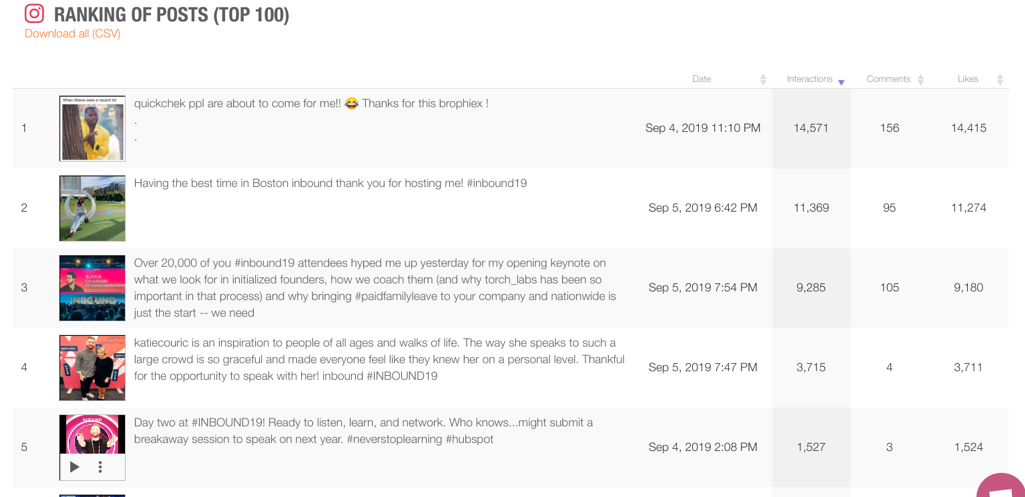
Below that, there are the top 100 posts featuring the hashtag.
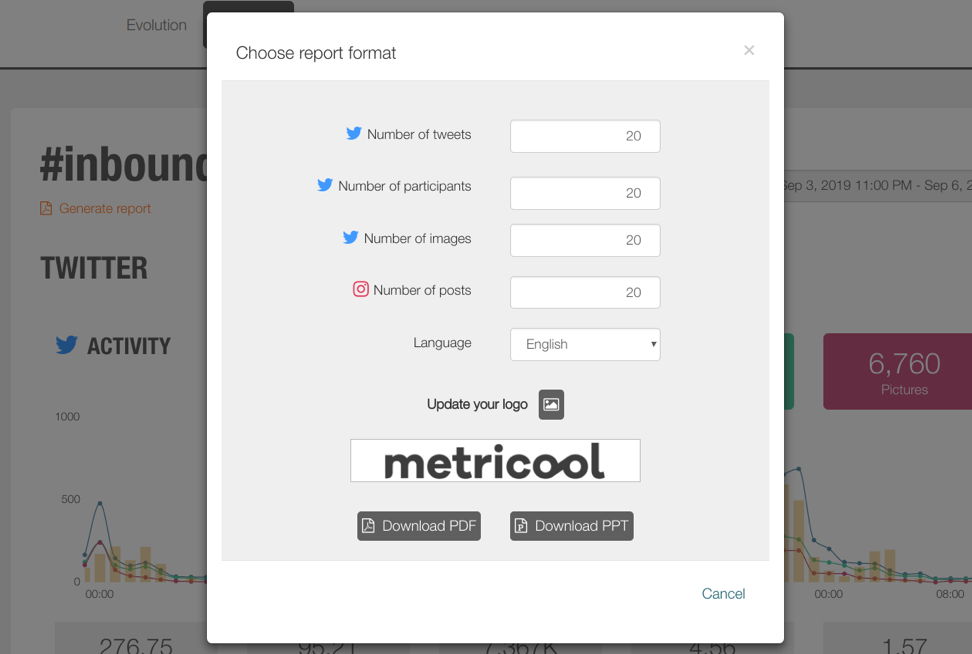
With this level of details about a hashtag, it’s easy to track the performance of your campaigns if you’ve used a hashtag. And even more, you can download the CSV format of each section or the entire report in PDF format.
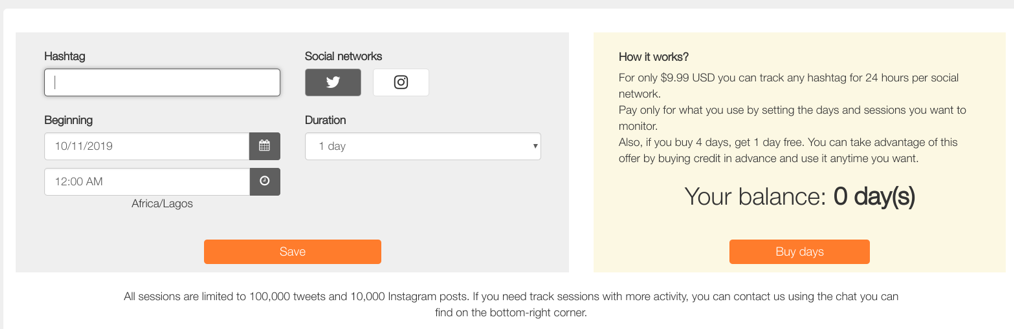
You can track your new hashtag or word when you fill the details in the form provided by Metricool.
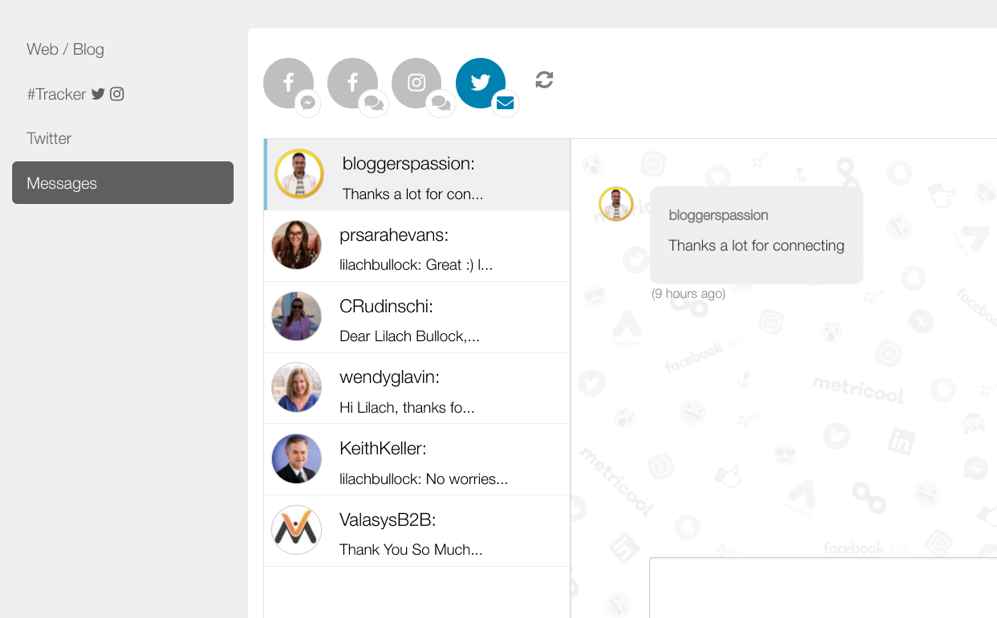
Likewise, in the “Real time” section, you can view messages sent to you on social media and reply right in Metricool.
Instagram bio link
Getting Instagram users to your website is difficult. Unless users click your website link in your bio or you run ads, there are no other obvious options.
With Metricool though, you can refer users from your Instagram posts to your website pages. This is one of the standout features that will probably get a lot of you Instagram users very excited 🙂
[click_to_tweet tweet="The easy and effective way to optimize your social media strategy with @metricool #socialmedia #socialmediatools" quote="The easy and effective way to optimize your social media strategy with @metricool #socialmedia #socialmediatools"]
To add a link to your image, click “Planning” at the navigation bar and “Instagram link” at the left bar.
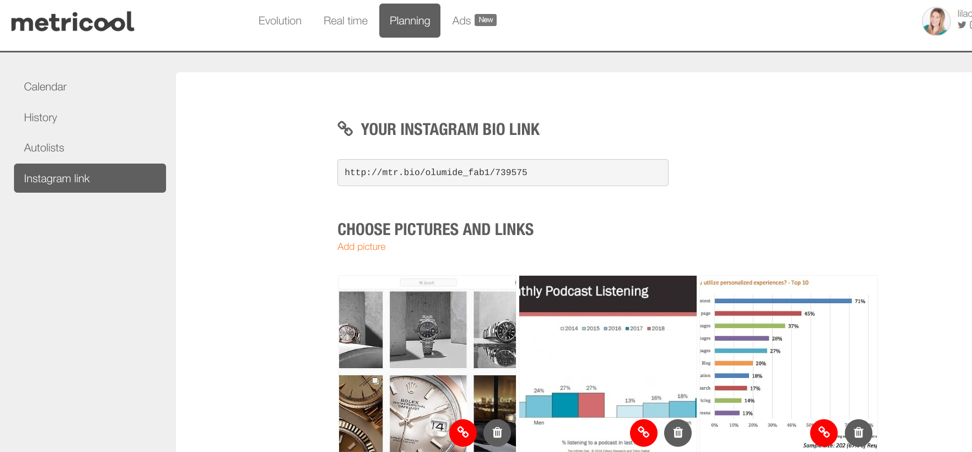
You can use the “Add picture” link to add a picture from your Instagram profile. There’s the red link button to add a link to a specific image. When you click on it, you can enter your URL and save.
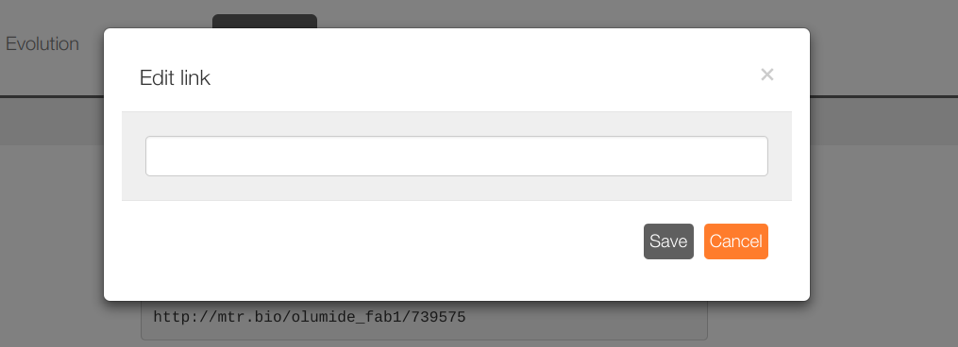
Alternatively, you can add a link from the Metricool content planner. When you’re about to schedule a post to Instagram, there’s a box below to add your Instagram link. And you can now bring users from Instagram to your website easily – and start driving some real traffic for Instagram.
Facebook and Google Ads
On Metricool, you can now view your Facebook Ads and Google Ads statistics. This will help you track your campaign performance and make necessary adjustments.
After connecting your Google Ads account, you get details about your campaigns such as clicks, CPC, the amount spent, and others.
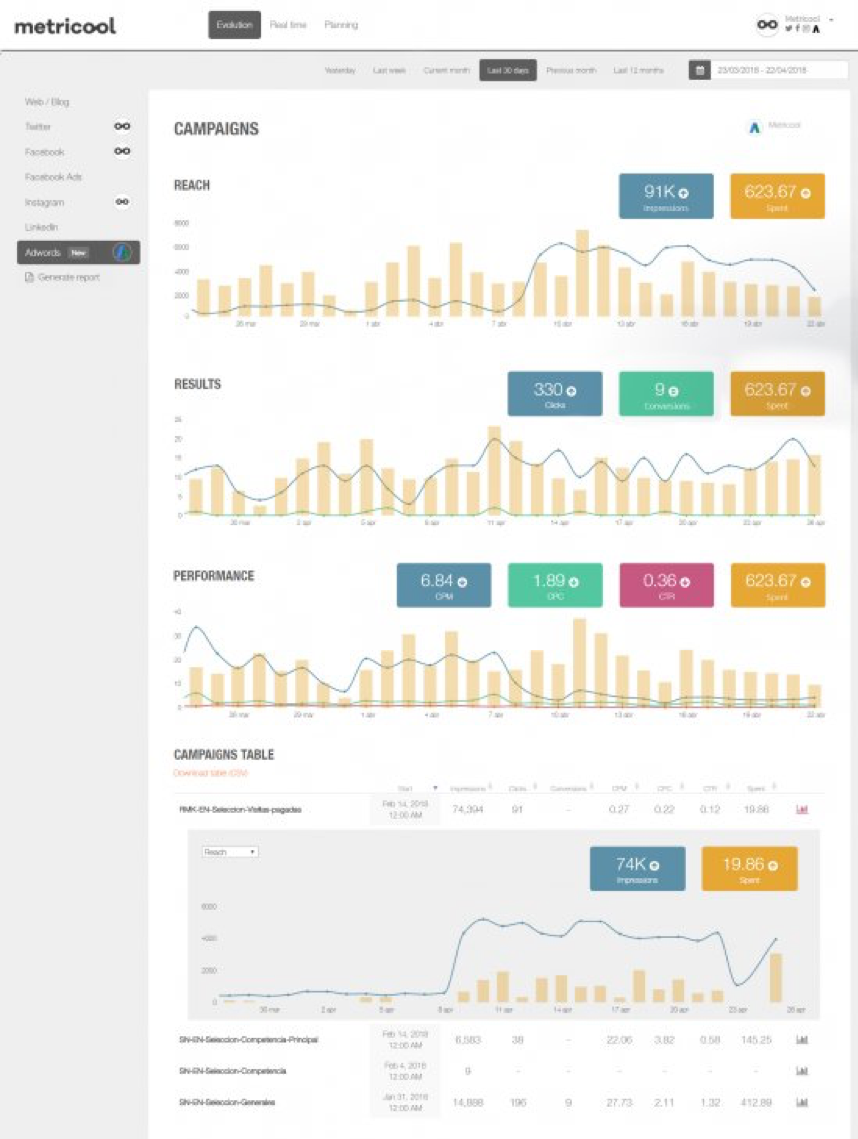
Added to these metrics, you can also use the keywords tab to generate the quality score for the keywords used in your campaigns.
When you connect your Facebook Ads account to Metricool, you can find similar metrics to what you’ll see on Google Ads.
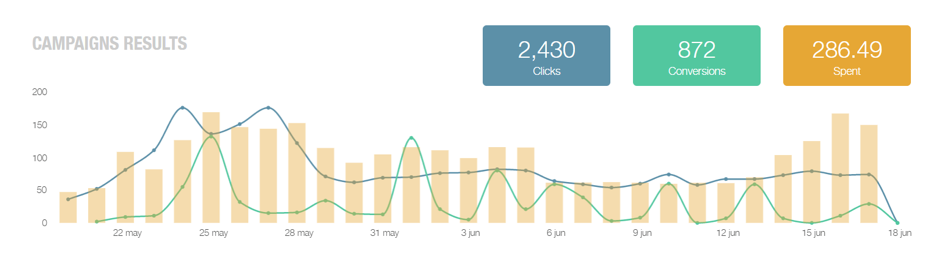
This is another big standout; I love the fact that I can track all social media in one place, along with any ad campaigns, instead of using several tools at the same time.
Reports
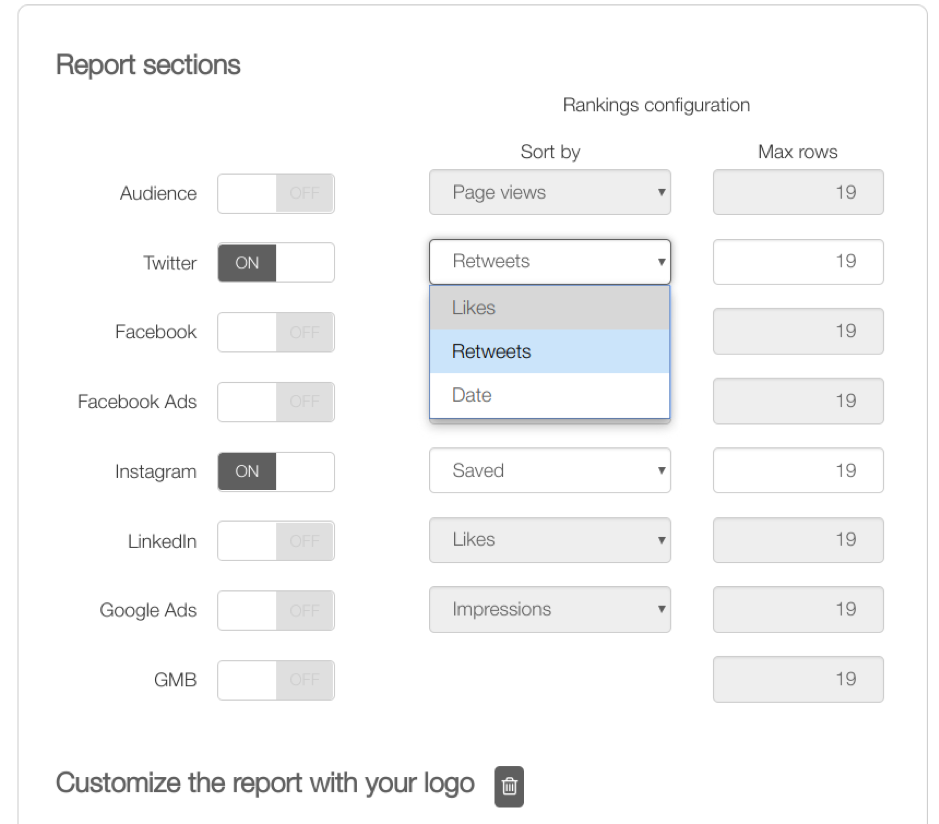
With reports, it’s easy to show the performance of your marketing activities. Fortunately, you can create reports for any metric you have on Metricool. Click “Evolution” at the navigation bar and “Generate report” at the left bar.
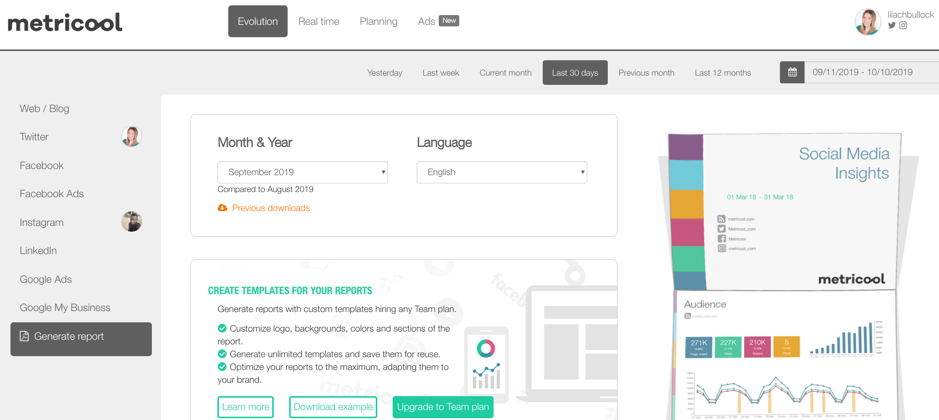
If you’re going to generate a particular report monthly, you can create a template that suits your taste. Below that, you can select all the metrics you want to have in your reports.
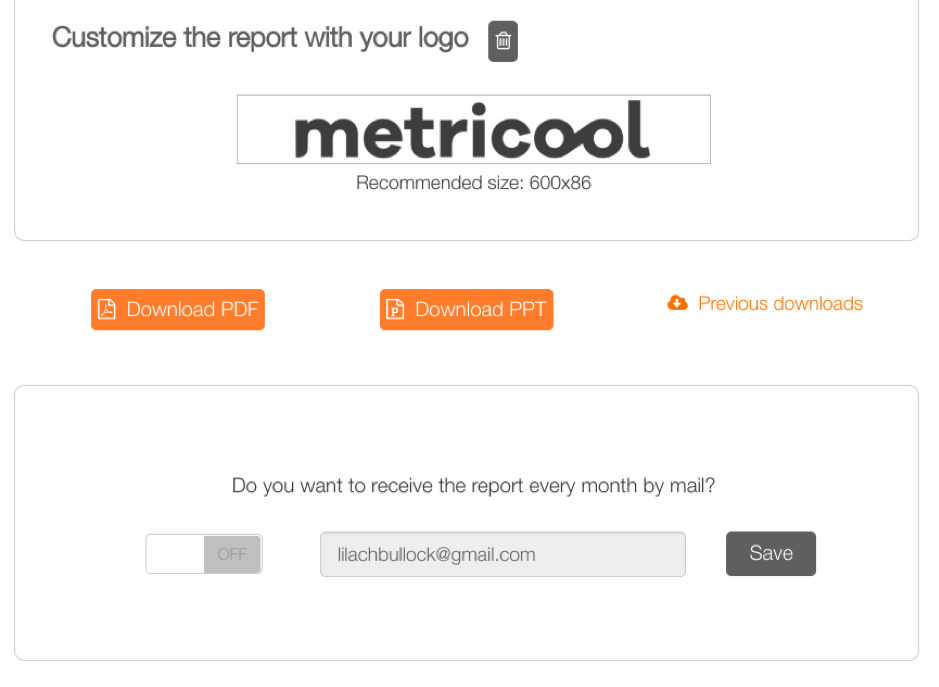
And there’s an option to add your company logo in place of Metricool’s to make it look branded and professional:
Going below, you have an option to download your report in PDF or PPT format. Furthermore, Metricool can deliver it into your email inbox every month.
Conclusion
Having a social media strategy is vital to achieving your marketing goals. Just as vital, is having a tool that can help you through the process of creating a robust social media strategy.
Managing your social media tasks, following up with your competitors, and obtaining the right metrics will take your social media marketing from bland to successful – and Metricool does all that, and a few other handy bits too! Plus, you can try it out for free to see whether it’s the right solution for your needs.
Related: how to make money on Instagram with 1k followers
The short version: A simple, repeatable process beats a complicated one every time when it comes to social media strategy. Focus on clear goals, know your audience, post consistently, and review your data monthly to keep improving. Small, steady adjustments will outperform a one-off overhaul.
Related: social media write for us.
If that raises the next question, see The New Animoto: A Free and Easy Way to Create Stunning Social Media Videos.
I run AI training and workshops for teams, and help businesses with AI enablement and workflow automation, so the busywork runs itself and people get time back. Most of that work is with SaaS marketing teams and small businesses. Here's how we can work together.
Frequently asked questions
How often should I review my social media strategy?
A monthly review is usually enough to spot trends and adjust content without overreacting to short-term fluctuations. Set aside time each month to check your top-performing posts, audience growth, and engagement rates.
What is the easiest way to start optimizing social media?
Start by picking one or two goals, such as increasing engagement or driving website traffic, and build your content plan around those. Trying to do everything at once usually leads to inconsistent results.
Do I need to be active on every social media platform?
No. It is better to show up consistently on two or three platforms where your audience is most active than to spread yourself thin across all of them. Quality and consistency matter more than sheer presence.
How do I know if my social media strategy is working?
Track metrics tied to your goals, such as engagement rate, click-throughs, or follower growth, rather than vanity numbers alone. If those figures trend upward month over month, your strategy is working.
Related reading: The New Animoto: A Free and Easy Way to Create Stunning Social Media Videos and The easy way to collaborate with social media team members and clients (plus a tool).