

Promo social videos: the what, why and how of creating great videos for social
There are a plethora of ways to use video on social media as a brand; video can help you reach your marketing goals faster, from improving reach and brand awareness to boosting your engagement and even your sales. Here are some of the types of videos you can create for your social media channels, to give you some inspiration before I actually show you how to create awesome social media videos:- Brand videos: highlight your brand with video, showing viewers what your brand is, what it stands for, what makes it unique and interesting and what your core values are (of course, not all in one video – that’s just to give you an idea of how you can highlight your brand using social videos)
- Product videos: use videos focusing on a specific product to boost your awareness and even more importantly, your sales
- Behind the scenes: another great way to highlight your brand; simply show some behind the scenes images to get social media users to connect with you on a more personal level
- Special offers and sales: if you’ve got any special offers on tap, use video to promote them and get people to take action
- Educational videos: show viewers how to use your product, what they can do with it and how they can get the most out of it
- Quotes: quotes are super popular on social media and people absolutely love them; you can go the boring route and create an image with your awesome quote…or you can make your post more engaging by turning it into a short video
- Tips: share some handy tips that your audience would find useful, in a video
- Listicle: people love listicles and you can use them for pretty much anything: the best tools and apps, top recipes, the best books and so on
How to create awesome promo social videos with Impresso
So, do you have any videos in mind that you’d like to create? Creating professional-looking social media videos directly on your phone is much easier than you’re probably expecting – in fact, it can take you just as long to create a short video as it would a regular social media image. You just need the right app, of course; and if you have an iPhone, like me, you’re going to love Impresso. In a nutshell, Impresso is a free video creator smartphone app that lets you create short social media videos in literally a matter of minutes: you pick a template, you customize the template with text, fonts, brand colours, music and other elements and then you simply share it to the social network of your choice. It’s really that easy. Here’s how it works:Pick a template
Once you’ve downloaded the app – which is free, by the way – you’re directly taken to see all the templates, organized in categories: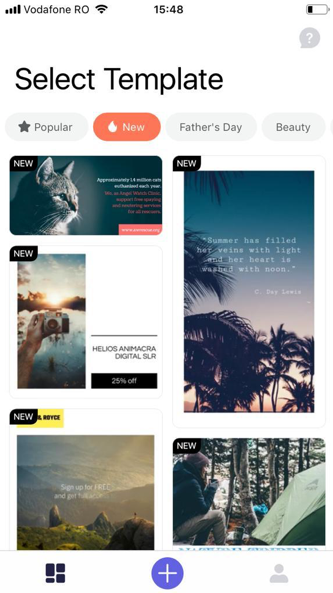 You can see, at a glance, the most popular templates and the latest template additions; the rest are organized mostly by industry/niche (such as business, design, real estate, travel, fashion and so on) but you can also find other handy categories, like Quotes (which are so popular on social media!).
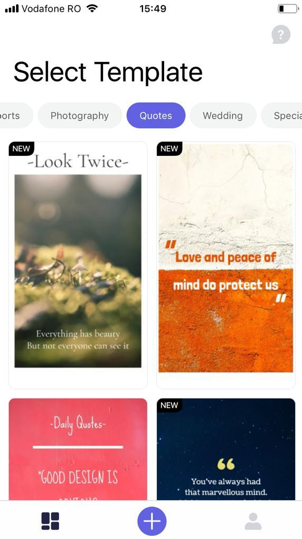 Once you’ve found a template that works for your video idea, tap it to open up the editor: time to get to fun part, editing and customizing your video.
How to edit your social media video
Now that you’re in the editor, you can see that all your customization options are listed under the video: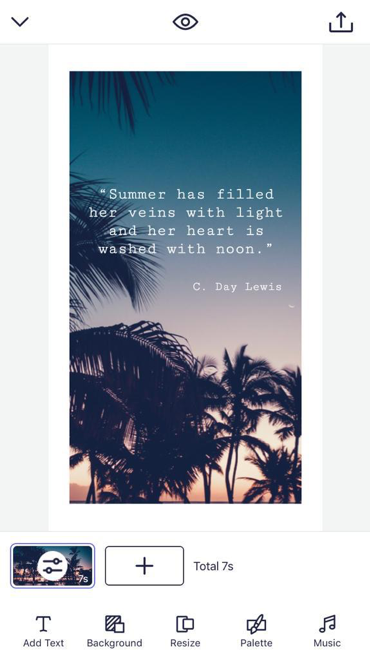 So even though you’re on your phone’s smaller screen, it’s super easy to edit the content and create a professional-looking video.
The first thing you might want to change is the visual component – and it’s super easy to do. Simply tap on the image in the video and then tap on Replace to see your options:
So even though you’re on your phone’s smaller screen, it’s super easy to edit the content and create a professional-looking video.
The first thing you might want to change is the visual component – and it’s super easy to do. Simply tap on the image in the video and then tap on Replace to see your options:
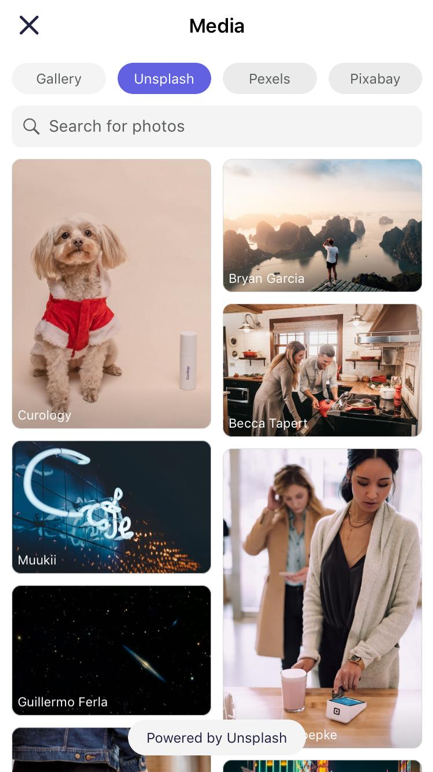 There are a few options here; either:
- Use images and video clips from your own library (quick tip: watermark your visual content and upload it to the video to ensure it’s watermarked)
- Use images from a variety of high-quality free stock imagery sites: Unsplash (my personal favourite), Pexels and Pixabay
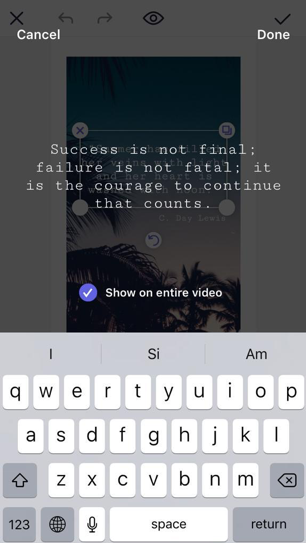 Once you’ve written your message, you can start customizing the text; tap on the text to see all of your options, such as changing the font (they’ve got an extensive library of fonts and I’m very happy that they have my brand font as well!):
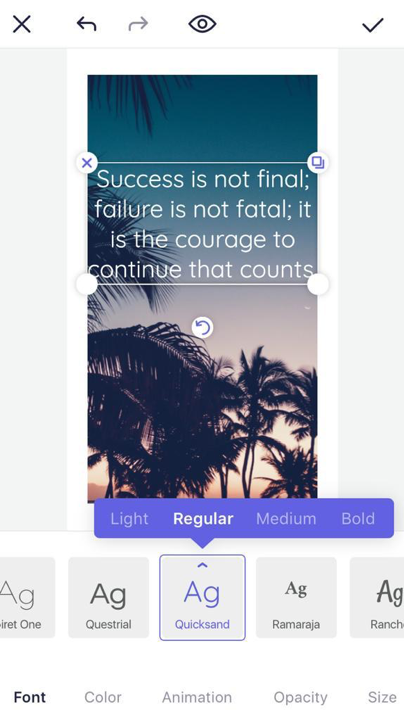 You can also change the colour of your text, the alignment (to make sure it’s just right!), the size, as well as change the duration (i.e. how long the message should appear on the video). But my favourite part is the fact that you can choose one of dozens of animations for your text to make it stand out even more:
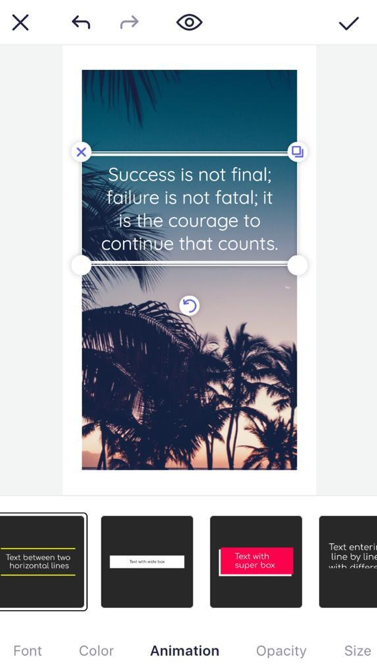 Oh, and by the way, as you keep editing your video, you can also preview it at any time to ensure everything looks as you want it to.
It’s also worth mentioning that you can very easily move things around by tapping and dropping any element wherever you want it.
But not, let’s look at some of the other editing options.
Next in line, you can add a coloured background to your video, in case you don’t want to use images/videos, as well as so it appears depending on the animations you’re using for your video (for example, if it’s a “fade” animation, instead of showing white, it can show the colour of your choice, fading into your actual video.
[click_to_tweet tweet="How to create beautiful promo social videos with your iPhone #smm #videomarketing" quote="How to create beautiful promo social videos with your iPhone #smm #videomarketing"]
If you don’t want to select each colour used on your video manually, there is a great shortcut: just use one of the Palettes available:
Oh, and by the way, as you keep editing your video, you can also preview it at any time to ensure everything looks as you want it to.
It’s also worth mentioning that you can very easily move things around by tapping and dropping any element wherever you want it.
But not, let’s look at some of the other editing options.
Next in line, you can add a coloured background to your video, in case you don’t want to use images/videos, as well as so it appears depending on the animations you’re using for your video (for example, if it’s a “fade” animation, instead of showing white, it can show the colour of your choice, fading into your actual video.
[click_to_tweet tweet="How to create beautiful promo social videos with your iPhone #smm #videomarketing" quote="How to create beautiful promo social videos with your iPhone #smm #videomarketing"]
If you don’t want to select each colour used on your video manually, there is a great shortcut: just use one of the Palettes available:
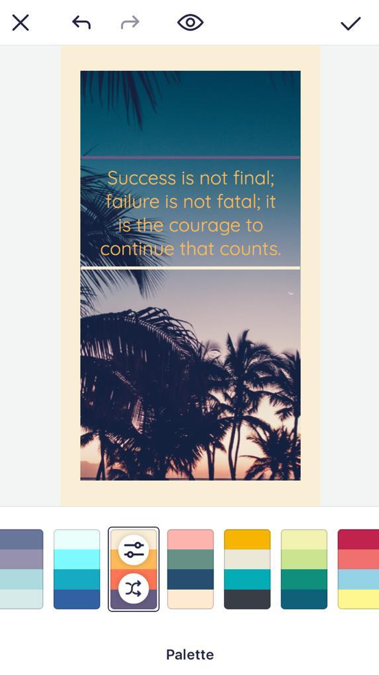 There are numerous options here, so you’re bound to find something that works with your branding or with the videos’ aesthetic.
No video is truly read without some music though; luckily, you can add music from their collection or you can upload your own music (make sure you have the rights to use it tough!).
If you want to add more scenes to your video (for example, you might want a different scene at the end with a call to action, or maybe you simply want to create a longer video that tells a story), all you have to do is tap on the + sign right under your video and select either “duplicate last scene” or “add new scene”:
There are numerous options here, so you’re bound to find something that works with your branding or with the videos’ aesthetic.
No video is truly read without some music though; luckily, you can add music from their collection or you can upload your own music (make sure you have the rights to use it tough!).
If you want to add more scenes to your video (for example, you might want a different scene at the end with a call to action, or maybe you simply want to create a longer video that tells a story), all you have to do is tap on the + sign right under your video and select either “duplicate last scene” or “add new scene”:
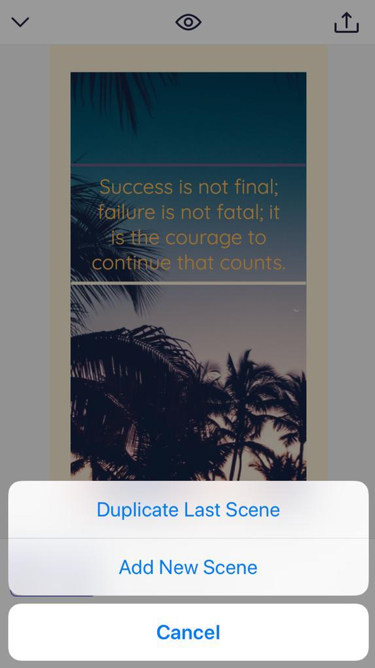 For example, I’ve chosen to duplicate the last scene so that I can keep the main elements and just make a few changes; this will create another identical scene which you can customize just like I showed you earlier: change the text or add more text, change the image or video used, change the colours and so on; you can also control exactly how long each scene in your video will last from the editing options you have right below the video (as you’ve probably noticed in some of the screenshots I showed you throughout this article).
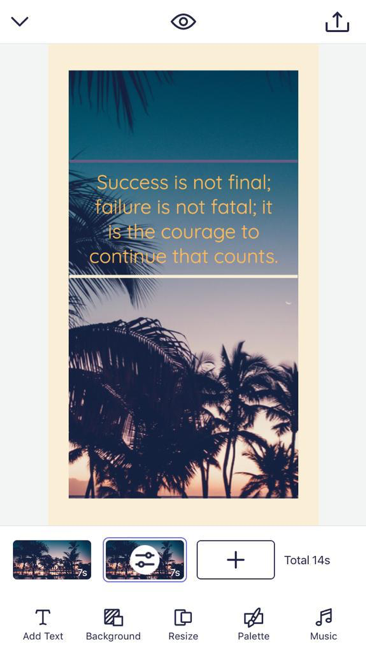 If you want to add even more scenes, just repeat the process; be careful though, as you don’t want your video to be too long or else your social media audience might not watch it through to the end (and since we’re on this subject, make sure your first scene is super compelling to ensure as many people as possible watch your video to the end – and hopefully, see and act upon your call to action).
Another very important aspect that I have to mention is that you can easily (and automatically) resize your video to optimize it for the platform you want to share it on:
If you want to add even more scenes, just repeat the process; be careful though, as you don’t want your video to be too long or else your social media audience might not watch it through to the end (and since we’re on this subject, make sure your first scene is super compelling to ensure as many people as possible watch your video to the end – and hopefully, see and act upon your call to action).
Another very important aspect that I have to mention is that you can easily (and automatically) resize your video to optimize it for the platform you want to share it on:
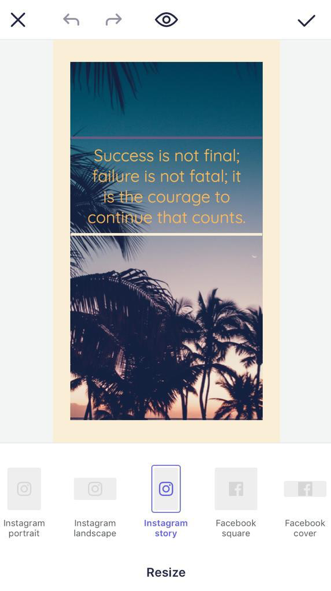 There are several options, for most major social networks:
- Instagram videos: square, portrait, landscape, Story
- Facebook: square, Facebook cover, regular Facebook post
- Twitter: regular Twitter post
- LinkedIn: regular LinkedIn post
- And, of course, Youtube
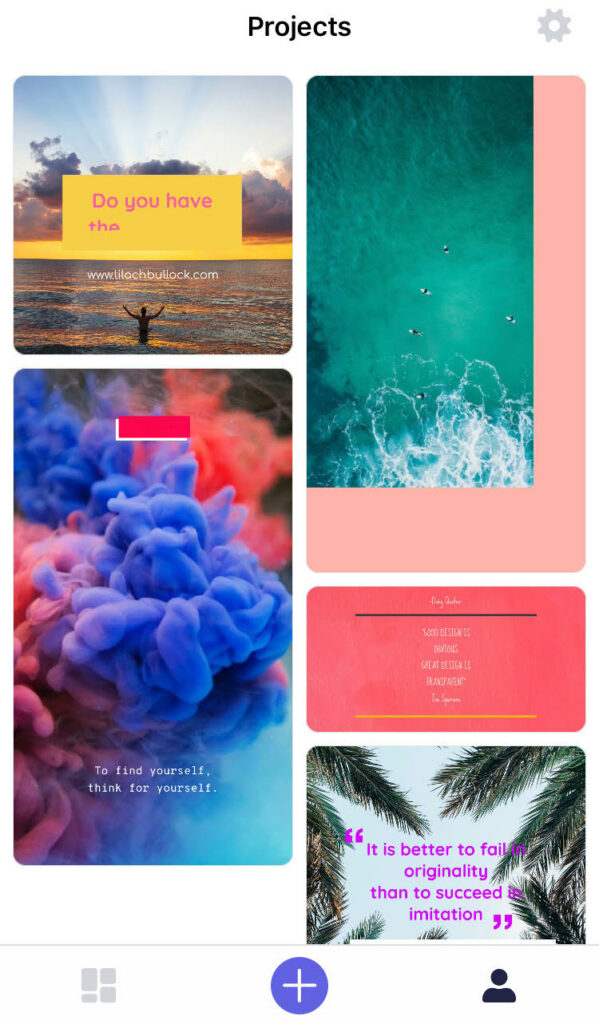
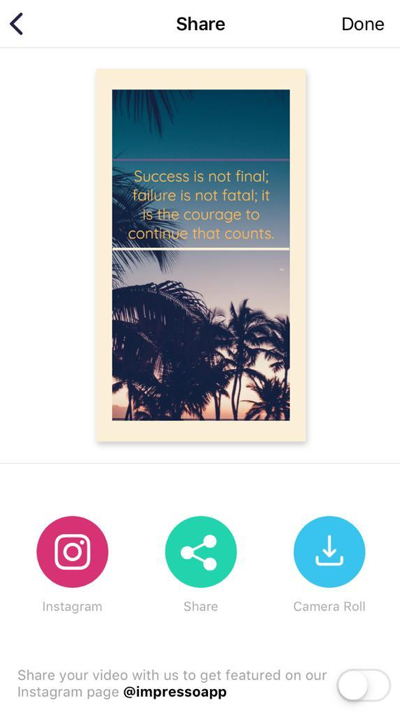 Rest assured, your videos will all be saved to your Impresso library/dashboard, in the Projects section:
 Oh, and if you need any help using the app, there’s an in-app chat as well 🙂
Create your own video templates
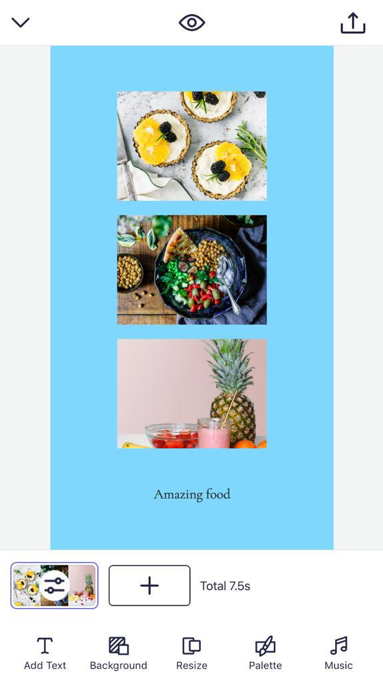
Another great feature that I had to mention – and one that’s been recently introduced in an update – is that you can create collage video from scratch. All you have to do is tab on the + that’s placed in the middle (bottom) of your app screen and that will take you to the Layouts feature: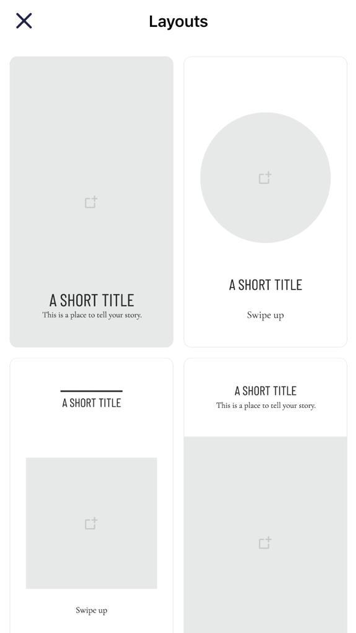 As you’ll see, there are numerous collage layout options to choose from – once you find one you like, or that works for your project, simply tap on it and start editing and customizing it just like I showed you previously, with a regular video: add multiple images/videos, add text and calls to action, add music and much more:
 [click_to_tweet tweet="How to create beautiful promo social videos with your iPhone #smm #videomarketing" quote="How to create beautiful promo social videos with your iPhone #smm #videomarketing"]
Conclusion
To be completely honest…I absolutely love Impresso and couldn’t recommend it enough; as far as video creation goes, it’s extremely easy to use, especially for a smartphone app. The editor is very intuitive, the templates are aplenty and the app overall is, well, very fun to use. So much so that you’ll probably end up creating some videos for your personal profiles as well – not just for your business.Related reading
- How to sell your knowledge online with Kajabi
- How agencies can streamline website building processes with Duda
- How to prospect like a pro with Snov.io
- [Trending Topic 2020] How to engage and convert more visitors with interactive calculators
- more marketing and business articles
Related: 50 Websites You Didn't Know Existed (But Really Should)
Related: how to make money on Instagram with 1k followers
Related reading: Promo.com: the effortless way to make effective short videos and gain customers and Boosted: the effective and fast way to create social media videos.
The short version: Your iPhone already has the camera, light, and software you need to make scroll-stopping promo videos, so the real work is in planning your shot list, using natural light well, and editing with a steady hand. Keep clips short, add captions, and export in the right format for each platform to boost views and shares.
If that raises the next question, see Boosted: the effective and fast way to create social media videos.
Frequently asked questions
Which iPhone apps are best for editing promo videos?
iMovie is a solid free starting point, while CapCut and InShot offer more templates, text styles, and social-ready export sizes for Instagram, TikTok, and YouTube Shorts.
Want AI doing the heavy lifting in your marketing?
I build the systems that handle the boring 80 percent, so you get your week back. Done properly, with the human kept in.
Do I need extra lighting or a microphone for iPhone videos?
Not always. Natural window light and a quiet room work fine for most promo clips, though a small clip-on mic and a basic ring light will noticeably improve quality if you're filming often.
What length should a promo social video be?
Aim for 15 to 30 seconds for feeds and stories, since shorter clips tend to hold attention and perform better in social algorithms.
How do I keep my iPhone videos looking consistent with my brand?
Stick to the same filter or color grade, use one or two brand fonts for captions, and open or close each video with your logo or a short tagline.