When do you use banners?
As I mentioned earlier, can be used in different ways; most notably though, we use banners for:- Display ads, to promote new products and services, new offers, promote your business, promote a webinar and so on:
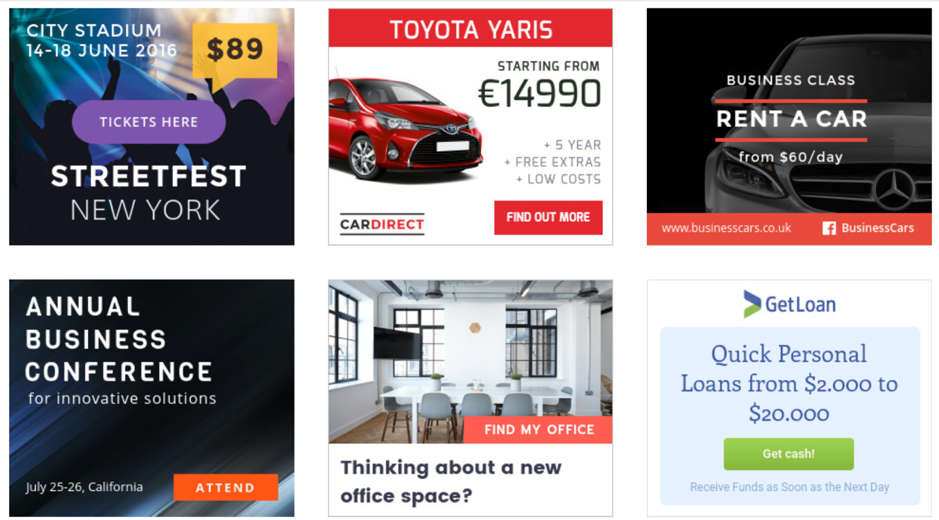
- On social media, for pretty much the same reasons: promoting your business, products and services:
 Banners are extremely useful business promotion tools and pretty much any business, across industries, uses them in some form or another. If you’re not, then perhaps it’s worth looking into it: you’re losing a lot of opportunities on social media, on Google and generally, online.
In a little bit, I’ll show you how to create awesome banners as easily and as quickly as possible; before I get to that though, I want to share a few useful tips for creating banners that get results:
[click_to_tweet tweet="How to create awesome banner ads with @Bannersnack " quote="How to create awesome banner ads with @Bannersnack "]
Banners are extremely useful business promotion tools and pretty much any business, across industries, uses them in some form or another. If you’re not, then perhaps it’s worth looking into it: you’re losing a lot of opportunities on social media, on Google and generally, online.
In a little bit, I’ll show you how to create awesome banners as easily and as quickly as possible; before I get to that though, I want to share a few useful tips for creating banners that get results:
[click_to_tweet tweet="How to create awesome banner ads with @Bannersnack " quote="How to create awesome banner ads with @Bannersnack "]
Tips to create high-performing banners
To help, let’s use an example of a banner: As you can see, this banner doesn’t have a lot of elements. It keeps things simple and to the point.
The first thing you might notice is that the banner has 3 essential elements – beyond the image use:
As you can see, this banner doesn’t have a lot of elements. It keeps things simple and to the point.
The first thing you might notice is that the banner has 3 essential elements – beyond the image use:
- The company logo: it’s essential to include this in your banner as a professional company logo not only builds trust but it will also help with your overall brand awareness.
- The value proposition: why should viewers take a better look at your banner promotion? And most importantly, what exactly is the value in them clicking your banner? This is an extremely important element of your banner, maybe just as important (if not even more so!) as your call to action: it shows the viewer what’s in it for them. It gives them that extra kick to help make up their minds. In this case, the value proposition is “a better way to sell your car online”: a simple yet effective sentence that makes the viewer curious to find out how exactly Cardeals makes it easier to sell your car. That said, you can also use offers and discounts as your value proposition (such as “limited time offer!” and “30% off”)
- The call to action: and last but definitely not least is the call to action: a simple and short phrase that tells the viewer exactly what they need to do now. For example, “Register now!”, “Sign up here”, “Buy it now”, “Learn more” or as in this case, “sell your car here”
How to create awesome banners and banner sets
If you know me and my blog, you know I love tools. And I’m particularly excited about content creation tools – and this is where Bannersnack comes in. As the name suggests, it’s an online banner maker that allows you to create beautiful banners – and sets of multiple banners – for display ads and social media. It’s super easy to use, it features a plethora of templates and it supports pretty much any size under the sun – although you can always create your own custom size banner. Oh, and it also has a free plan that allows you to try the tool out. Let me now show you how exactly you can use Bannersnack to create your own banners: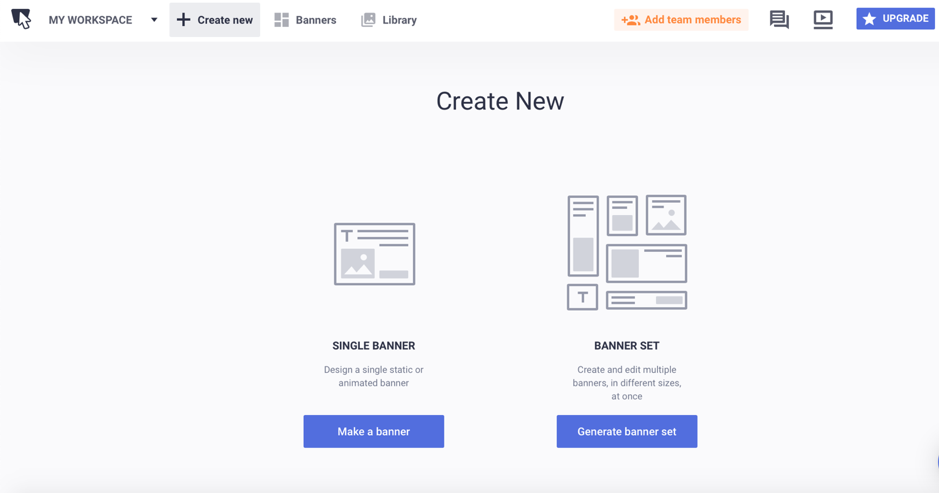 When creating a new design, you have 2 main options to start with: either create a single banner (and you can then expand and make a full set of banners), or start off with a banner set so that you can create as many banners as you want in one go (banners with different sizes, but the same overall design and message, with few or no changes in between them).
The first option is useful for when you only want to create one banner; if, on the other hand, you have a campaign coming up and you want to promote it across channels and ad networks, then it’s best to use the Banner Set option – it will allow you to create all the banners you need in literally a few minutes.
But let’s start with the single banner option for now so that we can see what the editor is like.
Once you’ve selected “single banner”, you’re taken to a screen where you can select one the size you want to use, or set up your own customize size (and save it to reuse later with other banners as well):
When creating a new design, you have 2 main options to start with: either create a single banner (and you can then expand and make a full set of banners), or start off with a banner set so that you can create as many banners as you want in one go (banners with different sizes, but the same overall design and message, with few or no changes in between them).
The first option is useful for when you only want to create one banner; if, on the other hand, you have a campaign coming up and you want to promote it across channels and ad networks, then it’s best to use the Banner Set option – it will allow you to create all the banners you need in literally a few minutes.
But let’s start with the single banner option for now so that we can see what the editor is like.
Once you’ve selected “single banner”, you’re taken to a screen where you can select one the size you want to use, or set up your own customize size (and save it to reuse later with other banners as well):
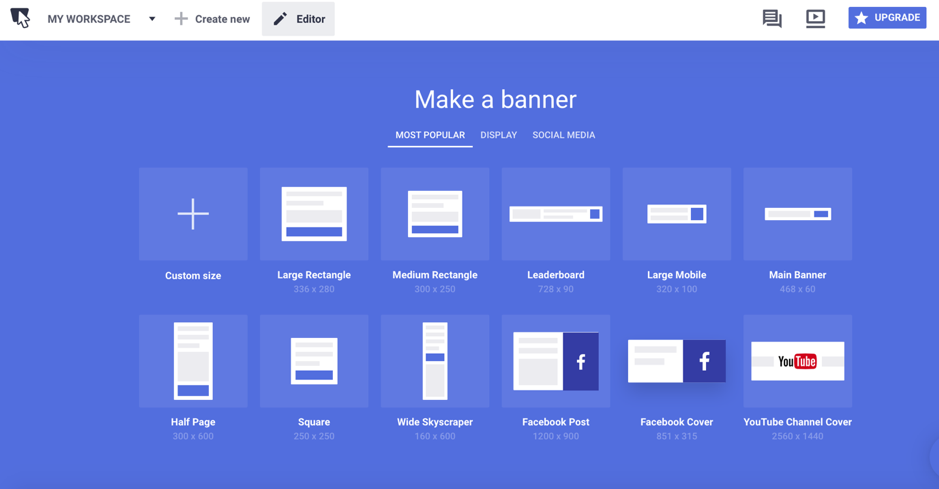 Once you’ve selected the size you want, you’re immediately taken to the editor, where you can also choose one of the available templates – or, of course, create your banner ads completely from scratch:
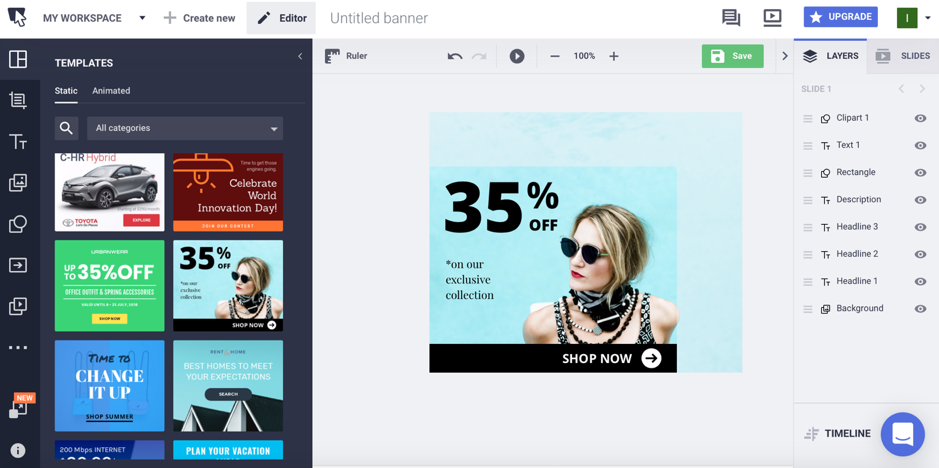 The templates are all visible on the left-hand side of the builder and you can easily find the right own for your current needs by browsing through the available categories (such as blog and lifestyle, automotive, business and ecommerce, fashion and jewellery, food, as well as holiday and events themed banners).
[click_to_tweet tweet="How to create awesome banner ads with @Bannersnack " quote="How to create awesome banner ads with @Bannersnack "]
From here, you can easily customize each element that makes up your banner; simply select the element you want to customize to see your options:
The templates are all visible on the left-hand side of the builder and you can easily find the right own for your current needs by browsing through the available categories (such as blog and lifestyle, automotive, business and ecommerce, fashion and jewellery, food, as well as holiday and events themed banners).
[click_to_tweet tweet="How to create awesome banner ads with @Bannersnack " quote="How to create awesome banner ads with @Bannersnack "]
From here, you can easily customize each element that makes up your banner; simply select the element you want to customize to see your options:
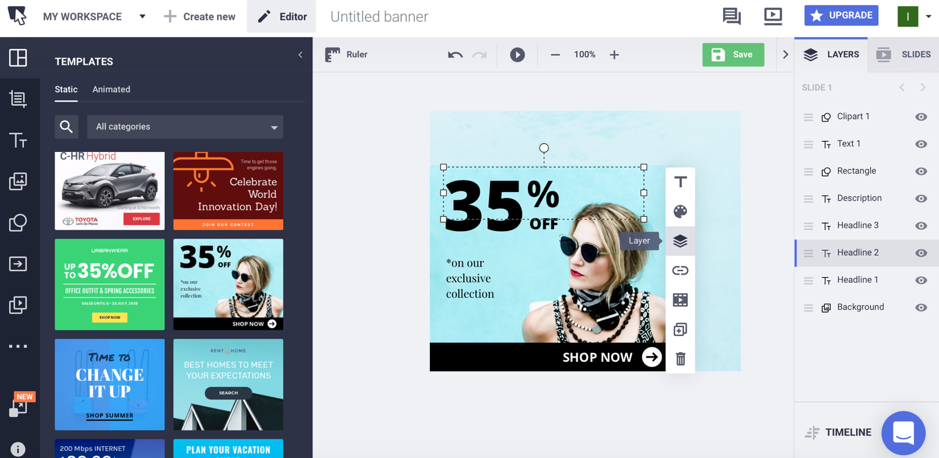 It would take forever to go through all the different customization options you have but I do want to mention a few of the most important ones: you can customize your text to suit your branding (font, sizing, colours, etc.), you can make a specific element from your banner clickable or make it redirect people to a different slide on your banner (you can also add multiple slides, by the way):
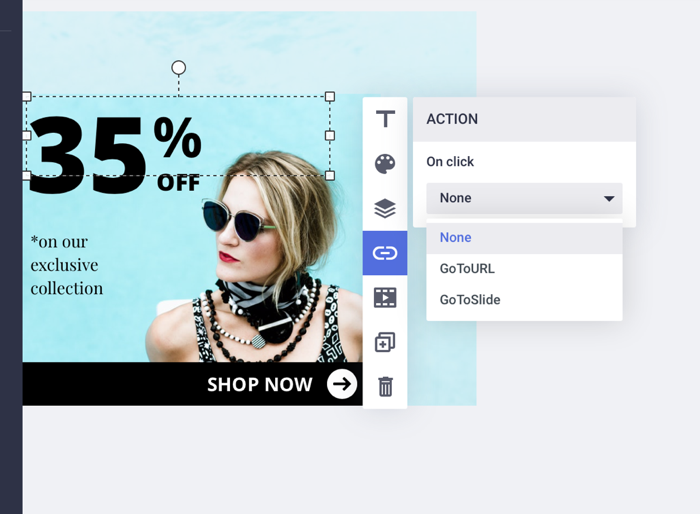 And you can even add transitions to the elements that make up your banner:
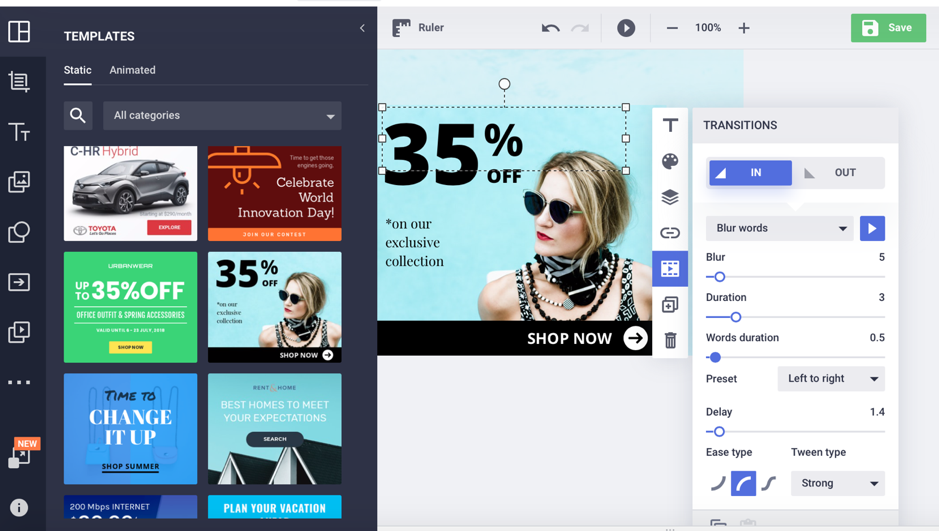 This essentially allows you to animate your banners, which is a great “trick” for attracting people’s attention – and keeping it.
Speaking of animated banners, you can add animation elements to each layer that makes up your banner, from one place instead of going through each element one at a time; simply click on the Timeline button to see all the layers that make up your banner and start adding transitions:
This essentially allows you to animate your banners, which is a great “trick” for attracting people’s attention – and keeping it.
Speaking of animated banners, you can add animation elements to each layer that makes up your banner, from one place instead of going through each element one at a time; simply click on the Timeline button to see all the layers that make up your banner and start adding transitions:
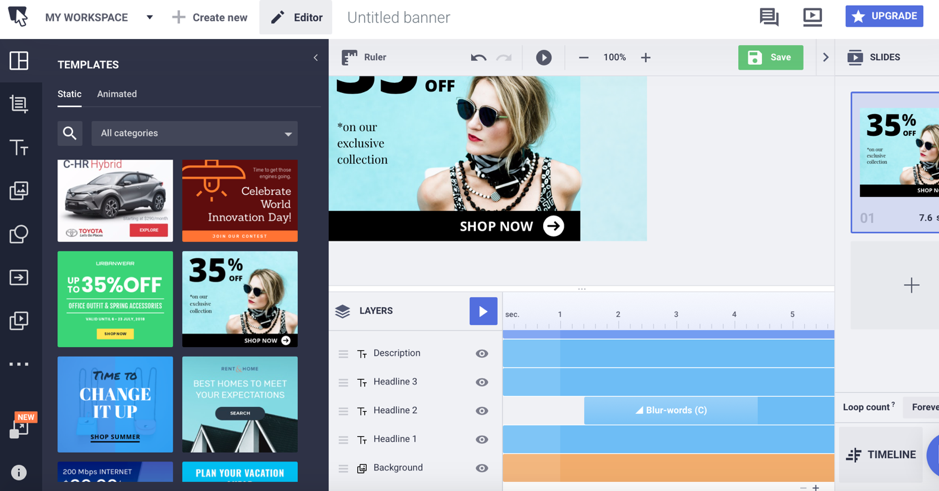 As you can see in the above screenshot, the transition that I added to the headline is already in there; now I can start adding transitions to other elements on my banner:
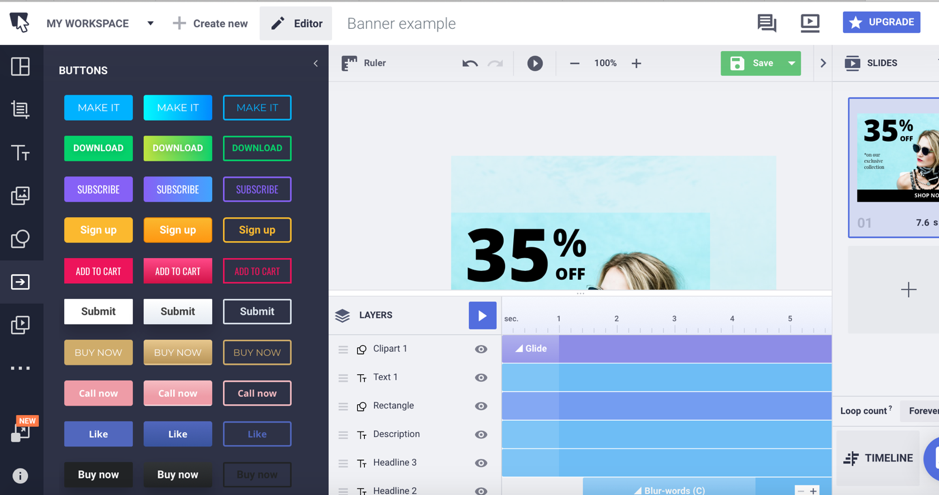
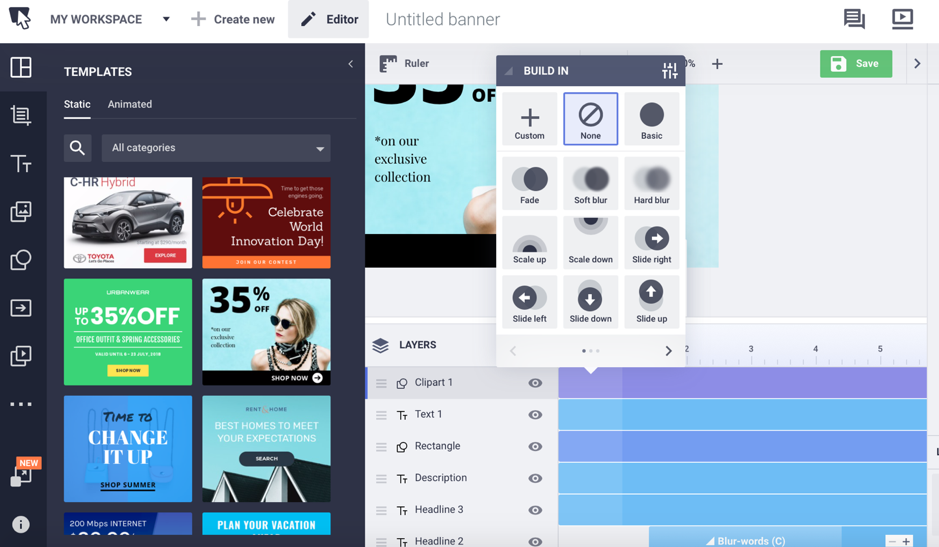 Or, using the “magic animator”, you can use an animation template to apply a transition to each element that makes up your banner, at once:
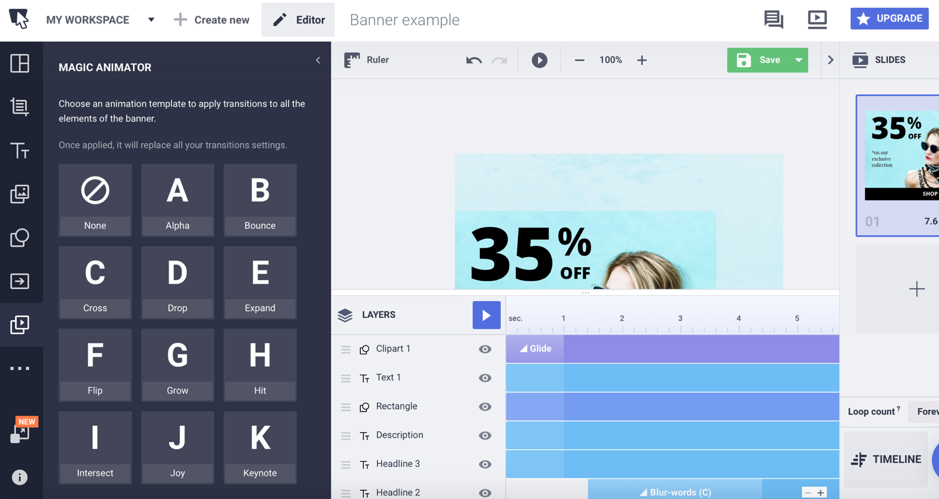 You can also, of course, change the images used in your banners; and there are 2 main options here: either upload your own media assets (you can upload and save them all in your Bannersnack workspace so you can easily find the images you need, when you need them) or use one of over 2 million stock images which you can search for directly within the editor:
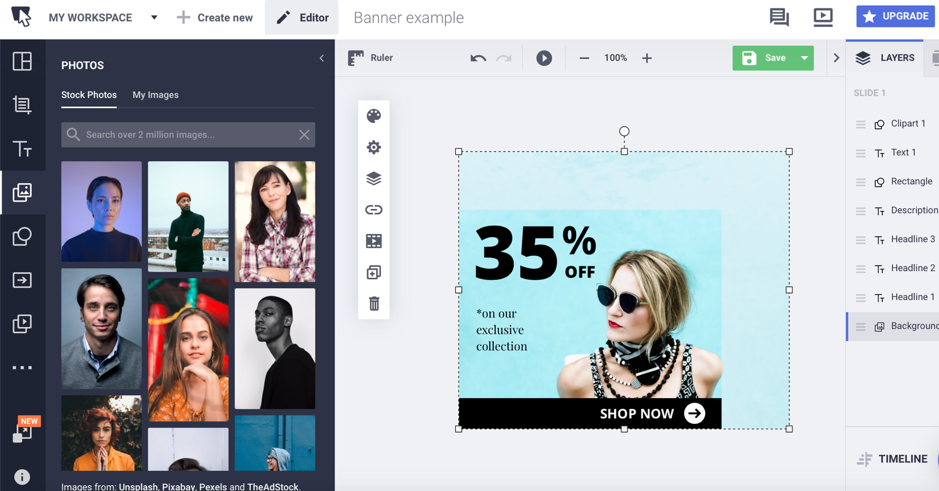 Plus, you also have an impressive collection of call to action buttons to add to your banner:
 And last but definitely not least, you can add videos to your banners, either from YouTube or from your website or Vimeo, using an embed code:
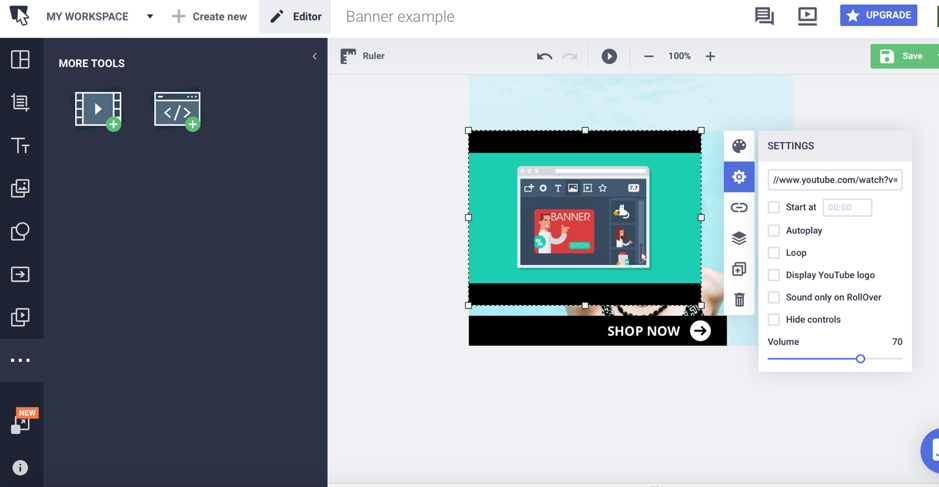 You can easily make the video the video take over your entire banner, or make it just a part of your banner; plus, you can decide when the movie should start, if it should start playing automatically, if you want it to loop, and even what the volume should be.
Another cool thing that I wanted to mention is that you can make your entire banner clickable; you might remember from earlier that you can make certain elements of your banner clickable, but if you want to make the entire banner clickable, all you have to do is click on Save and add the link where you want to direct people to:
You can easily make the video the video take over your entire banner, or make it just a part of your banner; plus, you can decide when the movie should start, if it should start playing automatically, if you want it to loop, and even what the volume should be.
Another cool thing that I wanted to mention is that you can make your entire banner clickable; you might remember from earlier that you can make certain elements of your banner clickable, but if you want to make the entire banner clickable, all you have to do is click on Save and add the link where you want to direct people to:
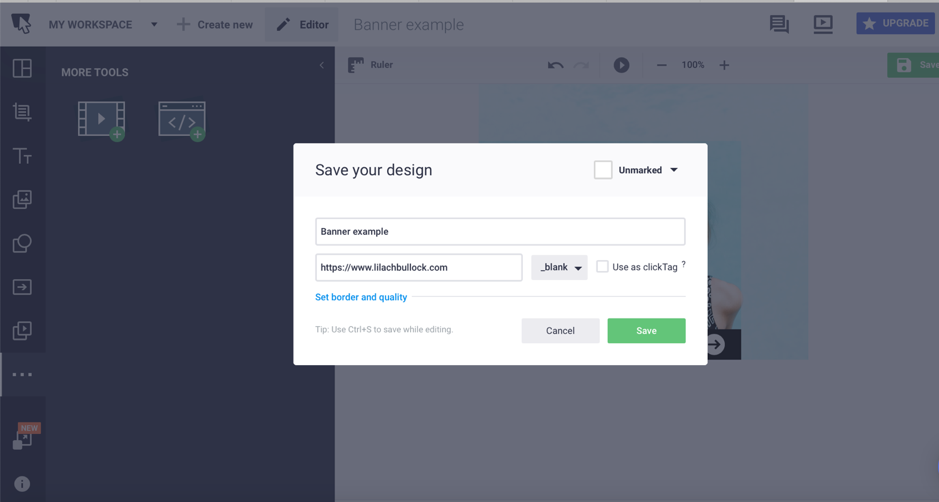 If you want this option to overrule the rest of the actions you’ve set up in your banner, then simply select the ClickTag option.
Creating banners is easy enough – but what about banner sets?
[click_to_tweet tweet="How to create awesome banner ads with @Bannersnack " quote="How to create awesome banner ads with @Bannersnack "]
As I mentioned before, there are 2 options here: either start a Banner Set project from scratch and select the sizes you want to create for your set, or use the Smart Resize feature once you’ve created a banner. Click on Resize and then simply select all the sizes you want to add to your banner set:
If you want this option to overrule the rest of the actions you’ve set up in your banner, then simply select the ClickTag option.
Creating banners is easy enough – but what about banner sets?
[click_to_tweet tweet="How to create awesome banner ads with @Bannersnack " quote="How to create awesome banner ads with @Bannersnack "]
As I mentioned before, there are 2 options here: either start a Banner Set project from scratch and select the sizes you want to create for your set, or use the Smart Resize feature once you’ve created a banner. Click on Resize and then simply select all the sizes you want to add to your banner set:
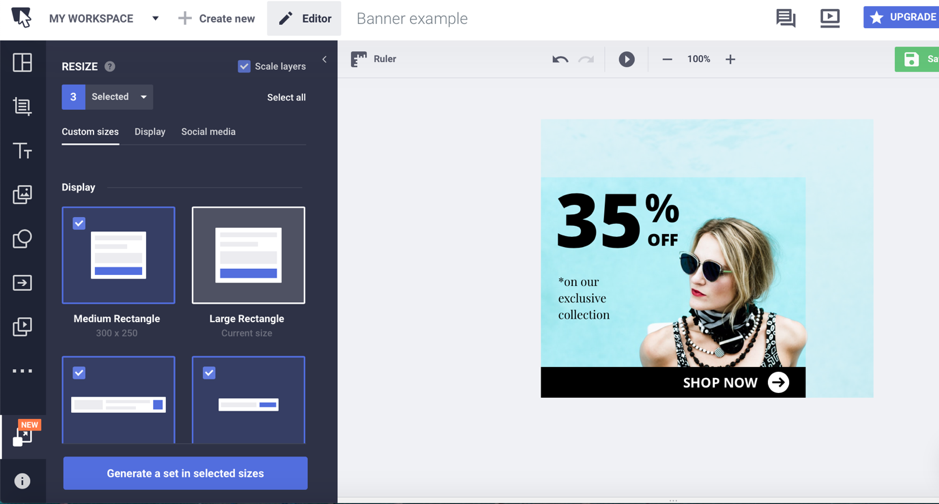 Once you’ve selected the banners you wanted, you’ll be taken to a new screen where all you have to do is quickly rearrange the layers of your banners for each new size in order to make sure they all fit as they should:
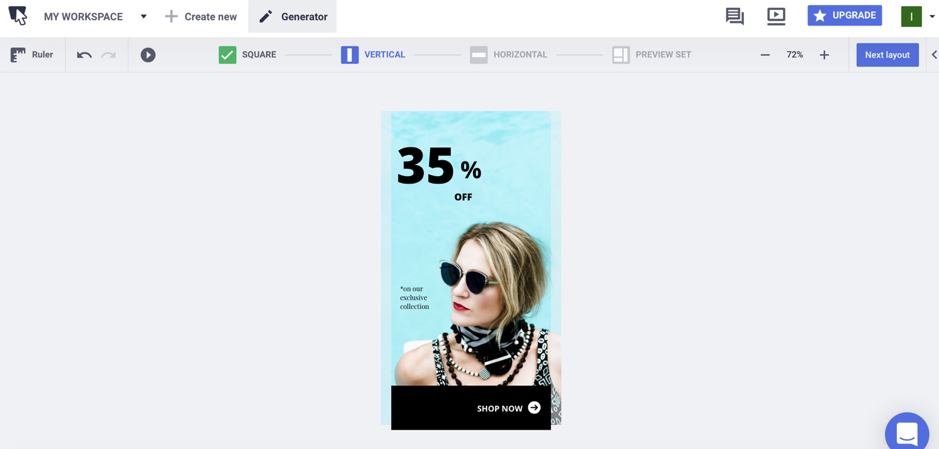 Basically, unless you want to make some considerably change to a banner because of where it will be posted, all you need to do is drag and drop and resize the elements of your banner so that they make sense with the new banner size. Go through each of the banners in your set in the same manner and you’ll then be able to preview the entire set before saving it/downloading it:
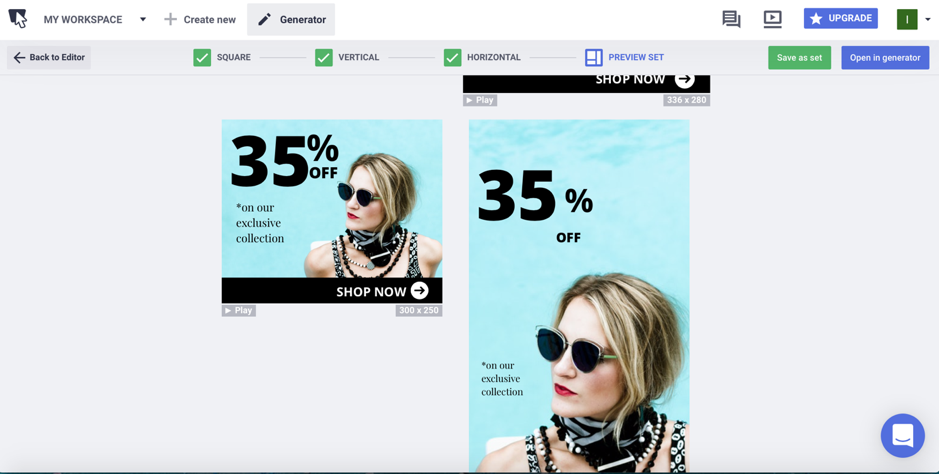 Plus, you can also make sure all the banners in your set have the same transitions and have the same clickable elements. Here's a short video where you can see what the process is like:
Another very cool thing that you can do with Bannersnack is that you can easily customize all the banners in your set at once, by editing the full banner set; every time you change an element in one of the banners from your set, it will update all the banners at once:
Plus, you can also make sure all the banners in your set have the same transitions and have the same clickable elements. Here's a short video where you can see what the process is like:
Another very cool thing that you can do with Bannersnack is that you can easily customize all the banners in your set at once, by editing the full banner set; every time you change an element in one of the banners from your set, it will update all the banners at once:
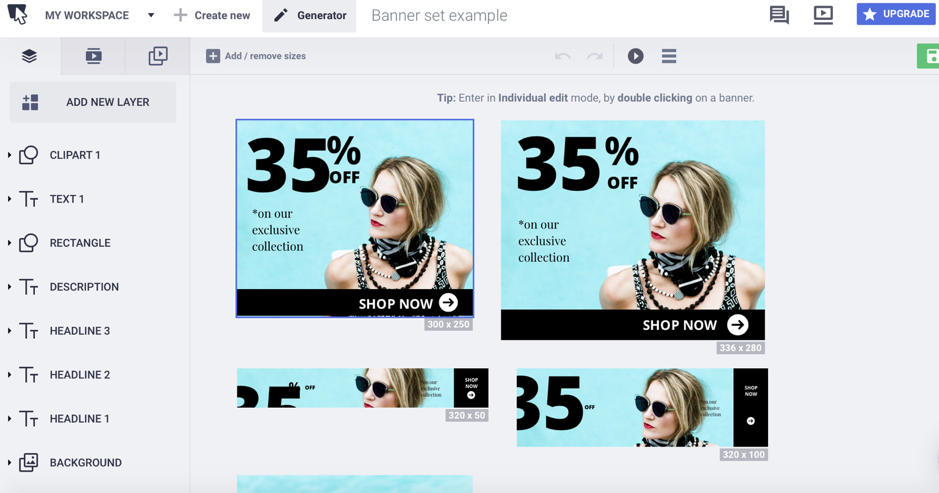 Or, if you want to change just one of the banners in your set, you can double click on it to go into the individual edit mode:
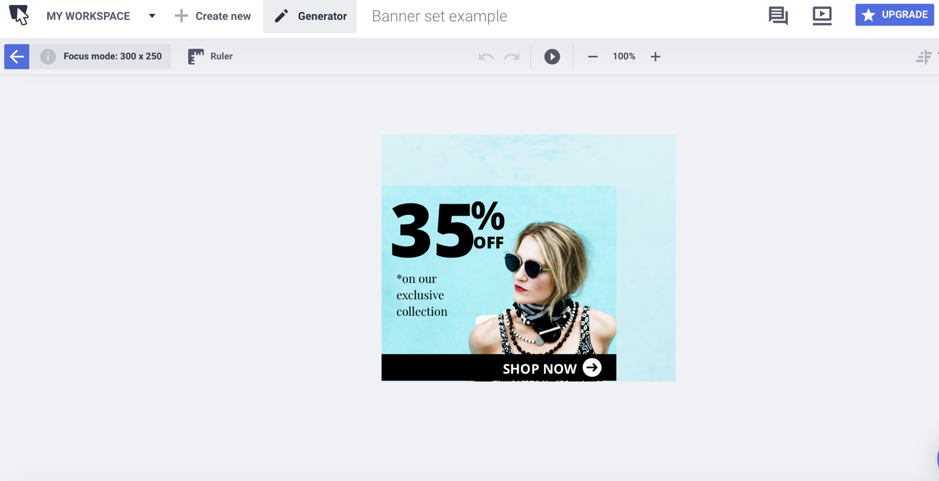 You can even do it the other way around – if you want to edit all banners at once, except for one (or several), you can easily lock a banner once in individual edit mode, or even lock a certain layer from your banner which you don’t want to change.
As for the Bannersnack dashboard, you can easily organize all of your banners and banner sets in folders, as well as label them for an even more convenient way to organize them (and find the banners you need). If you work as part of a team – or have to create banners for a client – you can add multiple team members, as well as assign them with specific roles and ensure that they can only take certain actions:
Plus, you can create shareable links to show off your banners to clients/managers and they can easily leave comments in the share link to outline what they like/don’t like.
[click_to_tweet tweet="How to create awesome banner ads with @Bannersnack " quote="How to create awesome banner ads with @Bannersnack "]
You can even do it the other way around – if you want to edit all banners at once, except for one (or several), you can easily lock a banner once in individual edit mode, or even lock a certain layer from your banner which you don’t want to change.
As for the Bannersnack dashboard, you can easily organize all of your banners and banner sets in folders, as well as label them for an even more convenient way to organize them (and find the banners you need). If you work as part of a team – or have to create banners for a client – you can add multiple team members, as well as assign them with specific roles and ensure that they can only take certain actions:
Plus, you can create shareable links to show off your banners to clients/managers and they can easily leave comments in the share link to outline what they like/don’t like.
[click_to_tweet tweet="How to create awesome banner ads with @Bannersnack " quote="How to create awesome banner ads with @Bannersnack "]
Conclusion
Banners offer a simple, yet highly effective way to promote your business online, whether it’s through display ads or through social media. And if you’re looking for an easy way to create banner ad and banner sets, especially if you’re part of a team, Bannersnack should definitely be a top choice: it’s super easy to use, it has numerous team management options and it has a plethora of beautiful templates to help you save even more time. Plus, it’s free to try which is always a plus!Related reading
- How to go from social listening to actionable insights
- How to create engaging whiteboard animation videos with VideoScribe
- How to use online courses and e-learning to monetize your knowledge
- The easy way to access and submit online forms while offline
- more marketing and business articles
Related: How To Land Your Dream Job In Eight Simple Steps
The short version: Bannersnack lets you design professional banner ads without coding skills using drag-and-drop templates and built-in stock images. Start with a pre-made template, customize colors and text to match your brand, then export and deploy across your campaigns in minutes.
Frequently asked questions
Do I need design experience to use Bannersnack?
No, Bannersnack is built for marketers and business owners with no design background. The drag-and-drop interface and ready-made templates mean you can create professional-looking ads immediately, even if you've never used design software before.
What file formats can I export my banners in?
Bannersnack allows you to export your ads in multiple formats including GIF, HTML5, and static image files like JPG and PNG. This flexibility means your banners work across different advertising platforms and campaign types.
Can I use my own images and brand colors?
Yes, you can upload your own images, logos, and set custom brand colors to ensure consistency across all your banner ads. Bannersnack also includes a large library of stock images if you need additional visual assets.
Want AI doing the heavy lifting in your marketing?
I build the systems that handle the boring 80 percent, so you get your week back. Done properly, with the human kept in.
How much does Bannersnack cost?
Bannersnack offers a free plan with basic features, plus paid plans for teams and agencies that need more templates, storage, and collaboration tools. You can start free and upgrade whenever your needs grow.
Related reading: How to Create a Coding Themed Instagram Story That People Watch.