Most survey tools in 2026 still hand you a clunky form-builder, a dated template library, and a dashboard that looks like it was designed in 2015. SurveySparrow takes a different approach, with conversational-style surveys, mobile-first design, and an analytics engine that has caught up to enterprise needs. This guide covers what SurveySparrow does, who it is best for in 2026, the standout features that separate it from SurveyMonkey and Typeform, and the pricing tiers worth knowing.
To assume you’re performing well while your customers think otherwise can be dangerous to your business goals. So, how do you bridge this divide in your business?
By having a robust feedback system. With a feedback system, you can understand your audience’s pain points and discover the main issues they have with your product.
Hence, you can obtain information that will help you make the right decisions for your business.
Some ways to take feedback in your business include:
- Surveys
- Questionnaire
- Quiz
- Net promoter score
- Customer interview
- 360 employee assessment
- Order forms
However, taking feedback requires a solid tool. In this SurveySparrow review, I’ll go through the tool and explain its capabilities.
This will show you how SurveySparrow can build surveys and other types of feedback that suits your business.
Building intuitive feedback systems with SurveySparrow
After registering an account with SurveySparrow, you can log in to begin.
Once you log in, a popup will appear with various options to create a survey quickly.
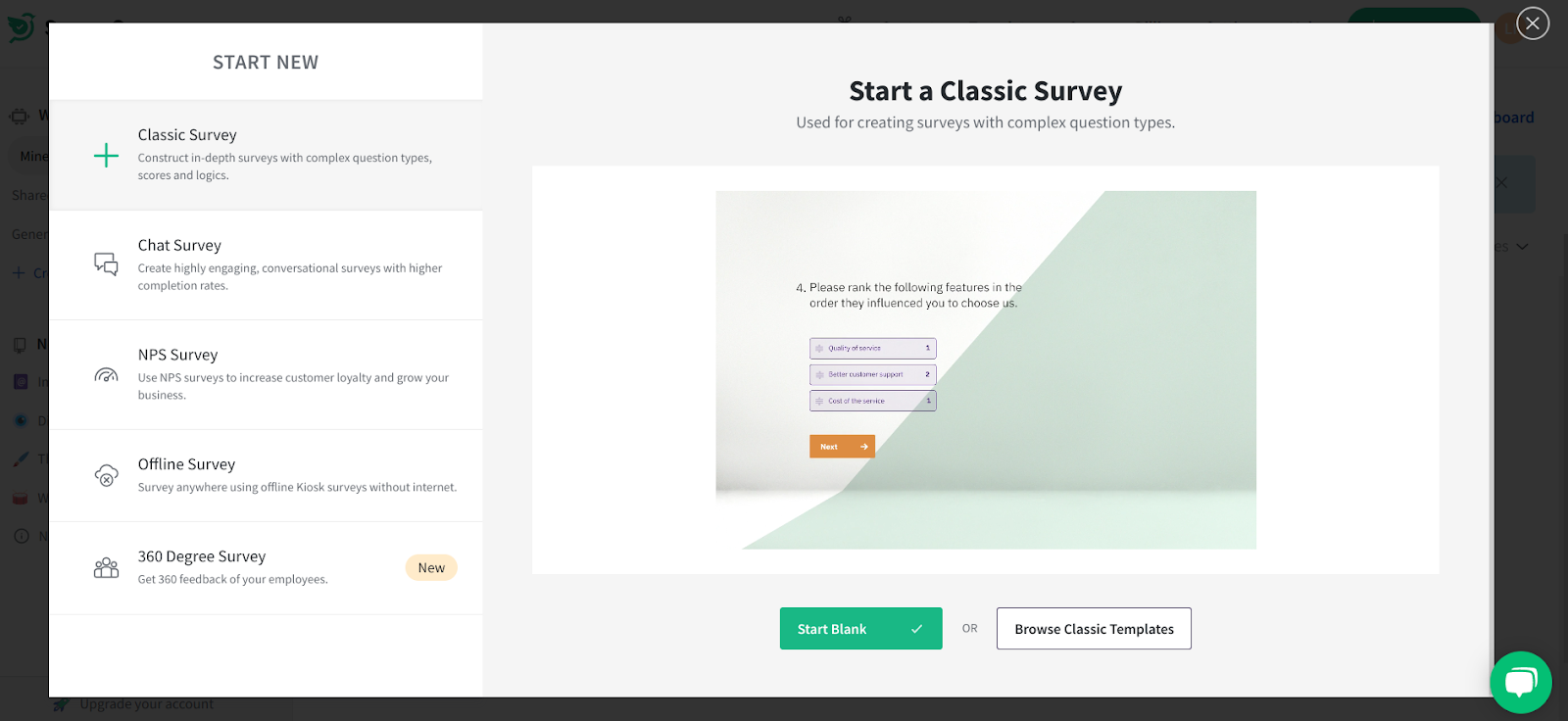
Here, you have the option to start from a blank page or use one of SurveySparrow’s templates. Alternatively, you can start a new survey by clicking on “+ New Survey” at the top right corner of your page.
When I click on “Browse Classic Templates,” SurveySparrow brings up a page of templates. The first thing I like here is that the templates are in different groups such as business, marketing, healthcare, and more.
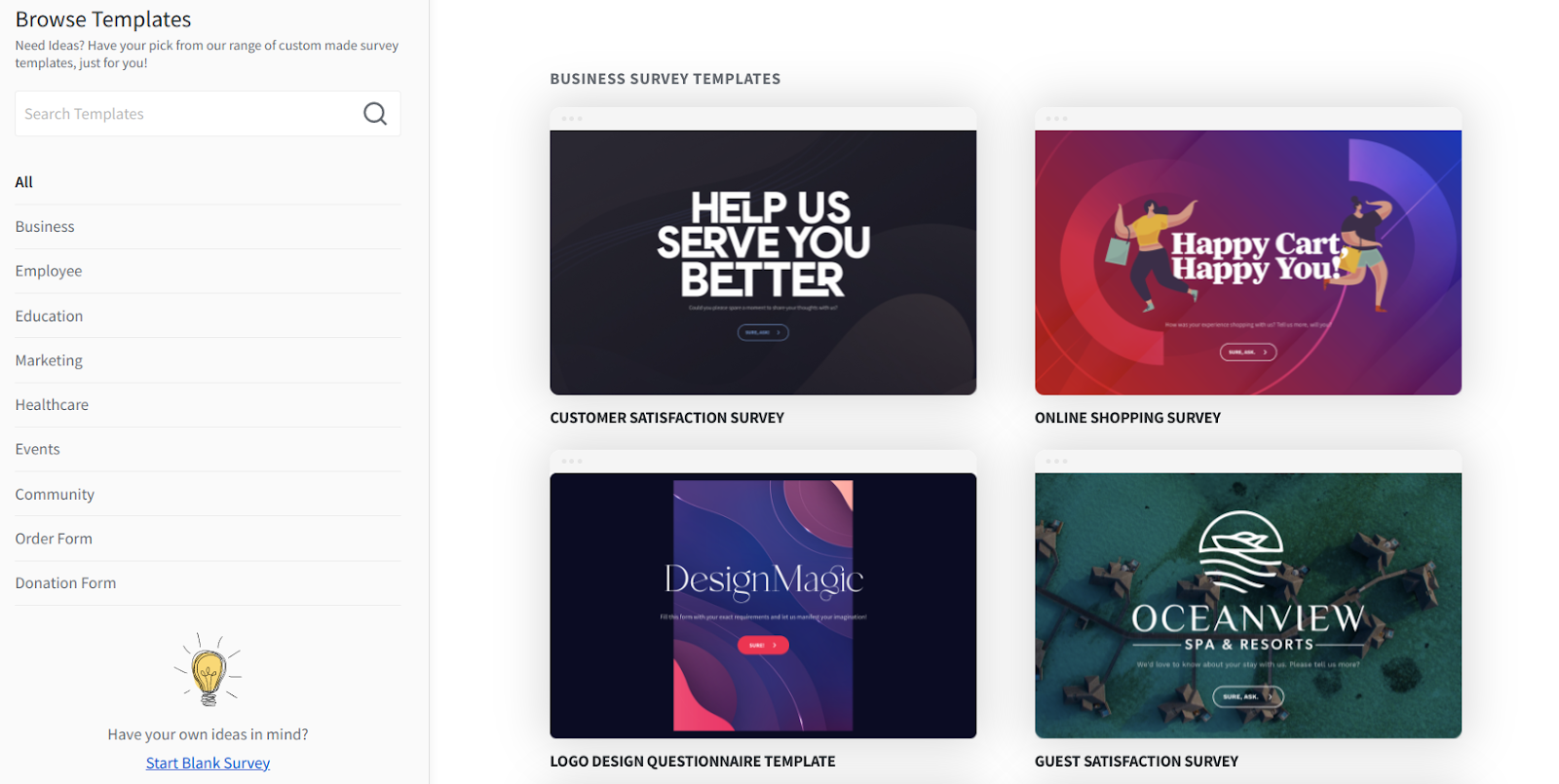
Furthermore, these templates are targeted at specific use cases. For instance, in the business category, there are survey templates such as customer satisfaction, client onboarding, customer exit, product feedback, and more.
When you click on a template, the next page will be the editor.
SurveySparrow editor
Once you land in the editor, you’ll see editing elements at the left sidebar.
Another part of this page you’ll notice is the 4 stages of creating and managing your surveys which are:
- Build
- Integrate
- Share
- Results
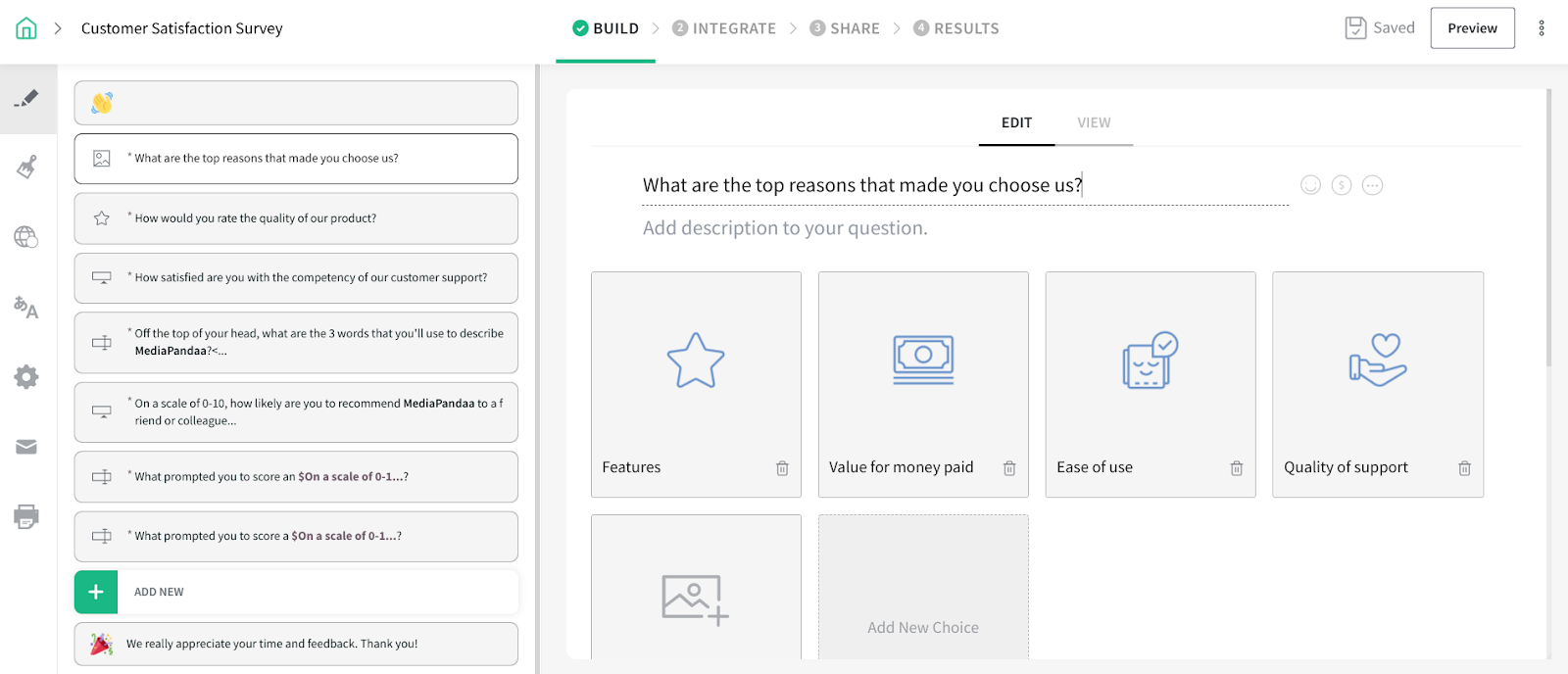
Also, on the left side, there are pages of your template. For instance, this template has 9 pages.
Of course, you can add or remove pages as you see fit. When you click on any of the pages, you can edit the elements on the page.
While editing a page, you’ll see how your changes affect the page on the “View” tab. This makes your editing job easier as you have an idea of your final result before you finish editing.
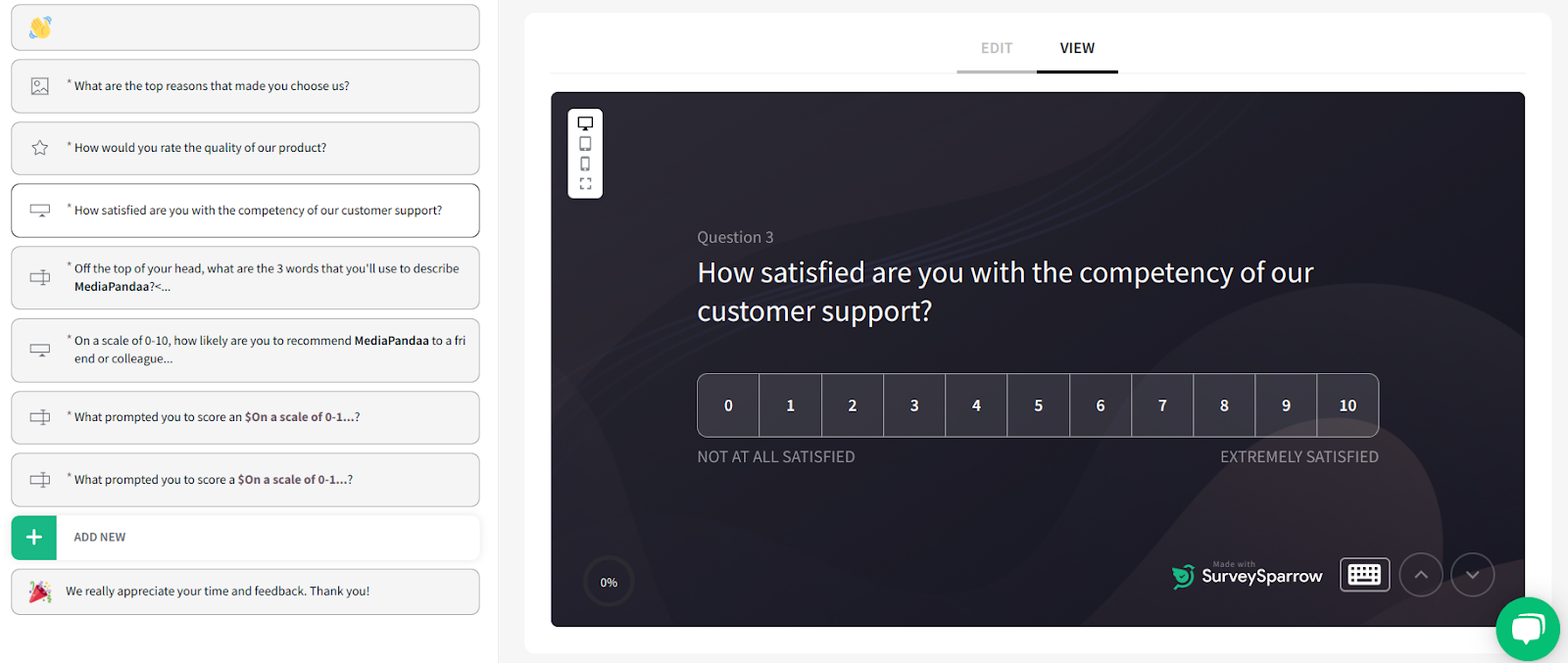
Beyond the “Build” icon, there are other editing tools. For example, the “Design” tool helps you to edit different elements of your survey.
Here, you can select the colour of your questions, answers, background, and buttons. You also have the option to add a survey header and footer.
When you scroll down, you’ll see the option to show the question number or indicate mandatory questions. Furthermore, you can select a button style and font that fits your brand.
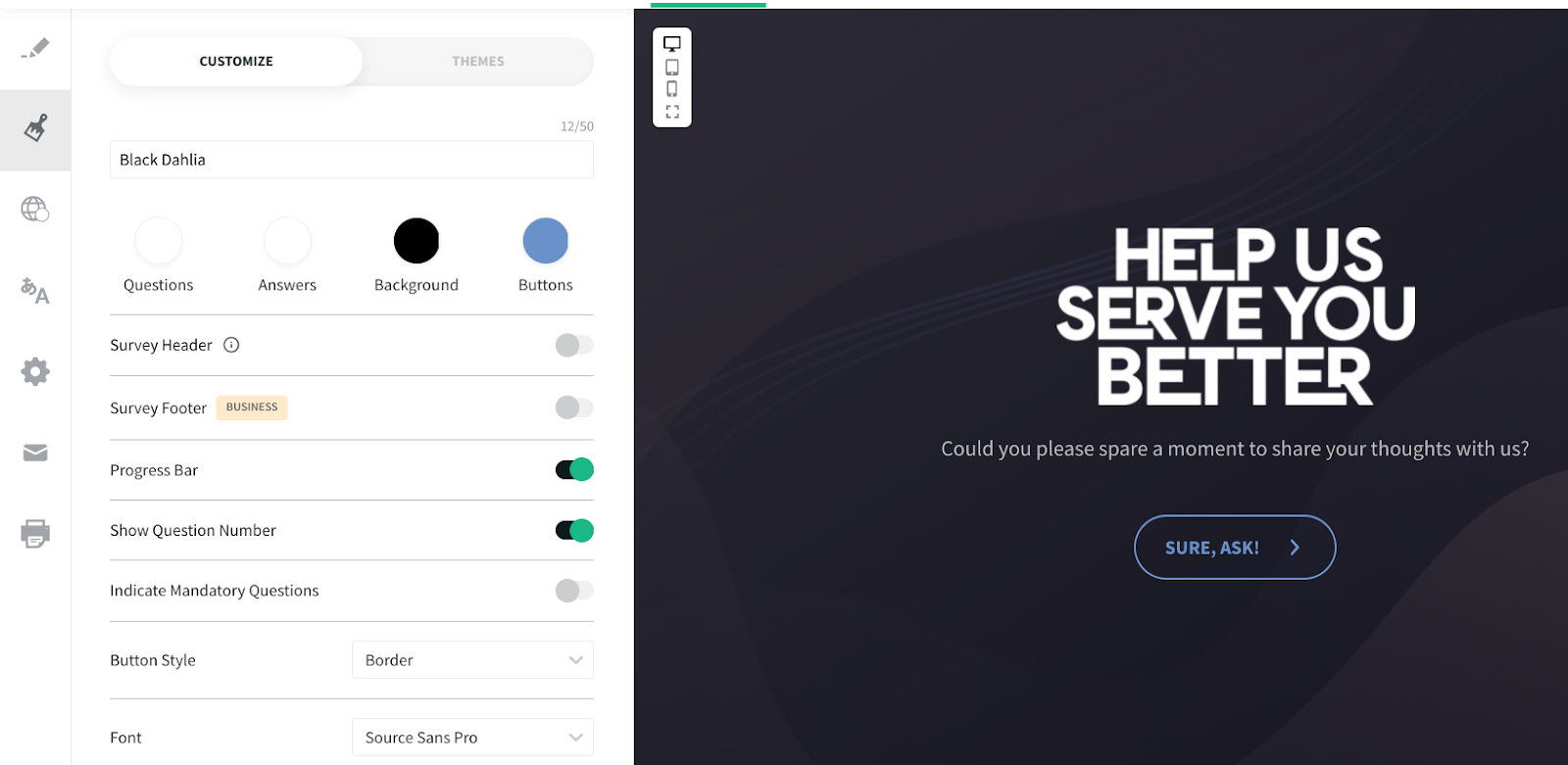
If you want to edit further, you can use the advanced background settings and CSS customization.
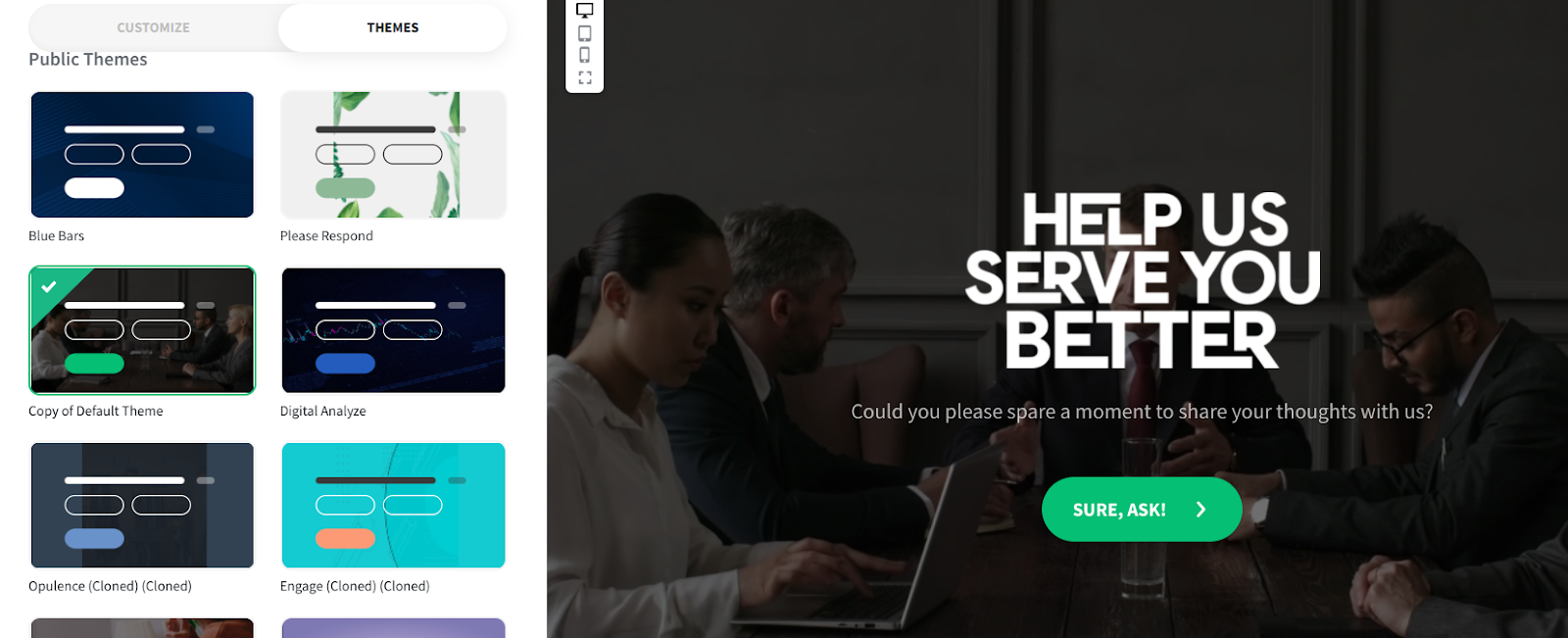
Another aspect of your design is the themes. Click on “Themes” to access these options.
With over 90 themes, there’s a high chance you’ll find a theme that fits your survey and brand. And in a case where you find no satisfactory theme, you have the option to create one.
Another interesting feature in the editor is the global variable. This helps you to personalize your surveys according to various criteria.
For instance, if you want to know how people from different countries respond to your survey, you can create a location variable. This way, you’ll know how the needs of your customers vary according to location.
To access this feature, click on the “Global Variables” icon on the left sidebar. Then, click on the “Add a Custom Variable” button. In the popup, you can add your variable and save it.
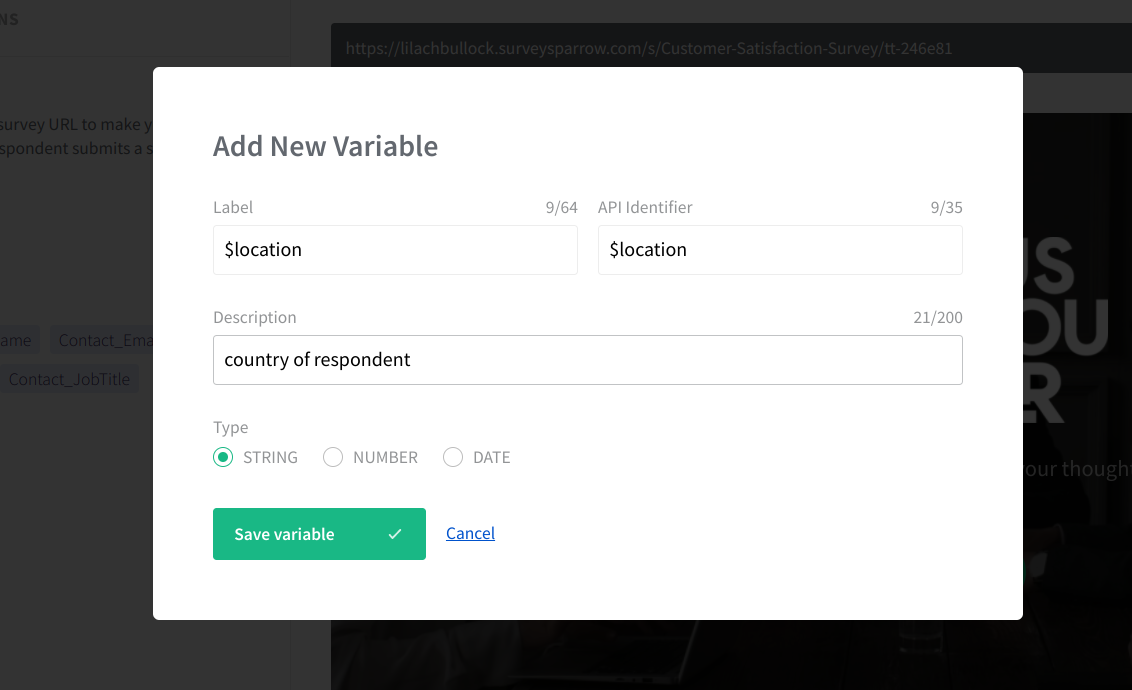
After adding your variable, you’ll have to edit your survey URL to implement this change. You can check SurveySparrow’s documentation for more details about custom variables.
Another aspect of global variables is expressions. Here, you can create mathematical formulas that will help you calculate values based on your respondents’ answers. On the thank you page, the results can then be displayed to the respondent.
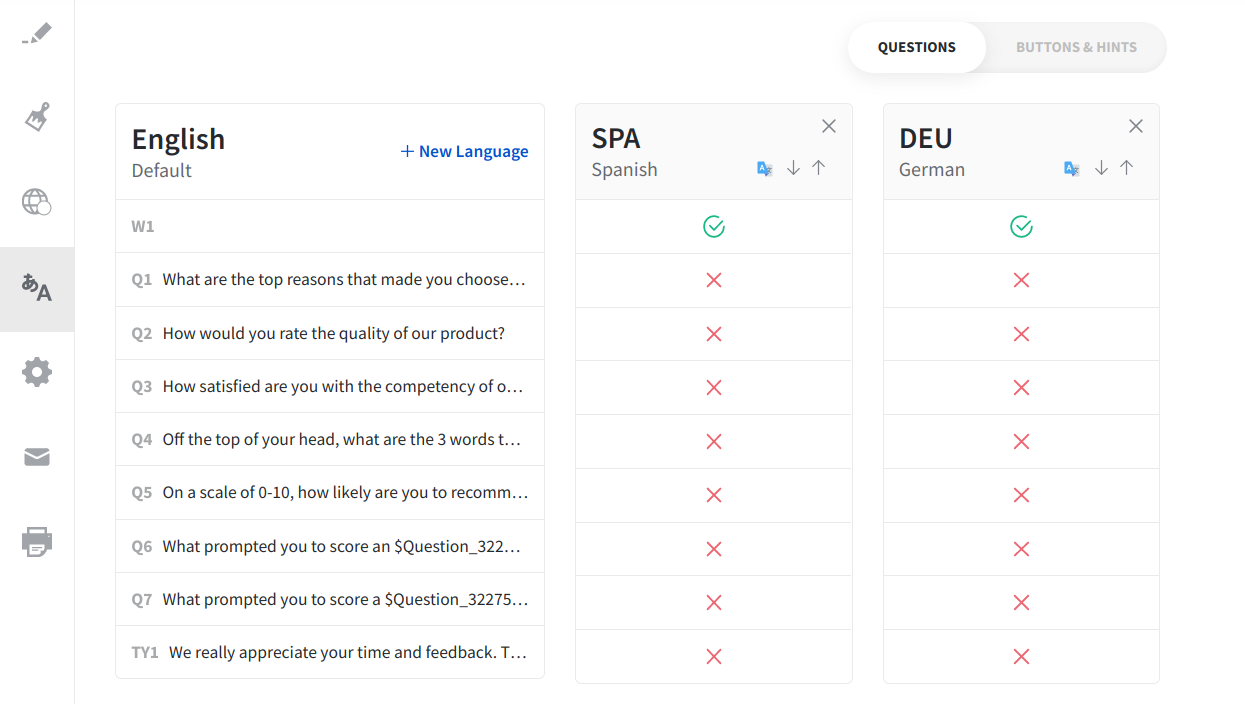
Since SurveySparrow supports over 60 languages, you can have your survey in more than one language. If you’d like to explore that option, click on the languages icon on the left sidebar.
Below the languages icon, you’ll find the settings icon. In this section, you can set the configurations for your survey.
For example, you can set the survey URL and limit the number of responses for each criterion.
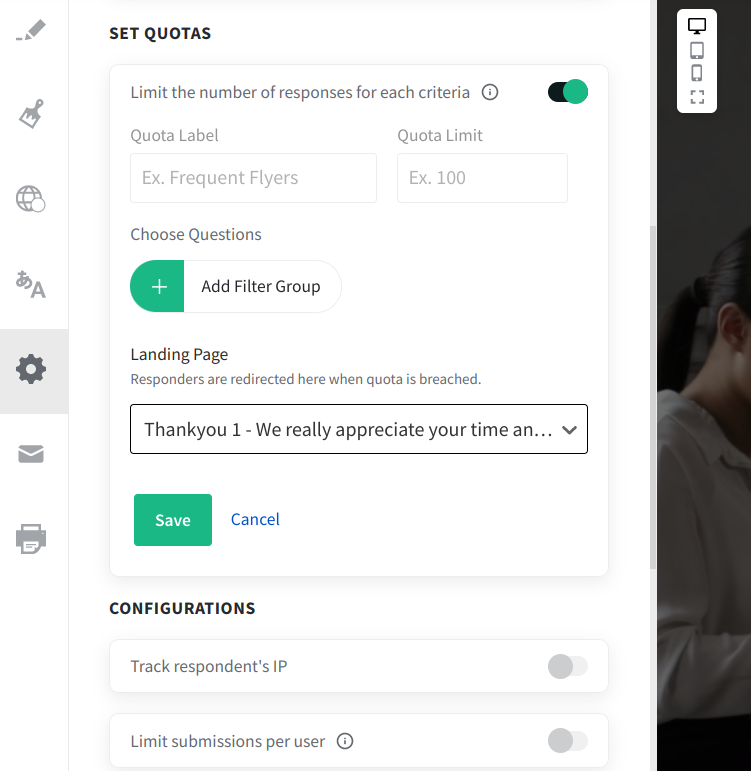
When you scroll further down the section, there are options such as:
- Tracking respondent’s IP
- Limiting submissions per user
- Allowing partial submissions
- Protecting surveys with passwords
- Limiting the number of responses the survey can get
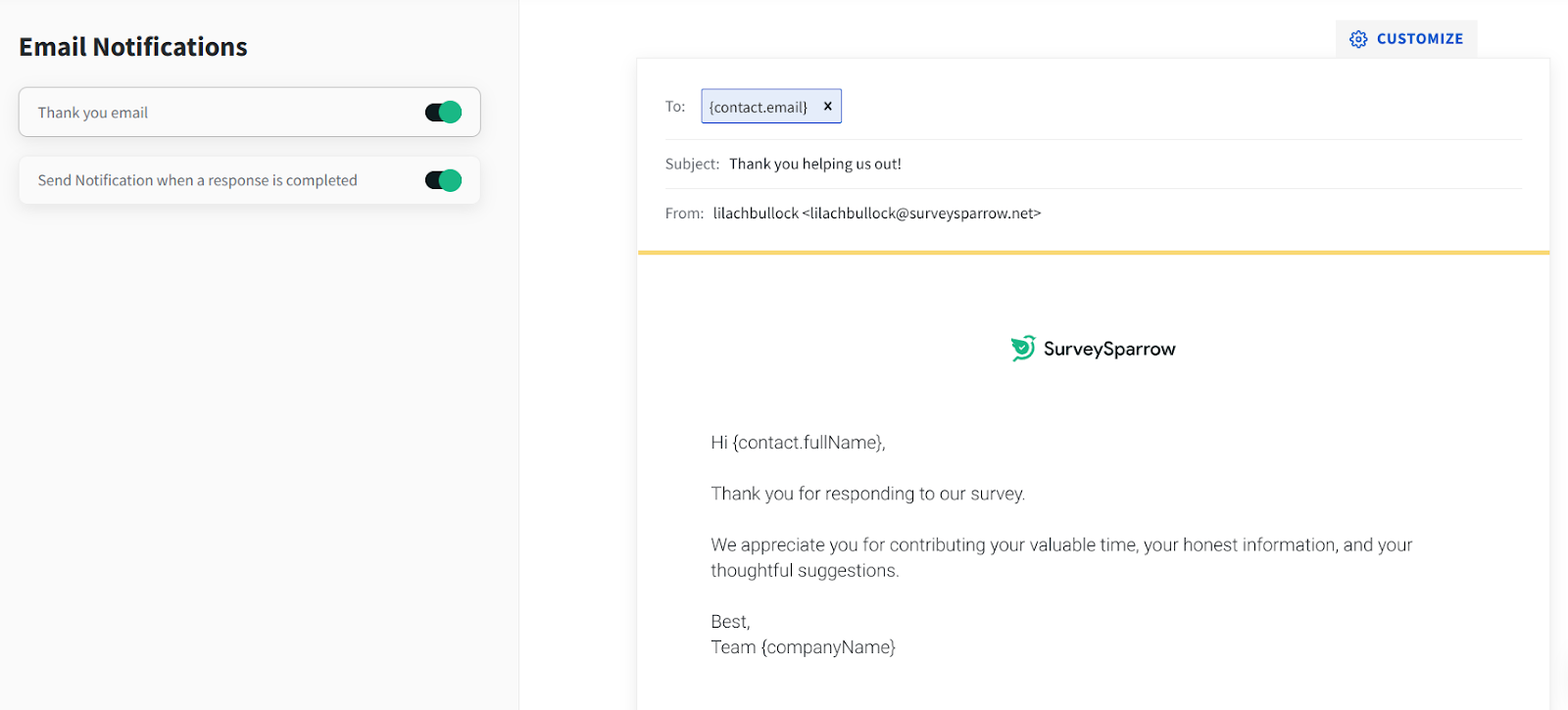
And there are even more settings available. When a respondent has completed your survey, it’s a noble practice to say thank you for taking their time.
This is where the email notification comes in handy. With these notifications, you can send an email to respondents. Doing this will boost your positive reputation with your audience.
Luckily, SurveySparrow has a template you can use to create these emails. Then, all you have to do is click on the email icon and edit the email to your needs.
Another option you have in the editor is that you can download your survey in PDF format. Once you click on the printer icon on the left sidebar, a popup will display your printing options.
After selecting the orientation and paper size, click on “Download PDF.”
Once you’re done editing your survey, you can move on to the next stage.
SurveySparrow integrations
In the second stage of creating your survey, you have access to integrations, workflows, webhooks, and API. While surveys help you take feedback from your audience, you need to take action based on this feedback.
To do that effectively, you may need to use other tools apart from SurveySparrow. In light of this, SurveySparrow has over 15 integrations to email marketing, social media, website analytics, and project management tools.
Want AI doing the heavy lifting in your marketing?
I build the systems that handle the boring 80 percent, so you get your week back. Done properly, with the human kept in.
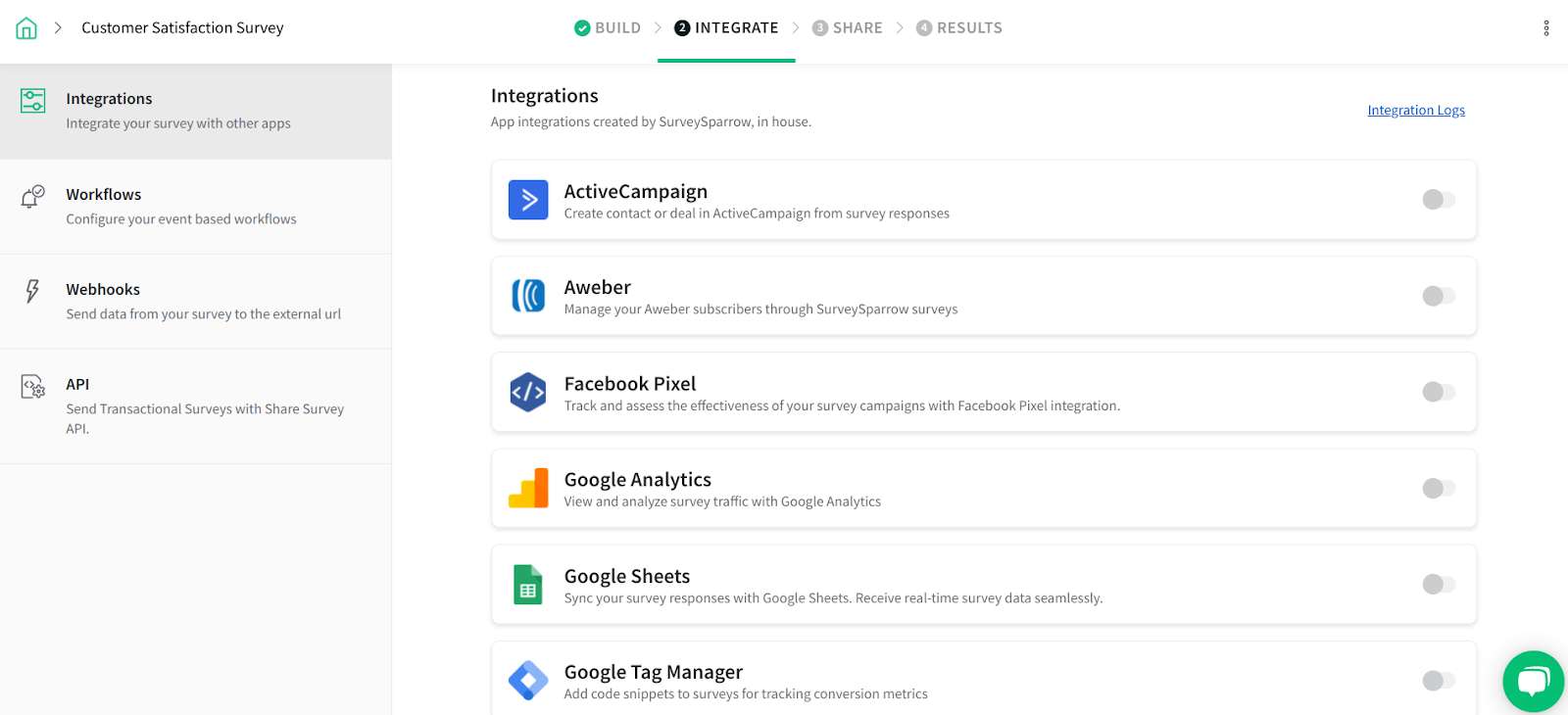
Furthermore, there’s an integration with Zapier, which opens up integrations with over 1,500 apps. Therefore, if you want to connect to any of these tools, you can just select it and provide the needed information.
SurveySparrow workflows
Instead of logging in to your SurveySparrow account to send a thank you email to each respondent, you can save time by doing it automatically. SurveySparrow workflows help you to automate repetitive tasks so that you can save time and improve efficiency.
To use this feature, click on “Workflows” at the left sidebar.
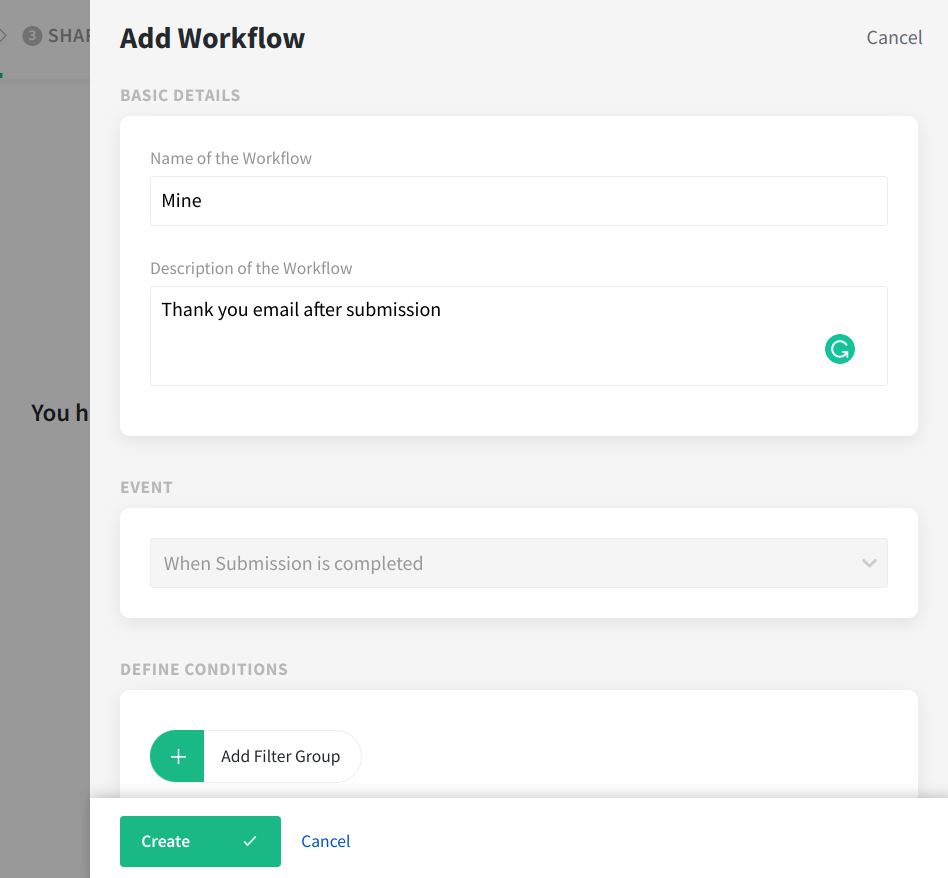
On the next page, click on “+ New Workflow.” This will trigger a popup where you can set it up.
Here, you can state the event and define conditions that will trigger the workflow. After that, you can then state the corresponding action.
When you’re through with your settings, click on “Create” to finish. Other options in this section include creating webhooks and API to transfer your data and create tasks, respectively.
SurveySparrow share
Creating an intuitive survey is one part of obtaining feedback from your audience. Promoting your survey is another.
After all, a survey without respondents is almost useless. Therefore, to ensure you obtain as many participants as possible, SurveySparrow has provided many options to share your survey.
To access these options, click on “Share” at the top bar of your page. At the top of the page, you’ll see a survey link you can copy.
Scrolling down below, there are more options to share your surveys such as email, social media, website, SMS, and more.
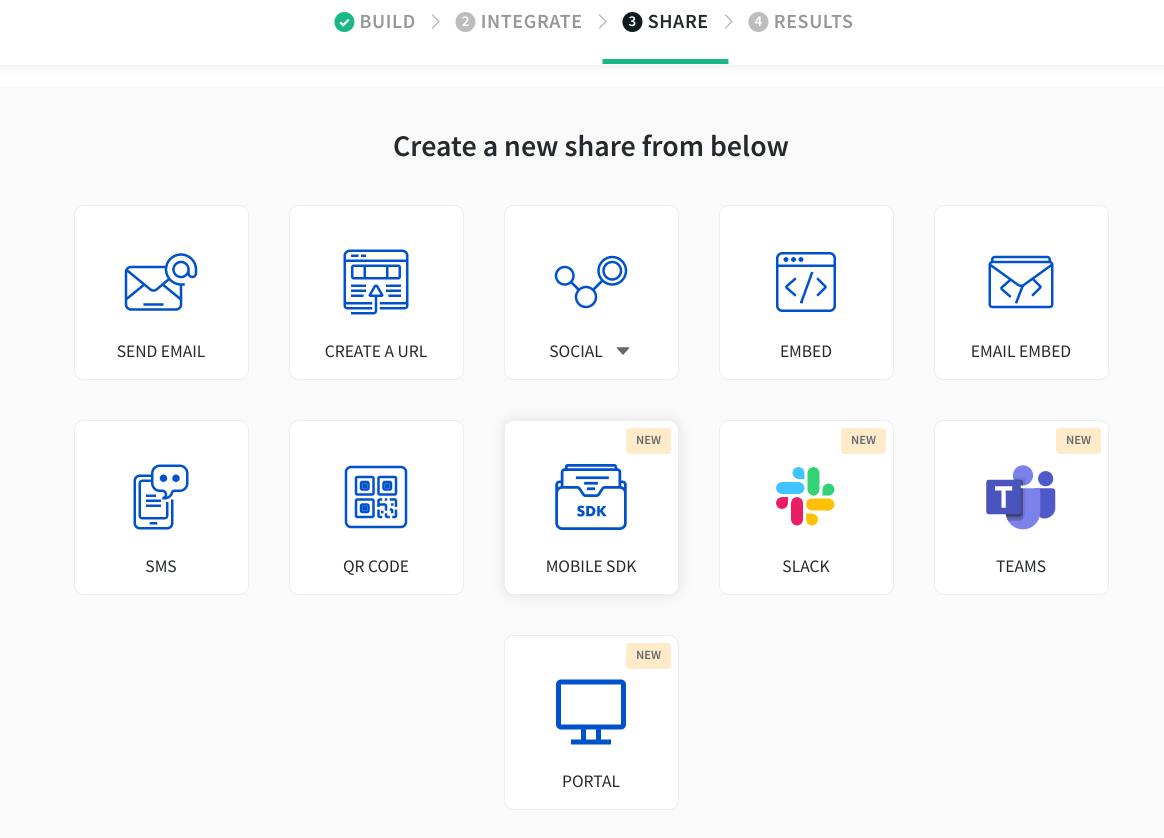
For example, if I want to embed the survey on my website, I only need to click on “Embed.” Doing this takes me to the setup page.
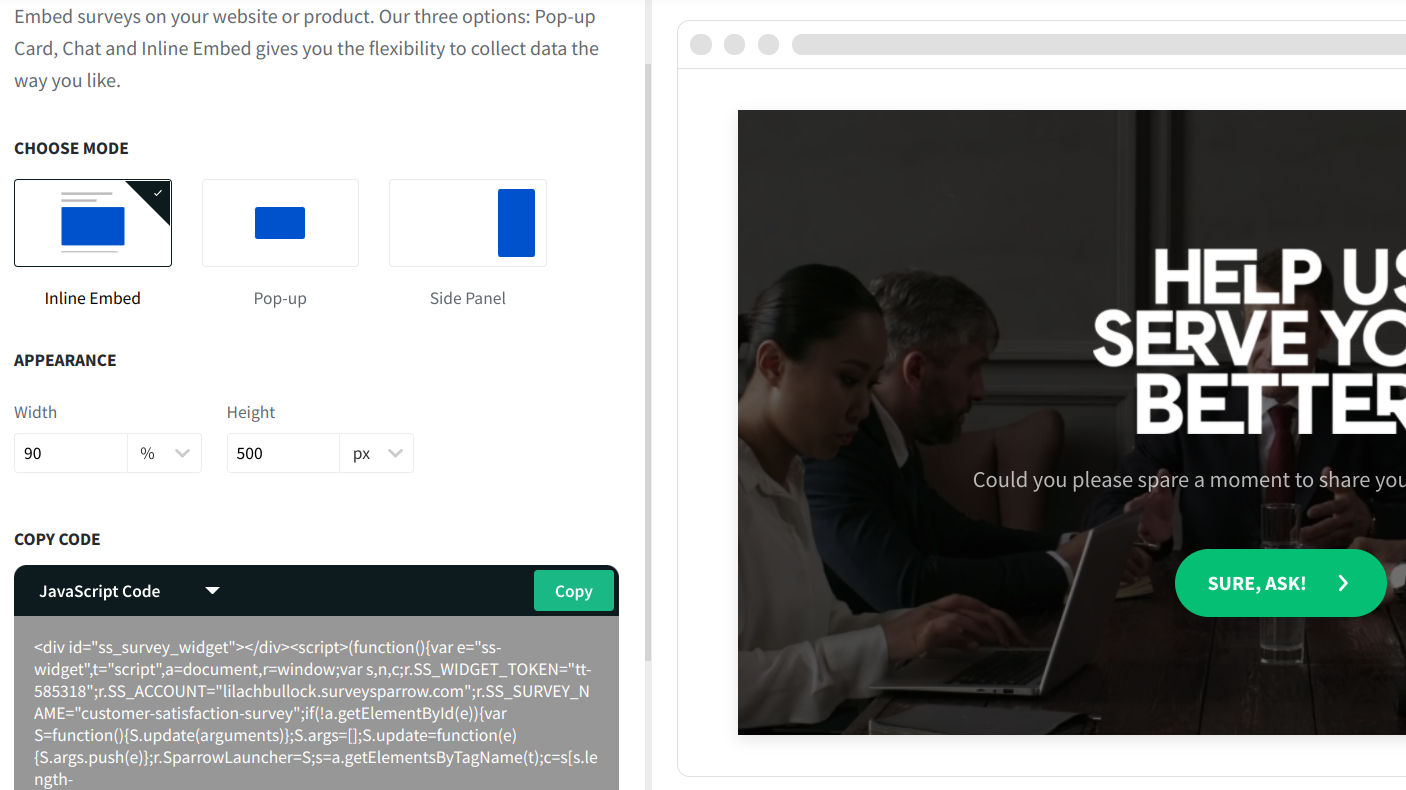
I can select the mode of the survey on my website and also the resolution. After setting your preference, you can copy the javascript code. If you want a WordPress Shortcode, you have that option too.
After copying the code, you can paste it into the page you want the survey to appear.
SurveySparrow results
Whether you’re still running your survey or you’ve ended it, you need to track your results. This will help you determine the success (or failure) of your survey.
Furthermore, you can obtain information to improve future surveys. The results in SurveySparrow are in two parts which are:
- Reports
- Responses
Your reports display a graphical representation of your respondent’s answers to your survey. Apart from viewing your reports, you can also compare some results across different groups.
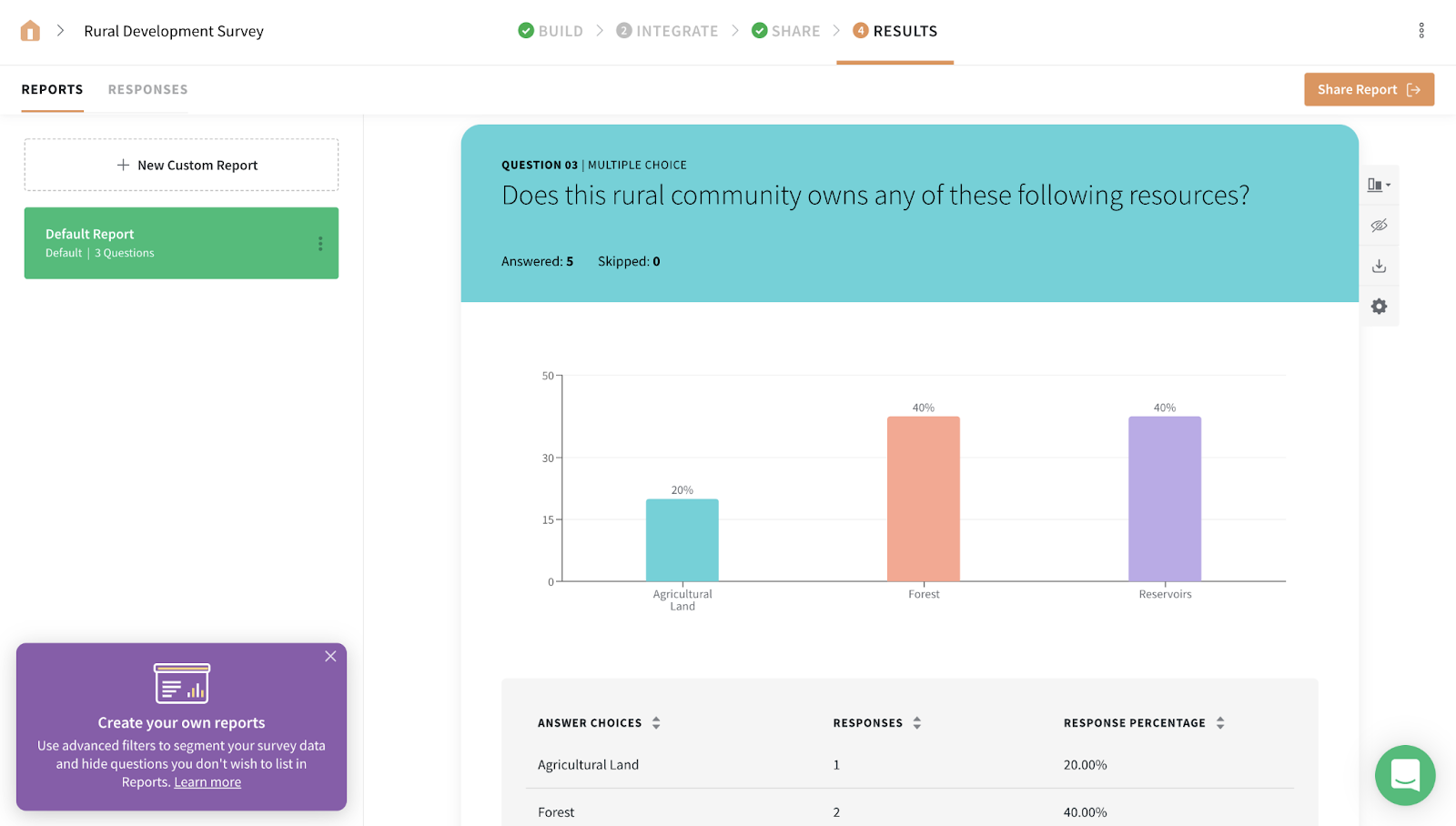
For further analysis, you can export your reports as PDF.
Responses, as the name implies, display replies to your surveys. If you want to analyze their responses further, you can export those responses as CSV or Excel file format.
SurveySparrow customer support
Anybody can face issues while using a tool. And the same applies to SurveySparrow.
Fortunately, there are many ways to reach out to their customer support if you need to solve a problem. These ways include:
- Chat
- Knowledge base
- Forum
- Phone support
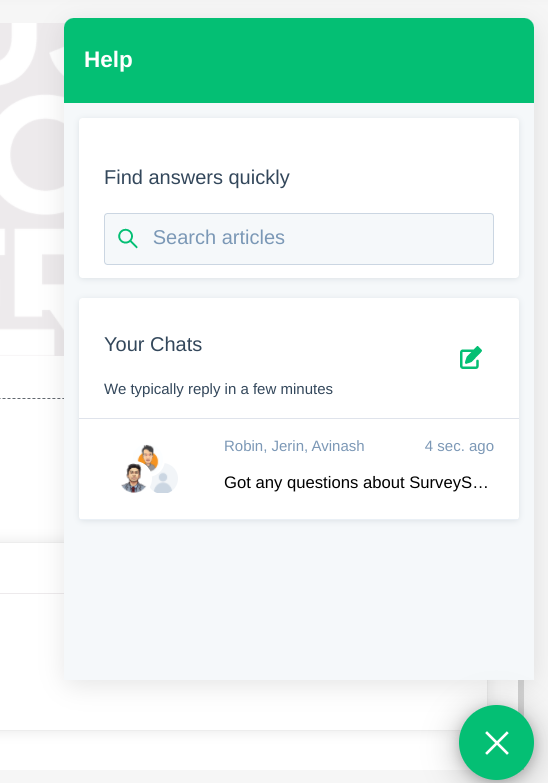
While using SurveySparrow, you’ll observe a chat button at the bottom right corner of your page. When you click on it, you have the option to either chat with customer support or search the knowledge base.
SurveySparrow pricing
How much does SurveySparrow cost? It depends on your needs. The plans range from personal to business to other additional solutions.
SurveySparrow pricing plans include:
- Free: this is free and includes 100 responses per month.
- Basic: this plan costs $19 per month if you pay annually ($39 if you pay quarterly). It includes 500 responses and 1,500 email shares per month.
- Premium: this plan costs $29 per month if you pay annually ($59 if you pay quarterly). It includes 2,000 responses and 6,000 email shares per month.
- Business: you’ll pay $99 per month to access this plan ($199 if you pay quarterly). It includes 10,000 responses and 30,000 email shares per month.
- Enterprise: the enterprise plan costs $499 per month ($699 if you pay quarterly). It includes 50,000 responses and 150,000 email shares per month. There’s a slider on each plan to adjust the number of responses and see the corresponding cost.
- Elite: you have to contact the SurveySparrow team to obtain the pricing of this plan.
- Net Promoter Score Software (NPS) plans: in this tab, you’ll find the net promoter score plans including their details and pricing.
- 360 assessments: this plan estimates cost according to the number of subjects. It costs $79 per subject for 10 subjects.
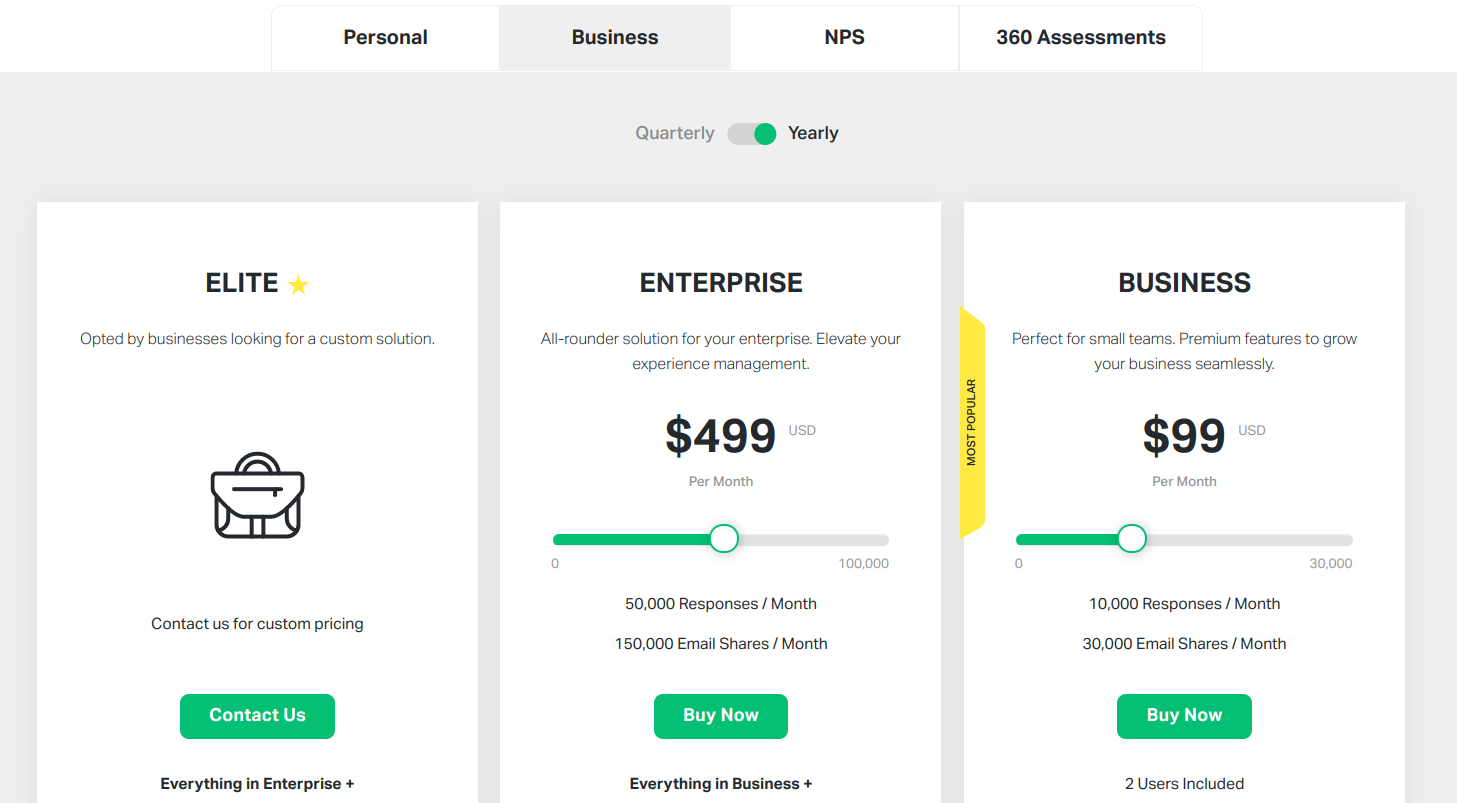
You can visit the SurveySparrow pricing page to dive deeper into the details of each plan. This tool also offers a 14-day free trial to test-run a plan.
Conclusion
Getting feedback at the right time can be really beneficial for your business, and for many reasons. It can make your customers feel important and help you correct problems that can chase your audience away.
But to get your feedback system right, you need to use the right tool. Without exaggerating, SurveySparrow is a tool that meets most of your feedback needs, whatever your business size.
Luckily, you can go for its 14-day trial to see its capabilities before committing.
What are your biggest survey needs? Does SurveySparrow meet them? Let me know in the comments!
SurveySparrow FAQ
What makes SurveySparrow different from SurveyMonkey?
SurveySparrow leads with conversational surveys (chat-style flow) where SurveyMonkey is closer to a traditional form builder. SurveySparrow tends to win on mobile completion rates and modern aesthetics, while SurveyMonkey has broader template variety and enterprise integrations.
Who is SurveySparrow best for in 2026?
Best for businesses prioritising response rate and respondent experience, especially on mobile. Common use cases include customer feedback, employee engagement, NPS tracking, and lead capture.
How much does SurveySparrow cost in 2026?
SurveySparrow offers a free tier for basic use. Paid plans start around $19/month for individuals and scale up through team and enterprise tiers with custom branding, advanced logic, and integration features.
Want to go deeper? Read these next:
- Beyond Chatbots: How AI Agents Are Reshaping Business Work In 2026
- Focus That Delivers: Setting Quarterly Priorities That Actually Move The Business
- The Client Doesn’t Set the Price, the Market Does, According to Carlos Alex Rozwadowski
Related: how to make money on Instagram with 1k followers
Free resource: The Survey Question Swipe File.
Related reading: SurveySparrow Review 2026: Features, Pricing, and Is It Worth It? and What to Look for in a Web Survey Tool (Before You Get Halfway Through Building One).
Related reading: How Conversational AI Is Reshaping Customer Service Interactions.