


Managing social media interactions effectively can be the difference between lost leads and acquired customers. Because how else do you build trust with prospects and answer customer queries?
Having said that, it can be difficult to track all interactions on your social media pages manually. You have to navigate many social media sites and dig endlessly through both important and completely unnecessary messages.
And that can definitely be a huge time drain.
With a tool though, you can manage all these interactions in a single inbox. Whether a prospect has sent you a message on Facebook or replied to your tweet, you can track all those interactions in a single place. This could literally save you hours every week, leaving you the time to focus on other important bits that can’t be as easily automated.
And not only that, you can tag these messages and put them in different tabs for easier tracking. Furthermore, you have the option to set automated responses or actions for some common type of messages.
Here are some of the biggest benefits you gain from managing your social media interactions from a single inbox:
- Improves productivity: when you manage your interactions on a single platform, you're able to do a lot more in considerably less time.
- Improves organization: by having your interactions in different tabs, you can organize your messages into different categories. With this, it becomes easier to track your interactions over time.
- Better customer service: with social media now a big part of customer service, it's easier to respond to your customers' complaints and inquiries. Moreso, you can do it within a short time.
- Automate repetitive tasks: do you receive spam messages you want to delete immediately? Do you receive messages that require an immediate response? You can create automations to take immediate action in case of common events.
- Easier collaboration: you have the option to assign different tasks to different team members so that work is shared and done more efficiently.
Having said all of this, here's a tool that helps you manage your social media interactions in a single place and help you manage your social media more effectively.
What is NapoleonCat?
NapoleonCat is an all-in-one social media management tool; and I want to show you how it works because I loved its ease-of-use, the intuitive dashboard and, of course, the features.
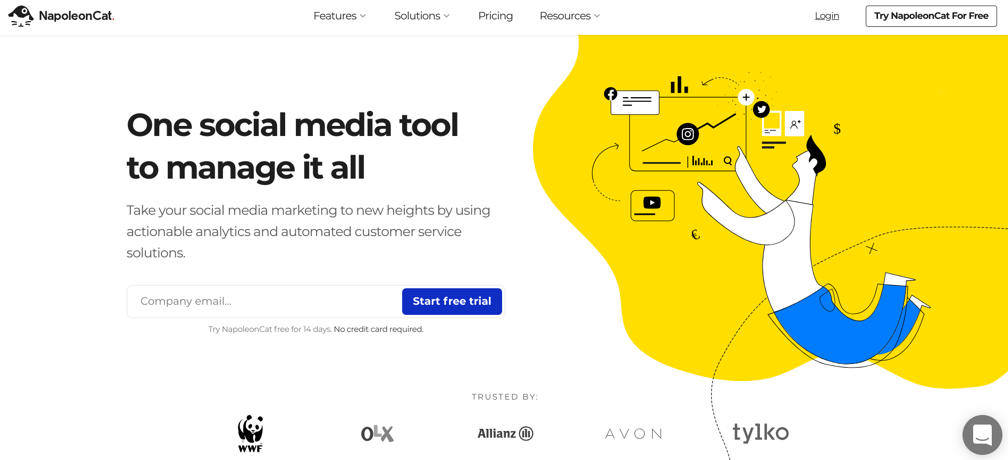
So how does it work? What features make it stand out? Let’s take a deeper look:
[click_to_tweet tweet="How to pick the right #socialmediatool to boost your #productivity: a review of @NapoleonCatCom " quote="How to pick the right #socialmediatool to boost your #productivity: a review of @NapoleonCatCom "]
Managing social media channels
When you log in to your NapoleonCat account, you’ll see your inbox. Here, I’ve added my Twitter profile to the dashboard.
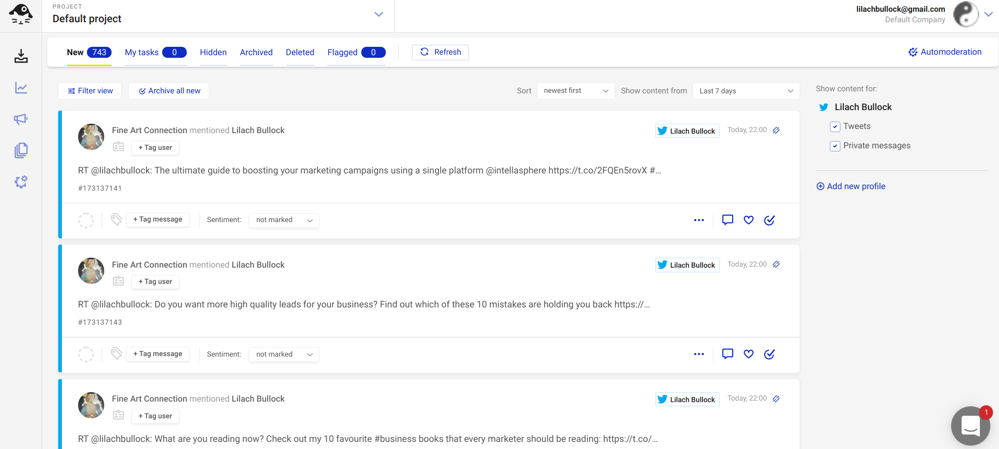
To add a new social media profile, click on “Add new profile.”
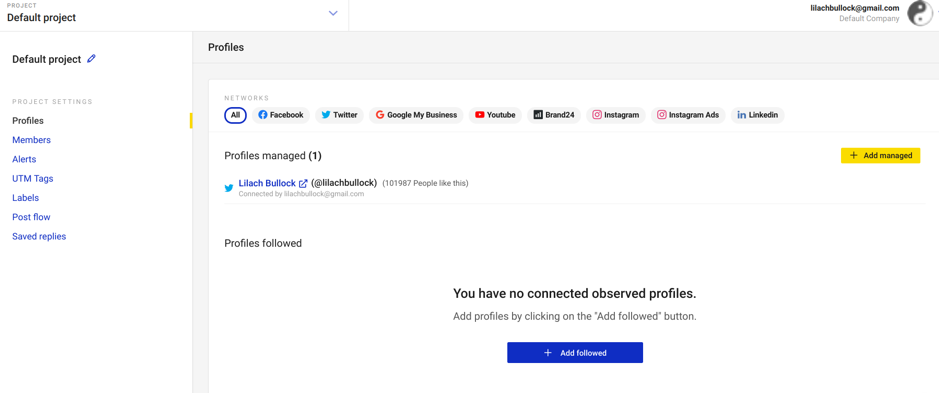
The beauty here is that you can add your profile by clicking “Add managed.” However, if you want to observe a competitor’s profile, you can click on “Add followed.”
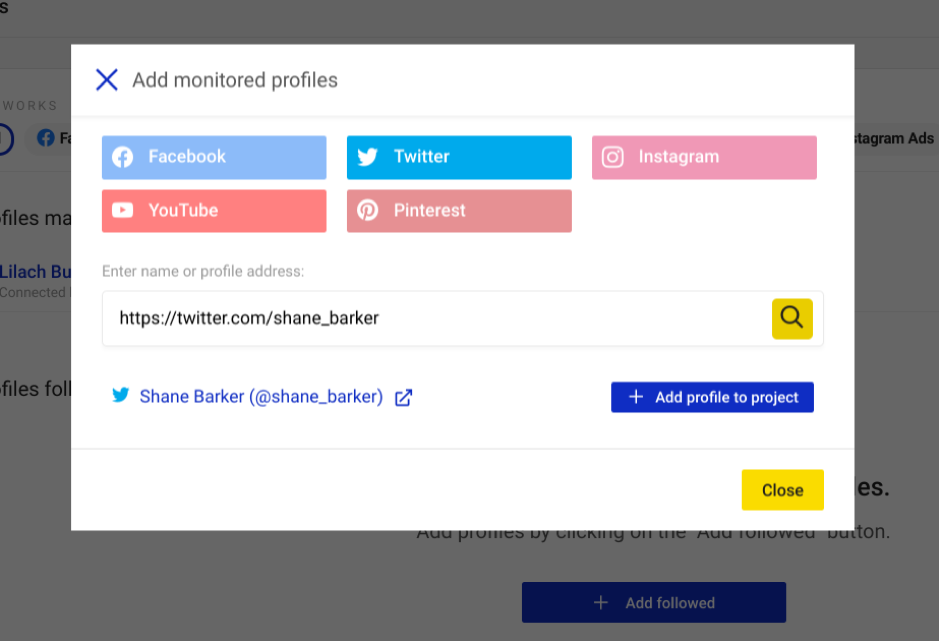
After adding this Twitter profile, you can now see it under the category of profiles followed.
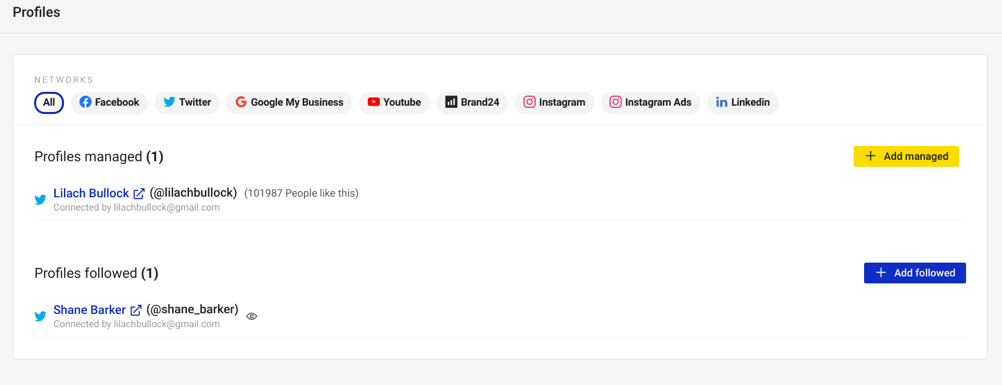
Apart from the profiles you add, you can also create alerts for these profiles.
Added to that, NapoleonCat allows you to set UTM parameters for different characteristics.
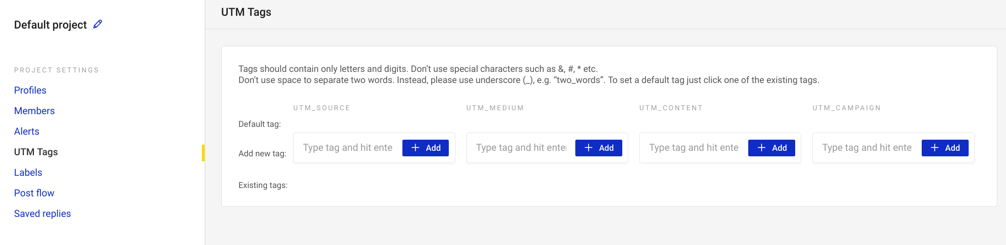
This then allows you to track your campaigns’ analytics in great detail, and it’s all done without having to leave the dashboard and use multiple tools.
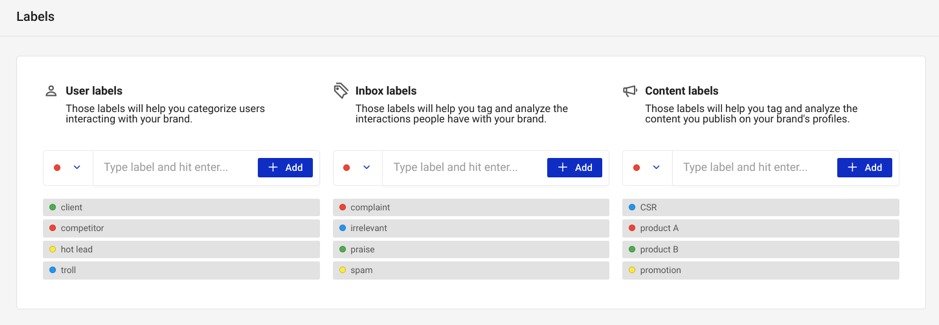
You can also label your users, inbox, and content based on different factors, in order to organize your social media more effectively:
Customer service inbox
NapoleonCat provides a single inbox where you can manage messages and comments from your social media.
When you click on the “Inbox” icon at the top left corner of your dashboard, you’ll see messages and social media updates where your account has been mentioned.
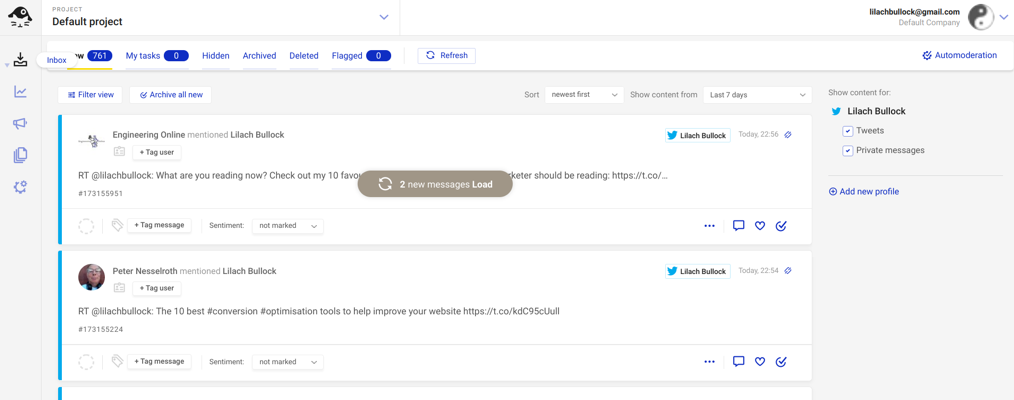
For each message, there are various actions you can take from the icons available. These include:
- Tag message
- Select sentiment
- Reply and Like
- Archive
- Flag
- Add a note
- Send to consult
In other words, you can interact with your social media connections directly in your dashboard:
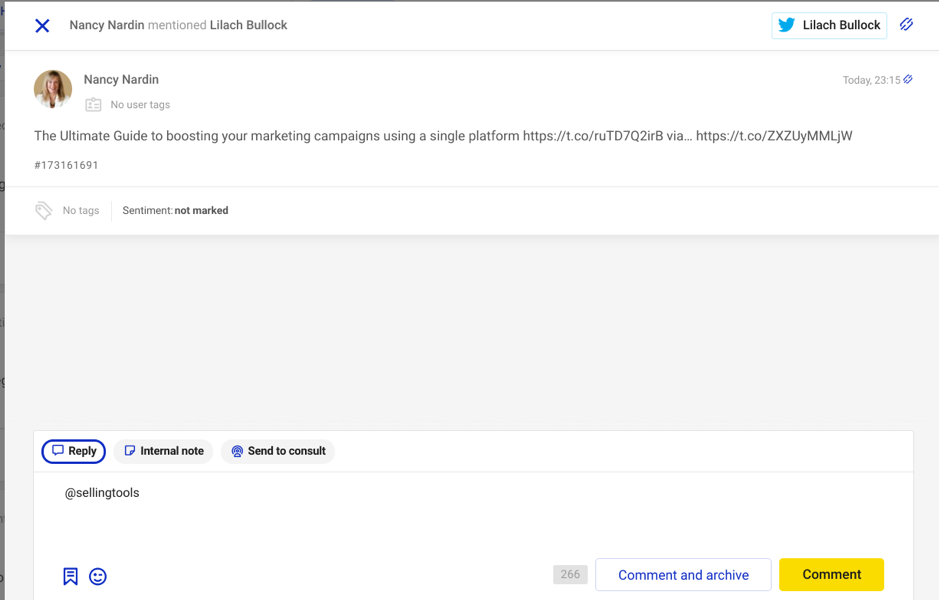
As well as use the various options for organizing your mentions and updates, add notes and collaborate with others.
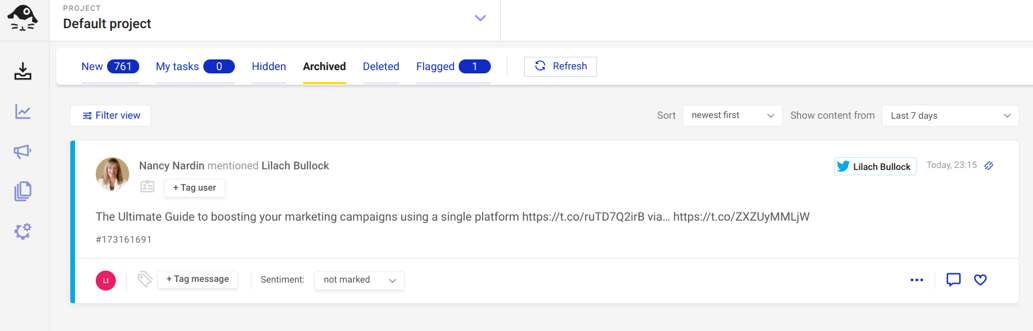
These options help you to categorize and organize your social media messages. Above these updates, you can see a bar used to group your messages; whenever you take an action on a message, it's transferred to the corresponding bar.
For instance, when I archive a message, it’s automatically added in the “Archive” bar.
To make the process even easier, NapoleonCat allows you to create a so-called “Auto-moderation” to carry out some actions automatically. When you click on it, you’ll see the conditions needed to create one.
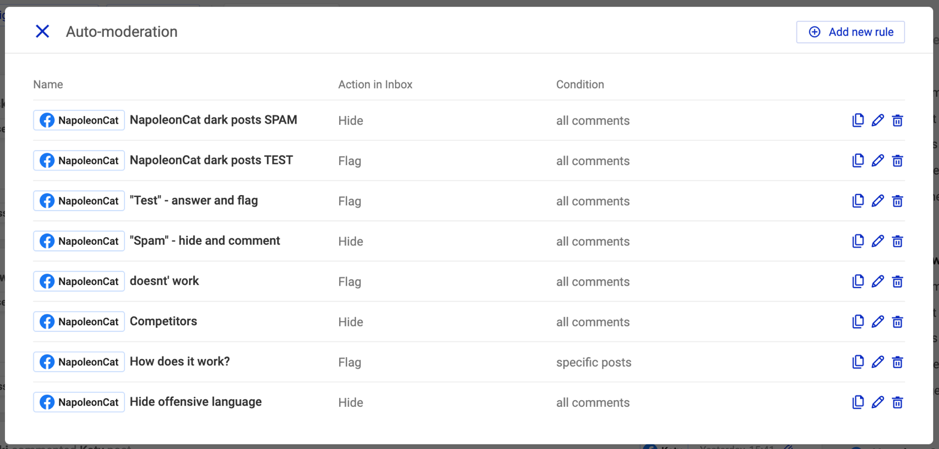
You have the option to use any of your current rules or create a new one. If you’re creating a new rule, you can select the trigger for this rule.
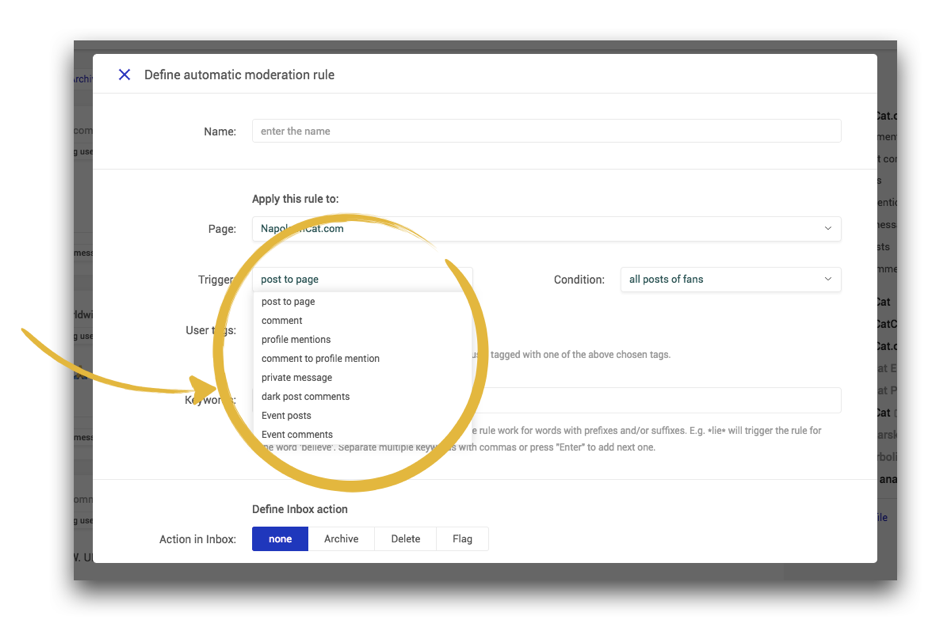
After selecting your trigger and conditions, there’s an option to tag followers and add keywords. When your trigger or condition is met, you can specify the actions NapoleonCat will take.
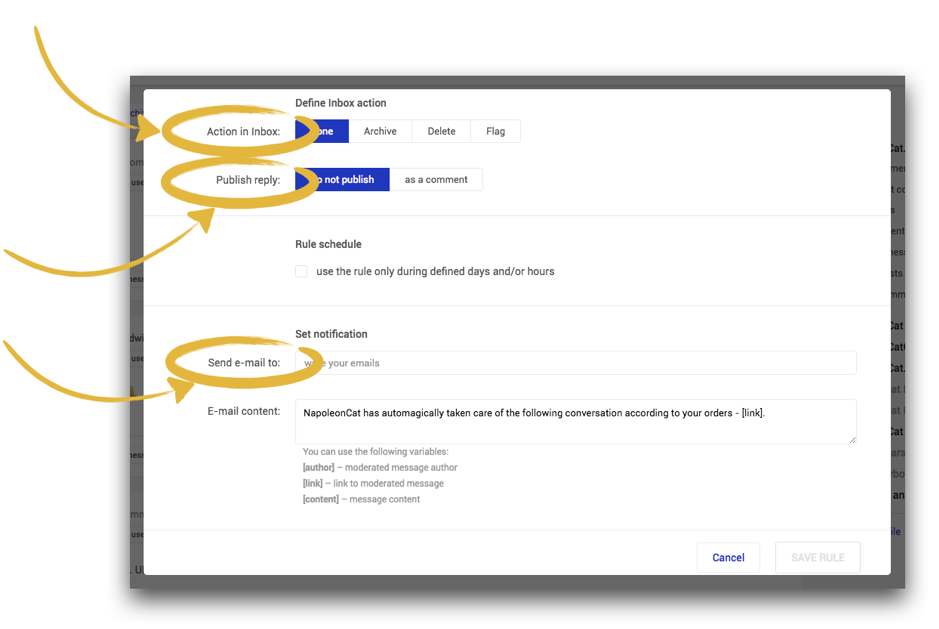
Furthermore, NapoleonCat allows you to schedule your auto-moderation so that they’ll only work when you’re out of office.
With the auto-moderation feature, you can discard spams or send automatic replies to common questions. This is especially useful if you receive so many messages that managing them will be a full-time job.
[click_to_tweet tweet="How to pick the right #socialmediatool to boost your #productivity: a review of @NapoleonCatCom " quote="How to pick the right #socialmediatool to boost your #productivity: a review of @NapoleonCatCom "]
Content planning, scheduling, and posting
Rather than navigate around 5 social media accounts to share updates, you can do it all right in the NapoleonCat dashboard.
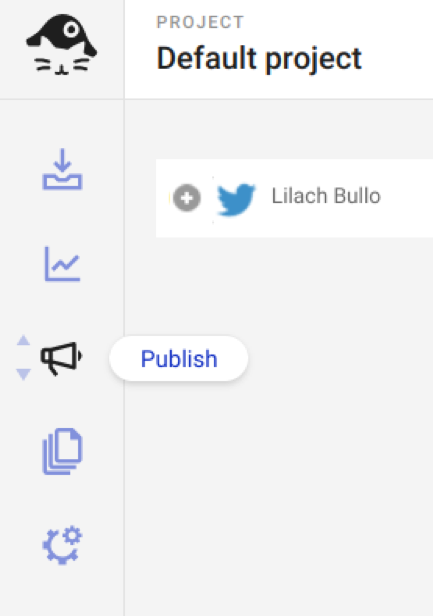
To use this feature, click on the “Publish” icon.
After doing this, you’ll see an update box to type your update and a social media calendar to schedule the post at a particular date and time.
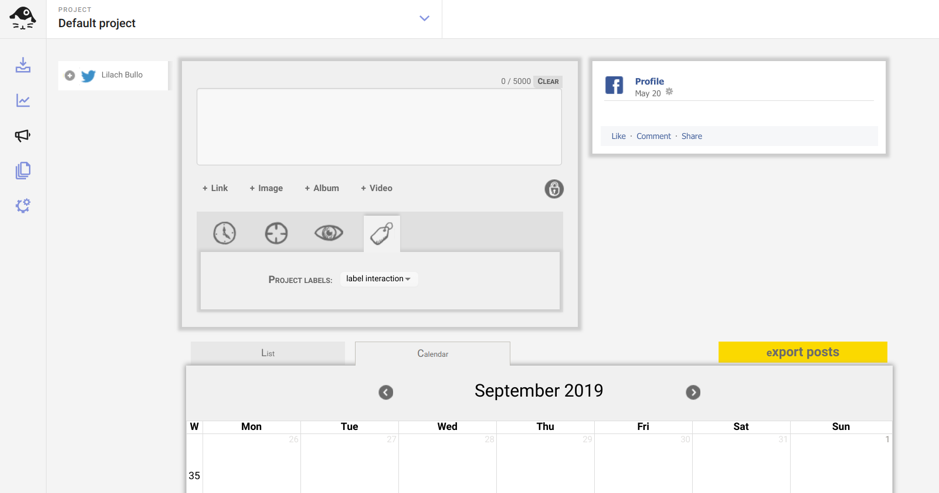
Other than text updates, you can also share other types of updates such as:
- Links
- Images
- Albums
- Videos
When you’ve created your update, you can either save it as a draft or schedule your message to be published at a later time:
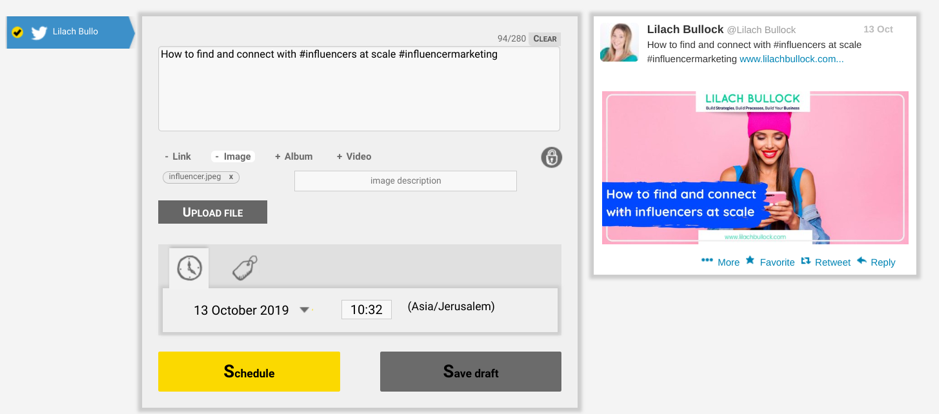
When I click on “Schedule,” it automatically reflects on my calendar.
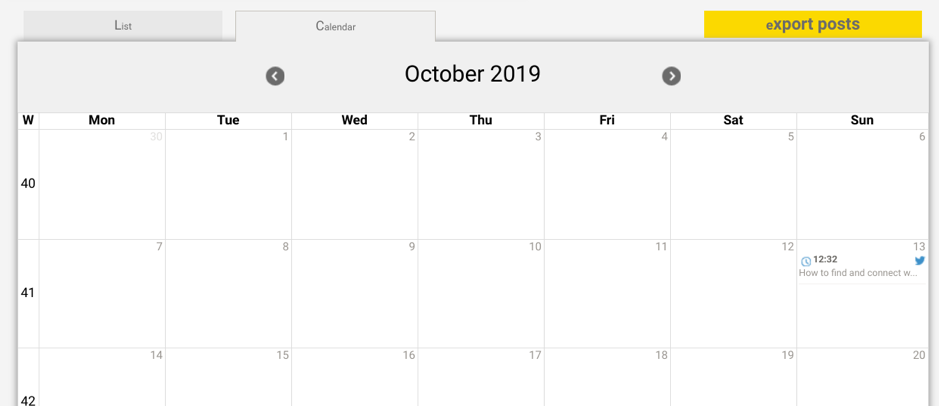
Plus, you can use the calendar to simply plan your updates before you ever schedule anything; and if you’ve already planned your updates, you can save time by bulk uploading them.
However, one of my favourite features here is that you can automatically add Google Analytics UTM tags to your links so that you can track conversions from social media.
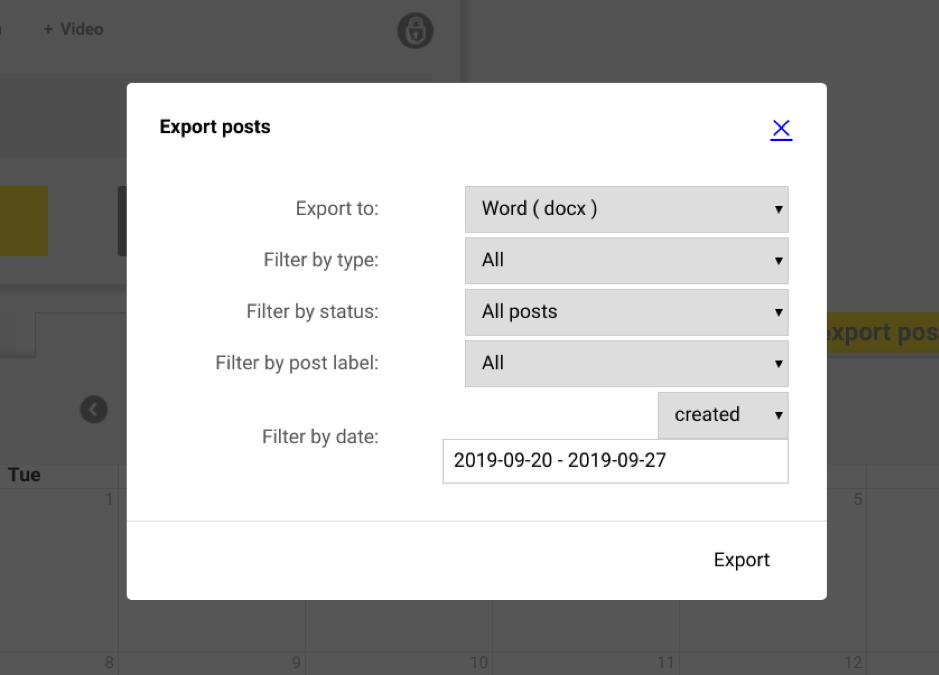
And, you can even export your social media posts with the “export posts” button:
Social Media Analytics
On the analytics page, you can see details about your social media posts, engagement, and performance. To access your social media analytics, click on the analytics icon:

On this page, you’ll see a summary of your social media performance. You have details such as:
- Number of followers
- Number of profiles followed
- Number of tweets
- Number of interactions
- Engagement rate
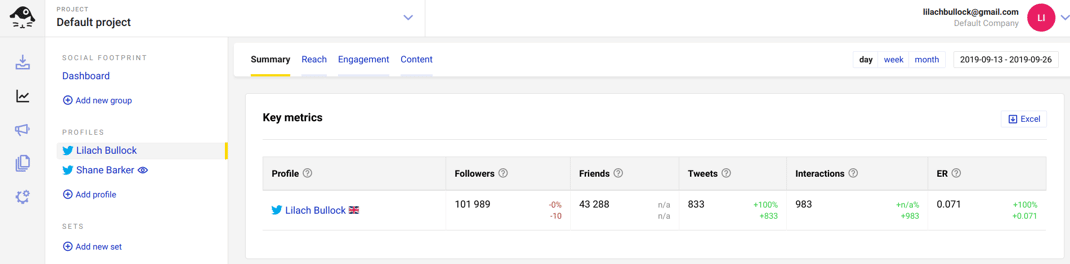
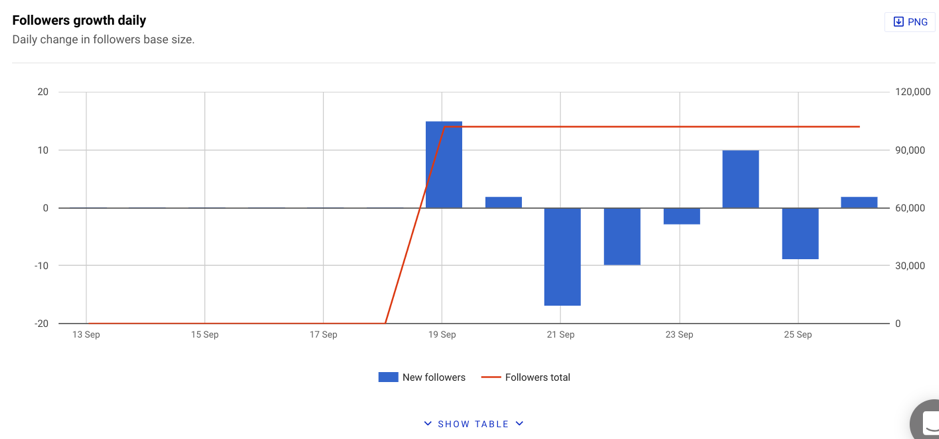
Below that, you can see how your follower count changes with time.
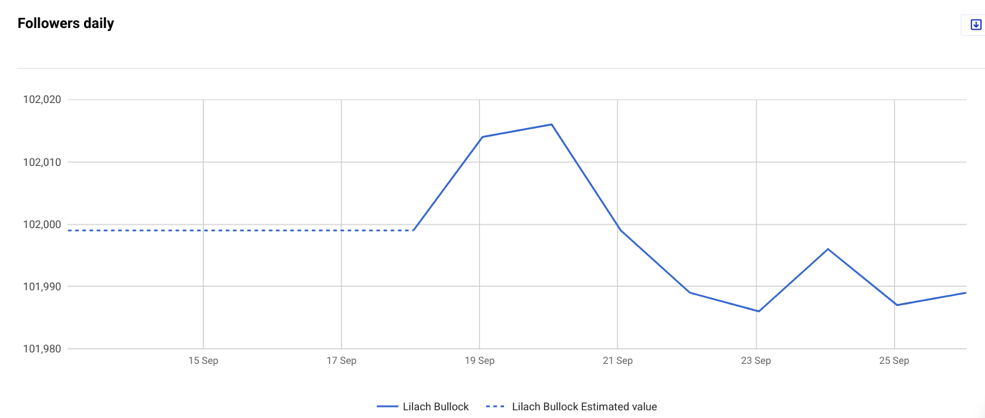
Apart from the summary, you can go into more detail in the reach, engagement, and content bar. In the “Reach” bar, there's a display of your daily follower and followed growth.
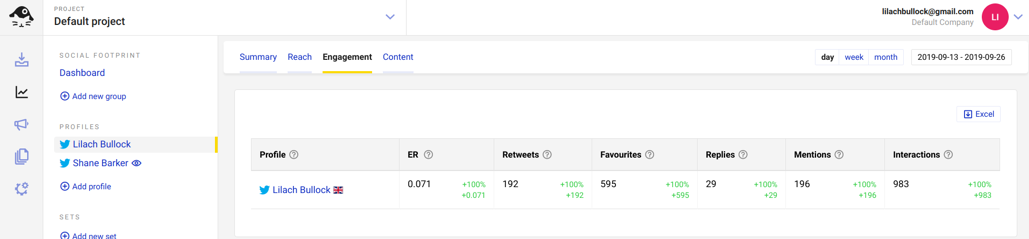
In the “Engagement” tab, you get metrics such as:
- Engagement rate (ER)
- Retweets
- Favourites
- Replies
- Mentions
- Interactions
Want AI doing the heavy lifting in your marketing?
I build the systems that handle the boring 80 percent, so you get your week back. Done properly, with the human kept in.
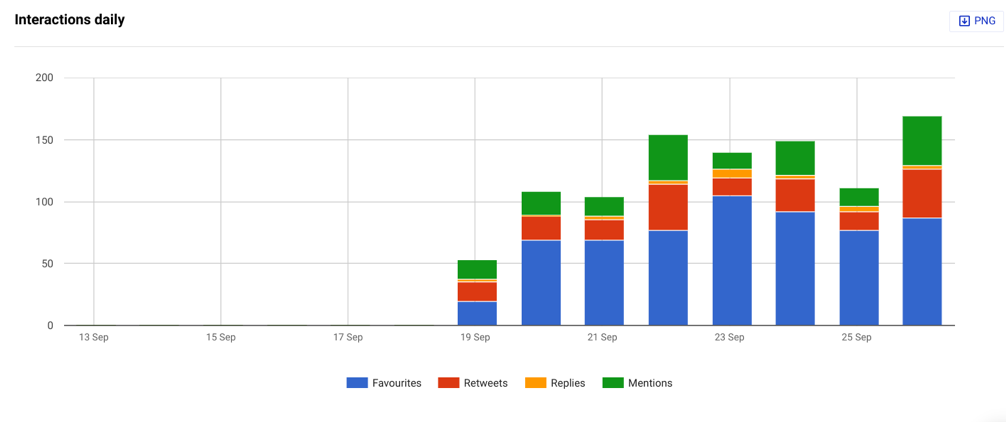
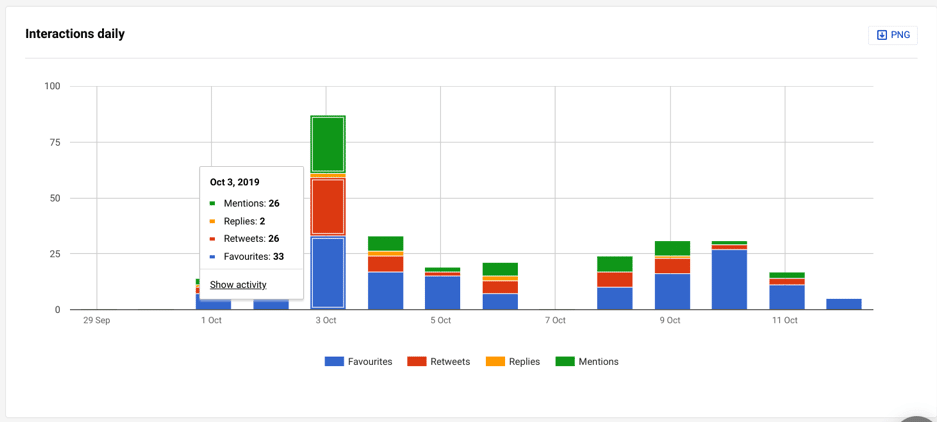
Below that, there's a graphical representation of these statistics. For instance, here’s a graph showing the types of daily interactions. You can also have weekly or monthly statistics depending on what you want to see:
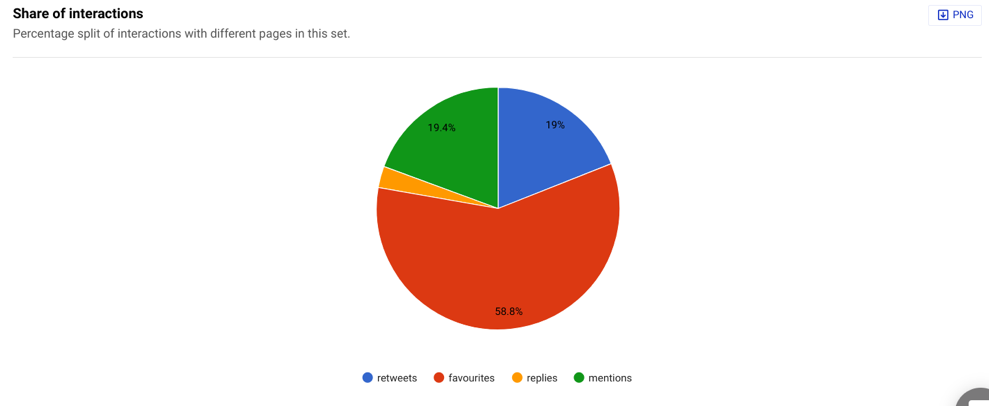
Next, you can see a pie chart showing the share of interactions, by type.
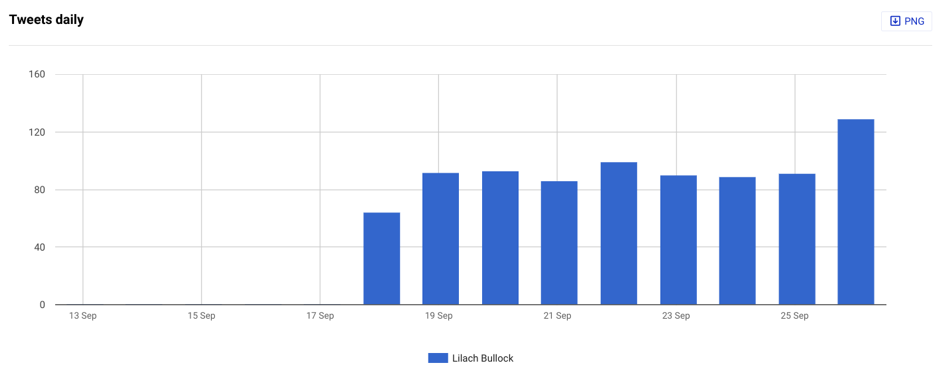
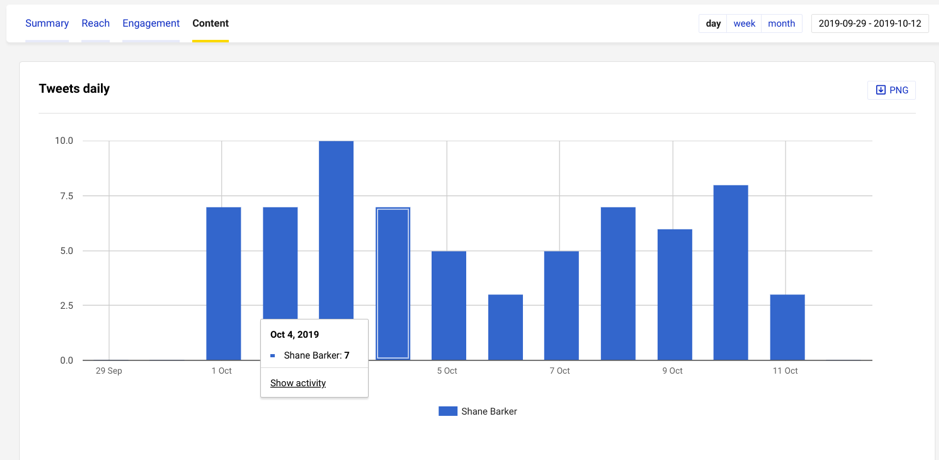
In the content bar, you'll get details about the number of tweets you share daily.
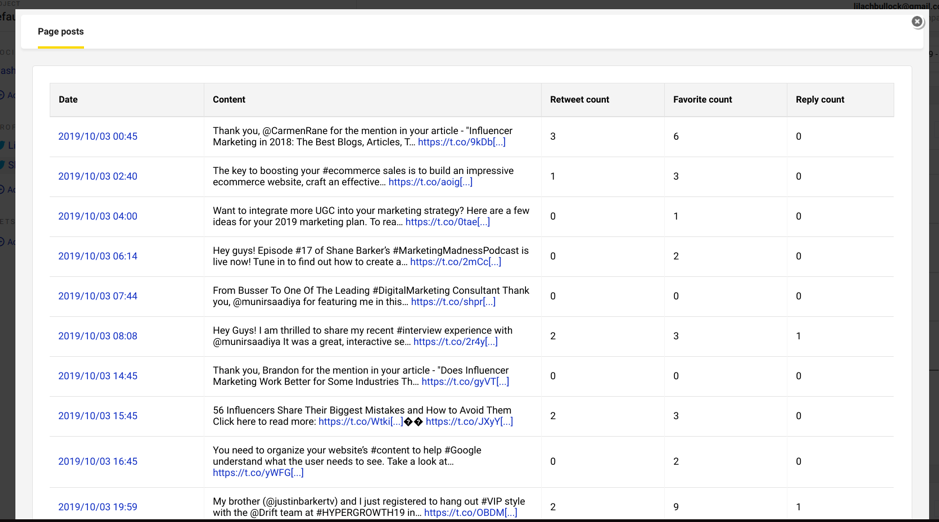
Going further down the page, you’ll see your recent tweets and the engagement metrics for each tweet.
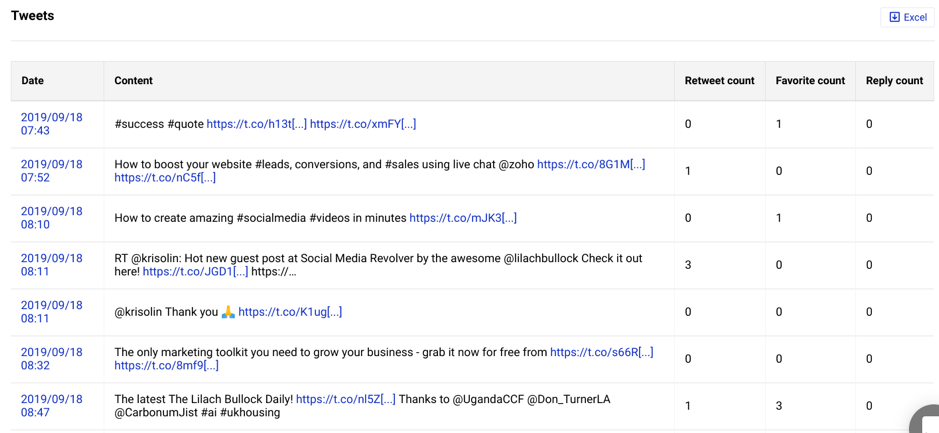
After obtaining analytics from NapoleonCat, you can export these figures and charts to excel or download as an image in PNG format if you need a share a report with anyone.
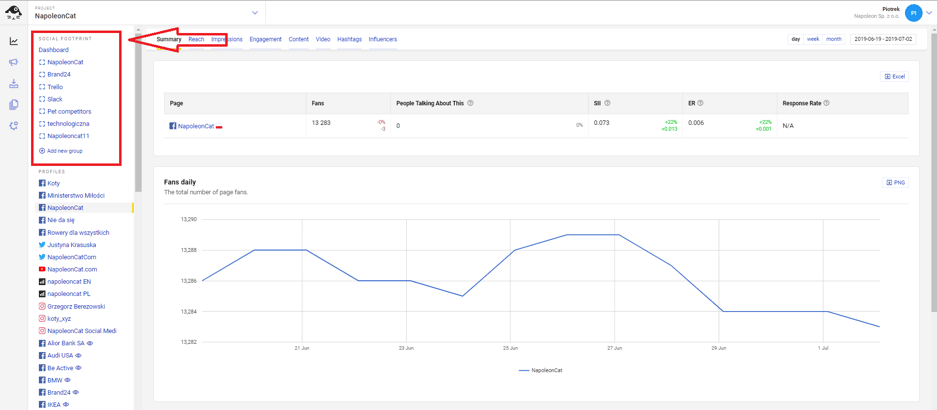
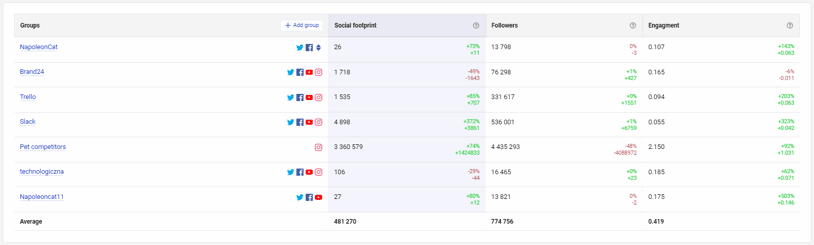
In addition, NapoleonCat provides the Social Footprint metric which shows the impact of multiple brands on social media. To get this metric, you have to set up a group that will contain all social media profiles for a brand.
On your dashboard, click on "Social Footprint" on the right side of the analytics section.
Once you set up a group, you can track its performance over time. The beauty is that you can add groups for your competitors to set up comparisons with your brand.
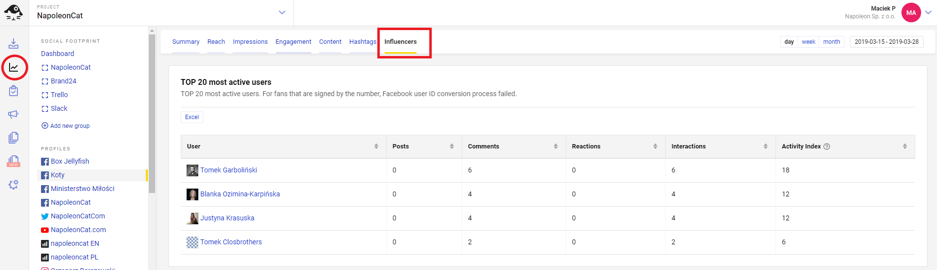
Another metric you'll find useful is the most engaged followers. This is available in the "Influencer" tab in the analytics section.
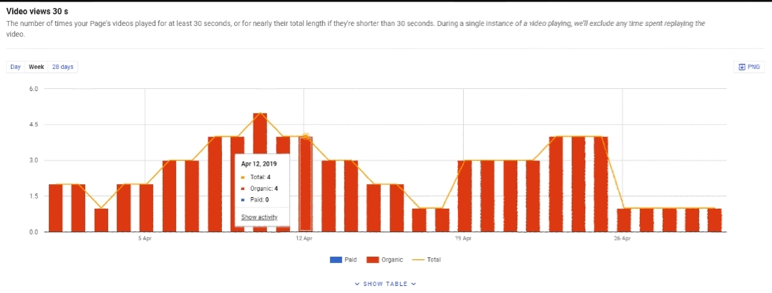
With video becoming more popular, most marketers are now using it. If you use video marketing as well, you can see how engaged users are with your videos on Facebook. Go to the "Video" tab in analytics and you'll find engagement at 3s, 10s, and 30s.
Competitive analysis
Apart from analytics for your account, you can also see analytics for the social media accounts you’re monitoring.
For instance, see the metrics for the account I added for monitoring:
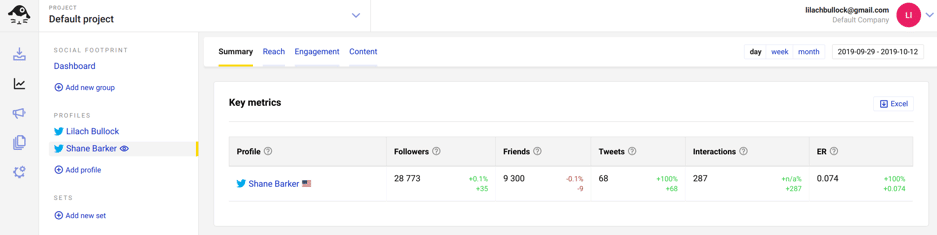
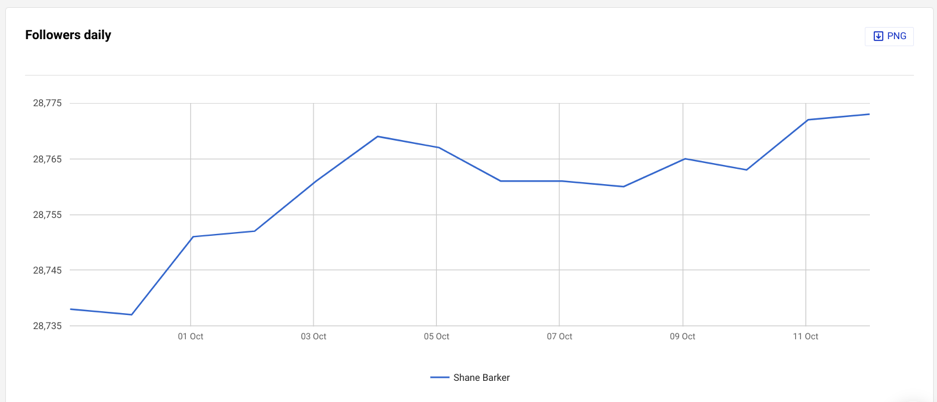
The basic metrics about the account are evident for the period. When you scroll down, you can see how their follower count has changed during this period.
Added to this, there are more details in the “Engagement” tab about engagement with your competitor’s tweets.
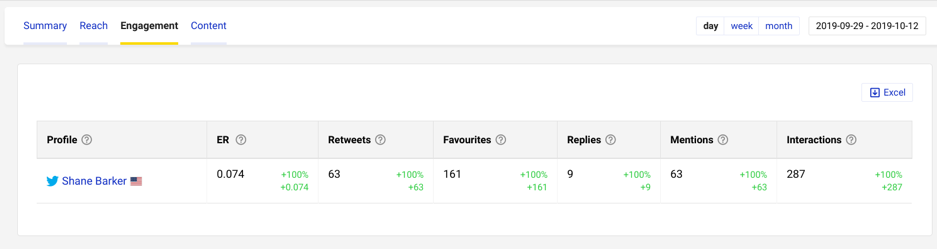
Scrolling down, you’ll find more details about their daily interactions and their forms.
Furthermore, when you click on “Show activity,” you can see the exact tweets in these interactions.
In the “Content” tab, you can see the number of tweets published daily.
Apart from seeing the number, you can view these tweets when you click “Show activity.”
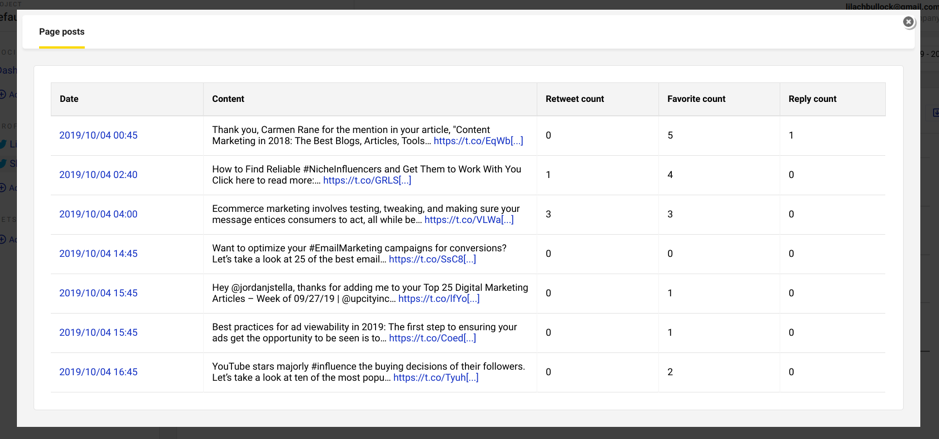
To track and compare your competitors, all you need to do is add their account details. And you can add your competitors’ pages on both Facebook and Instagram.
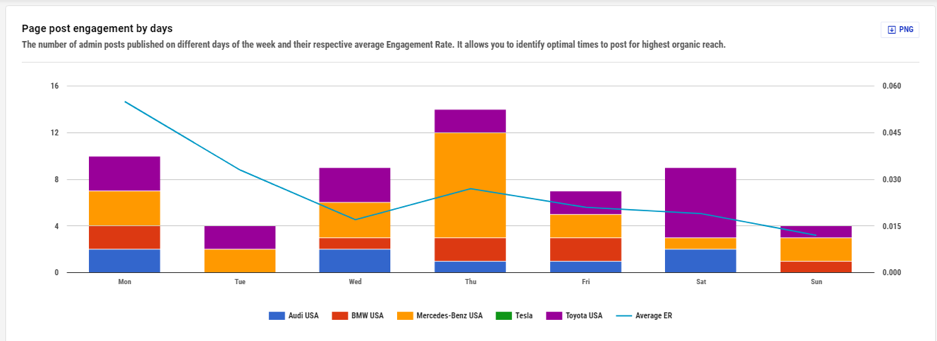
There’s an option to track their post engagement and see which of your competitors engage their followers more. Even more, you can view the engaging posts from your NapoleonCat account and see what your competitors are doing well.
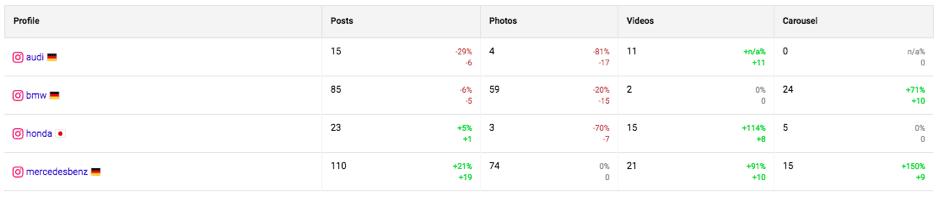
Likewise, on Instagram, you can track your competitors’ updates and their performance.
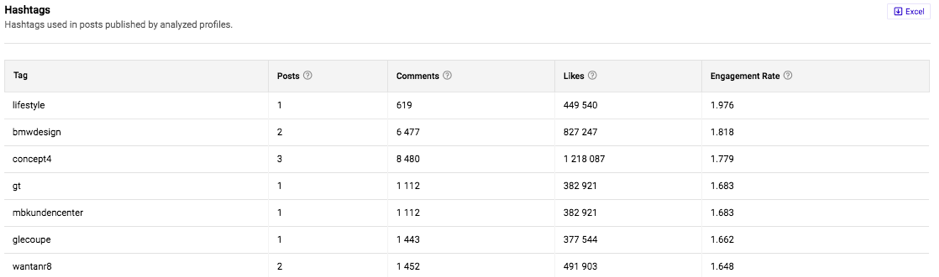
And if you need to track their campaign hashtag, you can do that too.
With NapoleonCat’s competitive analysis features, you can follow your competitors’ activities here and gain necessary insights you can use to update your social media strategy.
[click_to_tweet tweet="How to pick the right #socialmediatool to boost your #productivity: a review of @NapoleonCatCom " quote="How to pick the right #socialmediatool to boost your #productivity: a review of @NapoleonCatCom "]
Reports
For many businesses/marketers, the ability to access analytics is not enough – you also need to be able to create reports to share with relevant parties or simply for safekeeping and your records.
Luckily, NapoleonCat allows you to create reports and even schedule multiple reports to be generated regularly:
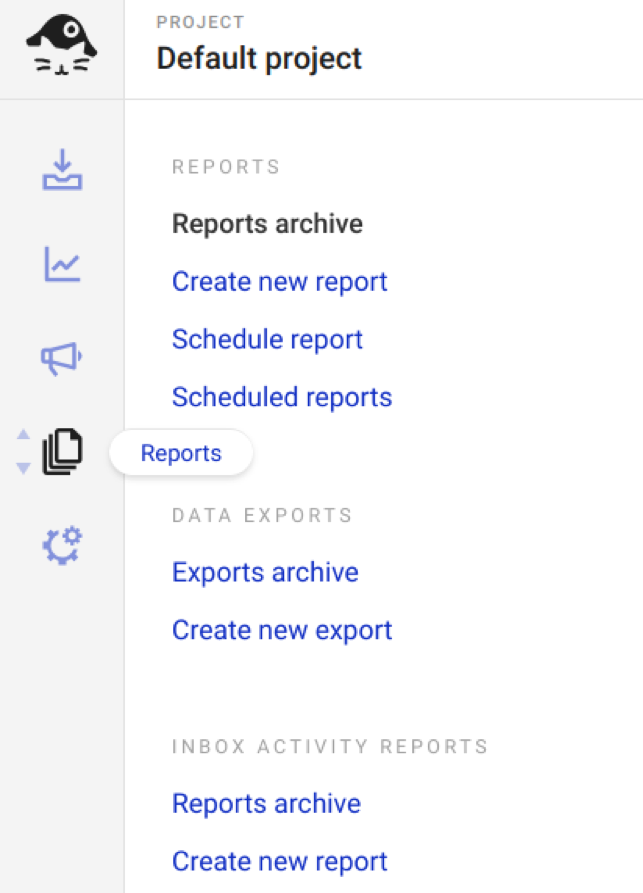
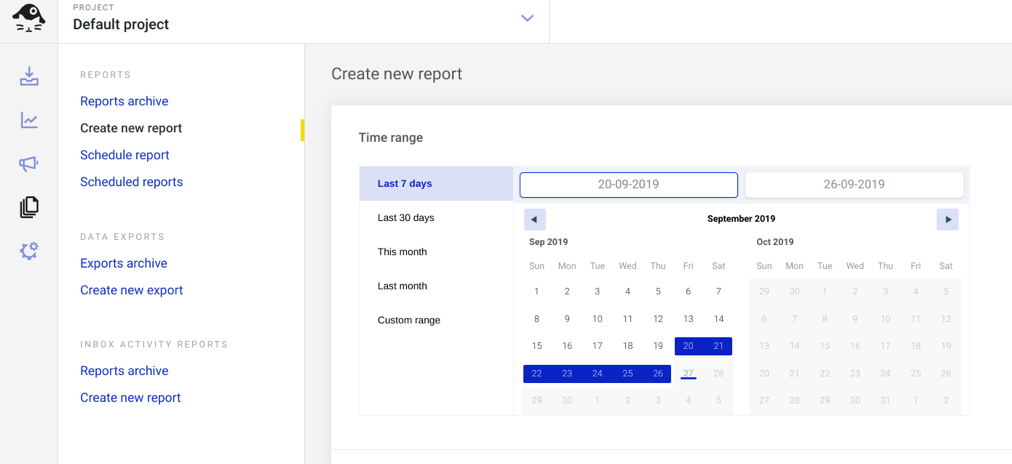
To create a new report, simply click “Create new report.” When you do that, you’ll see all of your options for building and customizing your report.
First of all, you have to select the date range.
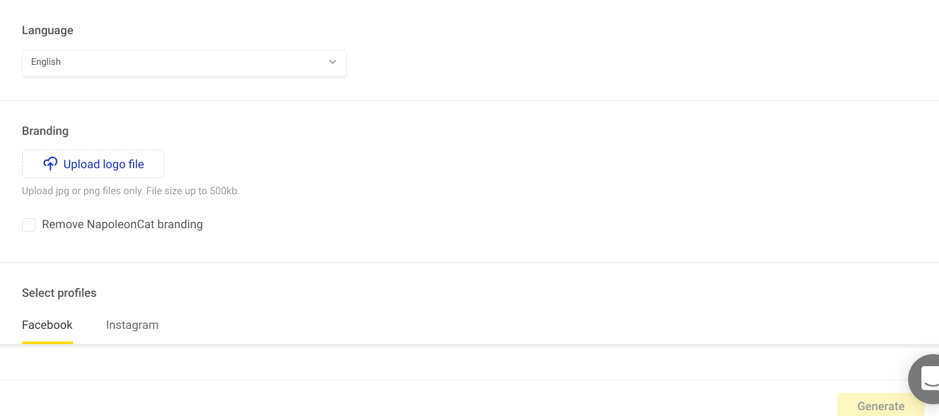
Below that, there are other options like language, branding, and profiles you want to generate a report for.
You can also schedule your report. And even better, send it to an email address after a particular period. This will eliminate the stress of going through the same process repeatedly. To do this, you only have to click “Schedule report” and make the necessary settings:

Collaboration within your team
You can add your team members’ social media profiles to your NapoleonCat dashboard. This can be used to track their messages which is super relevant when you’re running an employee advocacy campaign.
Added to that, you can collaborate by specifying roles for each member.
If you click “Post flow” in your project settings, you can specify roles for each person on your team:
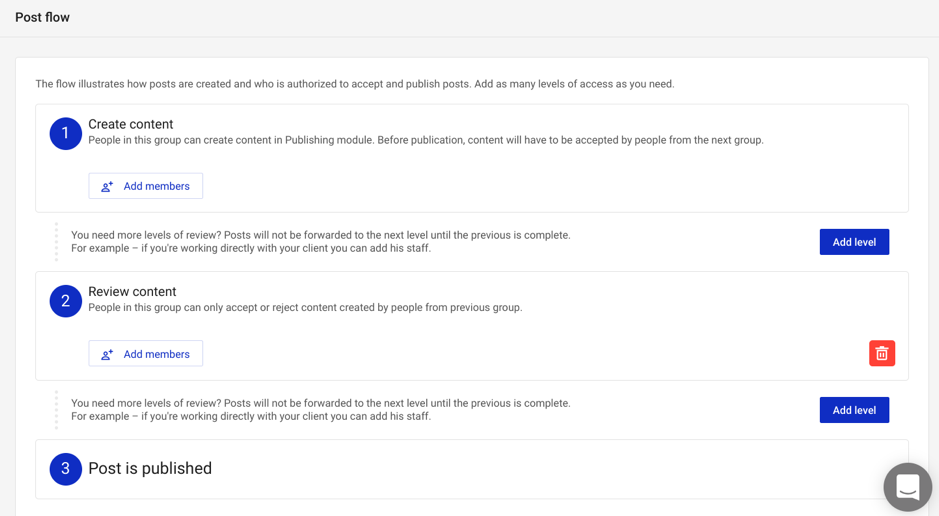
This is also vital if you’re creating social media updates for a client. In this case, the client can review the content before it’s published.
Customers talking about you on Reddit? These Reddit monitoring tools will help you catch it. Want to learn from other marketers? Here's my directory of online communities for marketers.
Conclusion
Managing your social media updates can be extremely time-consuming and you’ll never get a good ROI from social media if you’re spending your days responding to updates and posting up updates manually.
NapoleonCat is a tool that can definitely serve as your always-on social media assistant. And with its auto-moderation feature, you can save even more time while managing your social media effectively. Added to this, it also has a handy mobile app which you can use to manage social media on the go.
Related: how to make money on Instagram with 1k followers
Verdict: 4.4 / 5. NapoleonCat is a genuinely useful all-in-one social media management tool that the author loved for its ease of use, intuitive dashboard, and features, and it can act as an always-on assistant that saves time managing social media.
Have a case study on this? You can write for us about productivity.

