The best browser extensions save you real time without slowing your browser or risking your data. Before you install from the list below, check three things: Install only what earns its place and your browser stays fast and safe.
Do you want to improve your efficiency and productivity when you’re online? Browser extensions can help you save a lot of useful time and generally help you have a better browsing experience. In this blog post, I’ll be sharing 15 of the best browser extensions to help you increase your productivity.
How to choose the right browser extensions in 2026
The best browser extensions save you real time without slowing your browser or risking your data. Before you install from the list below, check three things:
The job it does. Add extensions that fix a task you repeat daily, not ones that look handy but sit unused.
Permissions. Check what data an extension can access, and skip any that ask for more than they need.
Reviews and updates. Choose extensions that are well reviewed and still actively maintained.
Install only what earns its place and your browser stays fast and safe.
1. HarakiriMail
You know how you sometimes need to create an account quickly for some tool that you’ll only use a few times and don’t want to use your regular email account? Or maybe you have to give out your email address for whatever reason and you don’t want to or don’t trust the service asking? HarakiriMail takes care of that for you by allowing you to create a @harakirimail.com email address that auto-destructs in 24 hours – just enough time to click on that confirmation email and get things done.
2. Grammarly
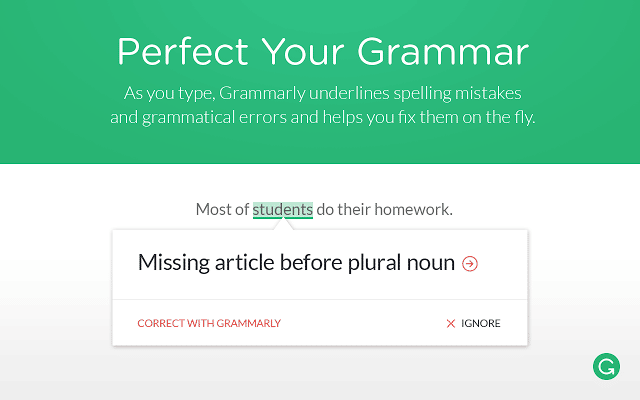
Grammarly is a Google Chrome extension (although you can also get the app if you’re using other browsers, or for offline use) that basically checks your grammar and spelling as you write. It’s extremely useful as it makes it very easy to check and amend any errors and helps you save a lot of time by not having to re-read everything to make edits. It also works much better than Word’s spell and grammar check.
[clickToTweet tweet="15 Browser extensions to increase productivity @Grammarly via @lilachbullock" quote="15 Browser extensions to increase productivity @Grammarly via @lilachbullock"]
3. Pocket
Pocket is a really cool, easy to use extension for Safari that allows you to save any page for later reading while browsing. Once you’ve started saving, you can access your account from most other devices, including Android.
4. Buffer
This is the perfect tool for those who have a Buffer account and share a lot on social media. With this browser extension you can easily share any type of content that you find on the web with your followers.
[clickToTweet tweet="15 Browser extensions to increase productivity @buffer via @lilachbullock" quote="15 Browser extensions to increase productivity @buffer via @lilachbullock"]
5. LastPass
With all the different accounts and passwords we all have, it’s getting increasingly difficult to remember even a fraction of them. With the LastPass browser extension you can keep all of your accounts and passwords safe, in one place. What’s great about this tool is that it’s exactly where you need it most: in your browser. All you need to remember now is one master password and you’re good to go!
6. Pushbullet
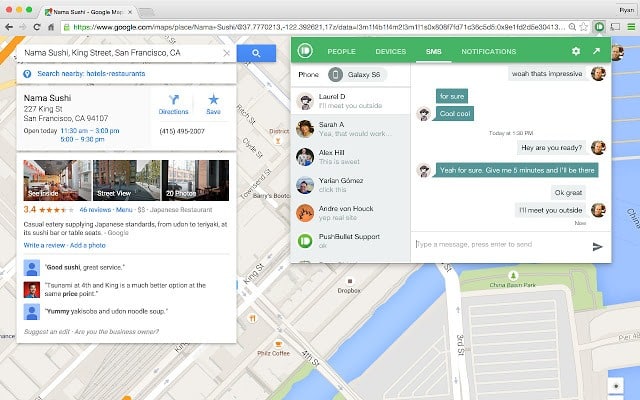
With the Pushbullet Chrome extension you can bring all of your devices together, in your own browser, although only for Android users unfortunately. For example, you can send and receive text messages directly from the extension, reply to messages from Whatsapp, Facebook Messenger and other similar apps, as well as share links and files with your other devices. You will also get all of your phone notifications directly on your computer – which, admittedly, can make the extension a bit counter productive if you get too many.
[clickToTweet tweet="15 Browser extensions to increase productivity @pushbullet via @lilachbullock" quote="15 Browser extensions to increase productivity @pushbullet via @lilachbullock"]
7. Bitly
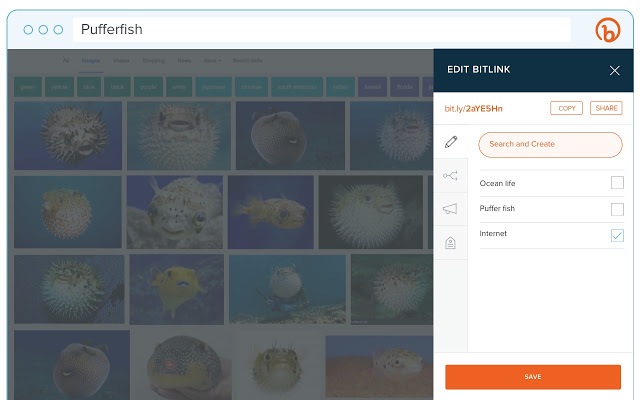
The Bitly extension for Chrome lets you connect your Bitly account so that you can shorten your links more quickly, as you don’t have to leave the URL you want to shorten. You can also edit and customise your link, as well as measure your results, all within the extension.
[clickToTweet tweet="15 Browser extensions to increase productivity @bitly via @lilachbullock" quote="15 Browser extensions to increase productivity @bitly via @lilachbullock"]
8. User-Agent Switcher for Chrome
The User-Agent Switcher for Chrome allows you to very quickly change user-agent strings. So for example, if you’re working on a website and want to see what it would like on mobile and desktop, you can easily change between them. It’s also useful for when you can’t see certain content because of the browser you’re using, but instead of having to change the browser, entering the URL again, etc., all you have to do is use the User-Agent Switcher and you’re done before you could’ve even opened the other browser.
9. Streak for Gmail
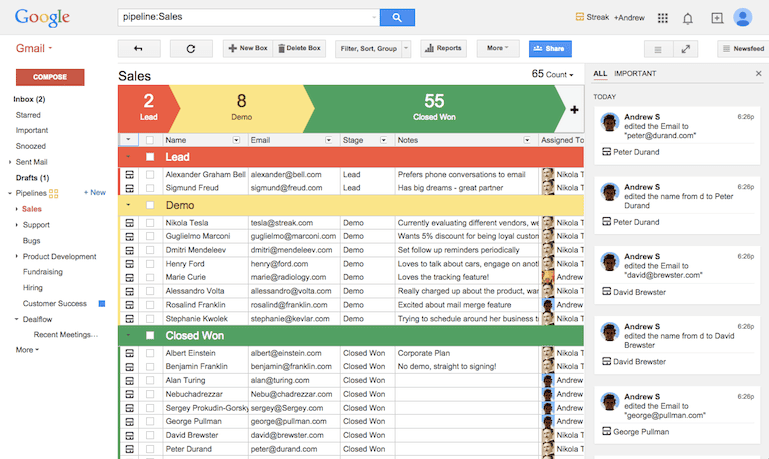
Streak is a customer relationship management tool for Gmail that helps you organise your inbox so that you manage your work and connections better and more efficiently. With Streak, you can more easily manage your sales pipeline from within Gmail, track when your emails are opened and read, set up follow-up reminders, collaborate with your team and much more.
10. WasteNoTime
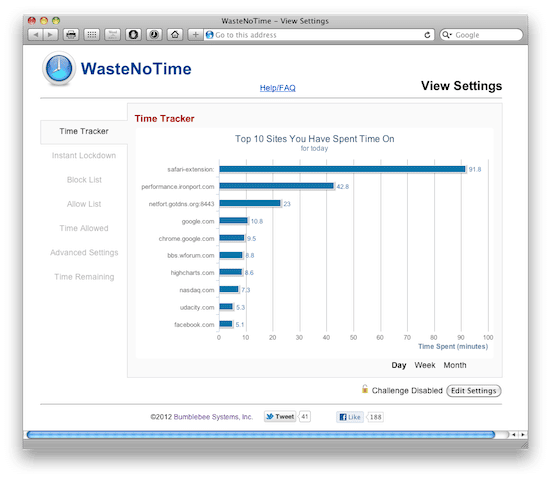
You know how you can sometimes go online and “wake up” hours later not knowing when all that time passed? I know, stupid question – we all do that. After so many years of Internet, I realise that time is just different when you’re online. WasteNoTime aims to help with that problem by blocking or limiting your access to your preferred websites. For example, you can make it so you can’t access certain websites at all, or, if you want to manage your time better, you can set up a maximum time that you’re allowed to use that particular website – and when the time’s up, you’re out! With their Time Tracker feature, you can also see how much time you’ve spent on each website every day so you can figure out where you can save more time.
11. Instagram for Chrome
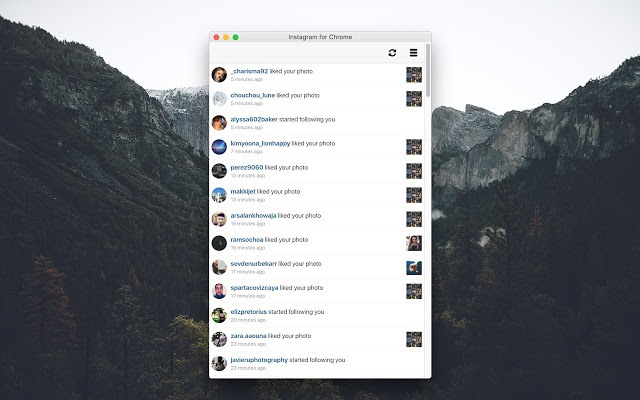
Instagram for Chrome lets you quickly check your Instagram notifications from within your browser – no need to check your phone app or social media management tool.
12. Be Limitless
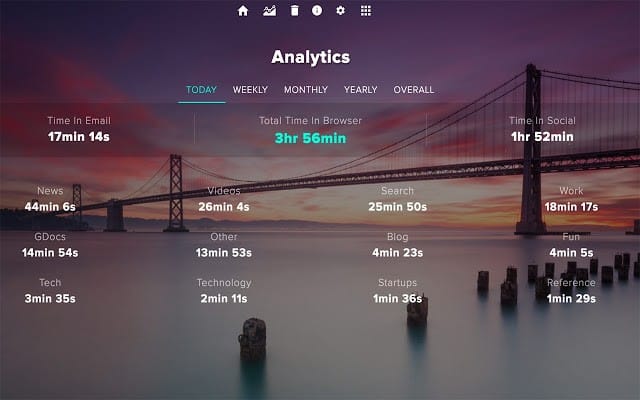
Be Limitless is a browser extension for Chrome that aims to help motivate you in order to boost your productivity. Whenever you open a new tab, Limitless opens a beautiful dashboard (I just love their images) with useful information, such as frequently visited websites and productivity suggestions. On the Analytics page, you’ll be able to see how much time you spend on different types of websites, so you can tell where you’re losing time. You can also use to categorise your websites and set up goals that you are reminded of when you open new tabs. They even have some cool motivational quotes that will help you get back on track.
13. Feedly
Are you using Feedly to keep track of your RSS feeds? If you are, check out the Feedly Chrome extension. With it, you can easily add websites to your Feedly account, save pages to read later and share content with your social media followers.
[clickToTweet tweet="15 Browser extensions to increase productivity @feedly via @lilachbullock" quote="15 Browser extensions to increase productivity @feedly via @lilachbullock"]
14. Clearbit Connect
Clearbit Connect is a Chrome extension that lets you supercharge your Gmail account. With this cool app, you can simply type in a company name and an employee role and get email suggestions for contact, as well as other useful information. Whenever someone emails you, you’ll be able to see exactly who they are, from their company role and their funding to their social media handles. Great tool for getting information on existing contacts, as well as for prospecting new contacts.
15. Extensify
The problem with browser extensions is that there are so many amazing ones and you kind of want to get as many of them as possible, which can get a bit complicated. So if you have a lot of extensions installed on your browser and having trouble handling all of them, get Extensify. With this Chrome extension, you can easily enable and disable your other extensions as you use them – great for keeping your toolbar free of clutter and it also helps keep your browser as fast as possible.
[clickToTweet tweet="15 Browser extensions to increase productivity via @lilachbullock" quote="15 Browser extensions to increase productivity via @lilachbullock"]
The Hidden Cost of Running Too Many Extensions at Once (And What I Learned the Hard Way)
Nobody talks about this honestly: browser extensions are not free in terms of performance, and running fifteen of them simultaneously will slow your machine down in ways that quietly destroy the productivity gains you installed them to create. I learned this after noticing my Chrome was consuming over 2.1GB of RAM on a standard working morning with nothing but a handful of tabs open. The culprit was twelve active extensions running background processes, several of them checking for updates or syncing data every few minutes without asking my permission.
The practical fix I now swear by is extension profiling, and Chrome makes this straightforward through the built-in Task Manager (Shift + Escape on Windows, or Search + Escape on Chromebook). This shows you exactly how much memory and CPU each extension is consuming in real time. When I ran this for the first time, I found that one well-reviewed grammar checker was using 340MB on its own, and a tab manager I barely touched was running four separate background processes. Neither of those extensions made any mention of this in their listings.
My current system is to split extensions into two groups: always-on and on-demand. Always-on extensions are limited to a maximum of five, and they must pass a strict test: the extension has to provide value passively without me thinking about it. Right now mine are a password manager, an ad blocker, a colour contrast checker for accessibility work, a cookie consent manager, and one tab limiter set to a hard cap of twenty open tabs. Everything else, including productivity timers, AI writing assistants, and SEO tools, lives in a disabled state and gets switched on only for the specific task that needs it.
Here is the switching routine that works for different types of work sessions:
Writing sessions: enable grammar checker and distraction blocker, disable everything that adds visual UI overlays to pages
Research sessions: enable web clipper, citation tool, and highlighter, disable grammar checker to reduce page load interference
Client reporting sessions: enable SEO and analytics extensions only, and set a reminder to disable them after the session ends
Deep focus sessions: disable all non-essential extensions entirely using Chrome's extension management page, not just the toolbar toggle
The difference in page load times alone is worth the effort. On my mid-range laptop, switching from twelve active extensions to five reduced average page load time from 3.4 seconds to 1.1 seconds, measured across thirty consecutive page loads on sites I visit daily. That might sound trivial until you consider that a content creator or researcher loading fifty to a hundred pages in a working day is losing a meaningful chunk of time to nothing more than extension bloat. If you are serious about productivity, audit your extensions quarterly using the Task Manager method above, and be ruthless about anything that cannot justify its memory footprint with a specific, measurable benefit to your workflow.
To protect focus time without endless rescheduling, see my roundup of the best AI calendar apps.
Conclusion
What are your favourite browser extensions for Chrome and Safari? Which ones do you use the most? Let me know in the comments section and please share 🙂
The short version: Browser extensions are small but powerful tools that can save you hours every week by cutting out repetitive tasks and keeping you focused. From blocking distractions to managing passwords and organizing tabs, the right combination of extensions turns your browser into a productivity machine. Pick a handful that match your workflow and you will notice the difference from day one.
What are the best browser extensions for staying focused?
Extensions like Freedom, StayFocusd, and Cold Turkey Blocker let you block distracting websites during work hours, set time limits on social media, and create distraction-free sessions so you can get more done in less time.
Do browser extensions slow down my computer?
Some extensions do consume memory and processing power, especially if you install too many at once. The best practice is to keep only the extensions you use regularly and disable or remove any you no longer need.
Are browser extensions safe to install?
Most extensions in the official Chrome Web Store or Firefox Add-ons library go through a review process, but you should still check the permissions each extension requests, read user reviews, and stick to tools from developers you recognize and trust.
Can I use productivity extensions on any browser?
Many popular productivity extensions are available for Chrome, Firefox, Edge, and Safari, though not every extension supports all browsers, so always check the developer's page to confirm compatibility before you commit to a tool.
Forbes Top 20 Social Media Power Influencer. 23 years of marketing experience. Currently obsessed with AI implementation done well. British AI and marketing consultant working internationally, writes a weekly newsletter that 15,000+ founders read on Sunday mornings.