1. Yoast SEO
Yoast SEO is the number one SEO WordPress Plugin, and with good reason. I’ve been using it for years now, and I’m very pleased with it. Search Engine Optimisation can be a scary concept if you’re not familiar with it at all, but Yoast SEO makes it very easy, so it’s a great choice even for beginners. It has a lot of useful features, including meta descriptions and post titles, XML sitemaps and full content analysis. With the premium version, you get a few extra features, such as premium support and the ability to use multiple focus keywords.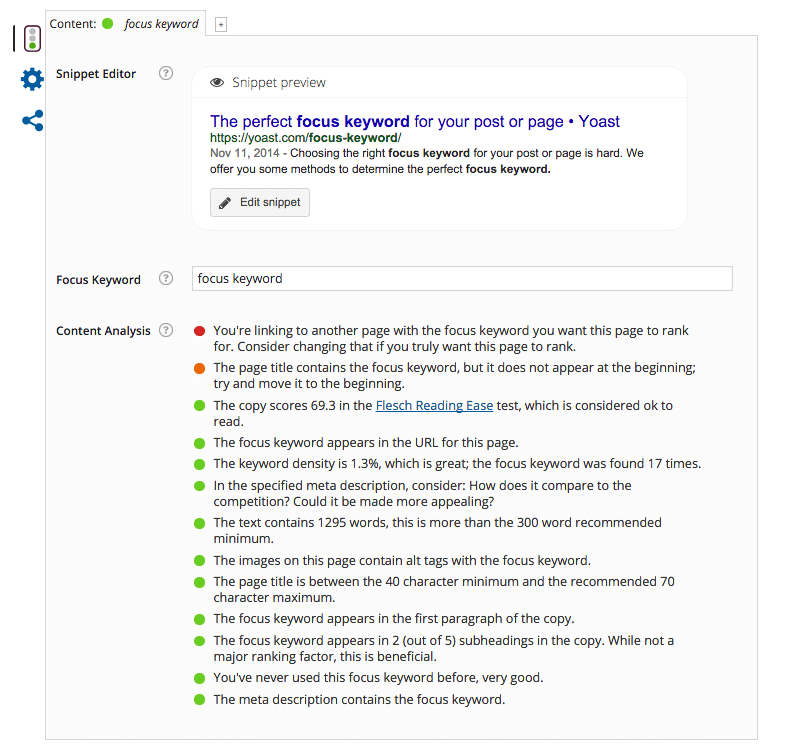 There are also versions of Yoast SEO for websites that want to optimise their websites for other types of online searches: Local SEO for those competing in Google Maps, News SEO for those who want to get in the Google News results, and Video SEO for websites looking to optimise their videos.
If you’re not sure which plugins to add to your websites, Yoast SEO is a perfect one to start.
[clickToTweet tweet="10 Top #WordPress Plugins @Yoast via @lilachbullock" quote="10 Top #WordPress Plugins @Yoast via @lilachbullock"]
There are also versions of Yoast SEO for websites that want to optimise their websites for other types of online searches: Local SEO for those competing in Google Maps, News SEO for those who want to get in the Google News results, and Video SEO for websites looking to optimise their videos.
If you’re not sure which plugins to add to your websites, Yoast SEO is a perfect one to start.
[clickToTweet tweet="10 Top #WordPress Plugins @Yoast via @lilachbullock" quote="10 Top #WordPress Plugins @Yoast via @lilachbullock"]
2. Social Warfare plugin
 A social sharing plugin is a must for any website nowadays. One of my favourites is the Social Warfare Plugin from Warfare Plugins.
I really like this plugin because it always works well and it doesn’t slow down my website, and the social sharing buttons look good. One of its most noteworthy features is that it’s integrated with Twitter’s API so you can also see your Twitter shares.
If you don’t like the look of your buttons, or simply want to customise them to fit your branding, there are over 5,000 potential style combinations that you can try. They also have a cool click-to-tweet function that makes it easier for people to share as they’re reading your content and a custom widget that displays your most popular blog posts by social shares. The plugin has quite a few other useful features as well, including analytics integration.
[clickToTweet tweet="10 Top #WordPress Plugins @warfareplugins via @lilachbullock" quote="10 Top #WordPress Plugins @warfareplugins via @lilachbullock"]
A social sharing plugin is a must for any website nowadays. One of my favourites is the Social Warfare Plugin from Warfare Plugins.
I really like this plugin because it always works well and it doesn’t slow down my website, and the social sharing buttons look good. One of its most noteworthy features is that it’s integrated with Twitter’s API so you can also see your Twitter shares.
If you don’t like the look of your buttons, or simply want to customise them to fit your branding, there are over 5,000 potential style combinations that you can try. They also have a cool click-to-tweet function that makes it easier for people to share as they’re reading your content and a custom widget that displays your most popular blog posts by social shares. The plugin has quite a few other useful features as well, including analytics integration.
[clickToTweet tweet="10 Top #WordPress Plugins @warfareplugins via @lilachbullock" quote="10 Top #WordPress Plugins @warfareplugins via @lilachbullock"]
3. Sucuri Security
 Your website security is another important aspect that you can’t overlook. My favourite security hardening plugin is Sucuri Security. Apart from security hardening, the plugin also monitors your security integrity, detects potential malware and can take security actions post-hack.
If something happens to your website, Sucuri Security will promptly send you a notification, so you can deal with it as quickly as possible.
[clickToTweet tweet="10 Top #WordPress Plugins @sucurisecurity via @lilachbullock" quote="10 Top #WordPress Plugins @sucurisecurity via @lilachbullock"]
Your website security is another important aspect that you can’t overlook. My favourite security hardening plugin is Sucuri Security. Apart from security hardening, the plugin also monitors your security integrity, detects potential malware and can take security actions post-hack.
If something happens to your website, Sucuri Security will promptly send you a notification, so you can deal with it as quickly as possible.
[clickToTweet tweet="10 Top #WordPress Plugins @sucurisecurity via @lilachbullock" quote="10 Top #WordPress Plugins @sucurisecurity via @lilachbullock"]
4. OptinMonster
Want more email subscribers and conversions? Then you need to start working on building your list, and OptinMonster is a pretty good choice. It’s personally helped me build a really strong list within months of getting it. They have a lot of different types and templates for opt-in forms to choose from, and they’re pretty easy to create: popups, slide-ins, after post forms, welcome gates, floating header and footer bars, and much more. OptinMonster works with various email marketing tools, including Convertikit, Mailchimp, Hubspot, Constant Contact and Marketo, among others. They also have a really cool feature called “Exit-Intent” technology, that helps you track your website user’s mouse behaviour so that you can prompt them with a message just as they are leaving your website. OptinMonster claims to have used it on one of their websites and managed to increase their conversions by 600%. [clickToTweet tweet="10 Top #WordPress Plugins @optinmonster via @lilachbullock" quote="10 Top #WordPress Plugins @optinmonster via @lilachbullock"]5. JetPack by WordPress
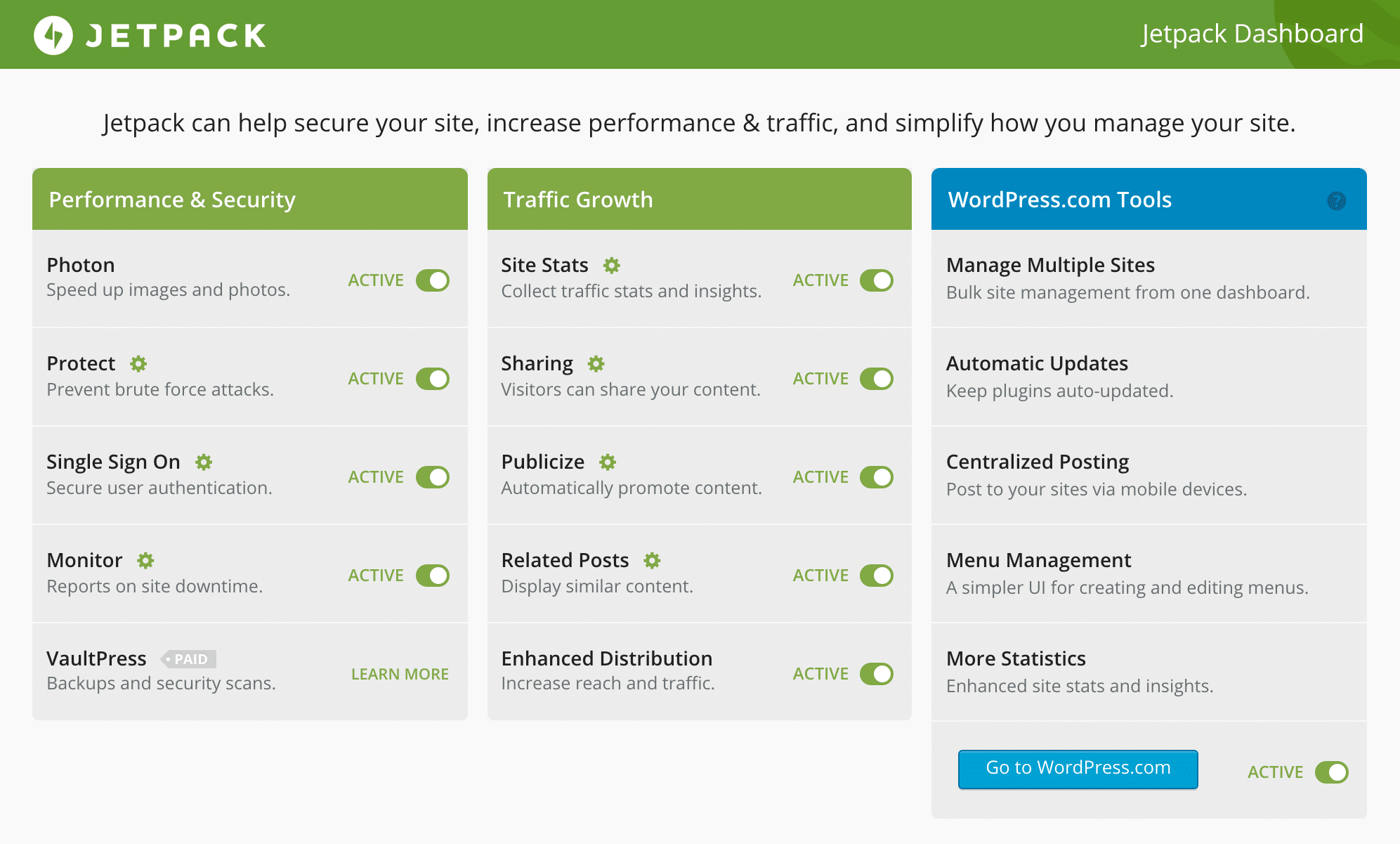 Jetpack by WordPress is an incredibly useful plugin for any type of website. It has a lot of great features, including speeding up your site and protecting your site against hacking and unauthorised logins.
It can also help you increase your traffic with some of their tools, such as Related Posts, sharing and Enhanced Distribution, and you can also use it to quickly check your website’s traffic stats.
[clickToTweet tweet="10 Top #WordPress Plugins @jetpack via @lilachbullock" quote="10 Top #WordPress Plugins @jetpack via @lilachbullock"]
Jetpack by WordPress is an incredibly useful plugin for any type of website. It has a lot of great features, including speeding up your site and protecting your site against hacking and unauthorised logins.
It can also help you increase your traffic with some of their tools, such as Related Posts, sharing and Enhanced Distribution, and you can also use it to quickly check your website’s traffic stats.
[clickToTweet tweet="10 Top #WordPress Plugins @jetpack via @lilachbullock" quote="10 Top #WordPress Plugins @jetpack via @lilachbullock"]
6. W3 Total Cache
Nothing puts off a user faster than a slow moving website. W3 Total Cache is one of the most popular caching WordPress plugins with over one million installs. Its purpose is to improve your servers’ performance and reduce download times so that the user experience is increased. The plugin promises at least 10x improvement in overall website performance, and up to 80% bandwidth savings, while also helping you improve your conversion rates along with your site’s performance. [clickToTweet tweet="10 Top #WordPress Plugins @w3edge via @lilachbullock" quote="10 Top #WordPress Plugins @w3edge via @lilachbullock"]7. Vault Press
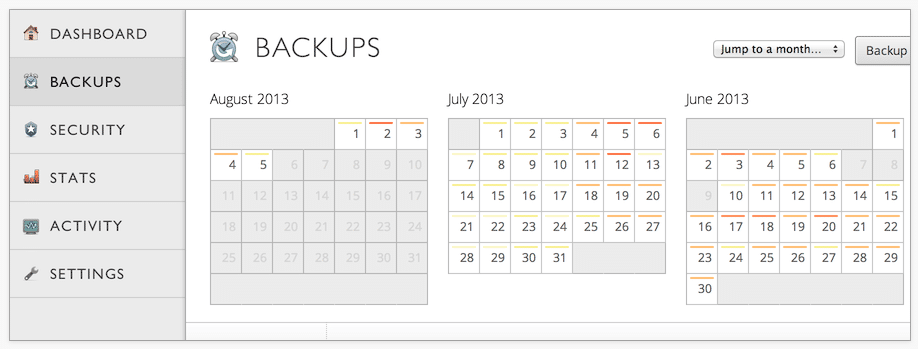 Vault Press is one of the biggest back-up plugins on the market for years now. It also has some security features, as it scans your website daily and allows you to easily repair any faults with one click, and helps protect against spam.
Backups are very easy to do with Vault Press, and restoring backups only takes a click of a button and a few minutes.
[clickToTweet tweet="10 Top #WordPress Plugins @vaultpress via @lilachbullock" quote="10 Top #WordPress Plugins @vaultpress via @lilachbullock"]
Vault Press is one of the biggest back-up plugins on the market for years now. It also has some security features, as it scans your website daily and allows you to easily repair any faults with one click, and helps protect against spam.
Backups are very easy to do with Vault Press, and restoring backups only takes a click of a button and a few minutes.
[clickToTweet tweet="10 Top #WordPress Plugins @vaultpress via @lilachbullock" quote="10 Top #WordPress Plugins @vaultpress via @lilachbullock"]
8. Coschedule Editorial Calendar
CoSchedule have one of the best editorial calendar tools on the market, and I also love their WordPress plugin that makes it so easy to keep up with your blogging and social posting schedule.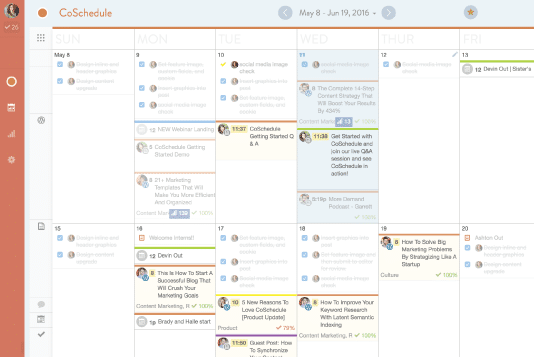 It’s an all-in-one editorial calendar for both content and social media posts, and the only one that integrates with WordPress.
It’s great for those who publish often on their blogs and social media, and it’s especially useful for teams as everyone can access it and see what they’re supposed to do and when.
[clickToTweet tweet="10 Top #WordPress Plugins @coschedule via @lilachbullock" quote="10 Top #WordPress Plugins @coschedule via @lilachbullock"]
It’s an all-in-one editorial calendar for both content and social media posts, and the only one that integrates with WordPress.
It’s great for those who publish often on their blogs and social media, and it’s especially useful for teams as everyone can access it and see what they’re supposed to do and when.
[clickToTweet tweet="10 Top #WordPress Plugins @coschedule via @lilachbullock" quote="10 Top #WordPress Plugins @coschedule via @lilachbullock"]
9. Woo Commerce
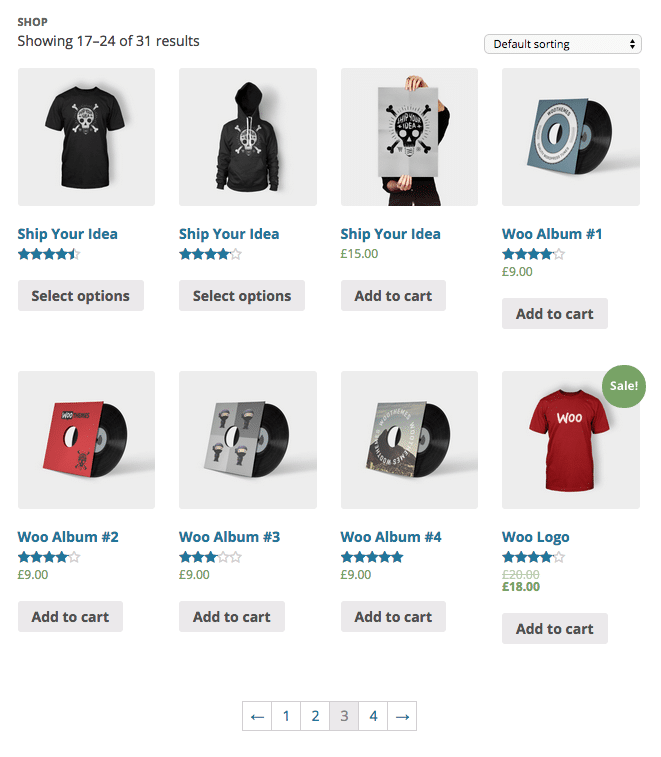 If you sell anything on your website – product or service – then you need a good e-commerce plugin. WooCommerce is one of the best, and right now powering around 30% of all online stores, which is pretty impressive.
You can use it to sell anything, digital or physical, offer bookings and memberships, ship anywhere, and they also offer a lot of different payment options, including PayPal, all major credit cards, bank transfers and cash on delivery.
[clickToTweet tweet="10 Top #WordPress Plugins @woocommerce via @lilachbullock" quote="10 Top #WordPress Plugins @woocommerce via @lilachbullock"]
If you sell anything on your website – product or service – then you need a good e-commerce plugin. WooCommerce is one of the best, and right now powering around 30% of all online stores, which is pretty impressive.
You can use it to sell anything, digital or physical, offer bookings and memberships, ship anywhere, and they also offer a lot of different payment options, including PayPal, all major credit cards, bank transfers and cash on delivery.
[clickToTweet tweet="10 Top #WordPress Plugins @woocommerce via @lilachbullock" quote="10 Top #WordPress Plugins @woocommerce via @lilachbullock"]
10. Slideshow
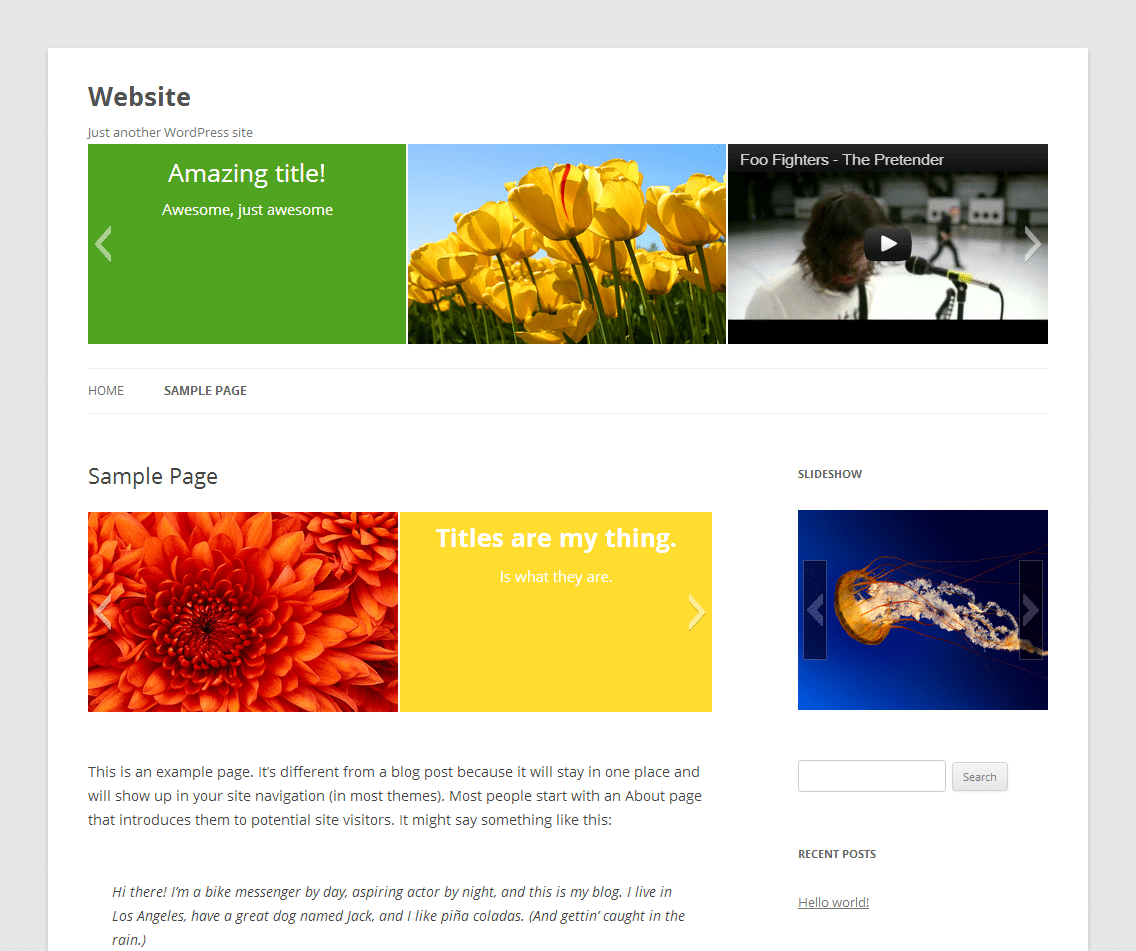 If you want to make your website stand out with a beautiful slideshow, this is the perfect plugin to use.
You can use it to create as many slideshows as you want, with however many slides you like that you can then place anywhere you want on your website.
Slides can include anything, such as text, images, and YouTube videos.
The slides can also be customised and the plugin works with several different languages (for a full list, check the Slideshow website).
If you want to make your website stand out with a beautiful slideshow, this is the perfect plugin to use.
You can use it to create as many slideshows as you want, with however many slides you like that you can then place anywhere you want on your website.
Slides can include anything, such as text, images, and YouTube videos.
The slides can also be customised and the plugin works with several different languages (for a full list, check the Slideshow website).
Conclusion
There we go, the top 10 WordPress plugins of 2016. There are quite a few other WordPress plugins that are worthy of the top 10, but alas sometimes you need to make some tough choicesJ I would love to hear from you about your favourite plugins, and why you love using them, so please leave a comment and share 🙂The Plugin Combination Nobody Talks About: How I Cut My Site's Load Time by 2.3 Seconds
Most roundups hand you a list of ten plugins and send you on your way, but the thing that took me years to work out is that plugins interact with each other in ways that can either quietly destroy your site speed or dramatically improve it. The combination I now install on almost every client site is WP Rocket paired with Imagify and Asset CleanUp Pro, in that specific order, configured in a very particular way. Used separately, each does a reasonable job. Used together, correctly sequenced, they consistently shave between 1.8 and 2.6 seconds off Time to First Byte on a standard shared hosting plan.
Useful alongside this: How to Improve SEO on a WordPress Website (Without Wasting Six Months on a Plugin).
Here is the exact sequence that matters. Install and configure Imagify first, before WP Rocket touches anything. Run a bulk optimisation on your existing media library using Imagify's "Aggressive" mode (not Ultra, which visibly degrades photos with strong gradients). Only once that is complete do you activate WP Rocket. The reason is straightforward: WP Rocket caches pages as they are at the moment of first activation. If your images are not yet optimised when that cache is built, you are caching heavy files and you will not see the full benefit until you manually purge and rebuild the cache later, which most people forget to do.
Asset CleanUp Pro comes third, and this is the step most tutorials skip entirely because it requires genuine effort. Go through your five most visited pages one by one and use the plugin's per-page interface to disable scripts and stylesheets that simply are not needed on that specific page. On a recent client site in the legal sector, I found that WooCommerce was loading its cart scripts on every single blog post, contact page and about page, none of which had any shop functionality at all. Disabling those three asset groups on non-shop pages alone cut the page weight by 180KB and reduced HTTP requests from 74 to 41 on the homepage.
- Always clear WP Rocket's cache after every Asset CleanUp change, or you will spend an hour wondering why nothing has changed
- Test with GTmetrix's "London" server location if your audience is UK-based, not the default Vancouver setting, as the numbers will be meaningfully different
- Check Imagify's monthly API limit before bulk optimising a large library; the free tier covers 20MB of images per month, which runs out faster than you expect on photography-heavy sites
- Disable WP Rocket's own image lazy loading if you are also running a theme with native lazy loading built in, as running both creates a flash of invisible content on mobile
The honest caveat here is that this combination costs money. WP Rocket is 59 dollars a year for a single site, Imagify has a paid tier at around 9.99 dollars a month for serious volume, and Asset CleanUp Pro is 24 dollars a year. That is not nothing. But on a client site where I charged 1,200 pounds for a full performance audit and optimisation project, implementing exactly this stack and configuration accounted for roughly two hours of the work and delivered the single largest measurable improvement of the entire engagement. The return on that investment, for any site dependent on organic search or paid traffic, is not a close calculation.
The short version: WordPress plugins can transform a basic website into a powerful online presence, and choosing the right ones saves you time and money. The top plugins cover everything from SEO and security to page building and performance, giving site owners real results without hiring a developer.
Related: wordpress: guidelines and how to pitch.
Frequently asked questions
What are the most important WordPress plugins for beginners?
Beginners should start with a security plugin like Wordfence, an SEO plugin like Yoast SEO, and a caching plugin like W3 Total Cache. These three cover the core needs of any new WordPress site and are free to get started with.
How many WordPress plugins should I install on my site?
There is no strict limit, but keeping your plugin count to only what you truly need is smart practice. Too many plugins can slow down your site and create security risks, so aim for quality over quantity.
Are free WordPress plugins safe to use?
Plugins listed in the official WordPress plugin directory are reviewed and generally safe, but you should always check ratings, reviews, and how recently the plugin was updated before installing.
Want AI doing the heavy lifting in your marketing?
I build the systems that handle the boring 80 percent, so you get your week back. Done properly, with the human kept in.
Do WordPress plugins slow down my website?
Some plugins do add load time, particularly those that run a lot of scripts or database queries. Installing a caching plugin and choosing well-coded, actively maintained plugins helps keep your site fast.
Related reading: The AI Audit That Found Three New Revenue Streams In My Own Inbox.
Related reading: Free Online Booking Tools for Small Business: What I'd Use in 2026.
Related reading: How to Schedule an Entire Photo Album on Facebook in Advance.
Related reading: What Is the Correct Size Ratio for an Instagram Story? (Plus the Numbers.
Related reading: Do Instagram Engagement Groups Really Help Your Reach? I Tested One For .
Related reading: Can You Transfer Your Google Analytics Account Safely? What Really Happe.