


- It’s hard to keep track of my client and prospect communications and I waste time trying to find out when we talked - and most importantly, what we talked about
- I’m losing too many leads because I’m not being proactive with follow-ups and reaching out to leads and prospects
- Hiring an assistant to organize things is a luxury I can’t afford at present
- I’m losing time (and patience!) because it’s so difficult to stay on top of all my projects and tasks
- Close more deals by contacting your leads at the right time and reaching out to them regularly
- Ensure you’re staying top-of-mind for your clients and your prospects
- Increase capacity and revenue by doing more projects at one time
- Keep your sanity!
What is Daylite?
Daylite is a productivity-focused CRM for small businesses who are in need of a tool to track clients, prospects, and projects in one place. That said, while Daylite is primarily a CRM tool, it’s actually a lot more than just that; in fact, you can use Daylite in a multitude of ways:- Collaborate with team members
- Manage your calendar
- Capture and keep track of conversations with leads and other contacts
- Segment your client and prospect list
- Close more deals with automatic follow reminders
- Manage your tasks and projects
Getting started with Daylite
So how does Daylite work? When you first access the home page, you are presented with their Getting Started section which contains their easy to follow tutorial videos and overviews.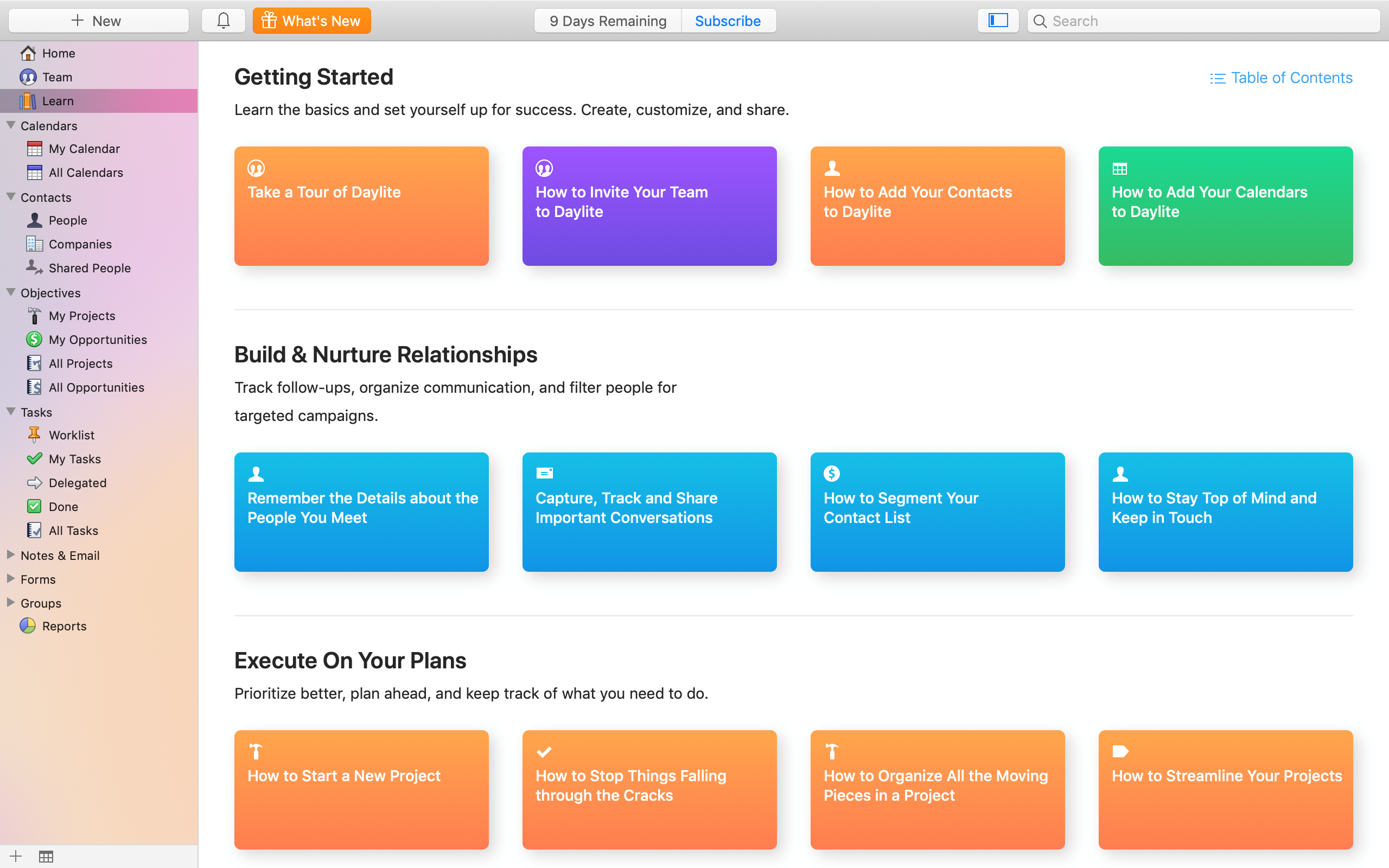 I suggest starting out by watching the tutorials listed in the Getting Started section as these will help you get familiar with the app.
Then, you can start setting up your account, start by adding your contacts to the CRM:
Adding Your Contacts to Daylite
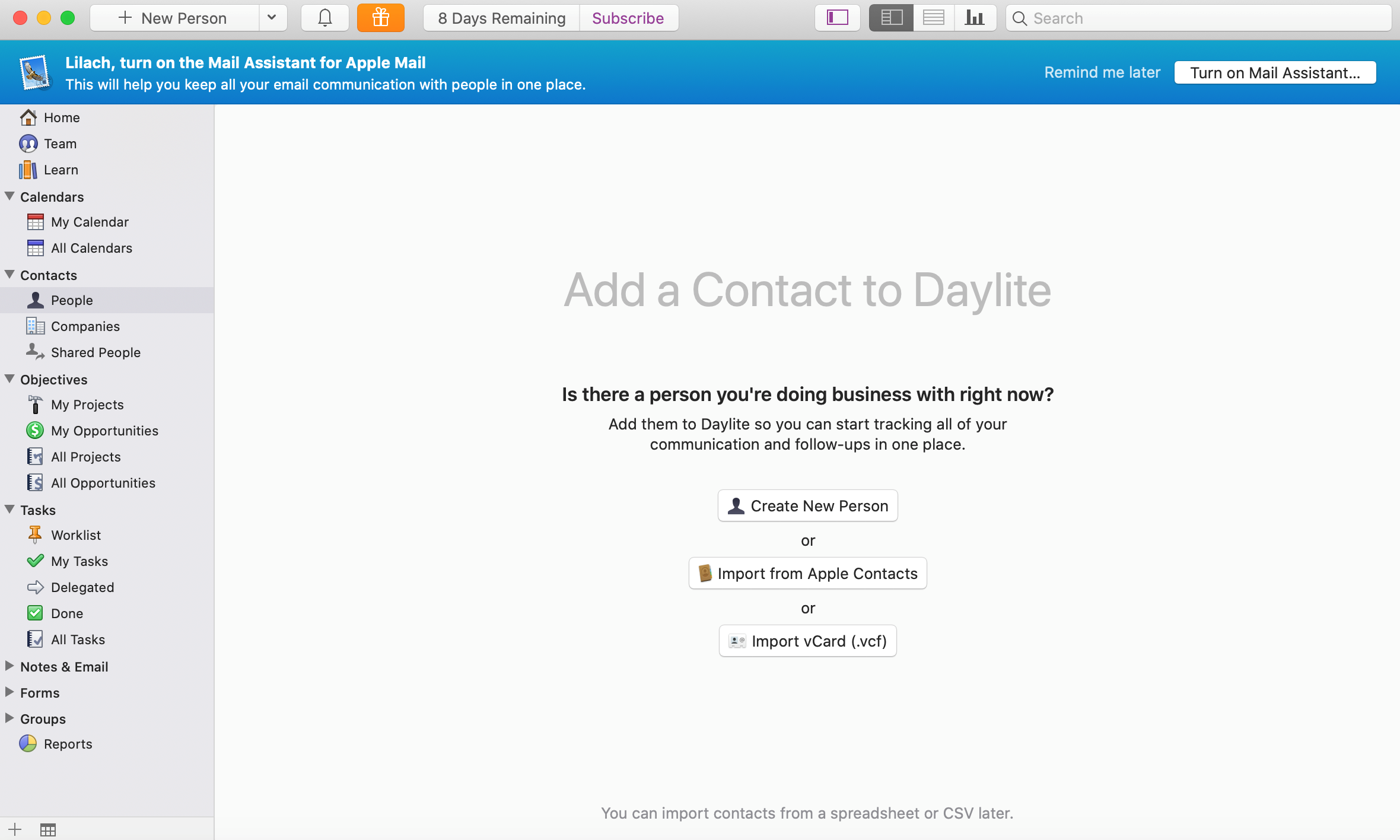
Adding contacts to Daylite is a breeze and you have a multitude of options to choose from:
I suggest starting out by watching the tutorials listed in the Getting Started section as these will help you get familiar with the app.
Then, you can start setting up your account, start by adding your contacts to the CRM:
Adding Your Contacts to Daylite
Adding contacts to Daylite is a breeze and you have a multitude of options to choose from:
- Apple Contacts
- iCloud
- Google Contacts
- Other contact managers
- CSV, a spreadsheet or other delimited text
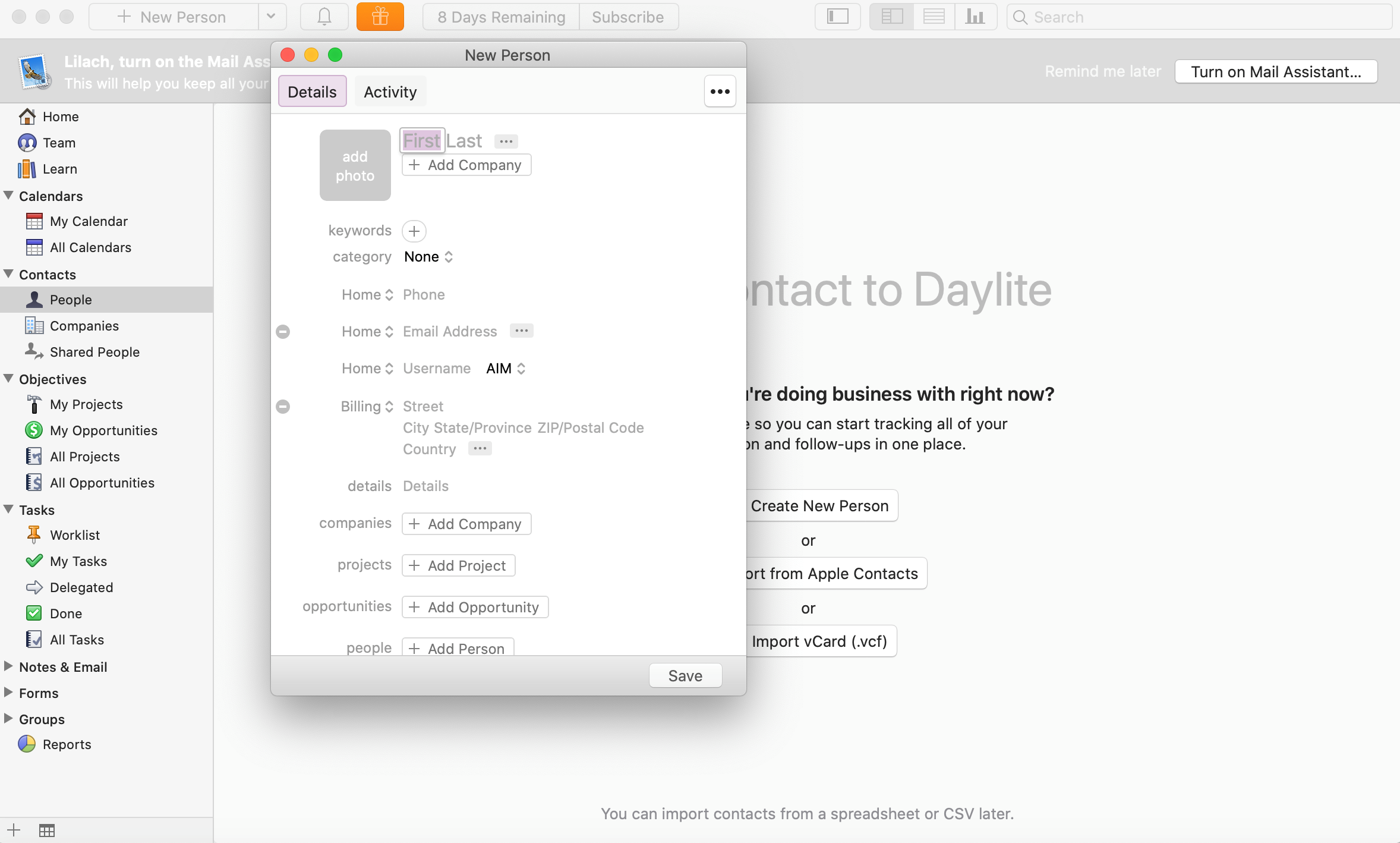
 You can add all kinds of information about each contact, including their contact information, the project they’re a part of, other relevant people, any opportunities, as well as assign each contact to the right person who will manage their account:
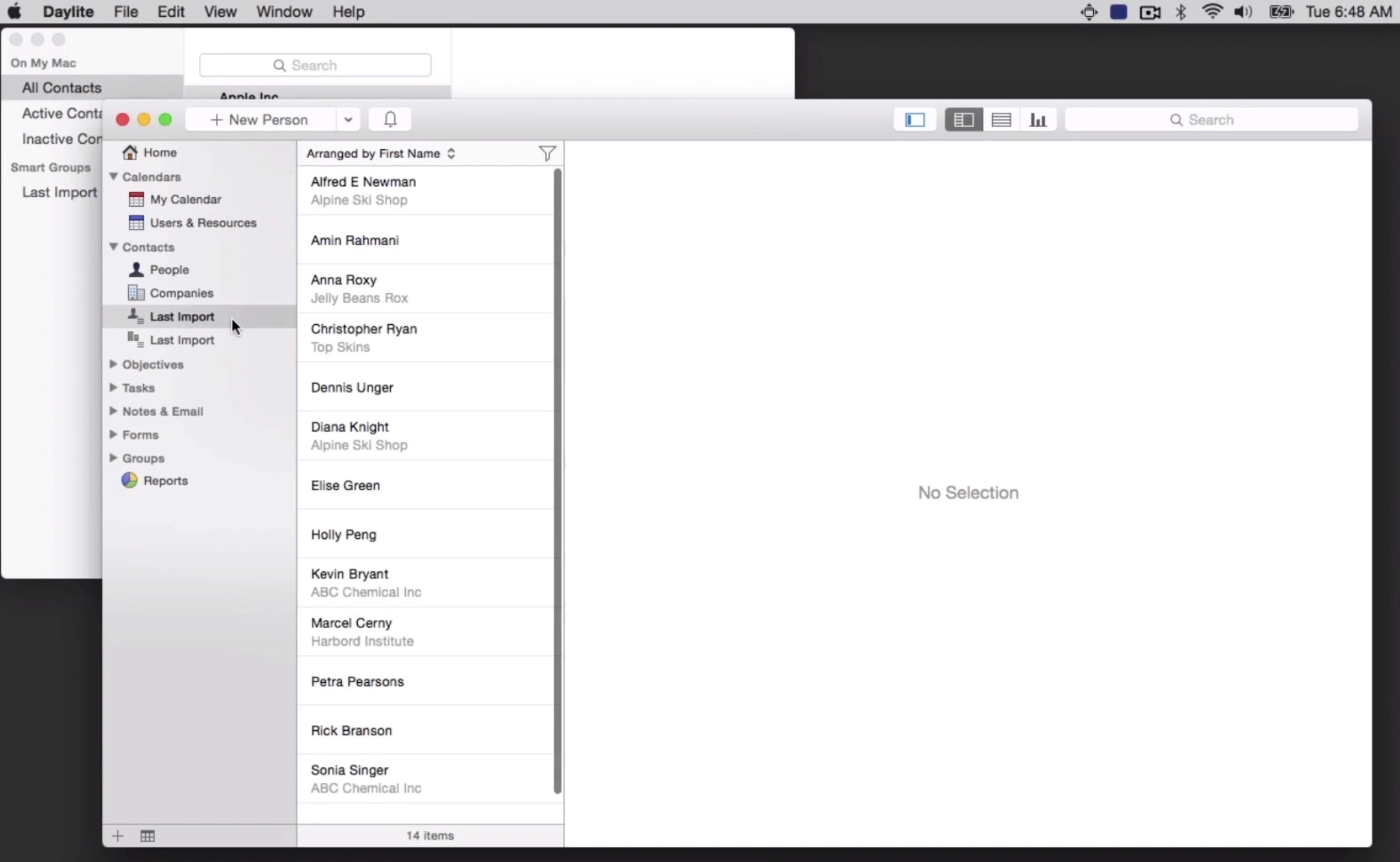
 I recommend exporting the file to your desktop and then you simply drag the file into the Daylite App and your contacts are added automatically.
You are able to see the details of the imported names by clicking on the Last Import button as seen in the image below.
I recommend exporting the file to your desktop and then you simply drag the file into the Daylite App and your contacts are added automatically.
You are able to see the details of the imported names by clicking on the Last Import button as seen in the image below.
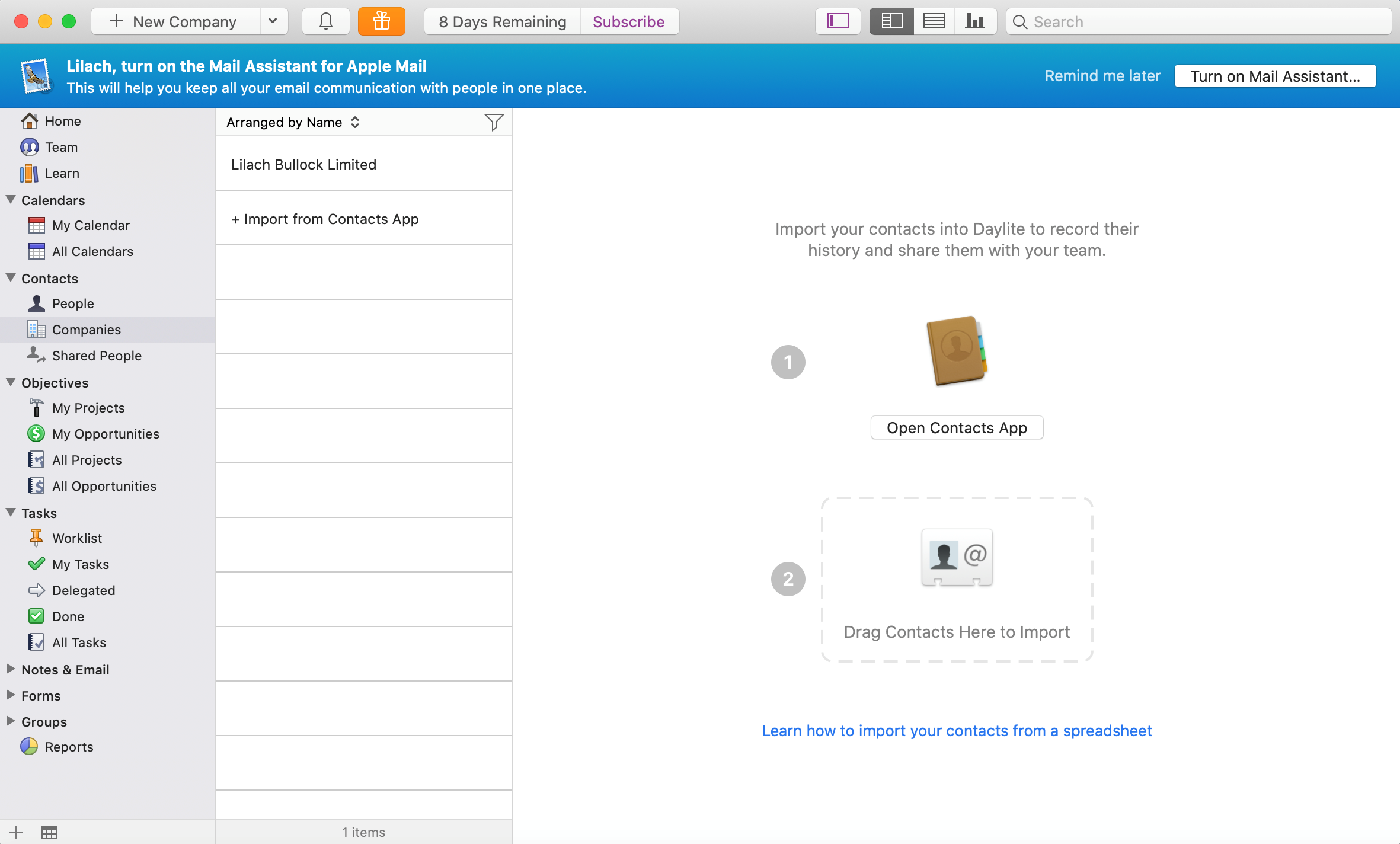
 Likewise, you can also important companies to track in your CRM:
Get your team onboard
You can add members of your team to Daylite by inviting them by email.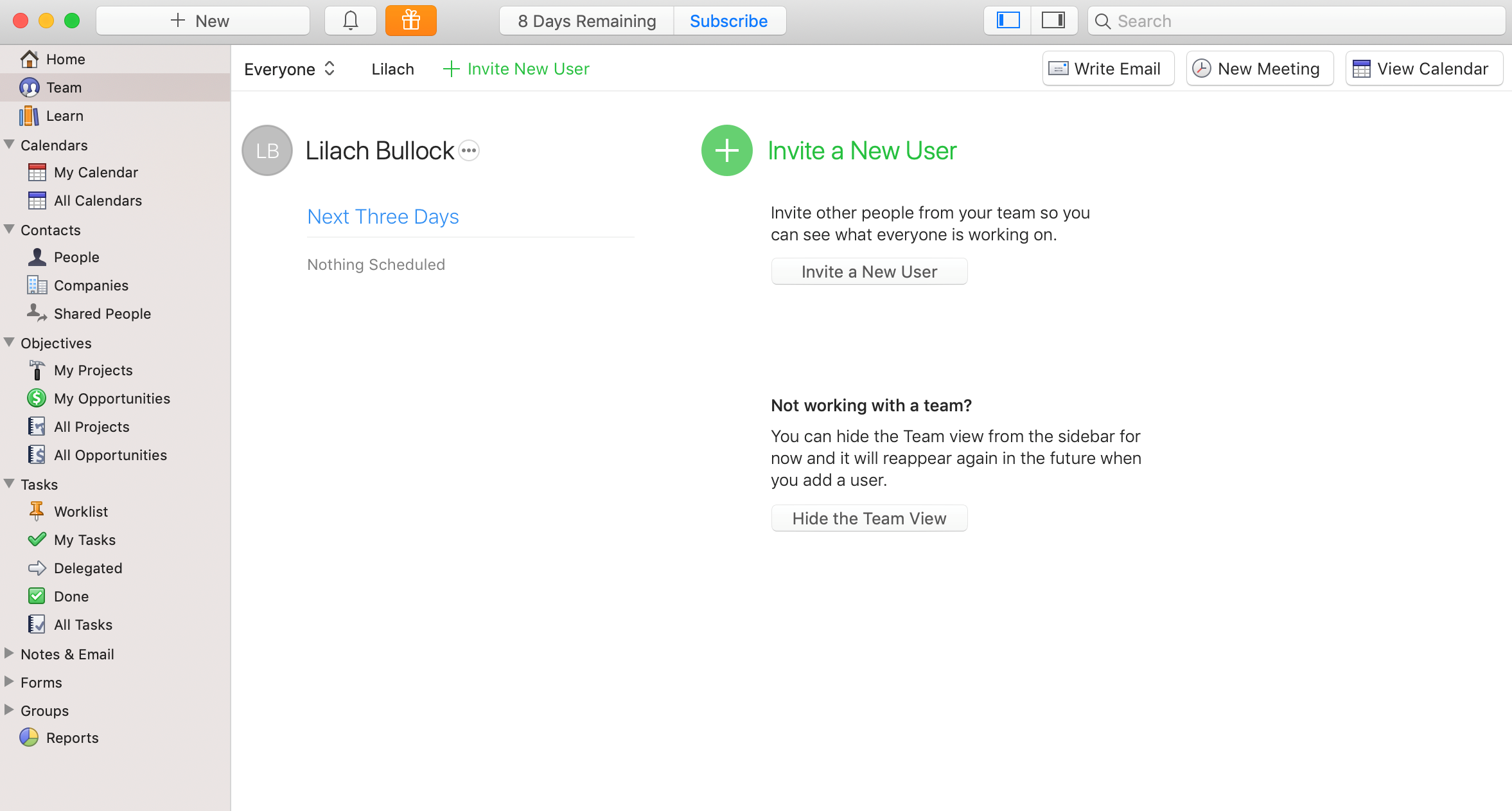 Once you’ve added your team members to your account, you can further organize things by creating teams; for example, you could create several sales teams to manage different types of clients.
This comes in really handy because each team can have its own calendar, projects, and tasks. Then, as you organize these teams, you’ll be able to track the tasks and projects of each team, from the Team tab/dashboard:
Once you’ve added your team members to your account, you can further organize things by creating teams; for example, you could create several sales teams to manage different types of clients.
This comes in really handy because each team can have its own calendar, projects, and tasks. Then, as you organize these teams, you’ll be able to track the tasks and projects of each team, from the Team tab/dashboard:
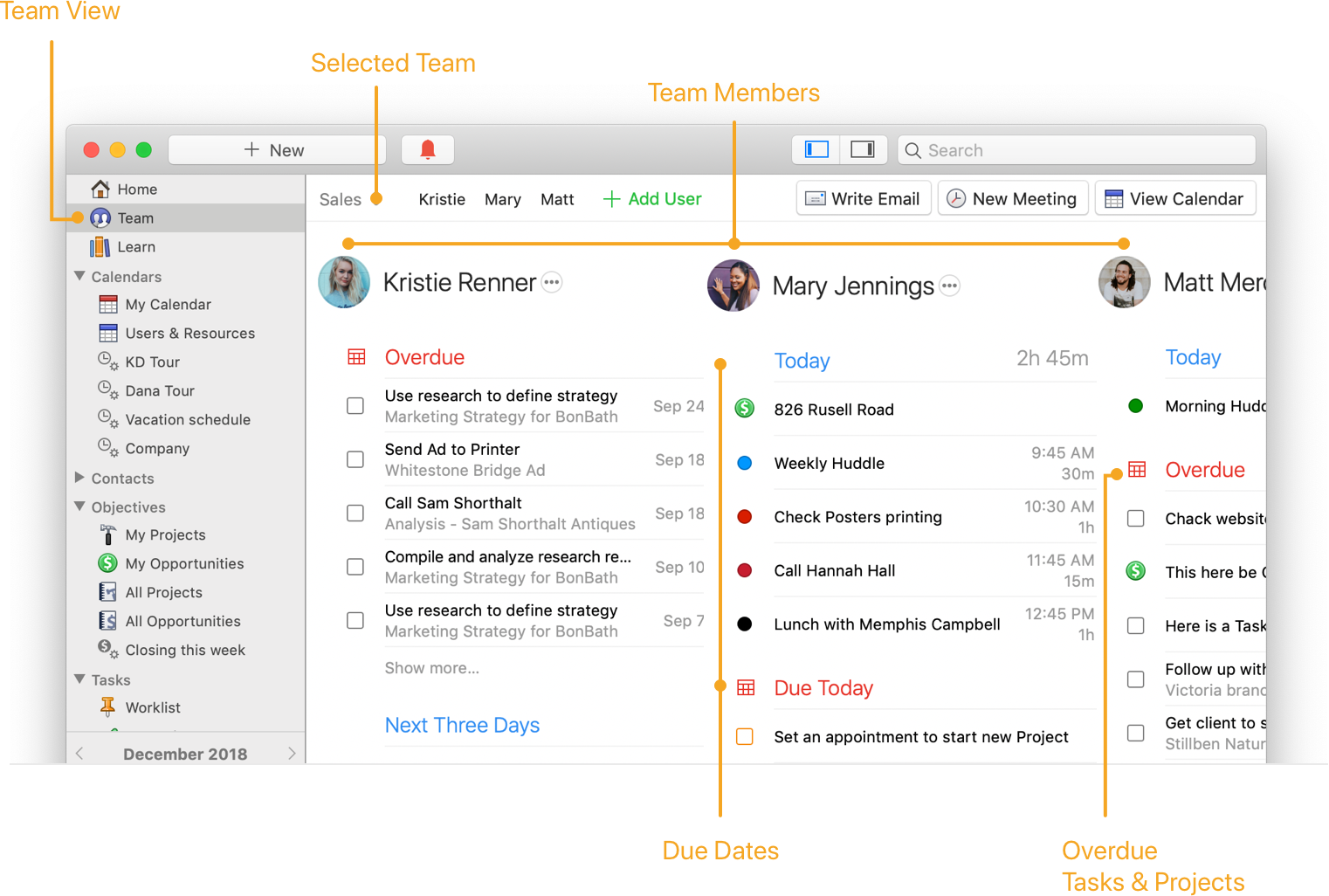 As you can see above, you can see each team in its own separate column, you can see:
- Today’s tasks that they have to work on
- Any overdue tasks and when they were due to be done
- The tasks from their worklists
- Upcoming tasks and appointment for tomorrow and up to 7 days in advance
Adding Your Calendars
Another big part of Daylite is the Calendar – this is where you can keep track of all your meetings, tasks and calls and organize your time effectively.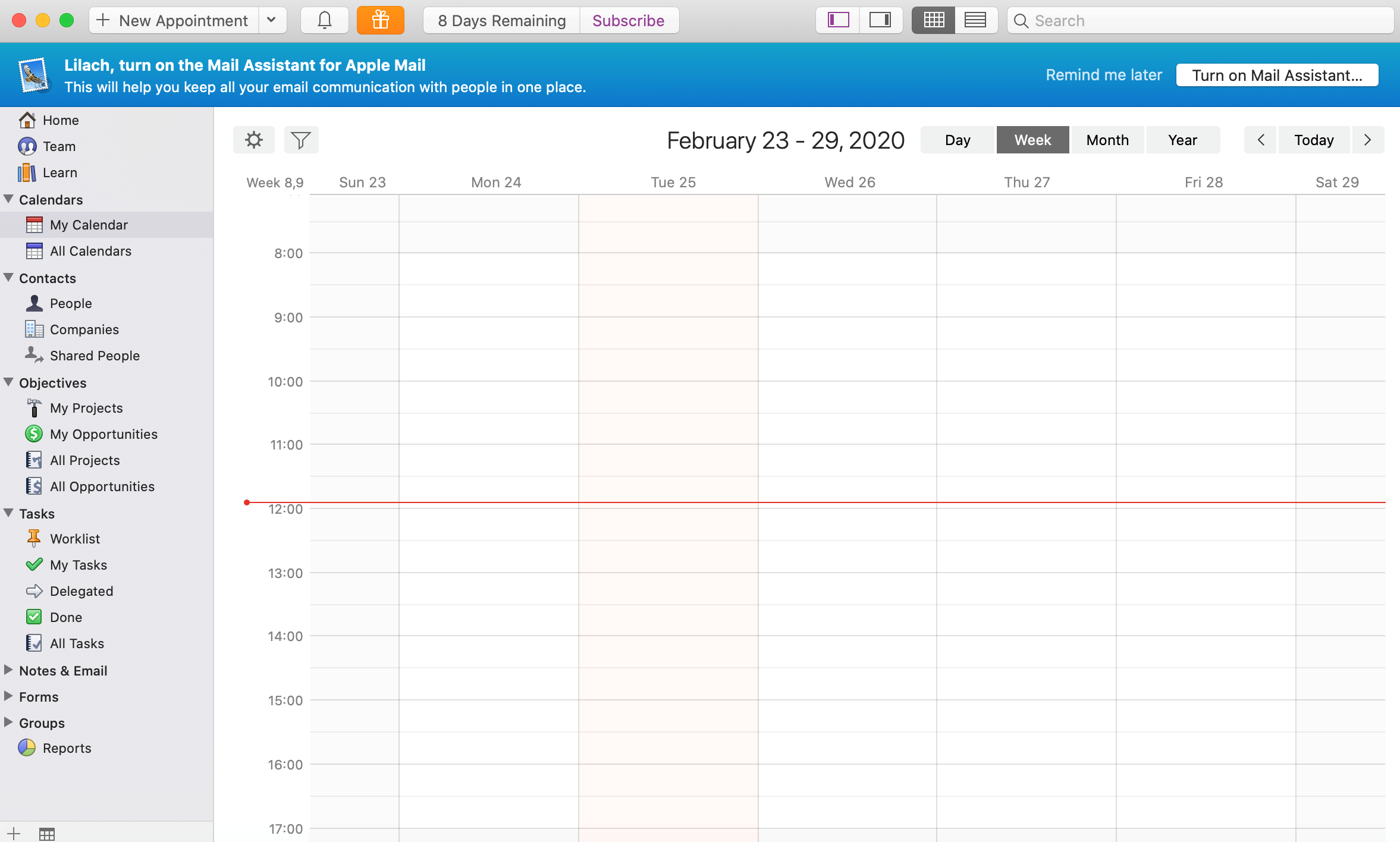 You can create multiple calendars if needed, and import data from pretty much any calendar app, including of course Apple and Google calendars.
To help organize your calendar exactly as you want it, you can go to your Settings and set up/color code your categories, as needed:
You can create multiple calendars if needed, and import data from pretty much any calendar app, including of course Apple and Google calendars.
To help organize your calendar exactly as you want it, you can go to your Settings and set up/color code your categories, as needed:
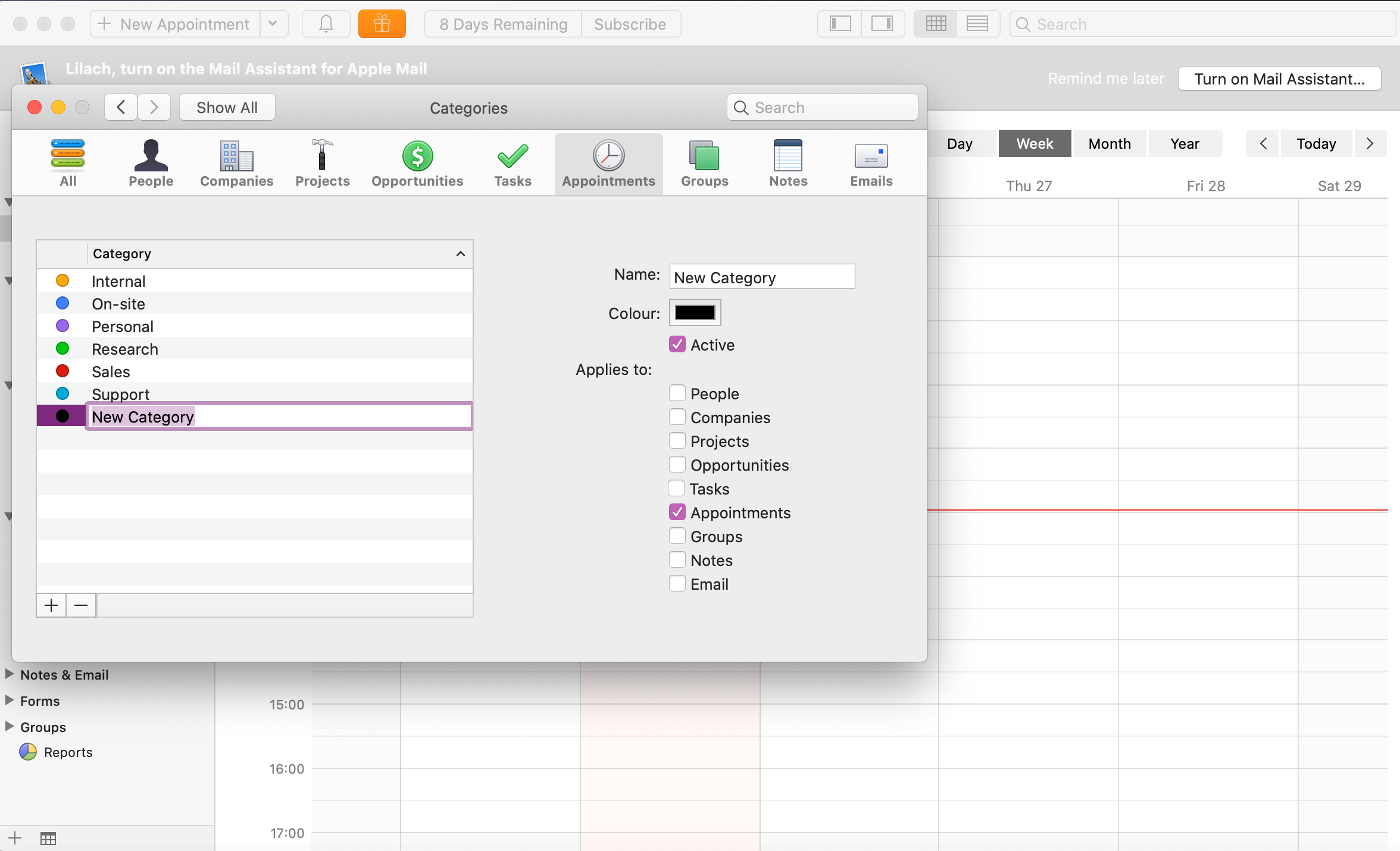 Once you’re done organizing your appointment settings and adding all of your calendars, you’ll be able to use the Daylite calendar to manage all of your appointments, meetings, follow-ups and anything else you might have scheduled in your calendar.
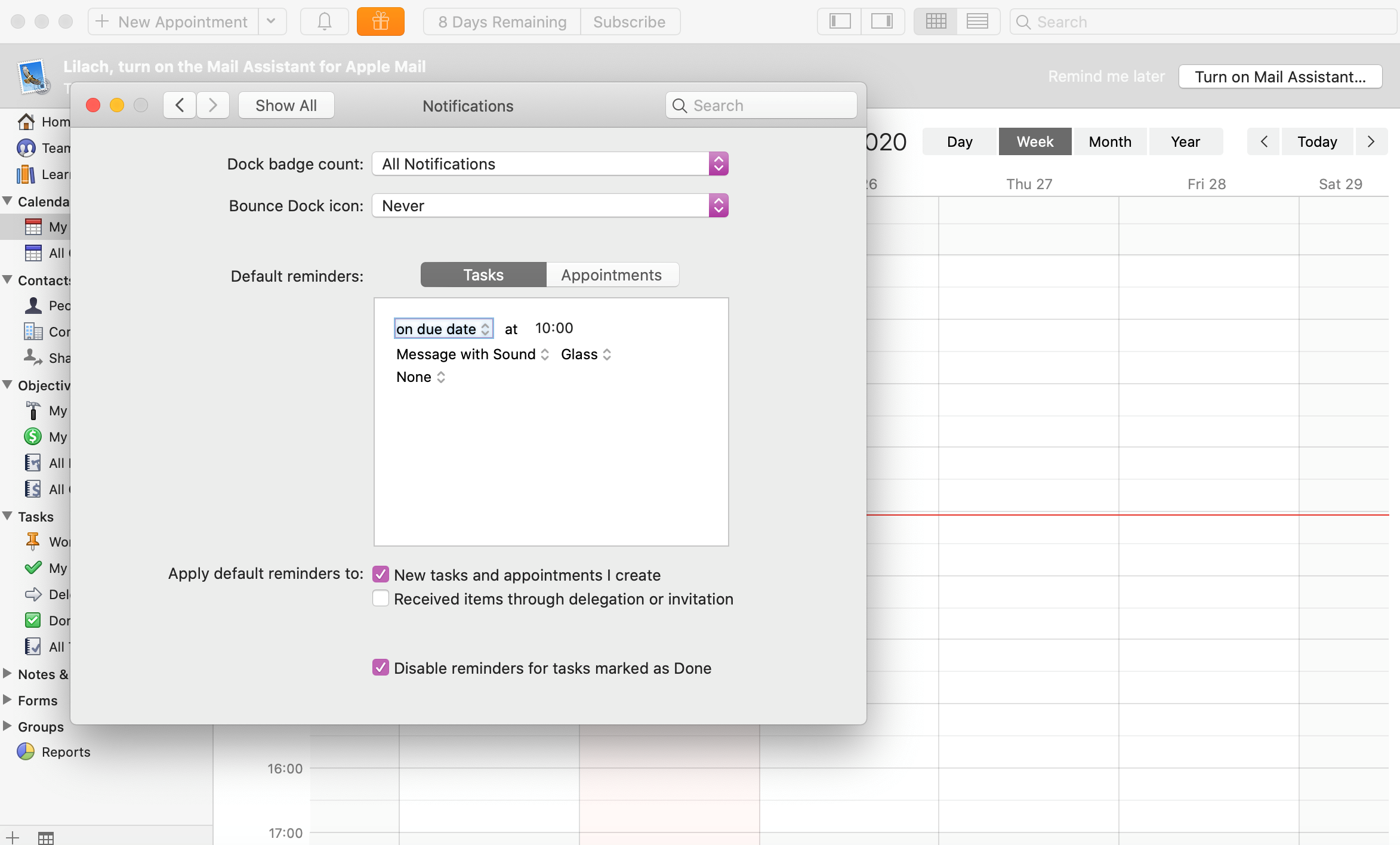
You’ll also get notifications, which you can see in the notifications bar in-app; plus, you can also get Daylite for iPhone and iPad and get notifications on your mobile devices as well. You can customize your notifications to your liking, easily, from the Preferences section:
Once you’re done organizing your appointment settings and adding all of your calendars, you’ll be able to use the Daylite calendar to manage all of your appointments, meetings, follow-ups and anything else you might have scheduled in your calendar.
You’ll also get notifications, which you can see in the notifications bar in-app; plus, you can also get Daylite for iPhone and iPad and get notifications on your mobile devices as well. You can customize your notifications to your liking, easily, from the Preferences section:
 [click_to_tweet tweet="Boost your #productivity and close more deals with @dayliteapp #businesstips #businesstools" quote="Boost your #productivity and close more deals with @dayliteapp #businesstips #businesstools"]
Using Daylite as a CRM & Sales tool
Daylite is primarily a CRM tool – and it has a lot of useful features that you might not expect from a small business CRM. To start with, if you use Apple Mail, you can integrate so that you can process and manage your emails directly in Daylite. And I’ve already shown you earlier how to add contacts and companies to your Daylite account. But what more can you do to nurture these leads? How does it help you manage and convert your leads? When you connect Daylite to your Mail app, you’ll be able to take all kinds of actions automatically and easily, directly from the email you’re currently working on; for example, you can add a new opportunity, set appointments to your calendar and add tasks for that contact: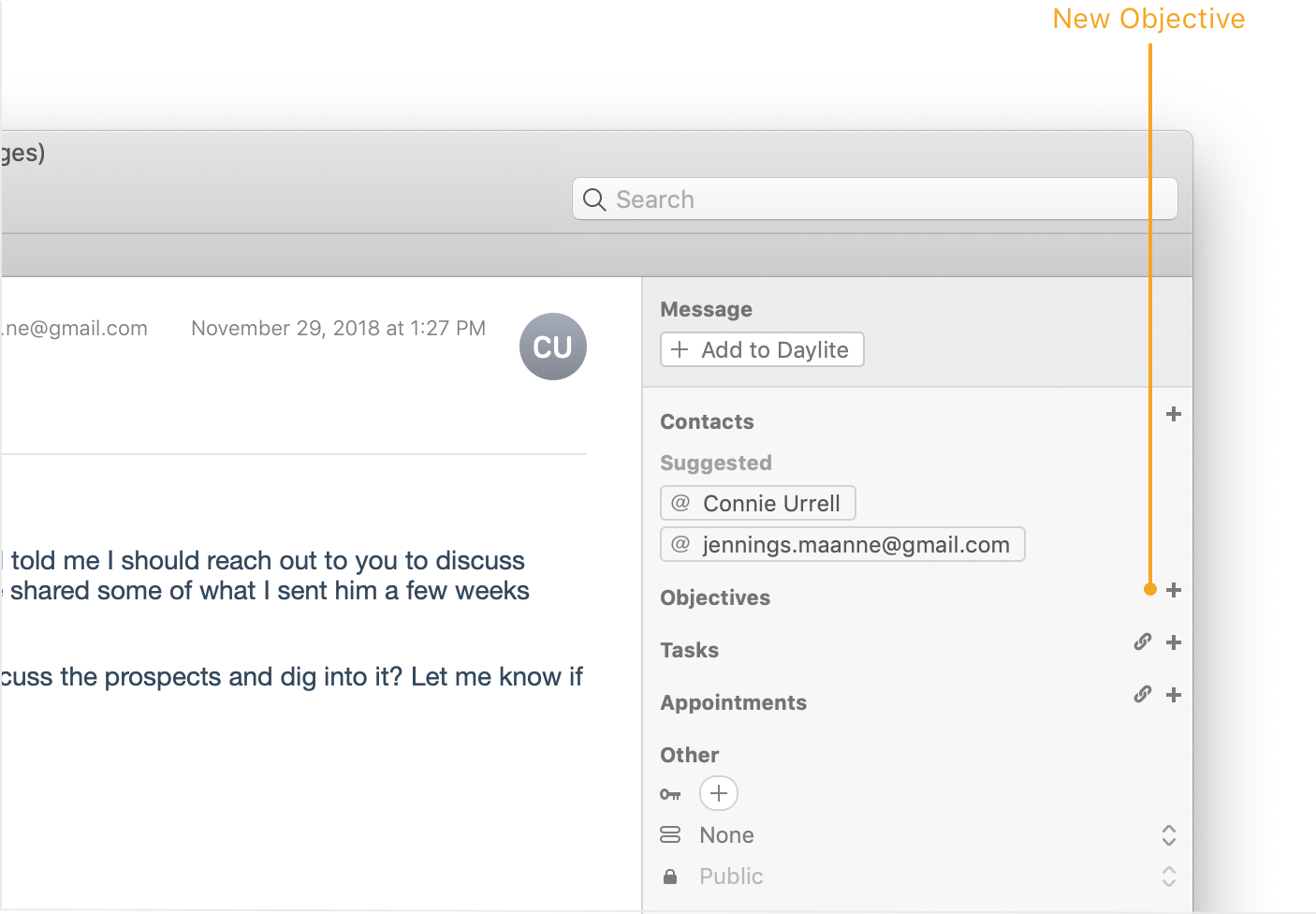 An “opportunity” is how you keep track of all of your interactions with a lead or prospect, what are the next steps that you need to make, what the deal is worth and basically everything you need to know, at a glance, about your prospects.
You can easily add opportunities from the Objectives tab, by clicking on My Opportunities:
An “opportunity” is how you keep track of all of your interactions with a lead or prospect, what are the next steps that you need to make, what the deal is worth and basically everything you need to know, at a glance, about your prospects.
You can easily add opportunities from the Objectives tab, by clicking on My Opportunities:
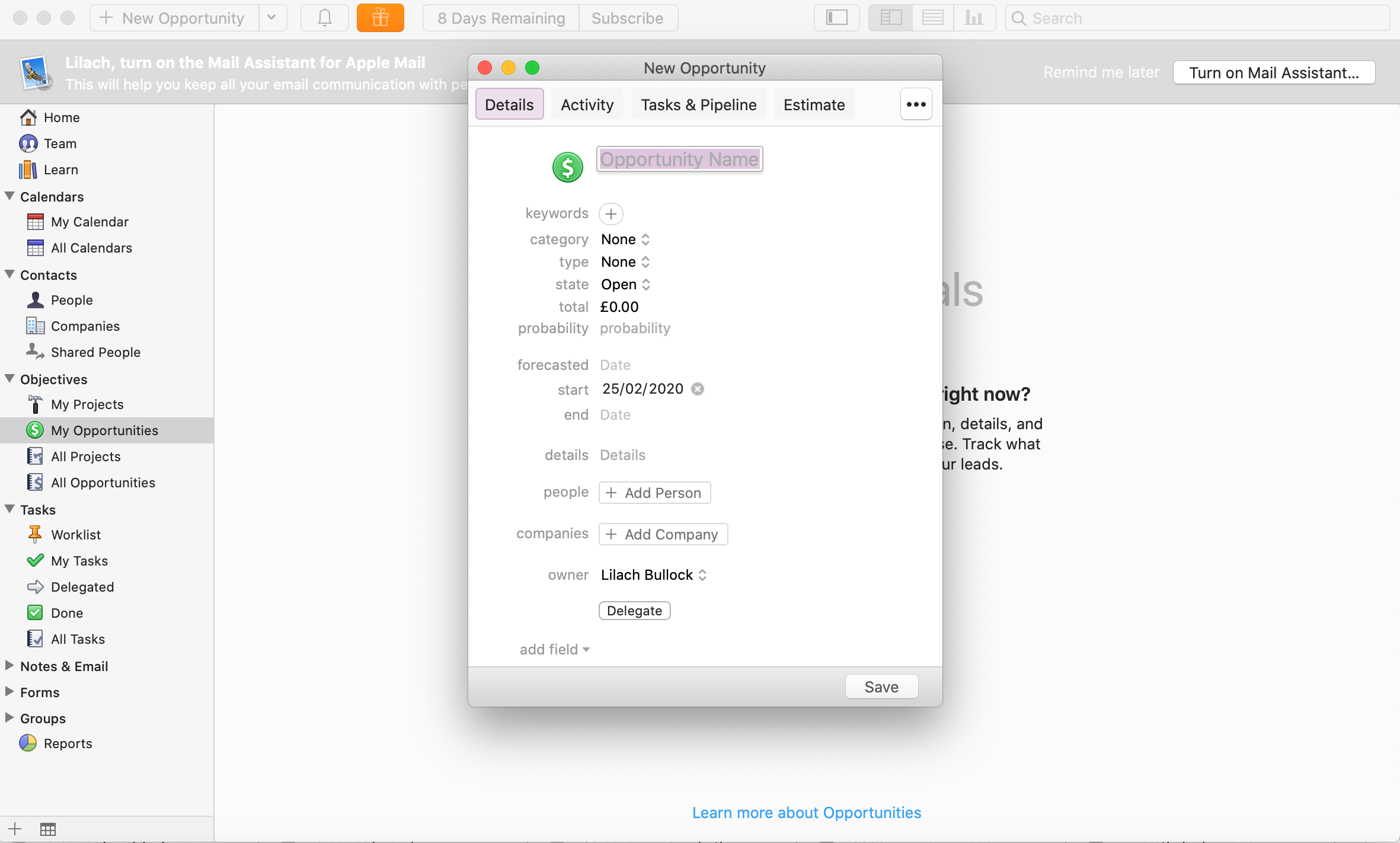 As you can see above, there are a lot of fields you can complete (but don’t get overwhelmed – you can add more information about an opportunity as you learn more along the way) and there are several other useful tabs:
- Activity, where you can see all the activity that’s happened between you and that prospect
- Tasks and pipeline, where you can add and keep track of tasks, create task lists and add the contact to a pipeline
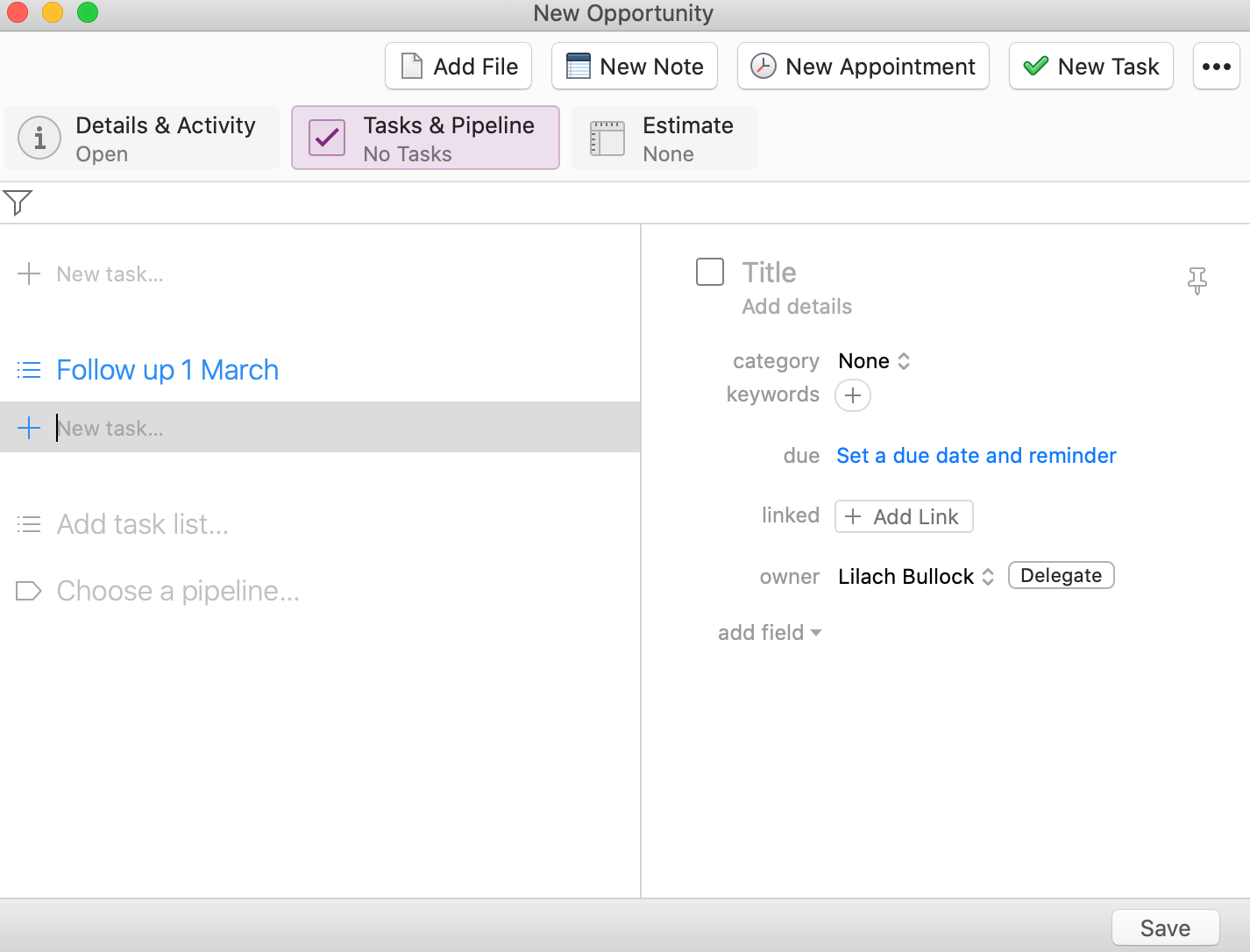
- Estimate, where you can see a current estimate of the contact’s potential sales value
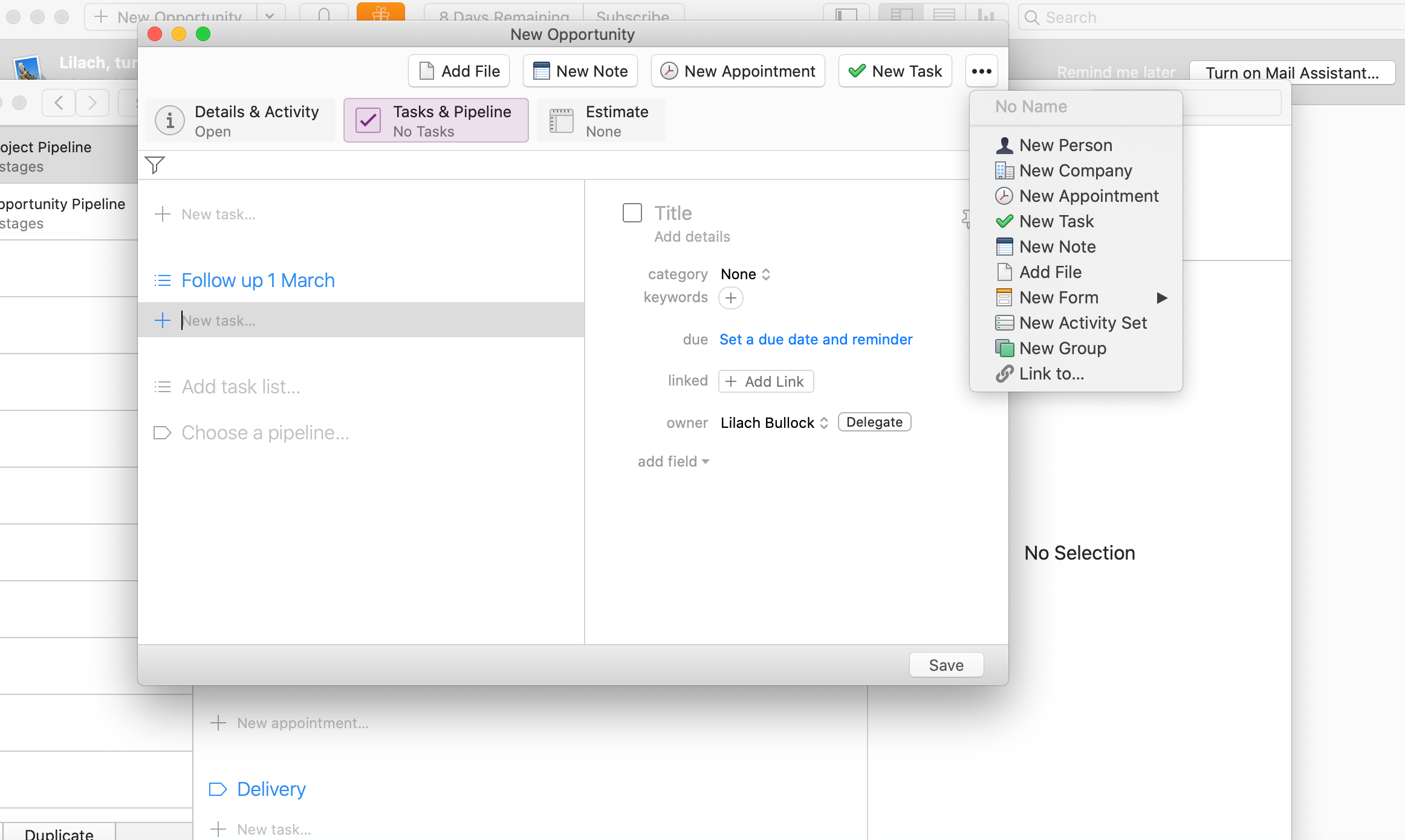
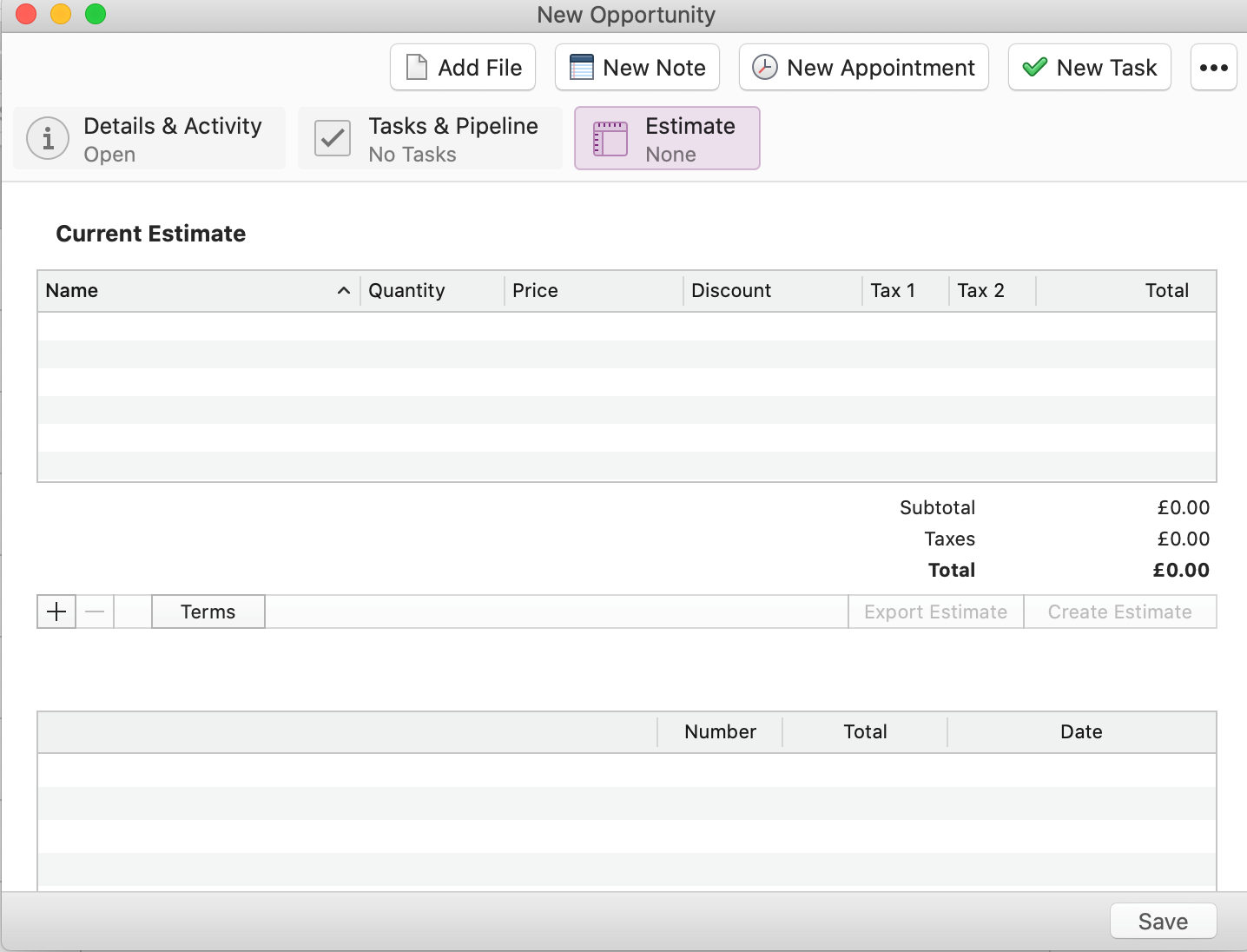 Plus, you can also import files, create notes, set new appointments and much more, for each Opportunity:
 Since I mentioned pipelines earlier, it’s worth pointing out that you can create your own pipelines – both for opportunities (sales pipeline) and for projects (project pipeline); you can do so easily from Preferences:
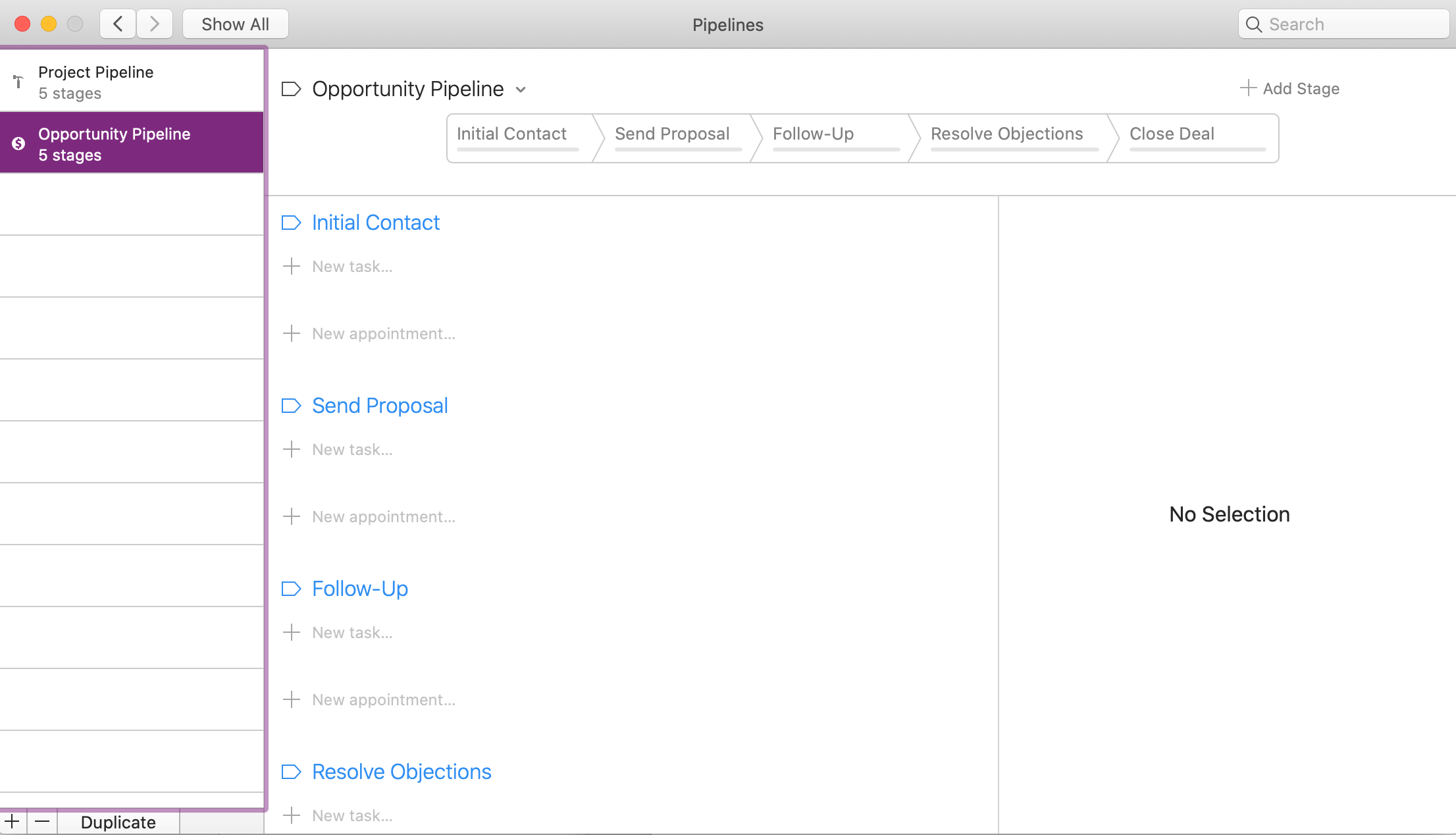 Here, you can easily customize the pipeline, add tasks, appointments, follow-ups and even add new stages to your pipeline, if you prefer.
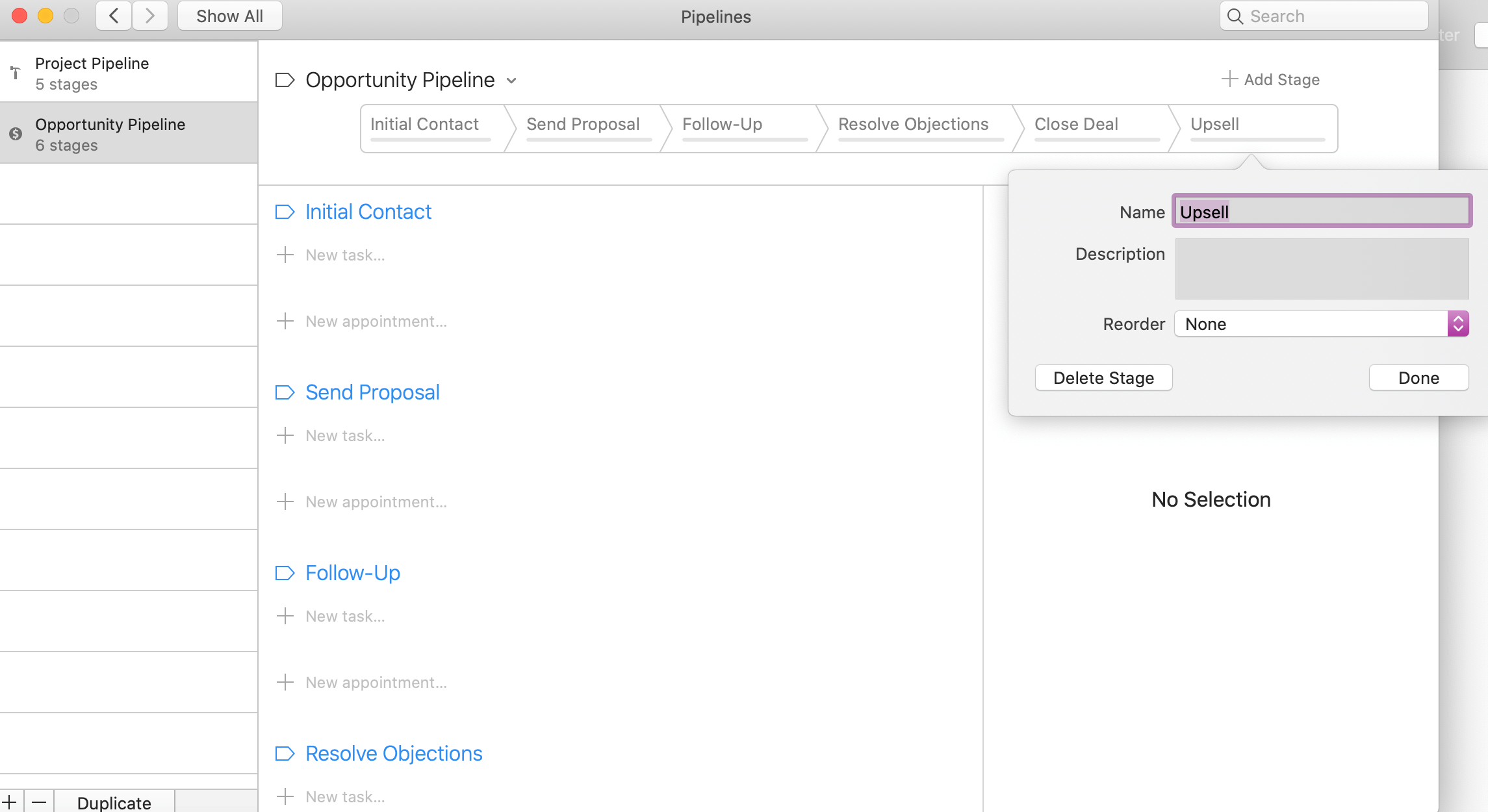 You can also customize each stage and remove any you don’t want, from your pipeline.
This makes it much easier to close deals and nurture more leads to becoming your clients.
As for managing your leads, prospects, and customers, you have several useful features to help:
You can also customize each stage and remove any you don’t want, from your pipeline.
This makes it much easier to close deals and nurture more leads to becoming your clients.
As for managing your leads, prospects, and customers, you have several useful features to help:
- Score your leads to help you focus on the right prospects and close more deals as a result
- List management: you can set up moderation rules to automatically add new contacts to different lists, depending on your criteria
- Segment your list: there are numerous filtering options to help you segment your list so that you can personalize your messaging and boost your conversion rate in the process:
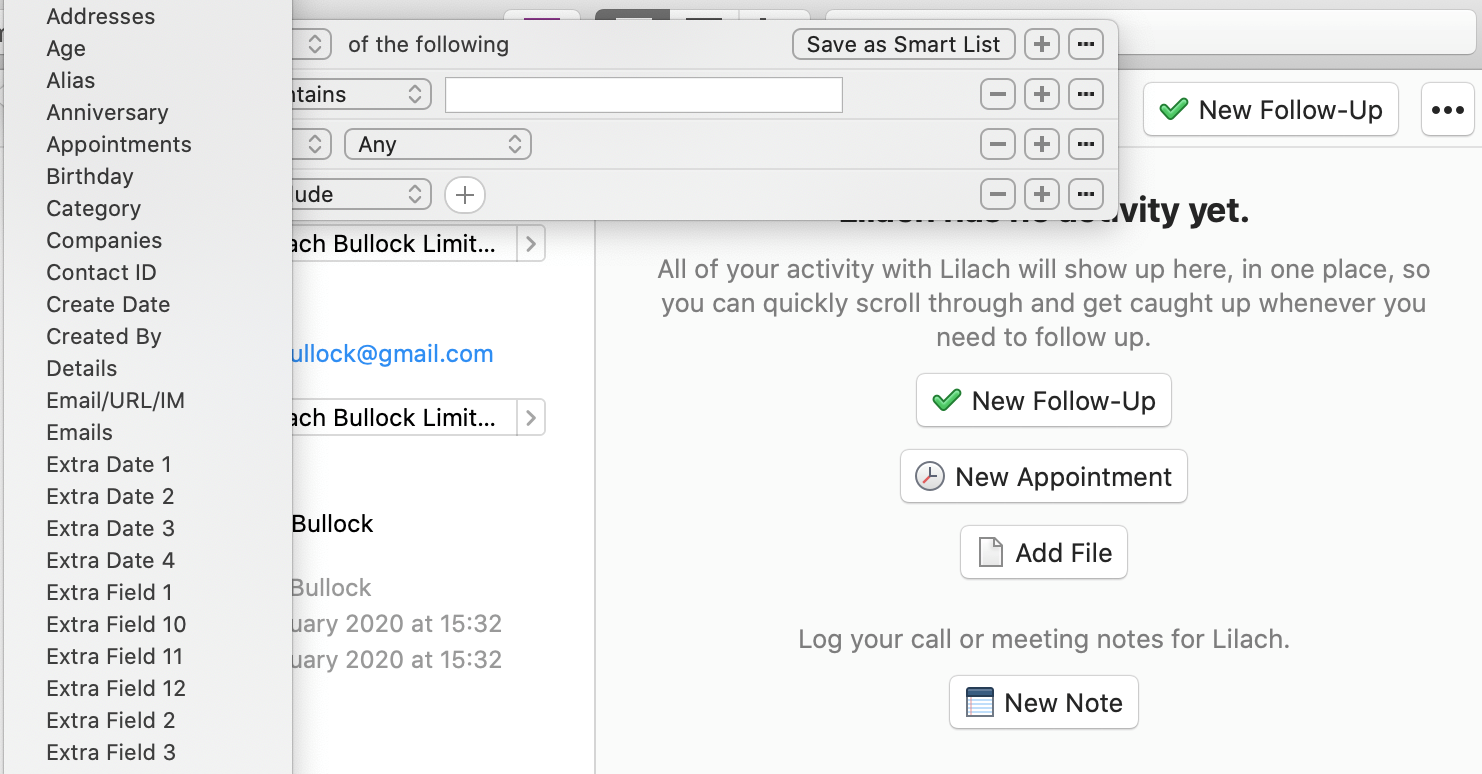 Basically, you can filter based on any field you have about your leads/contacts.
As you can see in the screenshot, you can also save your lists as “smart lists”, which you can then customize and use to prioritize your leads.
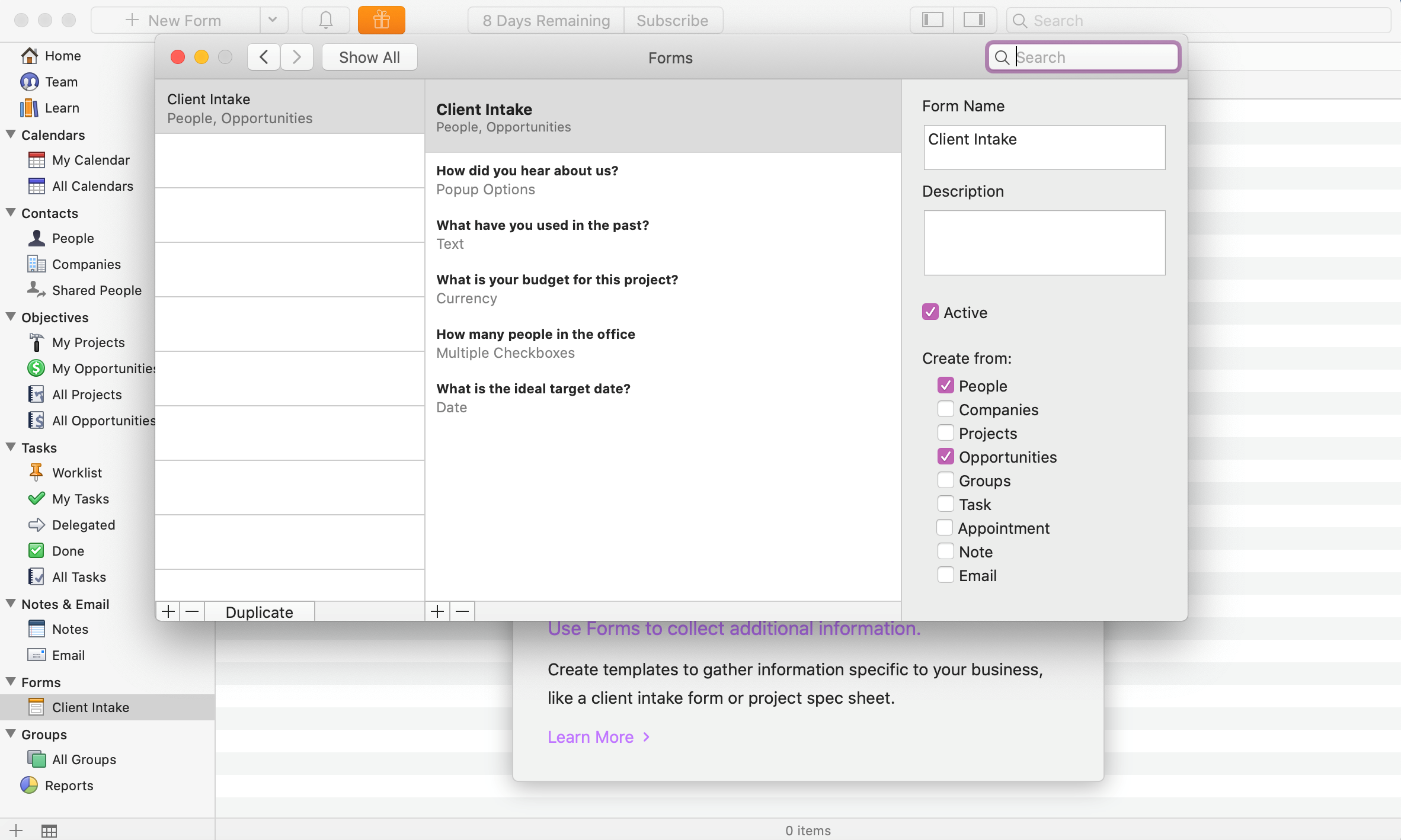
Another useful feature is ‘forms’ – this is to help you collect information from your leads and prospects, by creating client intake forms and other types of forms. You can do this easily from your Preferences by customizing the existing Client Intake form and creating new ones, as needed:
Basically, you can filter based on any field you have about your leads/contacts.
As you can see in the screenshot, you can also save your lists as “smart lists”, which you can then customize and use to prioritize your leads.
Another useful feature is ‘forms’ – this is to help you collect information from your leads and prospects, by creating client intake forms and other types of forms. You can do this easily from your Preferences by customizing the existing Client Intake form and creating new ones, as needed:
 Another really cool feature that I’m absolutely loving (and if you follow our blog, you’ll know why!), is the reporting:
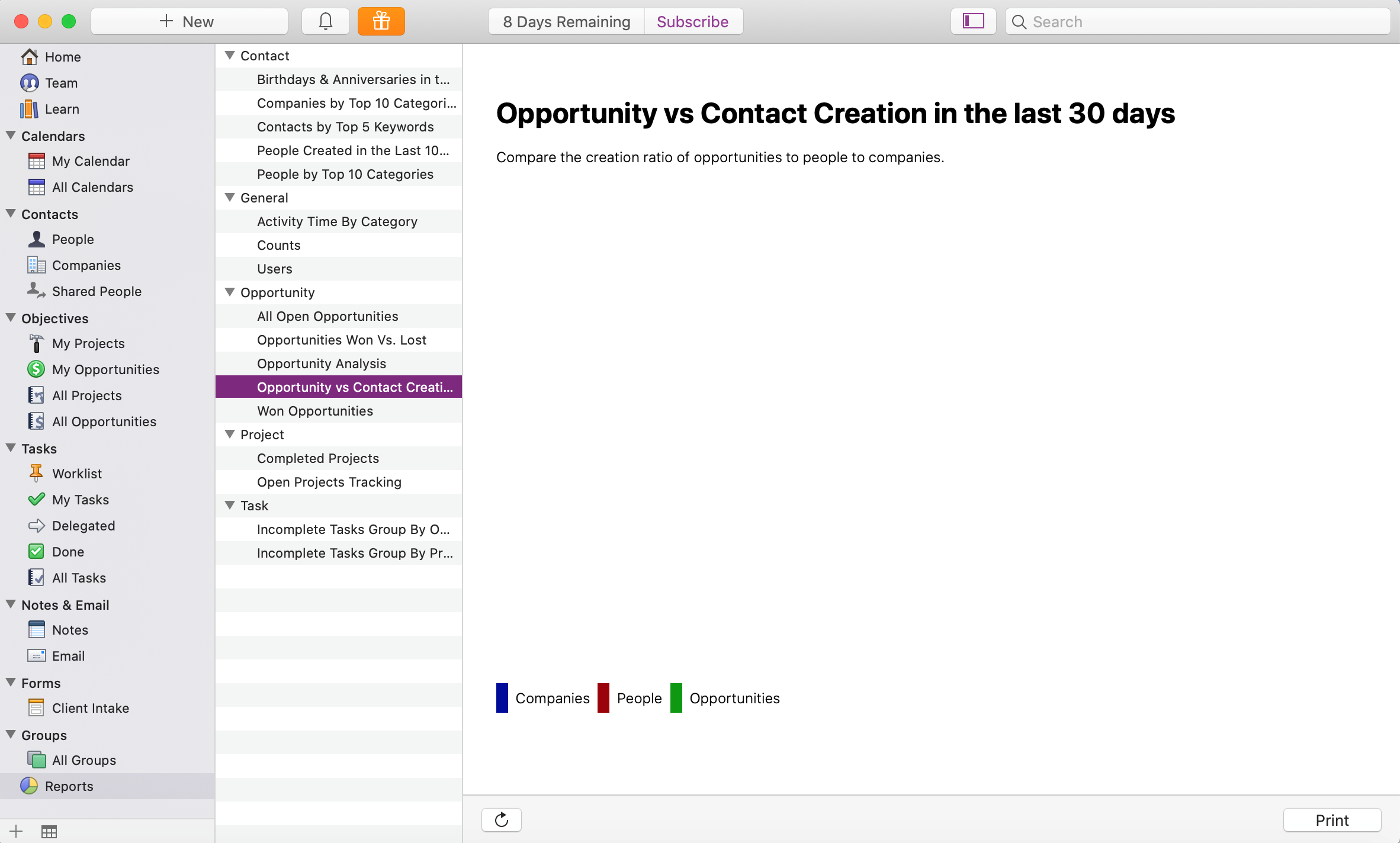 There are numerous reports available, for a multitude of categories, all automatically generated.
All you have to do is click on the report you want and you’ll be able to see and print out your results; for example, some of the reports you can find, include:
There are numerous reports available, for a multitude of categories, all automatically generated.
All you have to do is click on the report you want and you’ll be able to see and print out your results; for example, some of the reports you can find, include:
- Incomplete tasks by your teams
- Opportunity analysis
- Won vs. a lot of opportunities
- Activity time by category
- Companies by category
Project and task management
The CRM is a big part of Daylite, but there’s another huge feature: project and task management. You can use these features for yourself – or as part of a team. To start with, you can create projects – for example, for specific clients or prospects: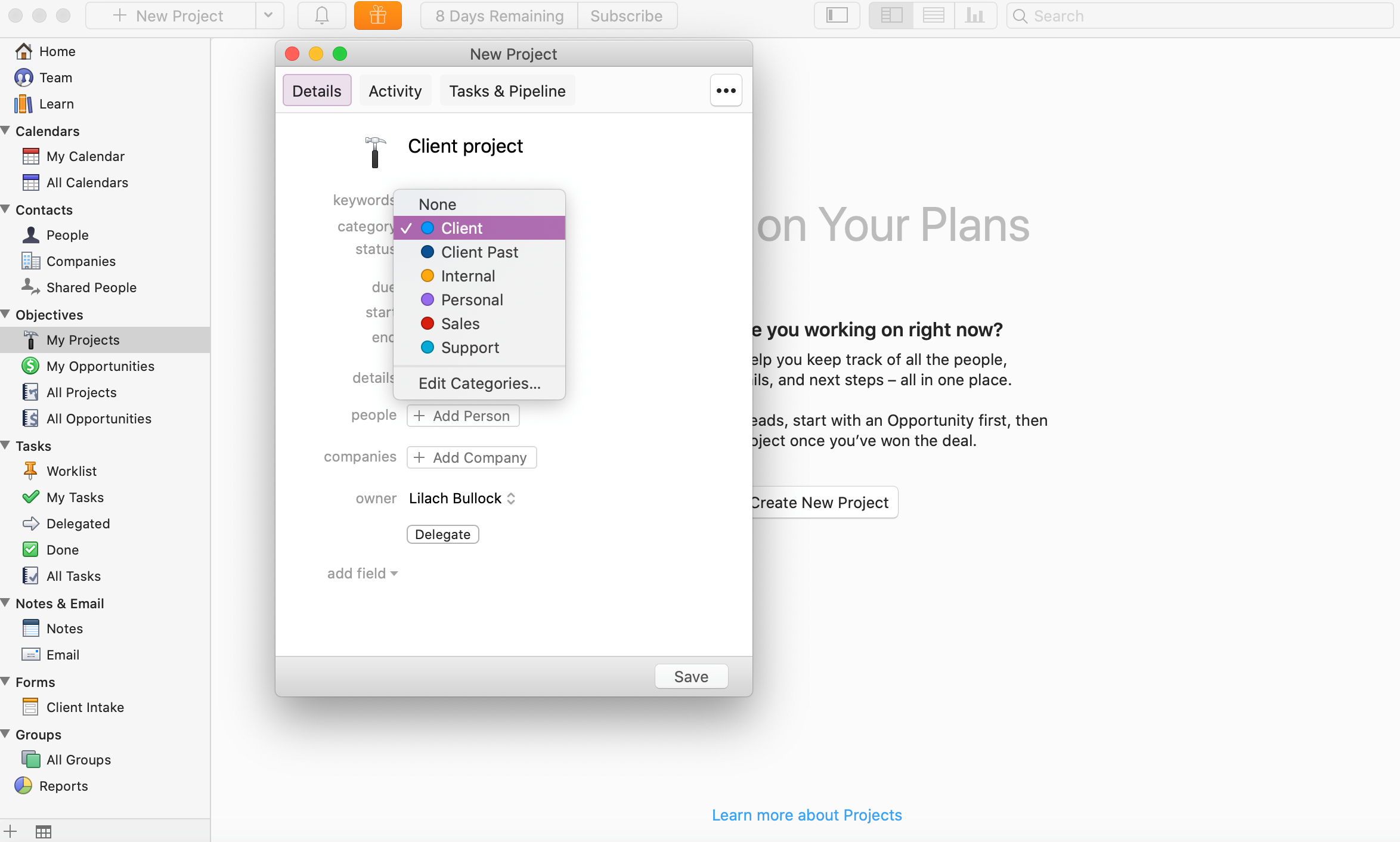 As you can see above, you can easily organize these projects with categories and keywords, assign dates, add other team members to your projects, assign companies and add any other fields you want to help you manage the project as effectively as possible.
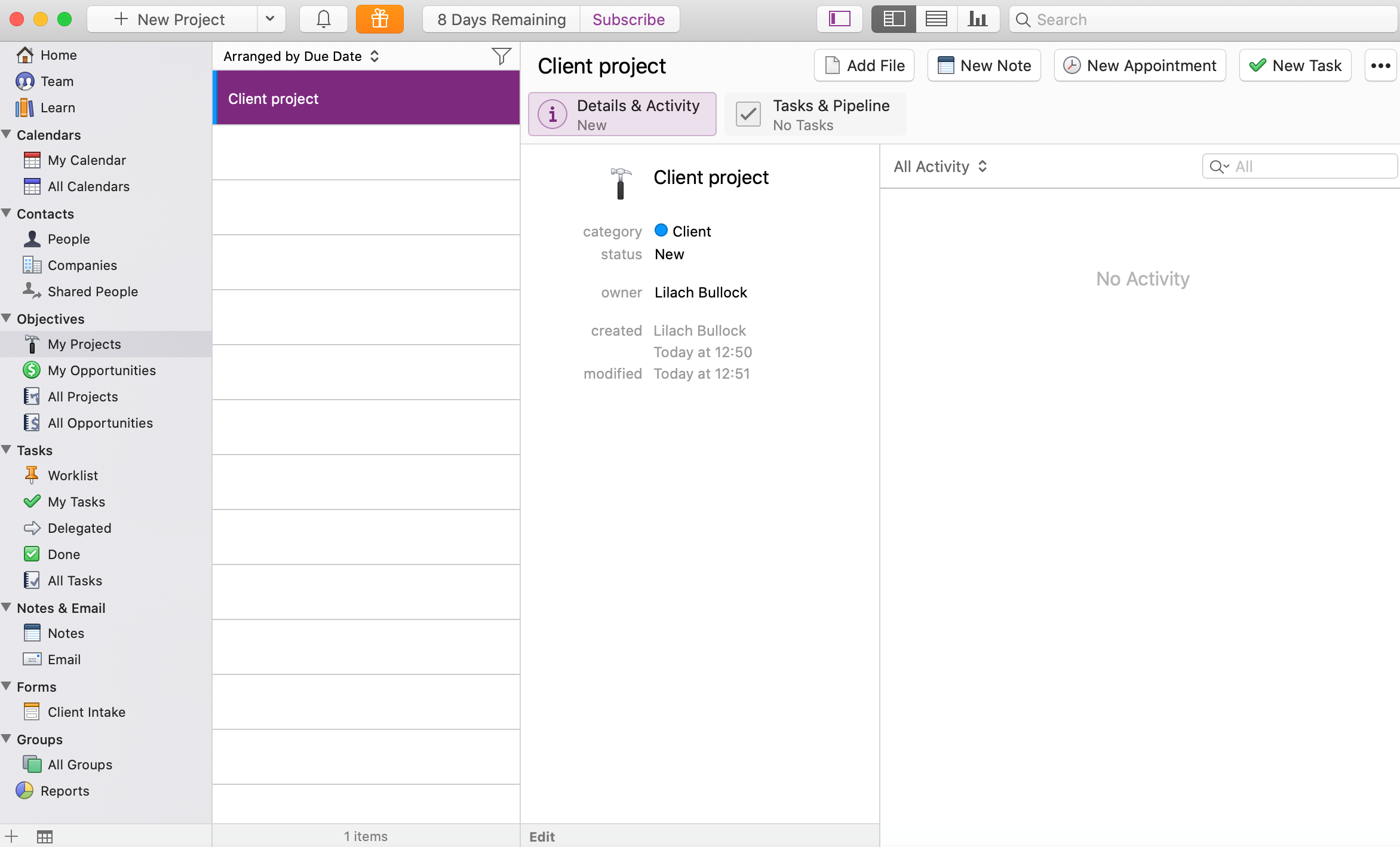
Once you’ve set up and saved your project, you can take all kinds of actions:
As you can see above, you can easily organize these projects with categories and keywords, assign dates, add other team members to your projects, assign companies and add any other fields you want to help you manage the project as effectively as possible.
Once you’ve set up and saved your project, you can take all kinds of actions:
- Add documents and files for safekeeping
- Add notes
- Set and keep track Of appointments for that project
- Set tasks for that project
- Add it to a project pipeline (just like with sales pipelines, as seen earlier)
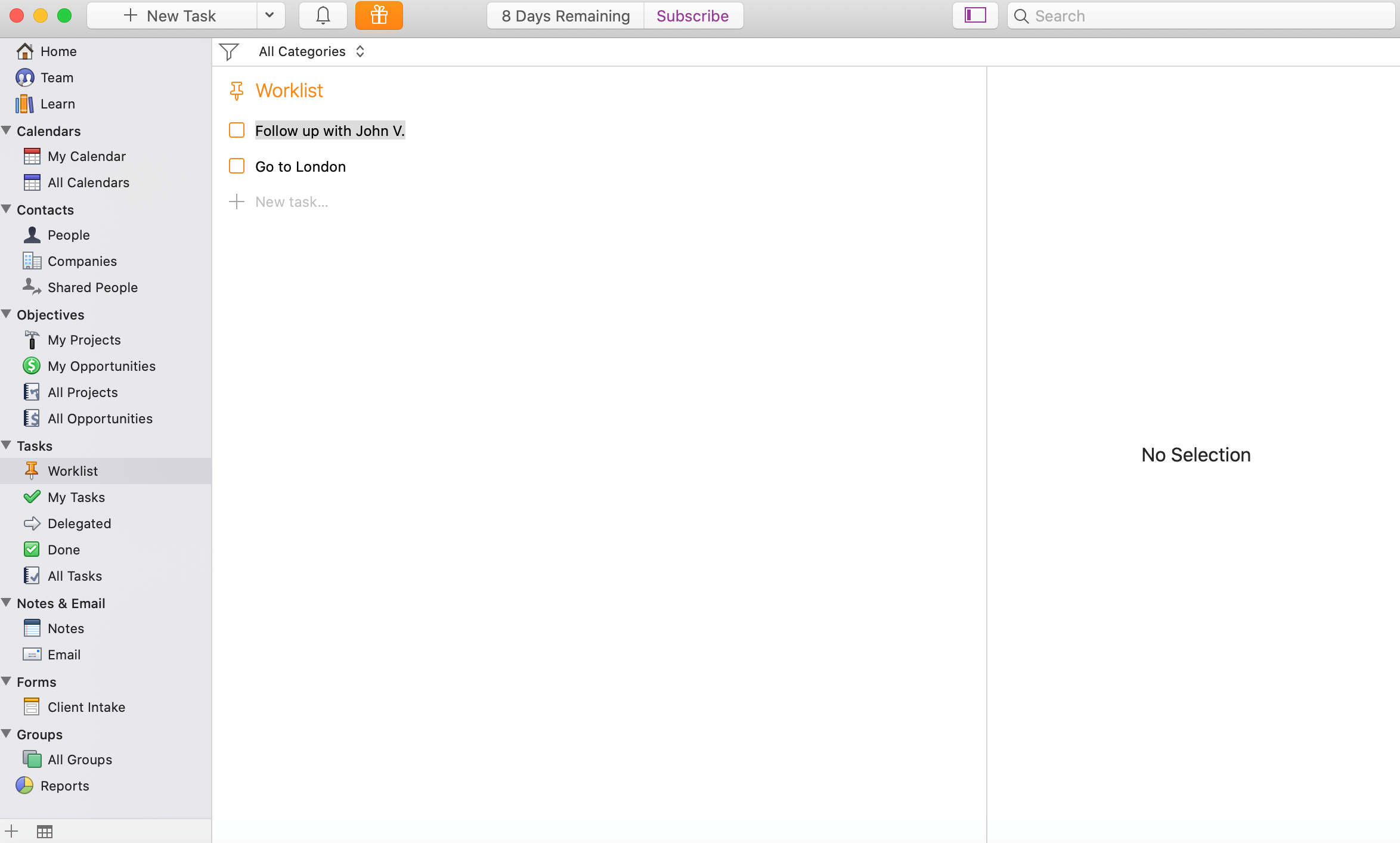
 In the tasks section, you can manage all of your tasks and worklists easily; for example, you can start by creating a worklist and setting due dates:
 You’ll then be able to track all of your due tasks in “my tasks” so that it’s all saved up in one place, which makes it so much easier to ensure you never miss an opportunity.
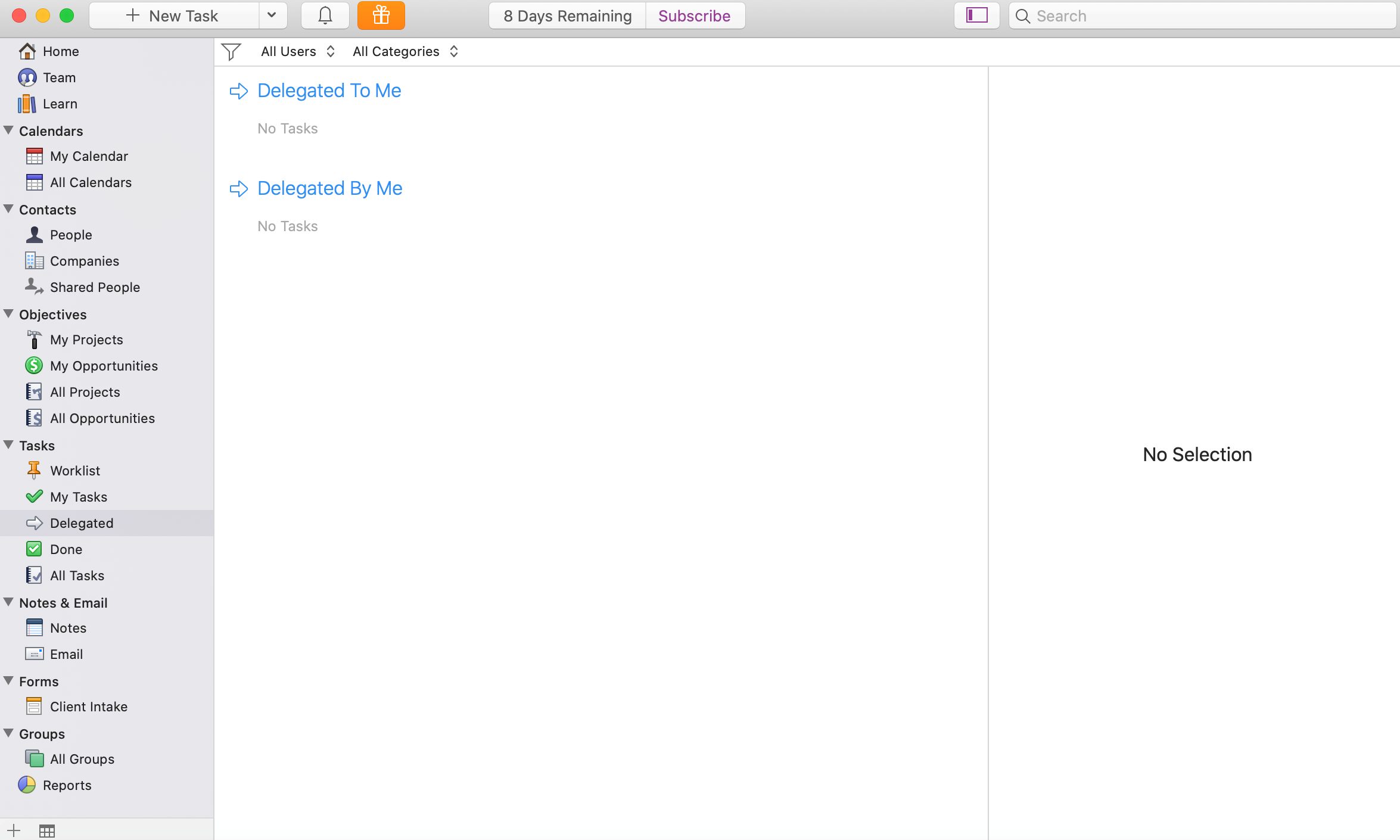
If you work as part of a team, the Delegated tab will be very useful; you’ll be able to see all the tasks you’ve delegated to others, as well as all the tasks that were delegated to you:
You’ll then be able to track all of your due tasks in “my tasks” so that it’s all saved up in one place, which makes it so much easier to ensure you never miss an opportunity.
If you work as part of a team, the Delegated tab will be very useful; you’ll be able to see all the tasks you’ve delegated to others, as well as all the tasks that were delegated to you:
 [click_to_tweet tweet="Boost your #productivity and close more deals with @dayliteapp #businesstips #businesstools" quote="Boost your #productivity and close more deals with @dayliteapp #businesstips #businesstools"]
Conclusion
Daylite is filled with goodies and surprises all along the way; it’s a very powerful tool with a multitude of features – after all, it’s a CRM, it’s a project management tool and it’s a collaboration tool, all at the same time – so going into all of these features would take a very long time; but hopefully, this review has given you a good idea of what you can achieve with Daylite: improved productivity and more leads converted into customers. So if you want to be more productive this year and convert more leads, Daylite is an amazing choice for Mac and iPhone users: you’ll be able to organize your business in a more efficient way and start generating better results and grow your business.The short version: Daylite is a Mac-native CRM and project management tool built specifically for small businesses that want to stay organised, follow up faster, and close more deals without drowning in admin. It brings your contacts, pipelines, and tasks into one place so your team spends less time switching between apps and more time selling. If you want a smarter way to manage relationships and move projects forward, Daylite is worth a serious look.
Lilach's verdict: 4.4 out of 5. Daylite is a well-rounded CRM and productivity app built specifically for small Mac-based teams that want to manage clients, projects, and calendars in one place, though its Apple-only ecosystem limits who can benefit from it.
Related: Boost your productivity and close more deals with Daylite.
Tired of chasing payments? I've compared software that sends late payment reminders for you.
Frequently asked questions
What makes Daylite different from other CRM tools?
Daylite is built exclusively for Mac, iPhone, and iPad, which means it works with the Apple tools you already use, including Mail, Contacts, and Calendar. Unlike generic CRMs that try to serve every business type, Daylite is designed with small service-based businesses in mind, giving you a focused experience that does not overwhelm you with features you will never need.
Can Daylite help me close deals faster?
Yes. Daylite gives you a clear view of every opportunity in your pipeline, with reminders and follow-up tasks attached directly to contacts and deals. This means nothing slips through the cracks, and you always know exactly where each prospect stands and what your next step should be.
Want AI doing the heavy lifting in your marketing?
I build the systems that handle the boring 80 percent, so you get your week back. Done properly, with the human kept in.
Is Daylite suitable for small teams?
Daylite is an excellent fit for small teams because it makes it easy to share contacts, delegate tasks, and track project progress without the complexity or cost of enterprise software. Your whole team stays on the same page, which reduces miscommunication and speeds up how quickly you can serve clients.
Does Daylite work offline?
Yes, one of Daylite's standout features is full offline functionality. You can access your contacts, deals, and tasks even without an internet connection, and everything syncs automatically once you are back online, which is a genuine advantage for busy professionals who work on the go.
Got a piece of your own on this? You can write for us about productivity.


