


- Accurate search rank tracking with Wincher
- Wincher projects
- Keyword research
- Competitive analysis
- Wincher reports
- Wincher annotations
- Wincher accounts
- Customer support
- Wincher pricing
- Conclusion
- Wincher pricing, plans and login: the short version
- Frequently asked questions
- Wincher Review + How-To Guide: Free Plan, Setup, Pricing (2026)
Most of your potential customers start their product research process on search engines. But does your website show up when they search for relevant keywords?
The only way to know is to track your search rankings. That said, what are the benefits of accurate rank tracking for your SEO efforts?
Here are 4 benefits:
- You can determine whether your SEO strategy is leading to intended results.
- You can identify high-traffic pages and optimize them for higher conversions.
- You can uncover high-performing competitors and analyze their strategies.
- It's easy to track the impact of search algorithm updates on your organic traffic.
Having mentioned these benefits, I'll be talking about Wincher, a simple SEO tool you can use for rank tracking. In this Wincher review, I'll explain its features and their benefits to your SEO campaigns.
If you want to give it a run, try Wincher for free! (Use LBULLOCK to get 20% discount!)
Looking for the current picture? My 2026 Wincher review and how-to guide covers the free plan, setup and what has changed since this walkthrough.
Accurate search rank tracking with Wincher
To begin using Wincher, register and log in to your account.
Once you log in to your Wincher account, you’ll see your dashboard.
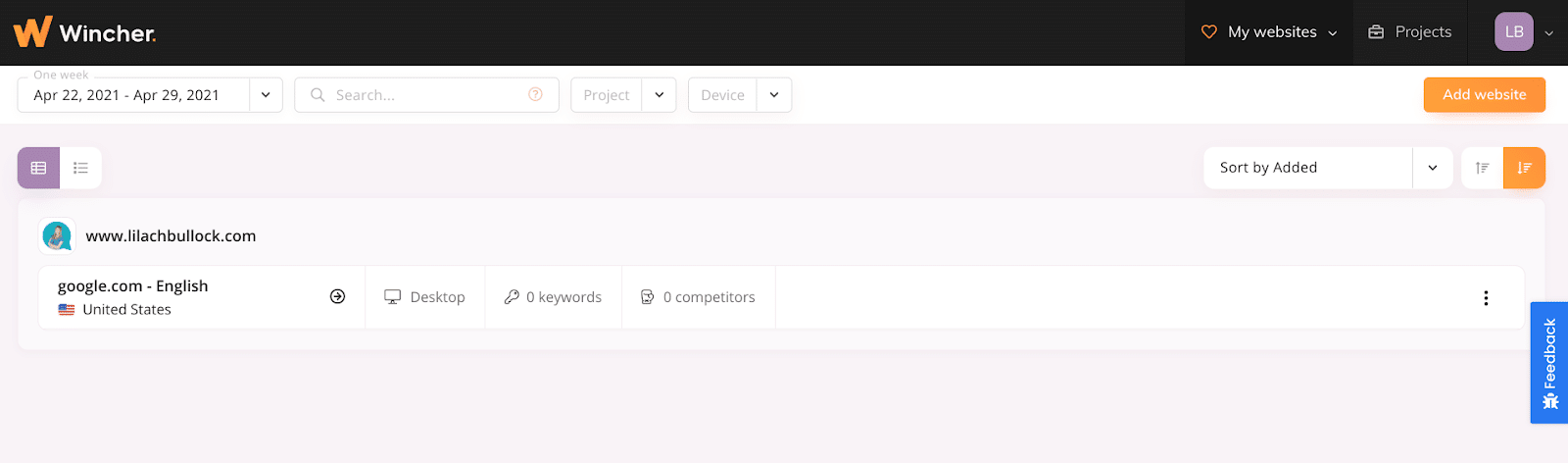
Here, I’ve added my website. If you want to add your website or a new website to the ones you have already, click on “Add website” at the top right corner.
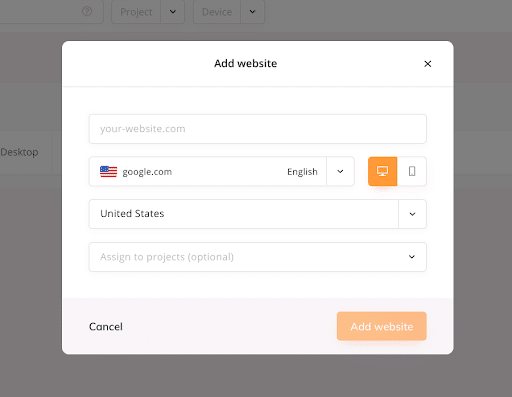
Once you do this, Wincher will launch a form where you can enter the website address, Google language, screen orientation, location, and the project you want to assign the website to. After that, click on “Add website” to complete your setup.
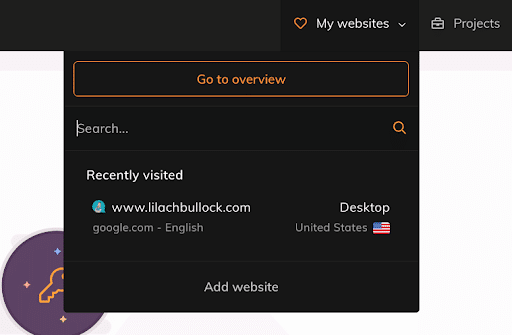
From any page in this tool, you can access any website by selecting the “My websites” drop-down at the top right corner of the page.
After adding a website, you can now click on it to get more details about your search rankings. But before you can see rankings, you need to add keywords relevant to your brand. Click on “Add keywords” to fill in the details.
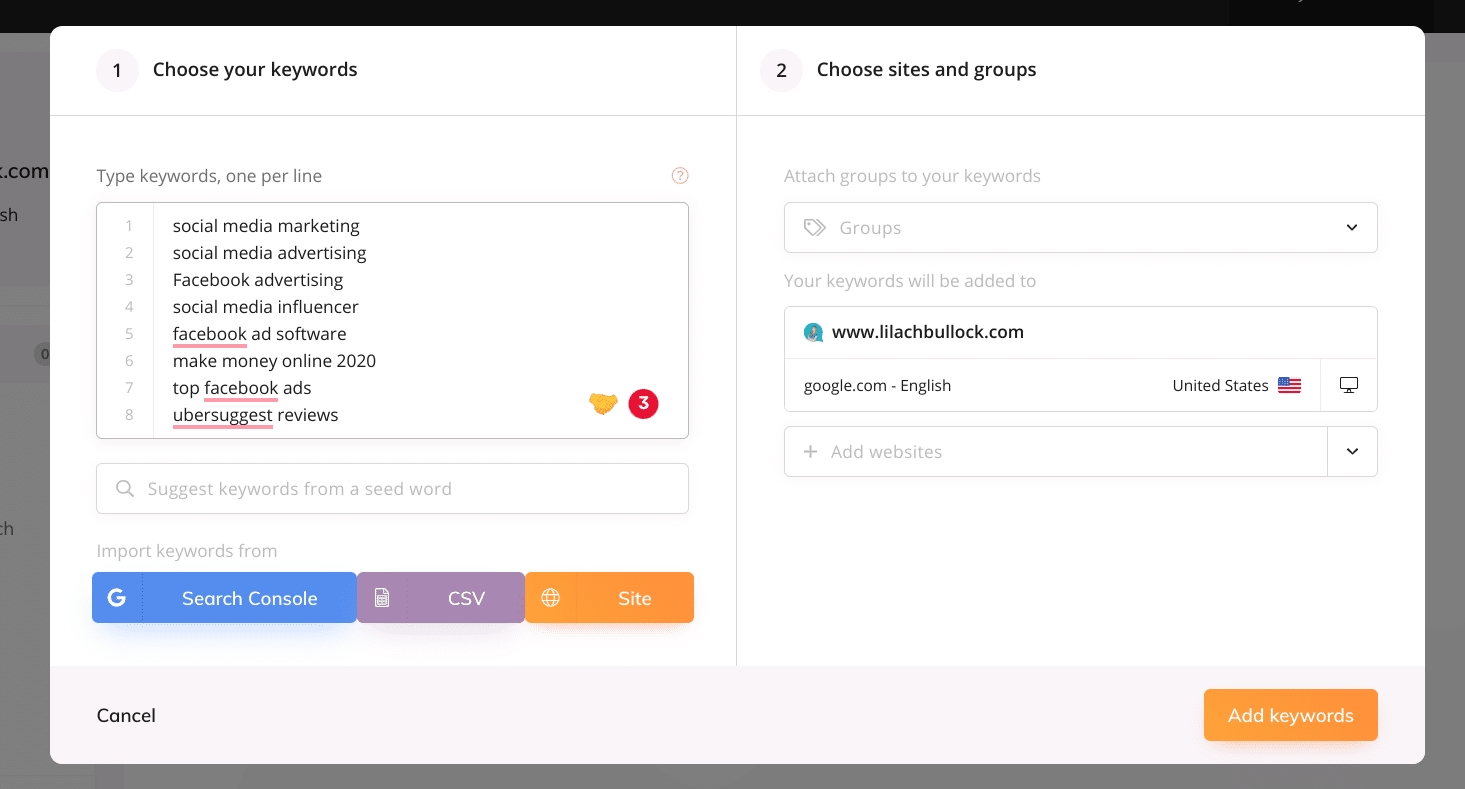
Beyond listing the keywords, you can attach them to groups. If you want to track these keywords for more than a single website, Wincher allows you to add more websites. Then, you can complete your setup.
Wincher will automatically load the details of these keywords on your dashboard.
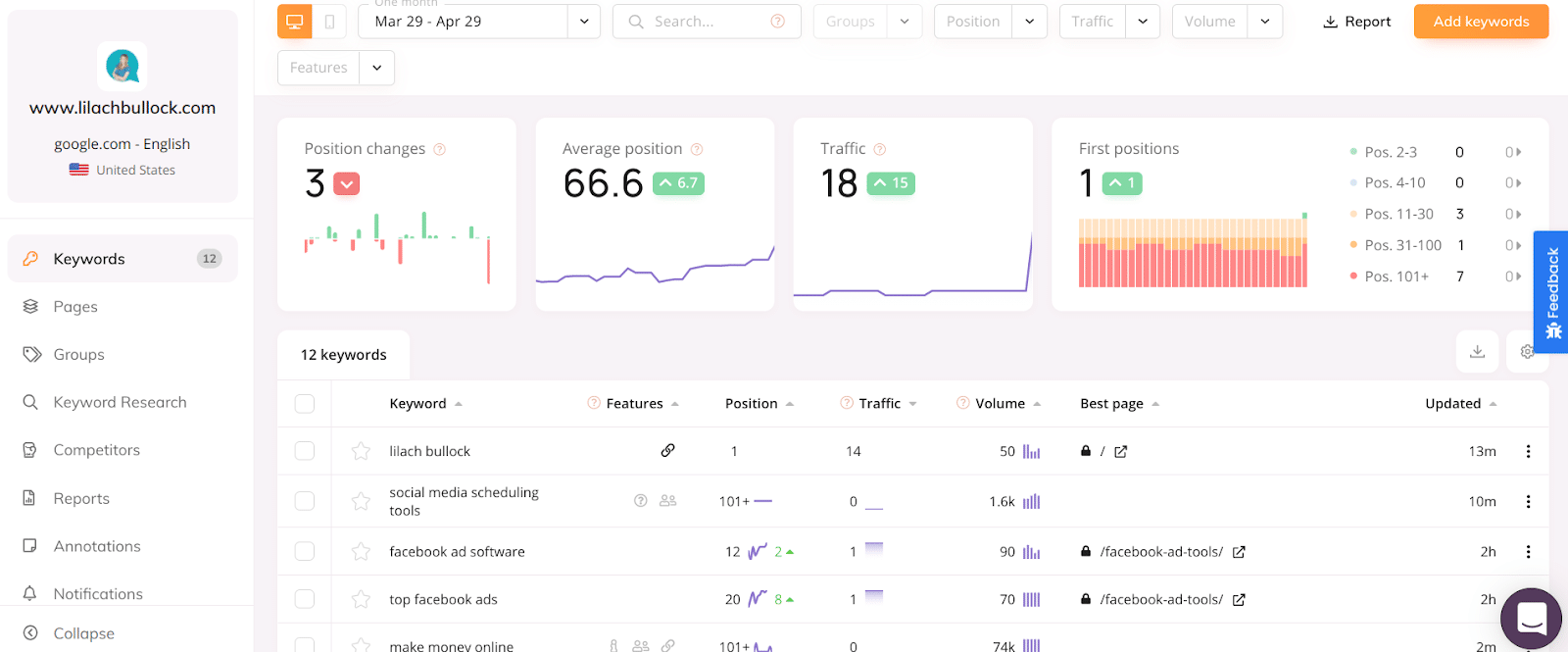
First, you’ll find the features on a keyword’s search results page. These include sitelinks, paid results, featured snippets, people also ask, FAQs, and more.
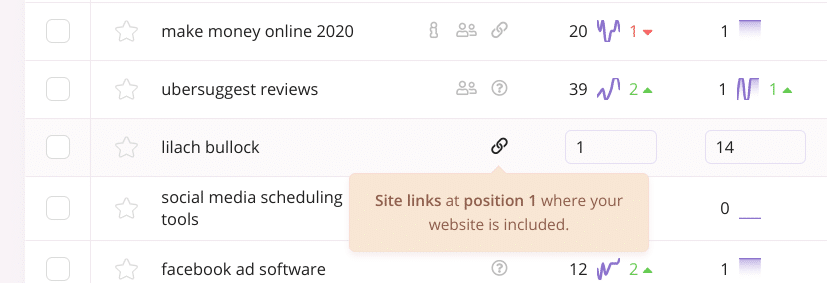
If your website appears on the front page with any of these features, Wincher will bold that feature.
Besides the features, there’s the position your website ranks for each keyword. The traffic provides the number of estimated clicks per month from this keyword.
Other details you’ll find are the volume and your website’s best page for that keyword. This is important to avoid keyword cannibalization. With this information, you can identify pages to focus on for optimization.
To see website pages that rank for your target keywords and the number of keywords they rank for, click on “Pages” at the left sidebar.
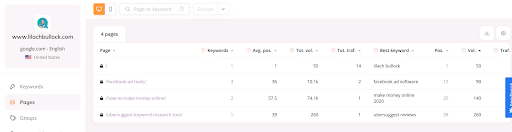
With this, you can identify the most important pages on your website.
At the top of the page, there are details such as position changes, average position, traffic, and position of your pages for those keywords. For more details about these metrics, click on the graph.
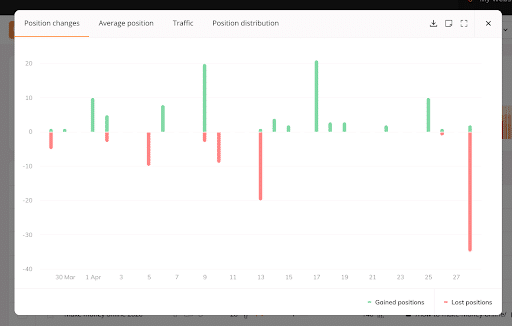
Here, you’ll see more details for the period in review. Above this graph, Wincher provides filters to gain more insights from your rank tracking.
First, you can select a different period. Did you make changes to some of your web pages? How have the changes affected your ranking for targeted keywords?
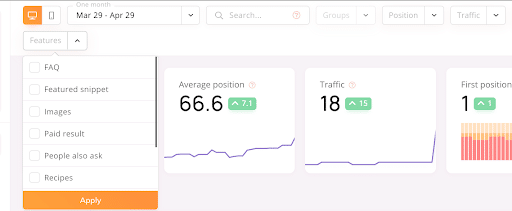
There are other filters such as position, traffic, volume, and features. Apart from desktop rank tracking, you can also see how you perform on mobile devices.
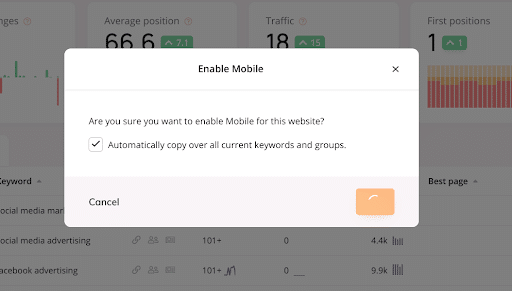
At the top of your dashboard, click on the mobile icon. This will create another website account. Fortunately, Wincher provides the option to copy your current keywords and groups to the mobile version.
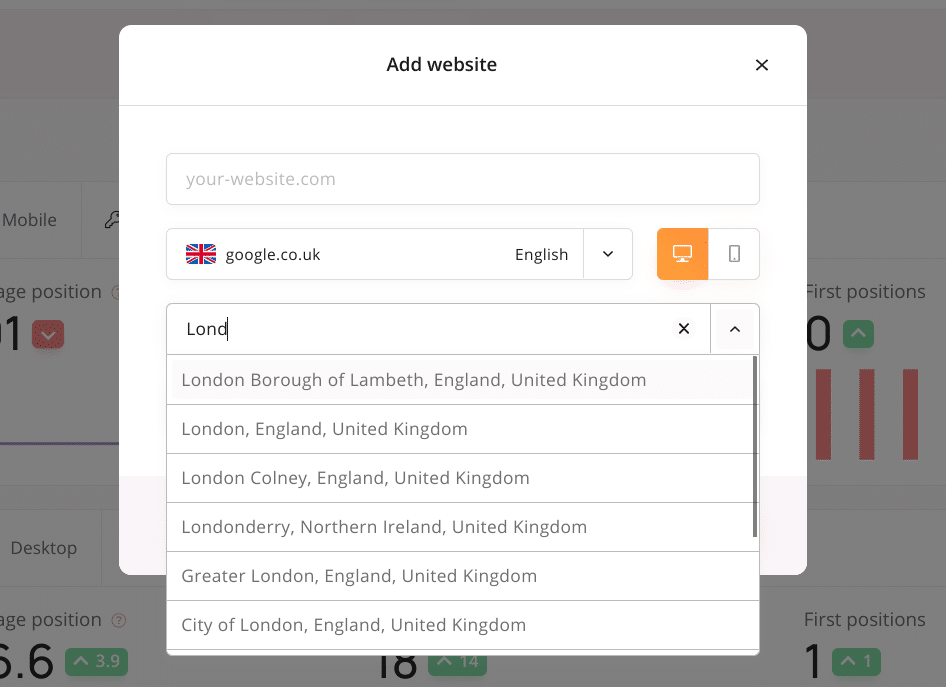
What if you run a local business? In this case, the most crucial search rankings are those of people close to your business location.
Luckily, Wincher allows you to select a smaller location for your rank tracking.
On the left sidebar of your dashboard, there are more Wincher features that we’ll consider in a moment.
Wincher projects
If you’re an SEO expert or you run a marketing agency, you need to analyze many websites for your clients. Apart from that, each client wants to run many campaigns.
Therefore, Wincher projects is a feature that makes it easy to organize your campaigns for different clients.
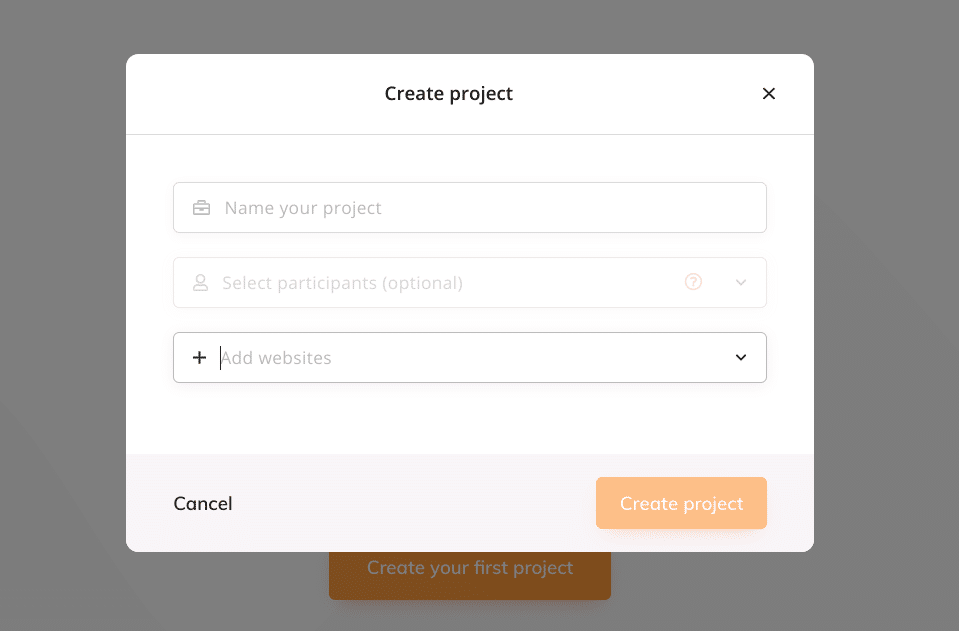
To create a project, click on “Projects” at the top right corner. Another feature you’ll love here is that you can add participants to your projects.
As a result, it’s easy to collaborate with your SEO team or clients. So, clients can access the metrics to see the progress of their campaigns and download reports.
Keyword research
To know the keywords your potential customers are searching for, you need to engage in keyword research. Click on “Keyword Research” at the left sidebar to get started.
The first set of keywords you’ll see are suggestions from Wincher based on the keywords your website already ranks for.
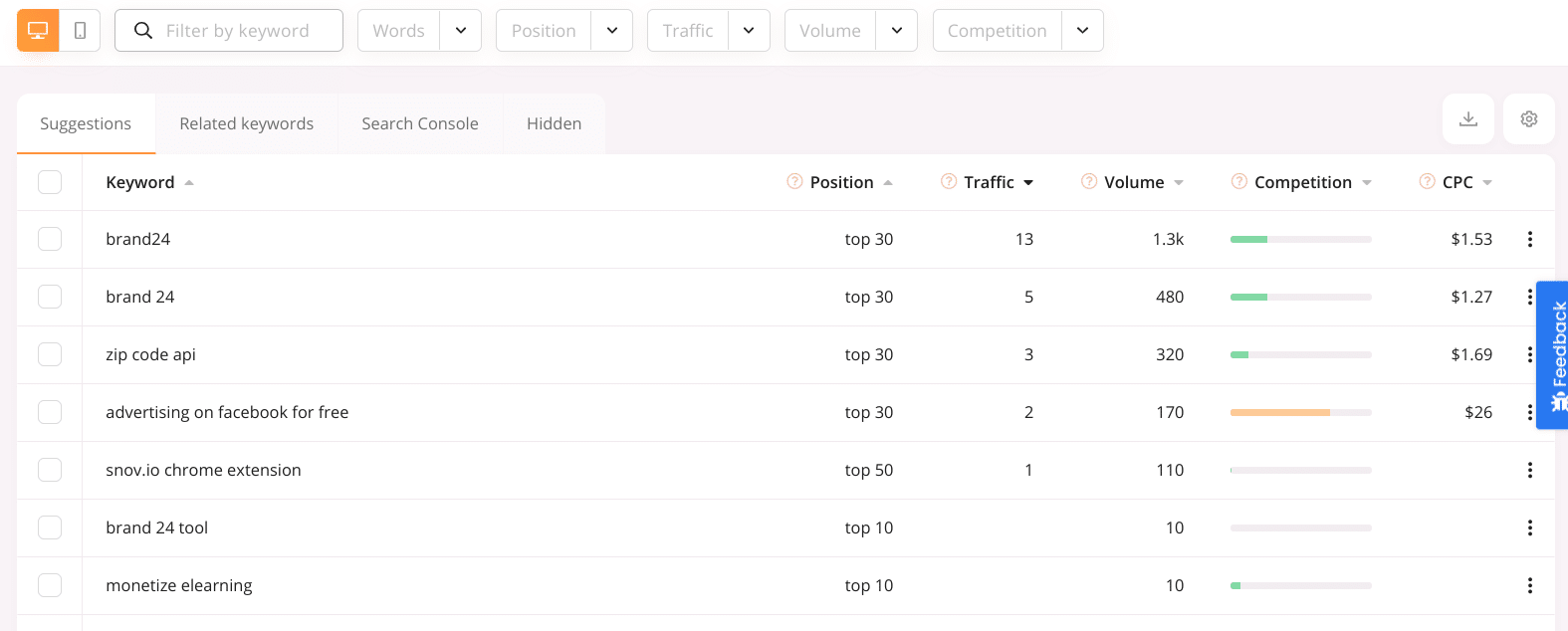
You’ll find details such as your position, traffic, and search volume. Furthermore, Wincher shows the level of competition and cost-per-click (CPC) of these keywords.
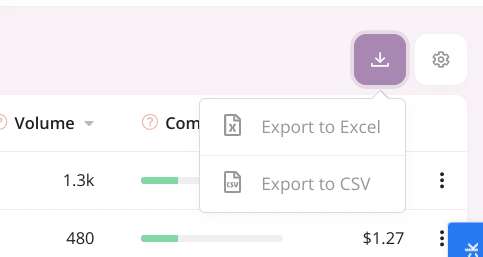
Here, you can find target keywords your website is already ranking for. If you want a permanent copy of this table for further analysis, Wincher allows you to export in CSV or Excel format.
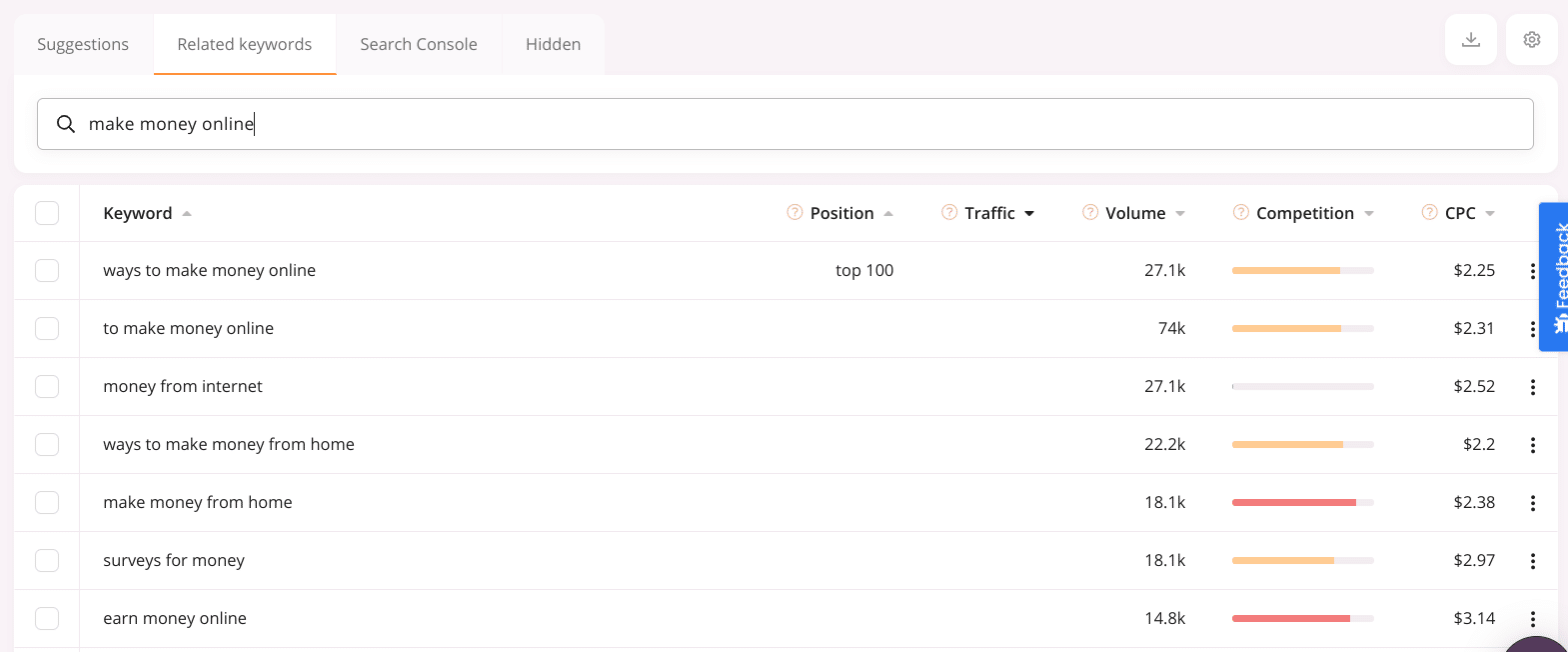
For most target keywords, you’ll find variations that searchers can also use. In fact, one of the aims of keyword research is to find keyword variations your audience uses that you don’t know.
To exploit this feature, click on the “Related Keywords” tab. Then, enter a keyword similar to one of the suggestions.
Another feature you’ll love here is the ability to connect your Google Console account to find even more keyword opportunities. In some cases, there are keywords your website ranks for that are irrelevant to your marketing goals.
You can hide these keywords by clicking on the three-dotted lines on your table. On the other hand, you have the option to add a keyword suggestion to the keyword list for your website.
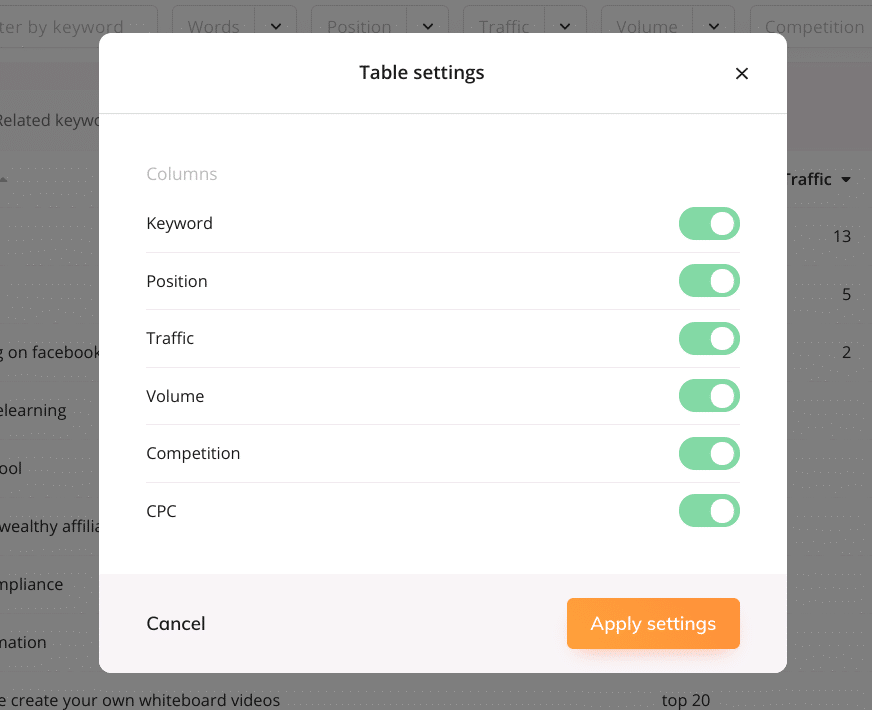
Beyond these, there are filters at the top of your page to further refine the suggestions. With the settings icon at the top right corner of the table, you can select the metrics you want to see on your table.
Want AI doing the heavy lifting in your marketing?
I build the systems that handle the boring 80 percent, so you get your week back. Done properly, with the human kept in.
If you want to see keyword suggestions for mobile search, click on the mobile icon at the top of your page. When I do that, the keyword suggestions are different. This can provide insights into how you optimize your web pages for some keywords.
Competitive analysis
Frankly, no SEO expert has all the knowledge about a business’s search rankings. Sometimes, you have to look at your competitors and see what they’re doing.
There are two expected benefits of this. First, you can find what they’re doing better and use that insight to improve your SEO campaigns. Second, you can see where they’re underperforming and consolidate your lead.
For your website keyword list, Wincher allows you to compare your performance with that of your competitors. To access this feature, click on “Competitors” at the left sidebar.
Once you get to the page, click “Add competitor” at the top right corner.
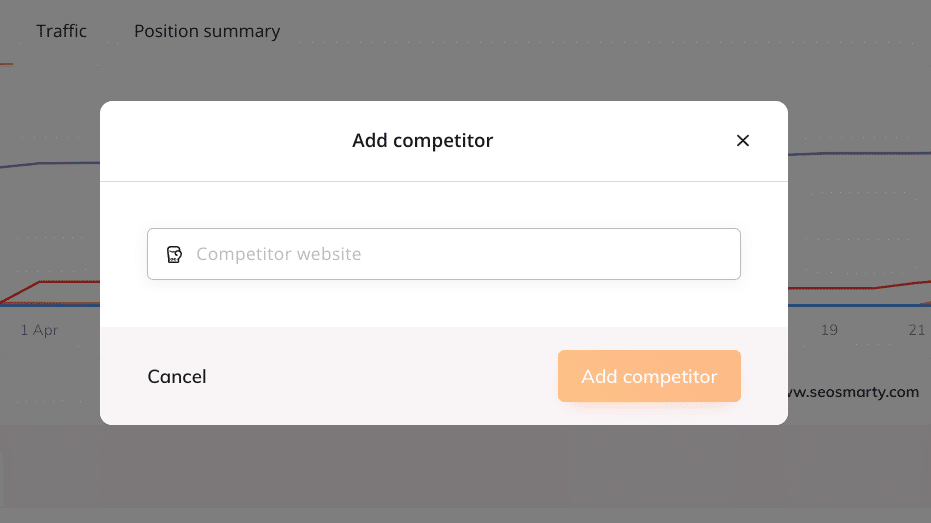
This will trigger a popup where you can enter the competitor’s URL. Here, it's easy to add a few websites that compete with you for your target keywords. After adding your competitors, you’ll see graphs and tables that show how you compare with them.
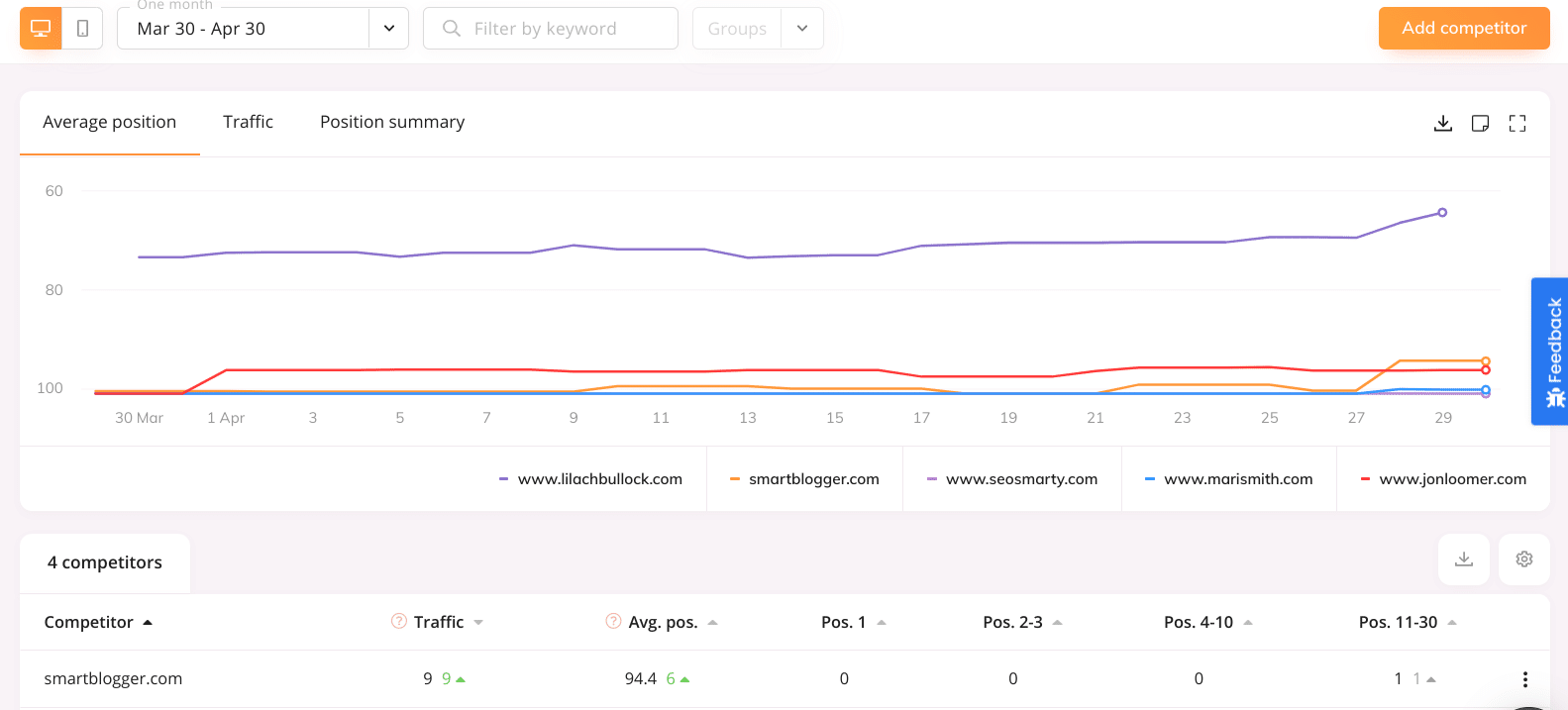
Apart from adding competitors here, you can also create a separate profile for those competitors’ websites. This way, you can perform more analysis on your competitors.
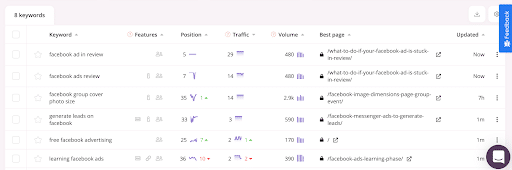
Consequently, you can find more keyword opportunities. For instance, when I add Jon Loomer’s website to my website list, here are some of the top keywords his website ranks for:
By performing competitive analysis, you have access to insights that you may miss on your own. You can check your rankings for free right now!
Wincher reports
While tracking your search rankings, you always want to see your progress over time. In some other cases, you want to present your results to your boss or clients.
This is why being able to create detailed and well-designed reports is vital. Fortunately, Wincher allows you to schedule reports according to your preferred time interval.
To create your reports, click on “Reports” at the left sidebar. Then, click “Create report” on the page.
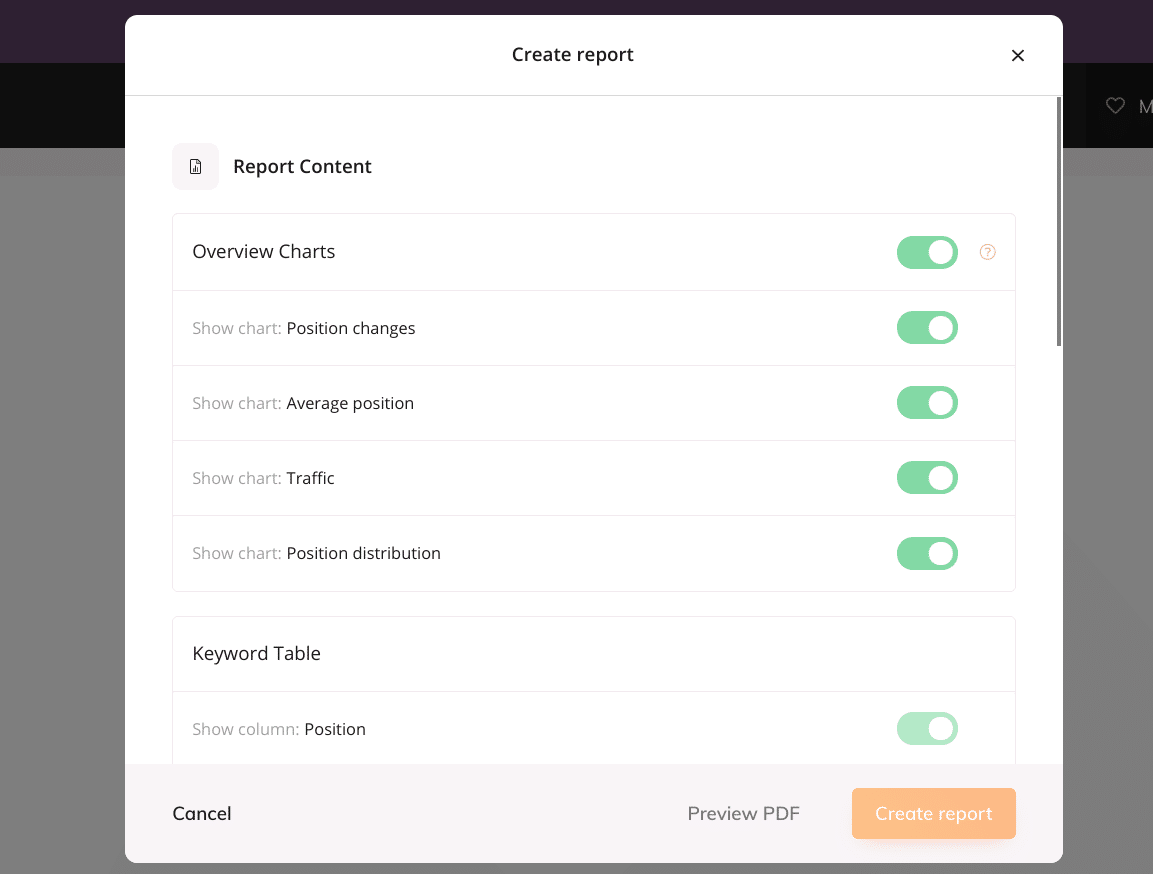
This launches a popup where you can set up your reports. First, you can display an overview chart and show various metrics on it.
Beyond that, Wincher allows you to display details about your keywords on the keyword table. In the report settings, you can enter the recipient’s email address, interval, and data period.
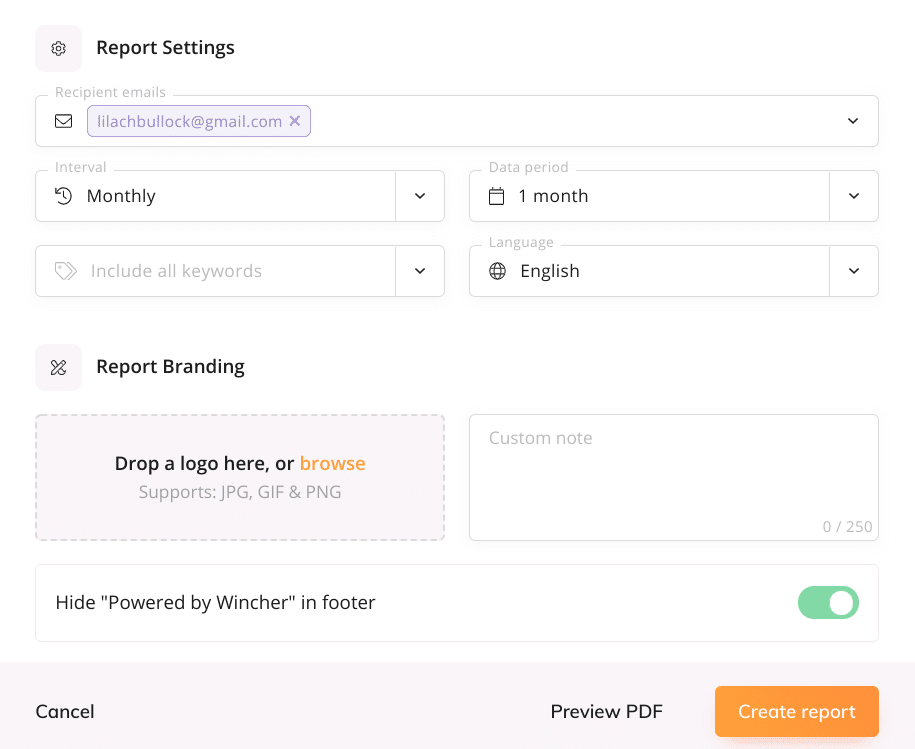
The “Report Branding” feature allows you to add your marketing agency’s or client’s logo and a custom note. When you’re done with your settings, you can preview the report in PDF before you finally click on “Create report.”
Wincher annotations
With SEO, you’re always taking steps to improve your rankings. What steps are you taking, and how do they affect your rankings?
Wincher annotations are an easy way to note the actions you’re taking to improve your rankings. Over time, you can see the effects of these actions.
To make an annotation, click on “Annotations” at the left sidebar.
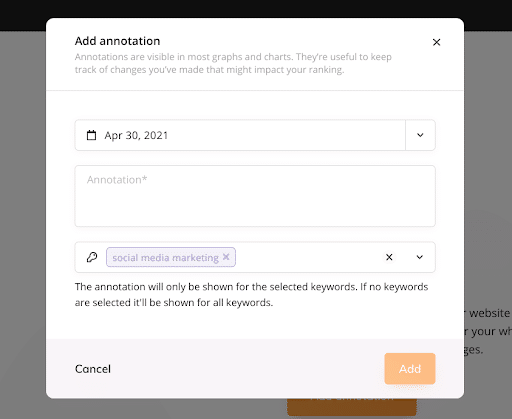
You have the option to make annotations for all keywords, a few keywords, or just one. Once you input your annotation, click on “Add” to finish.
Wincher accounts
There are many actions to take in your Wincher account. These include your profile, plan and billing, managing users, and more.
You can access these options by clicking on the drop-down at the top right corner.
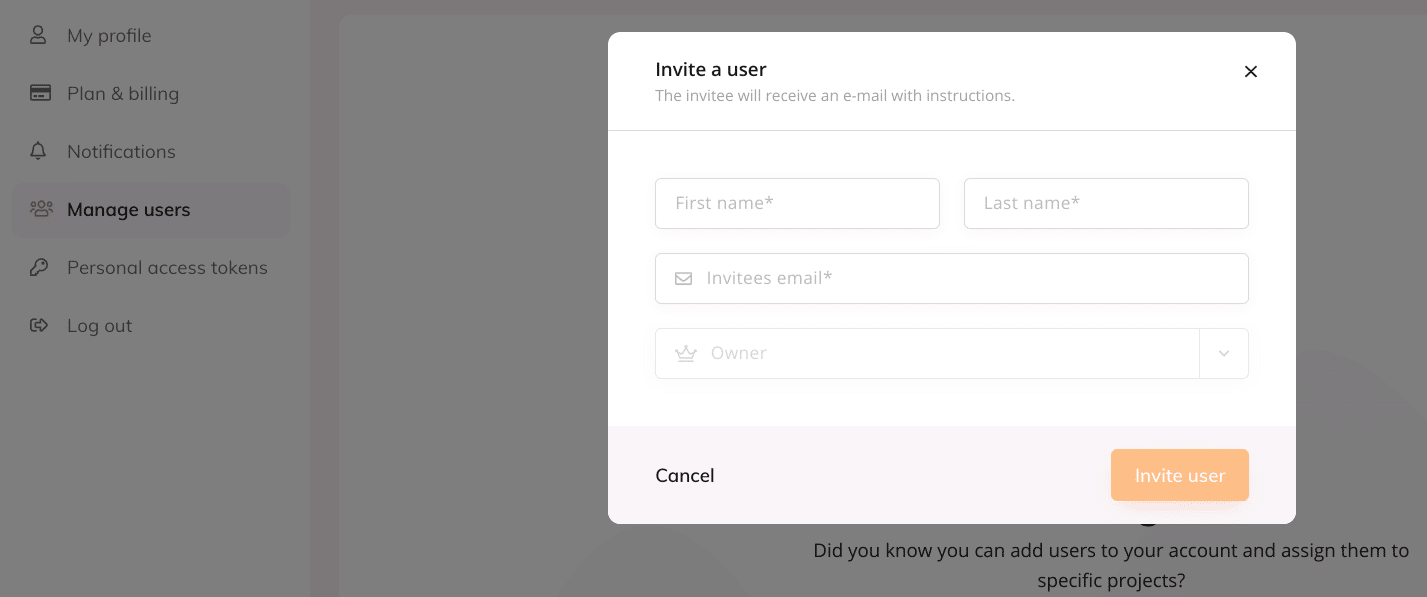
For instance, you can improve collaboration by adding users to different projects. Beyond that, you can also set up notifications so that you’ll get alerts when new events occur in your search rankings.
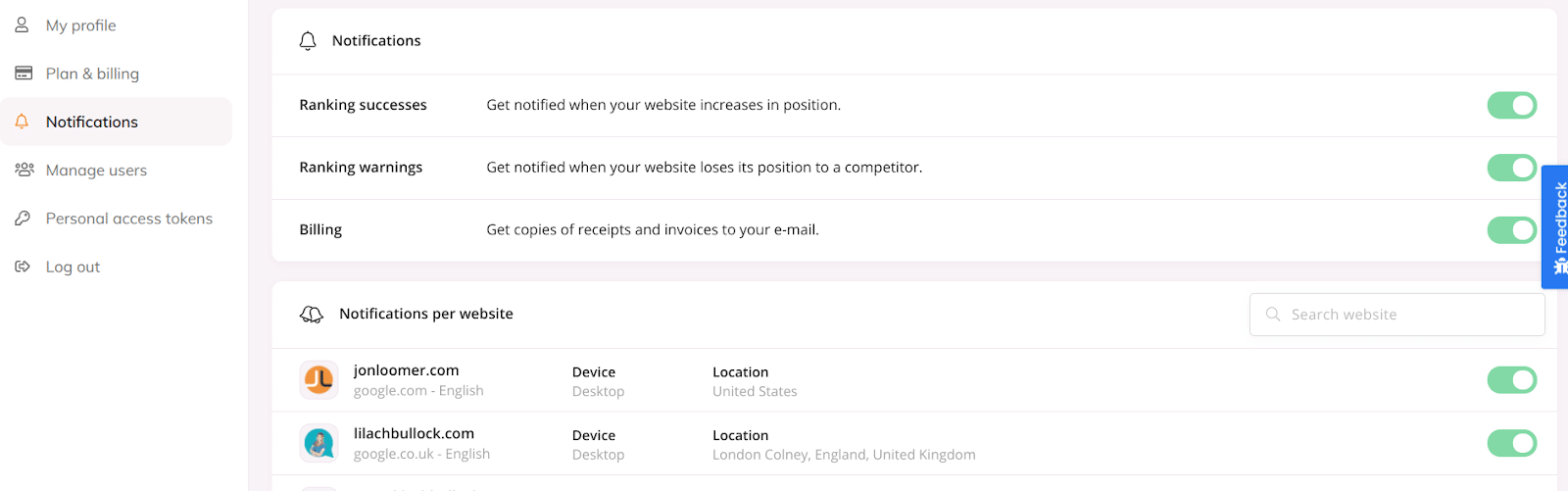
With notifications, you can ensure you miss nothing even if you don’t log in to your Wincher account.
Customer support
Even though Wincher is an easy-to-use tool, you can still have questions, just like every other tool. Wincher provides customer support through two channels including:
- Live chat
Beyond these two, Wincher also provides information about different metrics in the tool.
Therefore, you’ll understand how those metrics work without having to contact customer support.
Wincher pricing
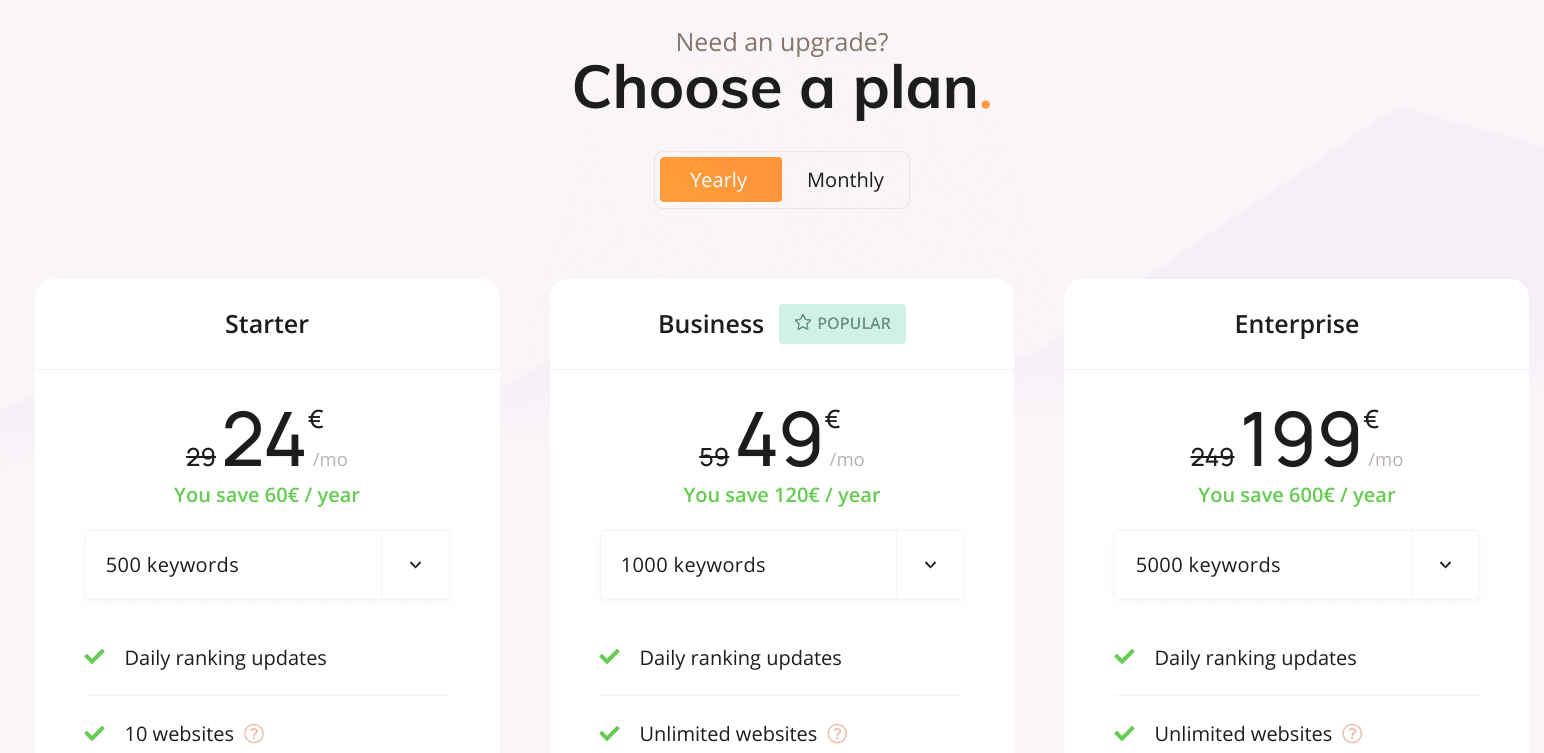
How much does it cost to perform keyword research and rank tracking on Wincher? Well, it depends on your needs. There are 3 Wincher pricing plans which include:
- Starter: this plan allows you to monitor 500 keywords, 10 websites, get daily ranking updates, and have multiple users. The starter plan costs €29 monthly or €24 if you pay annually.
- Business: the business plan allows you to track up to 4,000 keywords, unlimited websites, access white-labeled reports, on-demand ranking updates, and API. The plan starts at €59 (€49 on an annual plan) and can go up to €199 (or €165) depending on the number of keywords you want to track.
- Enterprise: with the enterprise plan, you also have access to external users, project permissions, and priority support. The plan starts at €249 (€199 if paid annually) if you’re tracking 5,000 keywords and €449 (or €374) if you’re tracking 10,000 keywords.
Luckily, Wincher provides a 14-day free trial. So, you can give it a test run before committing. Try Wincher now to see its capabilities. (Use LBULLOCK to get 20% discount!)
To track how AI tools talk about you, I compare the best GEO and AEO tools.
Conclusion
To be honest, Wincher won’t give you the data you’ll get from some advanced SEO tools. But those tools cost at least 10 times what you’ll pay for Wincher.
If you’re looking for a cost-effective and easy-to-use tool to perform keyword research, competitive analysis, and keyword rank tracking, then Wincher is a tool you should definitely consider. (Use LBULLOCK to get 20% discount!)
Related reading: How to Import and Track Keywords Using Rank Tracking Software and The Evolution of Keyword Tracking in Modern SEO.
Bottom line: Wincher is a straightforward keyword rank tracking tool built for marketers who want quick, clear insight into how their pages perform in search without wading through a bloated interface. It won't replace a full SEO suite, but for tracking keyword positions and spotting trends over time, it does the job well and affordably.
For the full guide on this topic, see how to export ranking data from wincher.
Wincher pricing, plans and login: the short version
Wincher sells three plans that differ mainly by how many keywords you track and how many websites you can add; every plan tracks daily, includes the competitor view and the reporting exports covered above, and there is a free trial with no card needed. The exact amounts change with promotions and currency, so check the plans page inside the app rather than a screenshot on a blog. To log in, go to the Wincher website and use the account button in the top right; the same login works for the browser extension and the mobile view.
Frequently asked questions
Is Wincher worth paying for?
If keyword rank tracking is your main need, yes. It's priced competitively compared to bigger all-in-one SEO platforms and focuses on doing one thing well rather than spreading itself thin across features you may never touch.
How accurate is Wincher's rank tracking?
In my experience the data lines up closely with what I see in Google Search Console and other trackers. No tool is perfect since rankings shift constantly, but Wincher's updates have been consistent and reliable enough to base decisions on.
Does Wincher work well for agencies managing multiple clients?
It can, especially for smaller agencies or freelancers who need clean reporting without a steep learning curve. Larger agencies juggling dozens of clients might want more advanced white-label and bulk reporting options first.
What's missing from Wincher compared to bigger SEO tools?
Don't expect built-in backlink analysis, technical audits, or content optimization features. Wincher stays focused on rank tracking, so you'll likely need to pair it with another tool if you want a complete SEO picture.
Wincher Review + How-To Guide: Free Plan, Setup, Pricing (2026)
The one-minute answer: Wincher is a daily-updating keyword rank tracker. You give it your domain and your keyword list, it checks your Google positions every day, shows movement over time, and lets you export the lot. It is built for people who want accurate daily tracking without a heavyweight SEO suite around it. Setup takes about ten minutes, and the how-to below covers setup, tracking, competitors and exports step by step.
Worth reading next: How to Combine Rank Tracking Data With Your Core Content Plan.
Wincher review, · try Wincher for free · Wincher · keywords · Wincher · search rankings · Keyword Research · Wincher · SEO campaigns · check your rankings for free · Wincher · Wincher · Wincher · Try Wincher now · Wincher